
Scott Gu, had a cool CreateUserWizard control sample that I have expanded upon to build-up a sample that demonstrates how to build a fairly common user management, roles and personalization system in ASP.NET 2.0 that does this. I was pleasantly surprised to find it only took about 25 lines of C# code in the entire app. J
The sample comes with 6 pages:
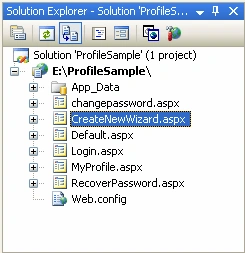
Specifically it supports:
- Login support to enable registered users to login to the web app using forms auth and the new membership system (login.aspx)
- Registration support to enable visitors to create and register new users in the membership system (CreateNewWizard.aspx)
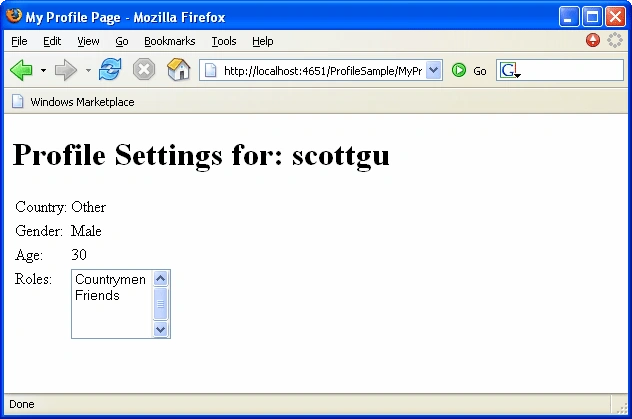
- Profile support that enables the site to gather information about the user on registration, and for the users to see that information on a profile page (MyProfile.aspx).
- Change Password support to enable registered users to change their password in the membership system (ChangePassword.aspx)
- Password Recovery support to enable users to reset their password if they forgot them (RecoverPassword.aspx)
Implementation Notes on CreateNewWizard.aspx and MyProfile.aspx:
Only two of the above pages (CreateNewWizard.aspx and MyProfile.aspx) have code in them. The others use the built-in Login controls in V2 to-do everything (asp:login, asp:passwordrecovery, asp:changepassword).
CreateNewWizard.aspx is the most interesting page. It uses the built-in <asp:createuserwizard> server control to-do most of the heavy lifting and has two templated wizard steps defined within the wizard:
<asp:createuserwizard> wizard step 1: gathering user-account data
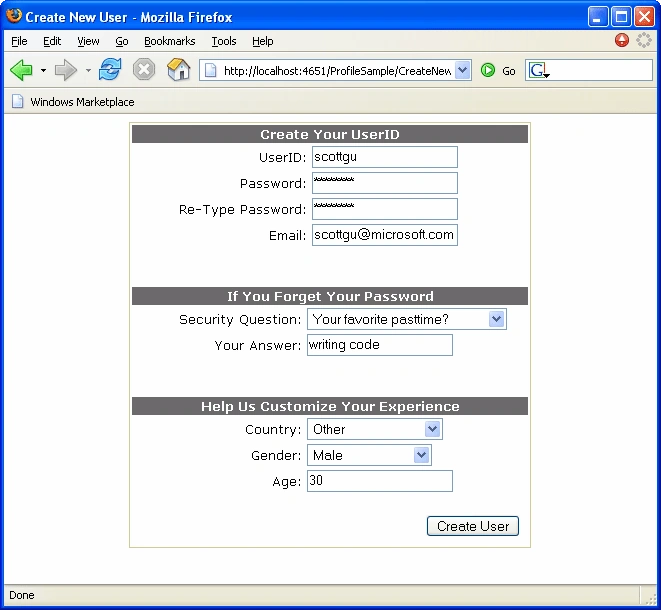
The <asp:createuserwizard> control handles gathering up the user-account, email, password, and password recovery/answer data and then calling into the ASP.NET 2.0 membership system to register the new user. You simply have to override the control's <createuserwizardstep> template and customize the control layout to have things look how you want.
The sample is using the ASP.NET validation controls to perform client-side validation on the inputs as well within the template (example: making sure passwords match, the age is a valid integer, etc). One added benefit in ASP.NET 2.0 is that these validation controls now support client-side validation for FireFox and other modern browsers (note: all screenshots were done using FireFox).
There are then three additional properties (their country, gender and age) that I wanted to gather up about the new user as part of the registration process. Doing this was pretty easy using the new ASP.NET 2.0 Profile system - simply add their definitions within the <profile> tag of the web.config file to register them and store their values in the new profile system:
<profile enabled="true">
<properties>
<add name="Country" type="string"/>
<add name="Gender" type="string"/>
<add name="Age" type="Int32"/>
</properties>
</profile>
I then handled the "CreatedUser" event on the CreateUserWizard control within my CreateNewWizard.aspx.cs code-behind file to retrieve the values from the controls within the CreateUserWizard control template and set them in the profile store:
// CreatedUser event is called when a new user is successfully created
public void CreateUserWizard1_CreatedUser(object sender, EventArgs e) {
// Create an empty Profile for the newly created user
ProfileCommon p = (ProfileCommon) ProfileCommon.Create(CreateUserWizard1.UserName, true);
// Populate some Profile properties off of the create user wizard
p.Country = ((DropDownList)CreateUserWizard1.CreateUserStep.ContentTemplateContainer.FindControl("Country")).SelectedValue;
p.Gender = ((DropDownList)CreateUserWizard1.CreateUserStep.ContentTemplateContainer.FindControl("Gender")).SelectedValue;
p.Age = Int32.Parse(((TextBox)CreateUserWizard1.CreateUserStep.ContentTemplateContainer.FindControl("Age")).Text);
// Save profile - must be done since we explicitly created it
p.Save();
}
Because the user is being created as part of this step, I explicitly choose to create a new Profile object in code (note that I was passing in the CreatedUserWizard1.UserName property as the username - since the user isn't logged into the system yet). I then accessed the controls within the template of the <asp:createuserwizard> control, pulled out their values, and stuck them within the newly created profile. Calling p.save at the end registered this profile with the new username. (note: I'll walk through how we use this profile data later in a page below).
<asp:createuserwizard> wizard step 2: picking roles
After the user fills out the first step of registration information and clicks the next button, the user is created, the CreatedUser event fires, and we fill in the appropriate information about the user into the profile store.
The <asp:createuserwizard> control then displays the second step template we've defined. This template lists all of the roles currently created in the ASP.NET Role Management system, and allows the user to select which roles they belong to:
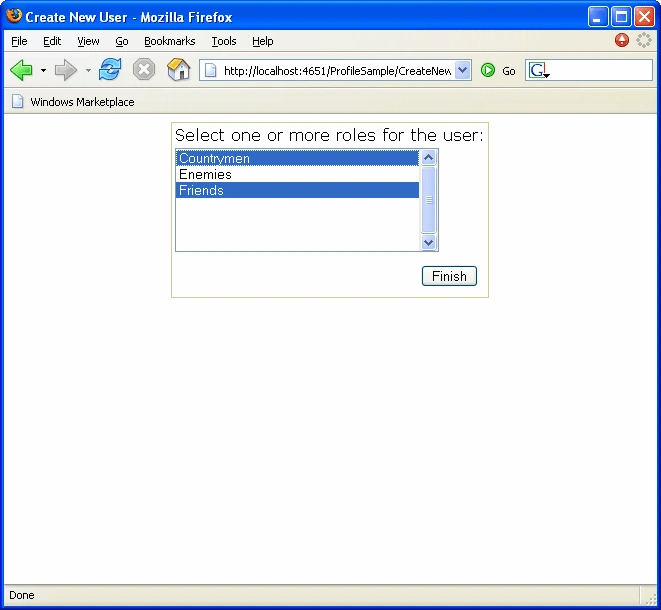
Note that you'd typically never assign roles to an end-user this way (instead you'd add your own logic to somehow calculate which role they belong in), but I thought this scenario was cool nonetheless which is why it works like the sample above.
Join the conversation! Your thoughts help the community grow.