
Developing some web site we often should use some control in the GridView control. In this case we have to create the GridView control with TemplateField columns and use some special methods to access needed data. Inside the GridView control we can use both standard server controls (such as DropDownList , etc.) and our own controls. In this article I will show how a web user control can be used in the GridView control. As example we will use our old friend : the ListBoxesFT_C control.
We will use our WebSites_Test solution . To the WF_ListBoxes.aspx we will add the GridView control.
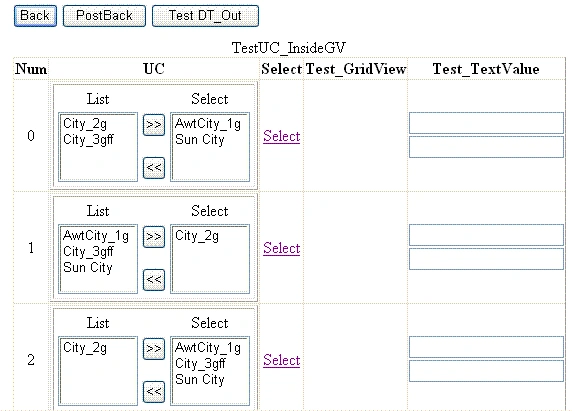
Our GridView control, named just "GridView1", has caption "TestUC_InsideGV" and consists of five columns.
The first one is "the type of" the BoundField and contains some "Identity number"; the HeaderText property of this column is "Num".
The second column is the TemplateField and contains our ListBoxesFT_C control with Id = "ListBoxesFT_C2"; the HeaderText property of this column is "UC".
The third column is the ComandField (the select column) and allows to check out the "out data" of the selected row of the GridView1 control; the HeaderText property of this column is "Select".
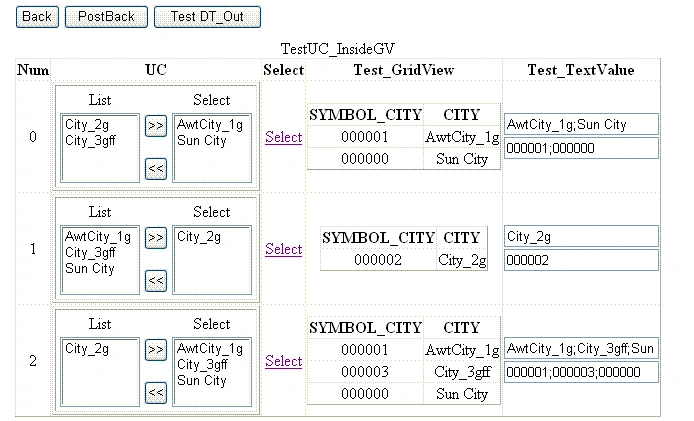
The fourth column is the TemplateField and contains GridView control with Id = "GridView_Inside", which allows to display the C_DataOut property of the ListBoxesFT_C2 for selected row; the HeaderText property of this column is "Test_GridView".
The fifth column is the TemplateField and contains two TextBox controls with Id="TextBox_Text" and Id="TextBox_Value", which allow to display the C_DataOut property as text and value; the HeaderText property of this column is "Test_TextValue".
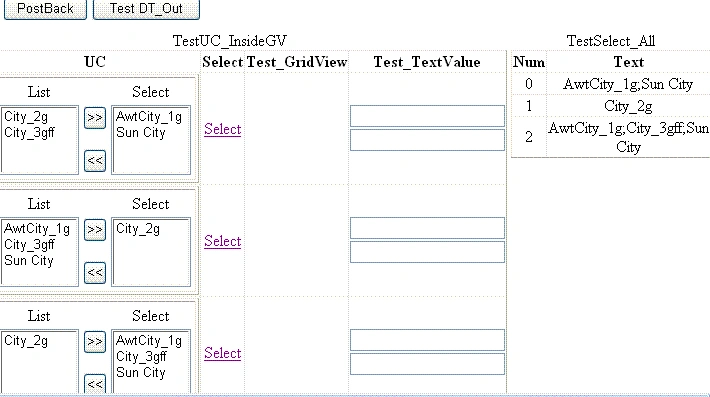
We also will use our GridViewTestDT_Out (with the caption "TestSelect_All") to display all selected value and text according to "Num" column; we will do that with the help of the ButtonTestDTOut button click.
For our task we don't need the ListBoxesFT_C1 control and we just change the Visible property to "false".
The design of the WF_ListBoxes.aspx is looked now like this ( fig. 1).
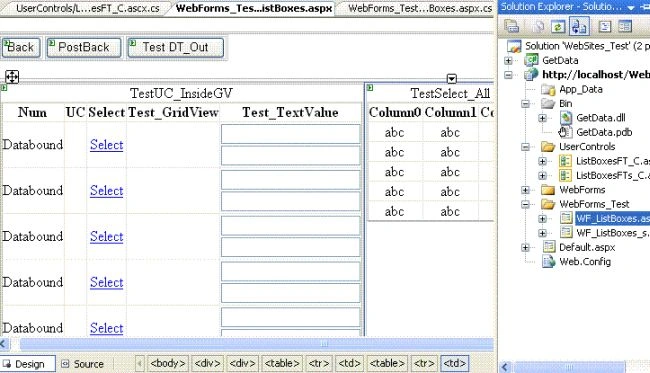
Figure 1.
The source code for GridView1 is following:
<asp:GridView ID="GridView1" runat="server"
AutoGenerateColumns="False"
OnSelectedIndexChanged="GridView1_SelectedIndexChanged"
Caption="TestUC_InsideGV">
<Columns>
<asp:BoundField DataField="Num" HeaderText="Num" />
<asp:TemplateField HeaderText="UC">
<ItemTemplate >
<uc1:ListBoxesFT_C ID="ListBoxesFT_C2"
runat="server" C_HeightLB ="70" C_WidthLB ="80"
C_Client= "false"
C_DataIn ='<%# getDT_ForTemplate()%>'/>
</ItemTemplate>
</asp:TemplateField>
<asp:CommandField ShowSelectButton="True" HeaderText="Select"/>
<asp:TemplateField HeaderText="Test_GridView">
<ItemTemplate >
<asp:GridView ID="GridView_Inside" runat="server" >
</asp:GridView>
</ItemTemplate>
</asp:TemplateField>
<asp:TemplateField HeaderText="Test_TextValue">
<ItemTemplate >
<asp:TextBox ID="TextBox_Text" runat="server" >
</asp:TextBox>
<asp:TextBox ID="TextBox_Value" runat="server" >
</asp:TextBox>
</ItemTemplate>
</asp:TemplateField>
</Columns>
</asp:GridView>
As you can see we set the property C_DataIn of the ListBoxesFT_C2 control to some value with the help of the getDT_ForTemplate() method.
Now we have to add some code to the WebForms_Test_WF_ListBoxes partial class.
First of all add protected method getDT_ForTemplate where we use one of our old friends GetData.GetDataHelp (of course, you can use your own source to get and return a DataTable ):
protected DataTable getDT_ForTemplate()
{
GetData.GetDataHelp getData = new GetData.GetDataHelp();
return (getData.getDataSetCities(4).Tables[0]);
}
In order to fill column "Num" add to the protected void Page_Load method the following code:
GetData.GetDataHelp getData_GV = new GetData.GetDataHelp();
if (!IsPostBack)
{
GridView1.DataSource = getData_GV.getDataSetNum(3).Tables[0];
GridView1.DataBind();
}
Here I use the method (getDataSetNum), that just returns numbers as DataSet (again, you can use your own source):
//The method getDataSetNum that returns dataSet with
//one dataTable "DataTableNum". The dataTable consists of
//one column : "Num" .
//The dataTable is filled with the help of
//the "for" loop; the number of the rows is input parameter.
//
public DataSet getDataSetNum(int iRows)
{
DataTable dt = new DataTable("DataTableNum");
DataColumn dc_Num;
DataRow dRow;
DataSet ds = new DataSet();
ds.Clear();
Join the conversation! Your thoughts help the community grow.