

Introduction
In this article we are going to explore how to use the Coding4Fun ColorPicker control in Windows Phone 7. Further in details we will discuss how to work with the ColorPicker control of C4F in Windows Phone 7. In this article we are going to talk about the new ColorPicker control from the free C4F toolkit in details. Here in this scenario we will explain everything about the main features, available public API, and will provide many examples in various scenarios. In this section we see that basically the ColorPicker is an UI component that displays a range of colors in a color space. Whereas another thing is that It consists of a ColorPicker element as well as multiple Rectangle/Ellipse elements. As its name implies it is a kind of extended picker that shows the selected color via its Color property. In this article we will see only a demonstration from which we can learn each and every thing about these controls, so to implement this you have to follow the steps given below, but before starting you have to see my previous article to download these assemblies. Now let's have a look at the properties these controls contain.
Properties
Here we will discuss the properties of the ColorPicker control. So we have some properties as described below which are Color, SolidColorBrush as well. ColorPicker exposes the following public properties which is given below.
- Color This is a dependency property of type Color. It determines the current selected Color of the ColorPicker control.
- SolidColorBrush This is a dependency property of type SolidColorBrush. It determines the current SolidColorBrush color of the ColorPicker control.
Event
Here we will discuss the event of the ColorPicker control which is an individual event given below.
- ColorChanged It's also an individual event of ColorPicker which occurs when the selected color has changed.
Step 1: In this step first of all we have to open a Windows Phone application; the following describes how to open it:
- Go to Visual Studio 2010
- File->New->Project
- Select the template named as Silverlight for Windows Phone
- Select the Windows Phone application
- Give it a name as you want.


Step 2: Now in this step first of all we have to add the assemblies reference to the Windows Phone application let's see how to add it:


Step 3: In this step you will see that we have to write the code inside the MainPage.xaml file for the "c4f" prefix declaration. Make sure that your page declaration includes the "c4fToolkit" namespace.
Code: xmlns:controls="clr-namespace:Coding4Fun.Phone.Controls.Toolkit;assembly=Coding4Fun.Phone.Controls.Toolkit" >
Step 4: In this step you will see that in this example I demonstrate how to use the ColorPicker in the easiest way which is given below.
Code:
<StackPanel>
<c4fToolkit:ColorPicker x:Name="colorpicker" Height="50" Width="233" />
</StackPanel>
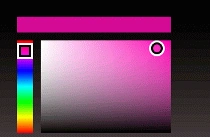
Step 5: In this step I will demonstrate how to bind the ColorPicker selected Color to a Rectangle Fill property using ElementBinding which is given below.
Code:
<c4fToolkit:ColorPicker x:Name="picker" Height="176" Width="233" ColorChanged="picker_ColorChanged" />
<TextBlock Text="ColorPicker Color Binding:" FontFamily="Comic Sans MS" FontSize="32" />
<StackPanel Orientation="Horizontal">
<Rectangle Height="26" Width="253" Fill="{Binding ElementName=picker, Path=SolidColorBrush}" Margin="0,0,20,0"/>
<Rectangle Height="50" Width="50" x:Name="ColorRect"/>
</StackPanel>

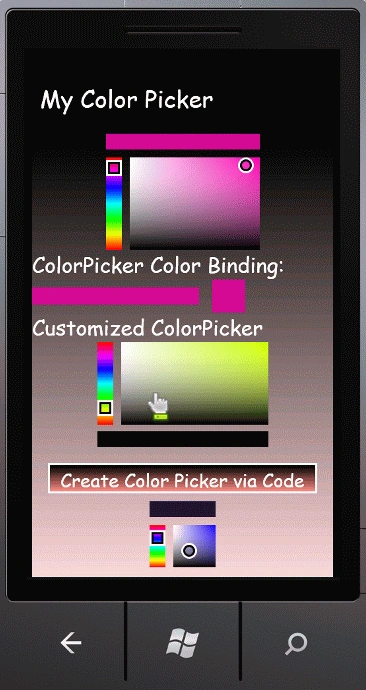
Step 6: In this step we will see how to create a ColorPicker programmatically which is given below.
Code:
private void button1_Click(object sender, RoutedEventArgs e)
{
ColorPicker Mypicker = new ColorPicker();
Mypicker.Height = 100;
Mypicker.Width = 100;
this.ContentPanel.Children.Add(Mypicker);
}

Step 7: In this step we will see the code for the MainPage.xaml.cs file which is given below.
Code:
using System;
using System.Collections.Generic;
using System.Linq;
using System.Net;
using System.Windows;
using System.Windows.Controls;
using System.Windows.Documents;
using System.Windows.Input;
using System.Windows.Media;
using System.Windows.Media.Animation;
using System.Windows.Shapes;
using Microsoft.Phone.Controls;
using Coding4Fun.Phone.Controls;
namespace Mycolorpicker
{
public partial class MainPage : PhoneApplicationPage
{
// Constructor
public MainPage()
{
InitializeComponent();
}
private void picker_ColorChanged(object sender, Color color)
{
this.ColorRect.Fill = new SolidColorBrush(color);
}
private void button1_Click(object sender, RoutedEventArgs e)
{
ColorPicker Mypicker = new ColorPicker();
Mypicker.Height = 100;
Mypicker.Width = 100;
this.ContentPanel.Children.Add(Mypicker);
}
}
}
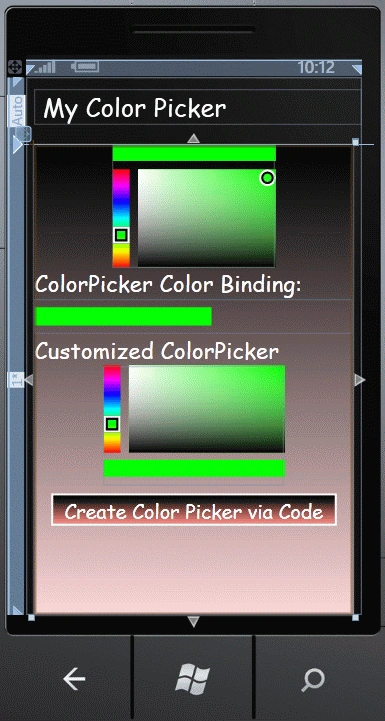
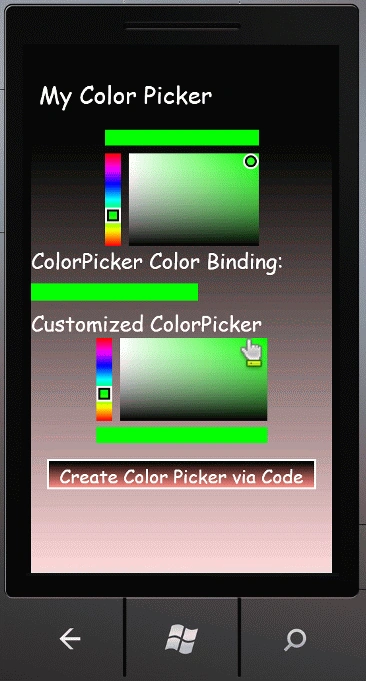
Step 8: In this step we will see the code for the MainPage.xaml file which is given below.
Code:
<phone:PhoneApplicationPage
x:Class="Mycolorpicker.MainPage"
xmlns="http://schemas.microsoft.com/winfx/2006/xaml/presentation"
xmlns:x="http://schemas.microsoft.com/winfx/2006/xaml"
xmlns:phone="clr-namespace:Microsoft.Phone.Controls;assembly=Microsoft.Phone"
xmlns:shell="clr-namespace:Microsoft.Phone.Shell;assembly=Microsoft.Phone"
xmlns:d="http://schemas.microsoft.com/expression/blend/2008"
xmlns:mc="http://schemas.openxmlformats.org/markup-compatibility/2006"
xmlns:c4fToolkit="clr-namespace:Coding4Fun.Phone.Controls;assembly=Coding4Fun.Phone.Controls"
mc:Ignorable="d" d:DesignWidth="480" d:DesignHeight="768"
FontFamily="{StaticResource PhoneFontFamilyNormal}"
FontSize="{StaticResource PhoneFontSizeNormal}"
Foreground="{StaticResource PhoneForegroundBrush}"
SupportedOrientations="Portrait" Orientation="Portrait"
shell:SystemTray.IsVisible="True">
<phone:PhoneApplicationPage.Resources>
<Style TargetType="c4fToolkit:ColorPicker" x:Key="customStyle">
<Setter Property="Template">
<Setter.Value>
<ControlTemplate TargetType="c4fToolkit:ColorPicker">
<Grid>
<Grid.ColumnDefinitions>
<ColumnDefinition Width="Auto" />
<ColumnDefinition Width="*" />
</Grid.ColumnDefinitions>
<Grid.RowDefinitions>
<RowDefinition Height="Auto" />
<RowDefinition Height="*" />
<RowDefinition Height="Auto" />
</Grid.RowDefinitions>
<c4fToolkit:ColorSlider Width="24" Margin="0,0,12,0" IsColorVisible="false" x:Name="ColorSlider" Grid.Row="1"/>

Ummarah MughalPosted Aug 2, 2014, 4:56 PM
i need same color picker slider for windows store app