

When people talk about Power BI, the conversation usually jumps straight to big data sources—SQL Server, Fabric, Databricks, Snowflake, APIs, you name it. But sometimes, you don’t have a data source yet. Or worse… you’re waiting on one.
That’s where Enter Data quietly saves the day.
If you’ve ever needed to:
Add a small lookup table
Create mock data for a demo
Hardcode targets, KPIs, or assumptions
Build a quick prototype without touching Excel
…then Enter Data is your best friend.
Let’s break it down properly
hat Is Enter Data in Power BI?
Enter Data is a built-in Power BI feature that lets you manually create a table directly inside Power BI Desktop—no Excel file, no database, no external connection.
Think of it as:
“Excel-lite, living permanently inside your Power BI model.”
You define:
Column names
Data values
Data types
And Power BI treats it like any other table in your model.
Where Do You Find It?
In Power BI Desktop:
Home tab → Enter data
Click it, and you’ll see a grid that looks very familiar if you’ve ever used Excel.
When Should You Use Enter Data?
Let’s be honest—this feature isn’t for large datasets. But it shines in very specific (and common) scenarios.
1. Creating Small Reference or Lookup Tables
Examples:
Regions and Region Managers
Product Categories
Business Units
KPI descriptions
Instead of creating an Excel file just for 5 rows, you can do it in seconds.
2. Adding Targets, Budgets, or Thresholds
This is a huge use case.
For example:
Monthly sales targets
SLA thresholds
Performance bands (Red / Amber / Green)
These values don’t come from a system—they come from the business. Enter Data is perfect for this.
3. Prototyping and Demos
If you’re:
Teaching Power BI
Recording a demo
Presenting a proof of concept
You don’t want to waste time wiring up data sources. Enter a few rows, build visuals, and move on.
How to Use Enter Data (Step by Step)
Click Enter data
Rename columns by double-clicking the headers
Type your values directly into the grid or paste the copied data using CTRL + V
Click Load
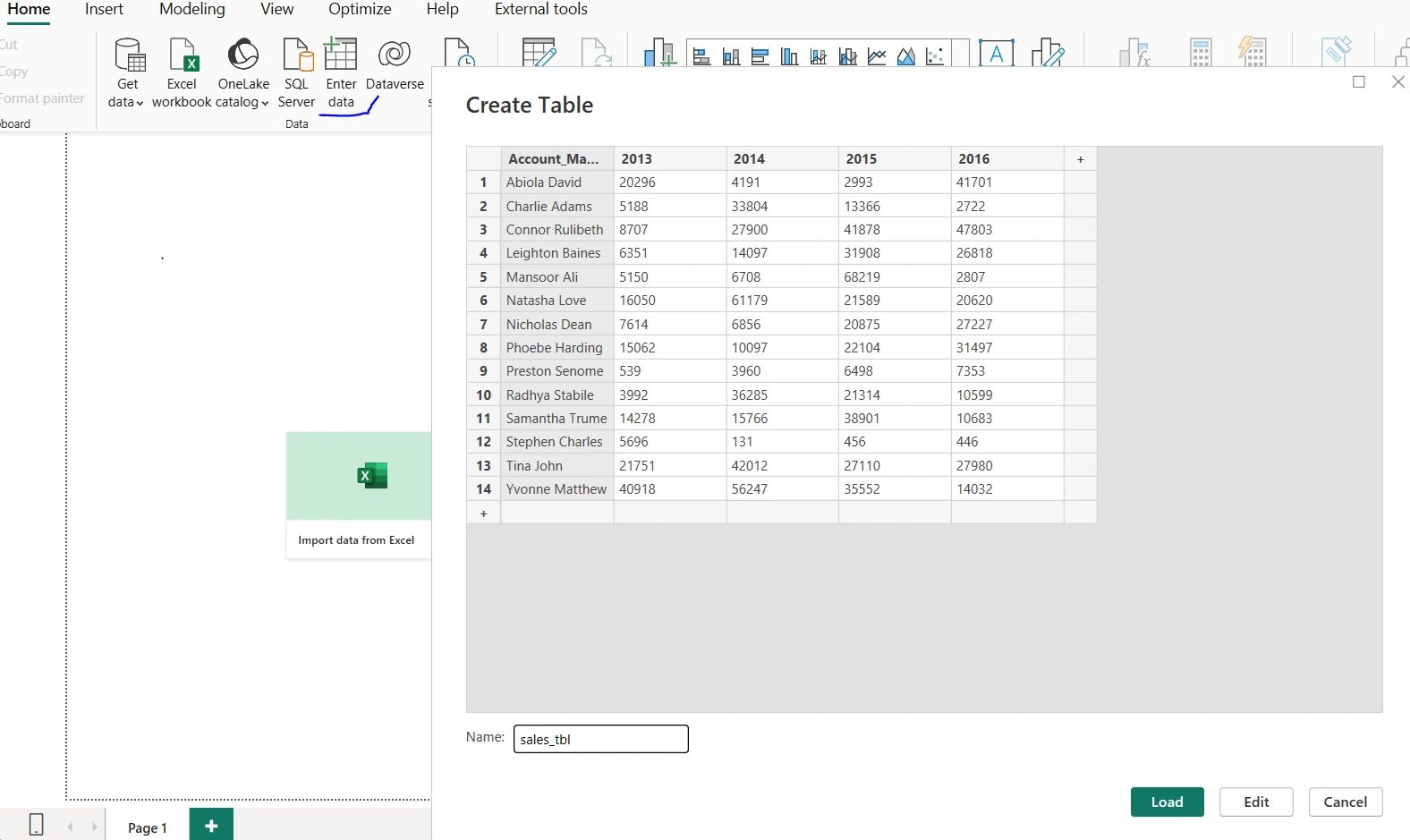
That’s it.
Power BI will:
Create a table
Add it to the model
Make it available in Power Query if you need transformations
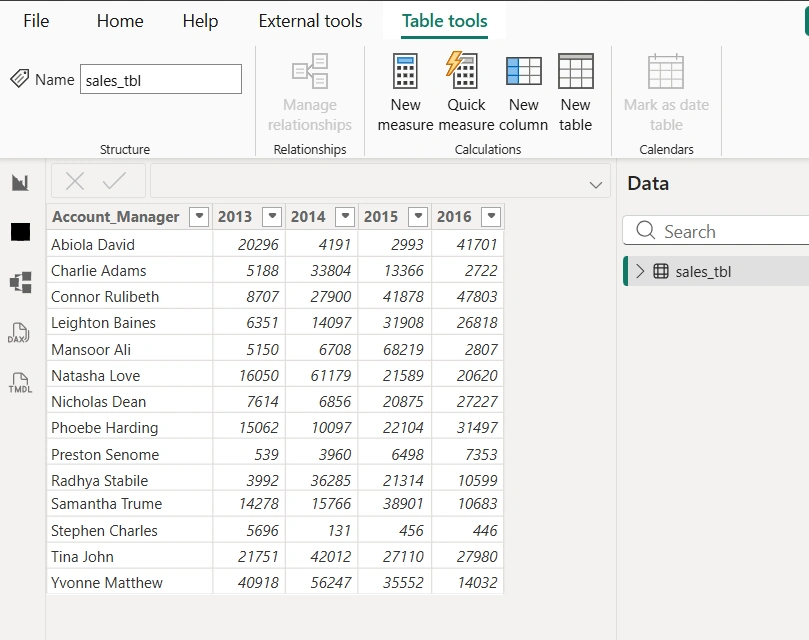
We can view the table in the table view as seen below
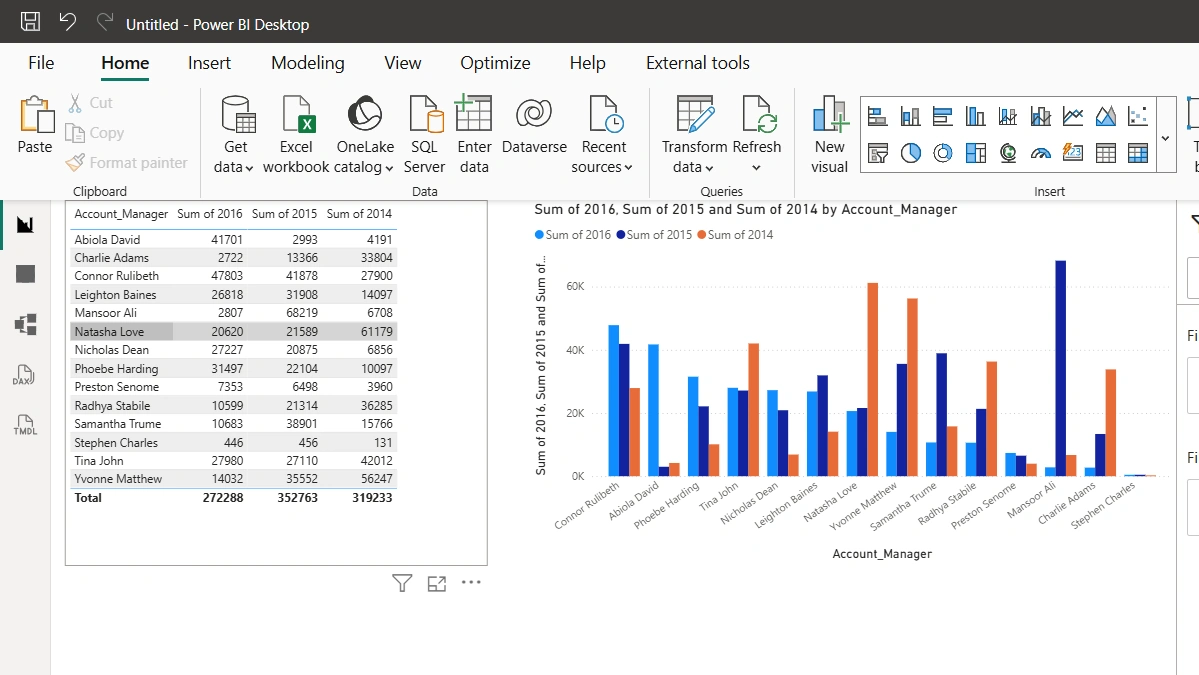
We can also visualize the data using the visuals in Power BI such as Table and Charts as seen below
Can You Edit the Data Later?
Yes—and this is important.
You can:
Go to Home → Transform data
Select the table
Edit values, rename columns, or change data types
But keep in mind:
This is manual data, not automated data.
If the values change often, this may not be the right approach.
Conclusion
Enter Data is one of those Power BI features that looks simple—but solves real-world problems elegantly.
It’s not about replacing proper data sources.
It’s about speed, flexibility, and control when you need it.
So next time you’re about to:
Open Excel
Create a tiny table
Save it somewhere random
Pause.
Enter Data might already be all you need.
Join the conversation! Your thoughts help the community grow.