
Introduction
The ToggleButton control in Silverlight allows the user to change it state. This control is the base class for RadioButton and CheckBox controls. At the same time, this control can be used independently.
The ToggleButton class is defined in the System.Windows.Controls.Primitives namespace.
The control has a property, IsThreeState, which specifies whether the ToggleButton has two or three states. The two states are checked and unchecked, and the third is the indeterminate state.
The IsChecked property specifies the state of the ToggleButton control. You can specify the text for the control by using its Content property.
Let us now see how to use this control. Create a new Silverlight project named ToggleDemo.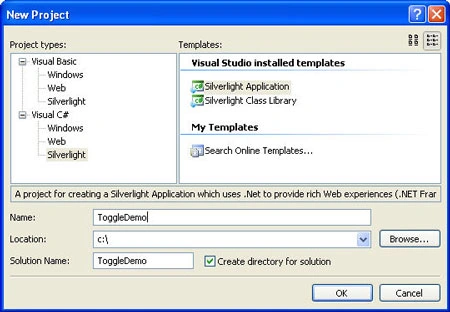
Figure 1
Next, in the Design view of Page.xaml, add a Canvas between the <Grid></Grid> tags. Drag and drop a TextBlock and a ToggleButton from the ToolBox. Configure the properties of these controls and also add event handlers as shown below:
Page.xaml
<UserControl x:Class="ToggleDemo.Page"
xmlns="http://schemas.microsoft.com/winfx/2006/xaml/presentation"
xmlns:x="http://schemas.microsoft.com/winfx/2006/xaml"
Width="400" Height="300">
<Grid x:Name="LayoutRoot" Background="White">
<Canvas x:Name="cnvLayoutRoot" Background="White">
<TextBlock x:Name="tblVote" Text="Please cast your Vote:" Canvas.Top="5" Canvas.Left="20"></TextBlock>
<ToggleButton x:Name="tbtnVote" Checked="tbtnVote_VoteChanged" Unchecked="tbtnVote_VoteChanged" Indeterminate="tbtnVote_VoteChanged" IsThreeState="True" Canvas.Top="65" Canvas.Left="20" Content="For / Against"></ToggleButton>
</Canvas>
</Grid>
</UserControl>
In the code behind, Page.xaml.cs, add the following code:
Page.xaml.cs
public partial class Page : UserControl
{
public Page()
{
InitializeComponent();
this.tbtnVote.IsChecked = null;
this.Voting();
}



Join the conversation! Your thoughts help the community grow.