

In this tutorial, you will learn how we can use existing Windows Forms controls in a WPF application. I have used Visual Studio 2008 to create this tutorial.
Note: If you do not have Visual Studio 2008, you may want to download Visual Studio 2008 Express versions here: http://www.microsoft.com/express/default.aspx . All Express versions are free.
Step 1: Create a WPF Application using Visual Studio 2008
First create a WPF application using Visual Studio 2008. Click on File >> New >> Project menu and select WPF Application from Templates as shown in Figure 1.
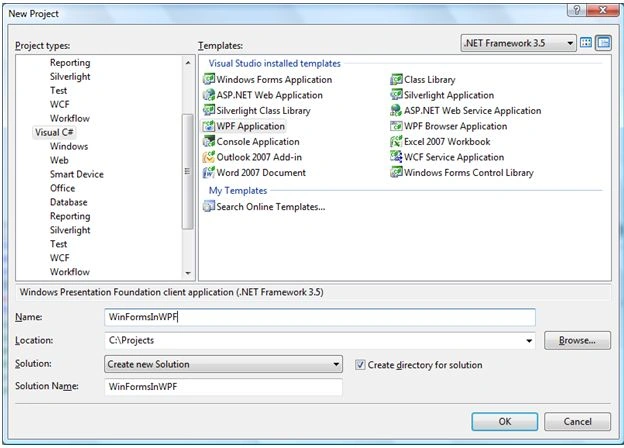
Figure 1. Create a WPF Application
Step 1: Add Reference to Windows FormsIntegration and Windows Forms namespaces
In Solution Explorer, right click on References node and select Add Reference menu item. On Browse tab, go to "C:\Program Files\Reference Assemblies\Microsoft\Framework\v3.0" folder and select WindowsFormsIntegration.dll file and click OK button. If you have .NET 3.5 installed, you should also see v3.5. You need to select the current version of DLL you are working with. See Figure 2.
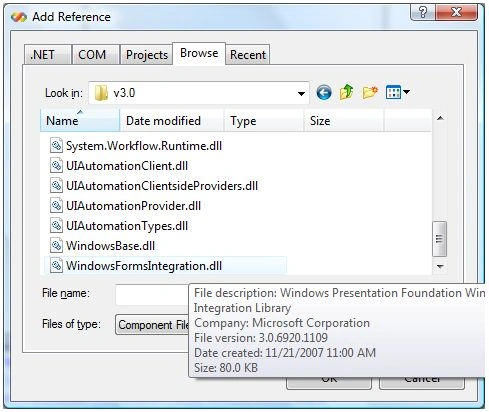
Figure 2. Adding WindowsFormsIntegration reference
Select Add Reference again and this time on .NET tab, select System.Windows.Forms and click OK. See Figure 3.
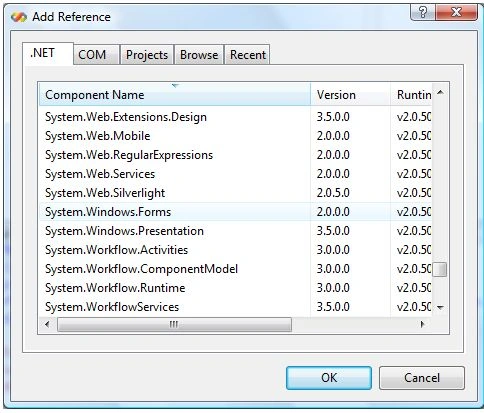
Figure 3. Adding System.Windows.Forms reference
This action adds assemblies to your application (copies to the Bin folder) you need to work with Windows Forms controls in your WPF application.
Next, go to your XAML file and add the following namespace and assembly reference within the Windows tag.
xmlns:wf="clr-namespace:System.Windows.Forms;assembly=System.Windows.Forms"
The final Windows tag looks like this:
<Window x:Class="WinFormInWPF.Window1"
xmlns="http://schemas.microsoft.com/winfx/2006/xaml/presentation"
xmlns:x="http://schemas.microsoft.com/winfx/2006/xaml"
xmlns:wf="clr-namespace:System.Windows.Forms;assembly=System.Windows.Forms"
Title="Window1" Height="300" Width="300" Loaded="Window_Loaded">
<Grid>
</Grid>
</Window>
Step 2: Add Windows Forms control to XAML
There are two ways to create a Windows Forms control in XAML. Either we can create a Windows Forms control in our XAML code using XAML syntaxes or we can create at runtime by using Windows Forms classes.
First, let's see how we can create a Windows Forms control in XAML.
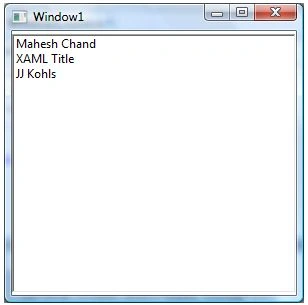
Say, you want to use Windows Forms' ListBox control in your WPF application, you simply have to add the below code inside your Grid tag in XAML. The WindowsFormsHost tag is used to host Windows Forms control and wf:ListBox tag represents the Windows Forms ListBox. Similarly, you can add any Windows Forms control to your WPF application.
<Grid>
<WindowsFormsHost>
<wf:ListBox x:Name="lstBox"/>
Join the conversation! Your thoughts help the community grow.