

The XAML TablControl element represents a tab control. In this article, we will see how to use a TabControl in WPF.
A Tab Control has tab items and each tab item represents a container that is used to host other controls. A typical example of a Tab control is the Visual Studio designer as shown in Figure 1. If you click on the Window1.xaml tab item, you will see XAML code but if you click on Window1.xaml.cs, you will see C# code behind.
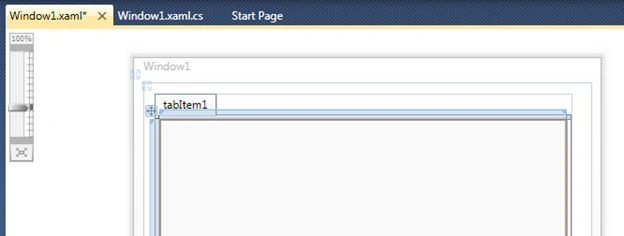
Figure 1
Create a Tab Control
The TabControl element in XAML represents a Tab Control.
<TabControl /> The code snippet in Listing 1 creates a Tab Control and sets it height, width, margin and alignment. The code also adds a TabItem.
<TabControl Height="238" HorizontalAlignment="Left" Margin="12,12,0,0"
            Name="tabControl1" VerticalAlignment="Top" Width="445">
    <TabItem Header="tabItem1" Name="tabItem1">
    </TabItem>
</TabControl>
Listing 1
The output of Listing 1 looks as in Figure 2.
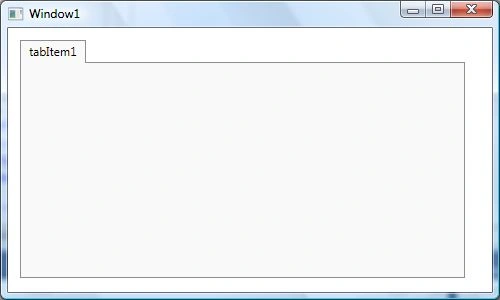
Figure 2
Adding Tab Items
A Tab Control is nothing without a Tab Item. The <TabItem \> element in XAML represents a Tab Item. The Header property of a TabItem represents the header text of the header. The following code creates a TabItem with the header text “Circle”.
<TabItem Header="Circle">
</TabItem>
A tab item can host other XAML controls similar to a panel or grid control. For example, the following code adds a StackPanel to the tab item and on that StackPanel, it creates a circle with height and width 100.
<TabItem  Header="Circle">
   <StackPanel>
<Ellipse Height="100" Width="100" StrokeThickness="5" Stroke="black"
      Fill="gold"/>
   </StackPanel>
</TabItem >
Using the same preceding approach, I add three tab items to the tab control (Listing 2) called Circle, Rectangle and Polygon.
<TabControl Height="150" FontFamily="Verdana" FontSize="12" >
            <TabControl.Background>
                <SolidColorBrush Color="Green" Opacity="0.30"/>
            </TabControl.Background>
            <TabItem  Header="Circle">
                <StackPanel>
                    <Ellipse Height="100" Width="100" StrokeThickness="5" Stroke="black"
      Fill="gold"/>
                </StackPanel>
            </TabItem >
            <TabItem  Header="Rectangle">
                <StackPanel>
                    <Rectangle Fill="Yellow" Width="100" Height="100" Stroke="Blue" StrokeThickness="5">
                    </Rectangle>
                </StackPanel>
            </TabItem >
            <TabItem  Header="Polygon">
                <StackPanel>
                    <Polygon Points="100,50 50,100 150,100 100,50 100,30"
       Stroke="green" StrokeThickness="3" Fill="Yellow"/>
                </StackPanel>
            </TabItem >
</TabControl>
Listing 2
If I run the application, the Circle tab shows me a circle that looks as in Figure 3.
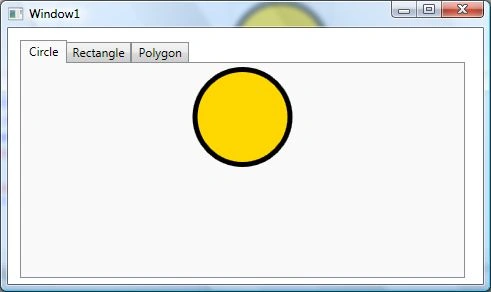
Figure 3
If I click on Rectangle and Polygon, the output looks as in Figure 4 and Figure 5 respectively.
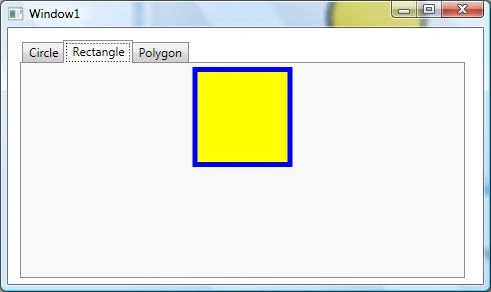
Figure 4
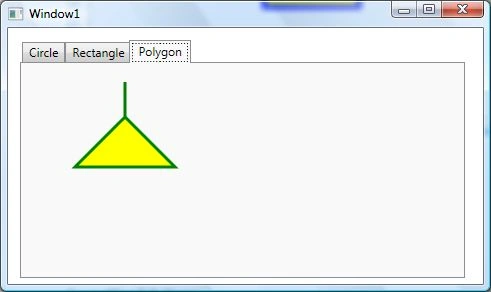
Figure 5
Formatting Tab Items
Let's get a little creative. How about making our tab headers and tab control areas look nicer.
In a Tab Control, both a Tab Header and Tab Item are loosely coupled and we can treat them as any other WPF control. That said, we can place any children controls on them, format them and do whatever we want. So if we want to place a DataGrid control in a TabItem header, we can do that.
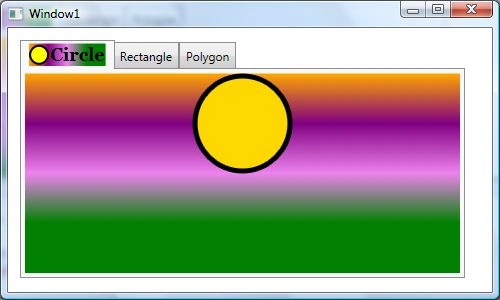
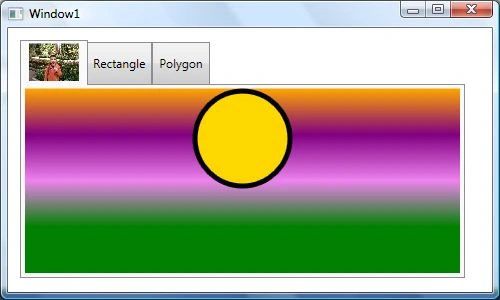
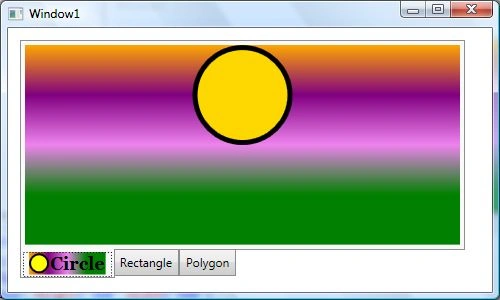
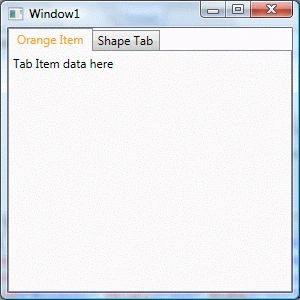
Now let's format our Tab Item Header and Tab Item container area. We will format our Tab Item that looks as in Figure 6, where we will use multiple colors for the background and change the text of the Tab Item Header and we will also change the background of the Tab Item container area to a gradient background.
Abhishek SahdevPosted Dec 5, 2020, 11:14 AM
Simple and clear example : Like Like
Sam HobbsPosted May 31, 2015, 8:53 PM
I need to execute code each time a tab is clicked, such as when switching between design view and HTML view of a HTML editor. I assume that the SelectionChanged event of the TabControl is the place to do that.
K P Singh ChundawatPosted Jan 8, 2015, 3:03 AM
Great ....thanks for sharing Mahesh sir..
Vithal WadjePosted Jan 8, 2015, 2:52 AM
Nice thanks for sharing