

Code snippets are ready made, which means they are really useful reusable codes which need to be used and then again used at someother part of work.
These snippets are not really of the type which are only used by just placing a cursor and inserting it to the place you want, but some are surrounded with code snippets also in which some line of code has been selected and then surrounded with required if statement, for loop and so on.
Code Snippets have following Advantages:
- It saves a lot of your time by saving reusable code in code snippet manager and you can later use it anywhere.
- It increases productivity by simply inserting code in you desired location.
- It reduces the chances of less error by re typing your line of code.
- It helps to stream line your work as per you assigned deadline.
Code Snippet Manager:
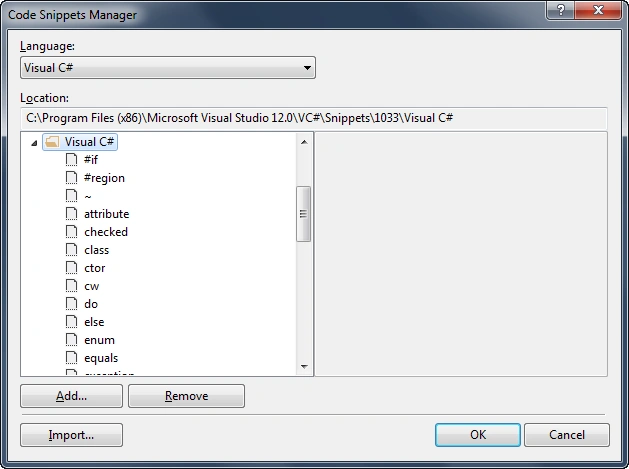
Firstly, you can check a whole list of code snippets in code snippets manager which you can open by pressing Combination of (Ctrl + K, Ctrl + B).
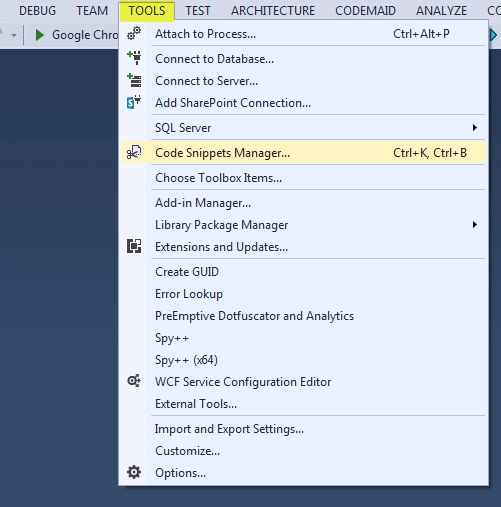
You can alternatively open code snippet manager from Visual Studio Menu from Tools è Code Snippets Manager...
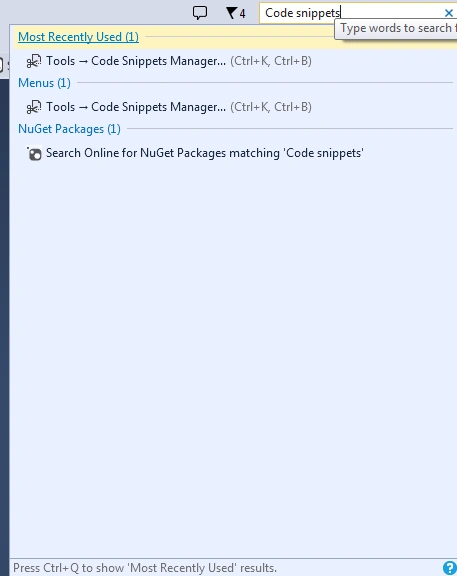
There is another way to open as introduced in latest versions of visual studio which is very beneficial to open the menu items in less time; it is the Quick Launch Search Box Displayed in Top Right of your Visual Studio IDE.
As you type text it gives you suggestions and suggestions to do more actions also, like it displays the most Recently used items and Nuget Package Manager search for the searched keyword.
How to Use Code Snippets:
Basically there are two types of code snippets to be used; First one is by placing cursor at location and typing some code snippet code and secondly by using surround-with code snippets.
Note: At any time if you do not want to select the desired code snippets Press ESC Button it will dissolve and does not insert the code snippet.
Cursor Based Code Snippets:
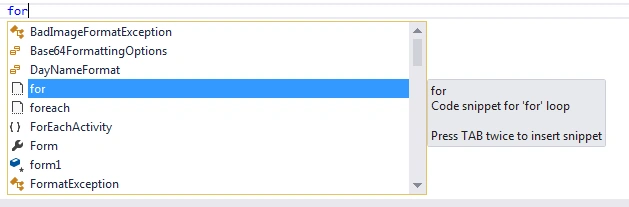
Usage of code snippets is very simple. Just place cursor at the desired location where you want to insert code snippets, type snippet code and Press TAB Button Twice to insert in the place… we will discuss full list of code snippets in this article after following this but for reference I am quoting here an example of code snippet… for example you want to add for loop, just write for and press twice to check the magic of code snippet inserting and with full syntax and with default values. It Increases your productivity and time by also reducing the risk of human errors while creating complex syntax like for loop.
You can use it from Keyboard shortcut also by pressing key combination of (Ctrl + K, Ctrl + X) and select the Visual C# Category.
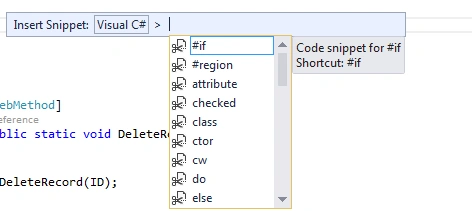
But if you have to remember the snippet code you can type it.
Surround-With Code Snippets:
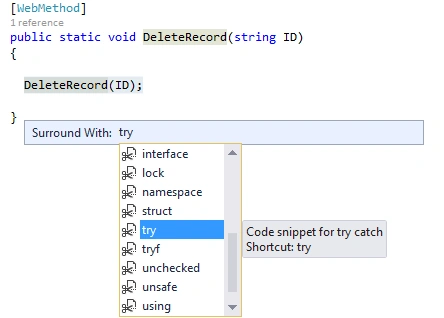
You can use surround with code snippets by selecting the line of code and press keyboard short cut key combination (Ctrl + K, Ctrl + S) and type the desired code snippet to wrap in the line of code.
List of Available Code Snippets:
Now we will move into the using of code snippets inside IDE.
#region:
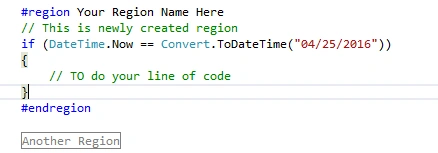
Region directive is used to define certain region in the code which specifies certain functionality or scope of certain work. It is collapsible portion and it is useful for pages which has lengthy code written so that you can collapse the region of code and focus on your work.
The start #region must be terminated with #endregion directive otherwise it will through the exception.
#region has a scope of anywhere means you can insert it anywhere you want.
(~):
This code snippet has scope only in class as class has destructors.
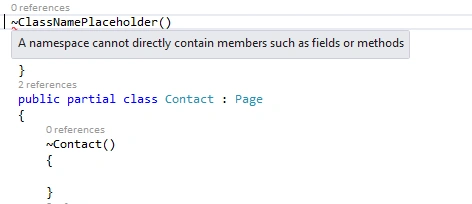
As already mentioned that has scope with in class so I checked it with creating outside the scope of class, although it created as it is snippet but it will generate compile error or a namespace cannot directly contain members such as fields or methods, while the other one inside the class scope did not through any exception.
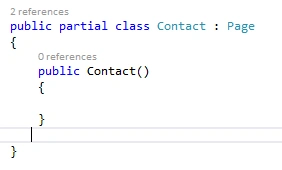
ctor:
This code snippet is used to create constructor of a class. It has also scope within class otherwise it generate exception.
Type ctor and press TAB twice to insert.
class:
This snippet will create a declaration of class. It has a scope of namespace (global), class or struct.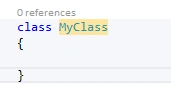
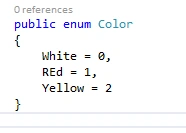
enum:
This is used to declare enumeration. This is used to build a list of distinct enumerators. It has a scope of inside namespace, class or struct. The default value for initial first enumerator is 0 and the successive items will follow it like 0, 1 and so on. Enums cannot contain whitespaces while declaring their names.
The approved types of enum are int, long, byte,unit,ulong,ushort,short and sbyte.
cw:
Very helpful snippet cw means Console.WriteLine() which can show current line terminator to the output stream. Its scope lies inside method, indexer, property or event accessor.
It can take string as a parameter and return to output stream. You can align string to New Line also by using Console.Out.NewLine,
- Console.WriteLine();
equals:
The Equals as the name defined it has behavior to check equal of two objects either they are of same type or of different type and it returns Boolean value, if matched it return true otherwise false.
Its scope lies only inside class or struct.
- // override object.Equals
- public override bool Equals(object obj)
- {
- //
- // See the full list of guidelines at
- // http://go.microsoft.com/fwlink/?LinkID=85237
- // and also the guidance for operator== at
- // http://go.microsoft.com/fwlink/?LinkId=85238
- //
- if (obj == null || GetType() != obj.GetType())
- {
- return false;
- }
- // TODO: write your implementation of Equals() here
- throw new NotImplementedException();
- return base.Equals(obj);
- }
- // override object.GetHashCode
- public override int GetHashCode()
- {
- // TODO: write your implementation of GetHashCode() here
- throw new NotImplementedException();
- return base.GetHashCode();
- }
Guest UserPosted May 4, 2016, 9:11 AM
Thanks for the post snippets are a real Time saver for someone like me with fat fingers while typing:))
Bhuvanesh MohankumarPosted May 3, 2016, 12:52 PM
Good one..
Bhuvanesh MohankumarPosted May 3, 2016, 12:52 PM
Good one..