

Recently, Microsoft launched Visual Studio 2017 on the 20th Anniversary of Visual Studio IDE. It launched on Wednesday, March 7, 2017. Visual Studio 2017 is the most awaited software from Microsoft. The first version of Visual Studio IDE was released on March 19, 1997, which was Visual Studio 97. At that point in time, C# didn't exist and Visual Basic, Visual C++, etc. languages were part of this great tool.
We can download Visual Studio 2017 from the Visual Studio official site. Compared to earlier versions, it has three different versions these are Community, Professional, and Enterprise. If we do not have Microsoft subscriptions for Visual Studio, then we can go with the Visual Studio Community Version, which is free and most of the features are covered. We can install it and start coding right away.
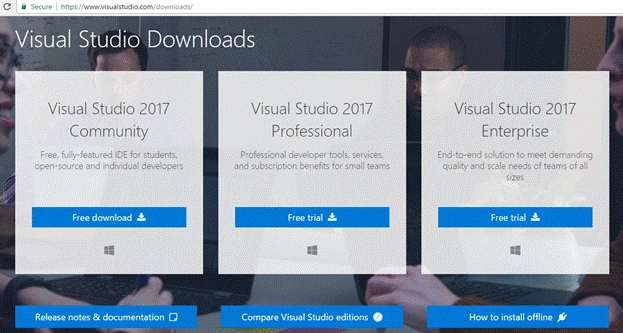
It also includes .NET Core features and cross-platform development but this is only if we have installed all the required packages. Even if we do not have a license for Visual Studio 2017 Community, we can start the development, using this with limited features.
However, if we require all the features of Visual Studio 2017, then we need to purchase and download it from the Visual Studio site. We can also just compare the features among all these three different products of Visual Studio. Free trial is also available for these two products (Professional and Enterprise).
Before installation, we must consider our hardware and prerequisites. As per the Visual Studio official Website, the prerequisites given below should be fulfilled.
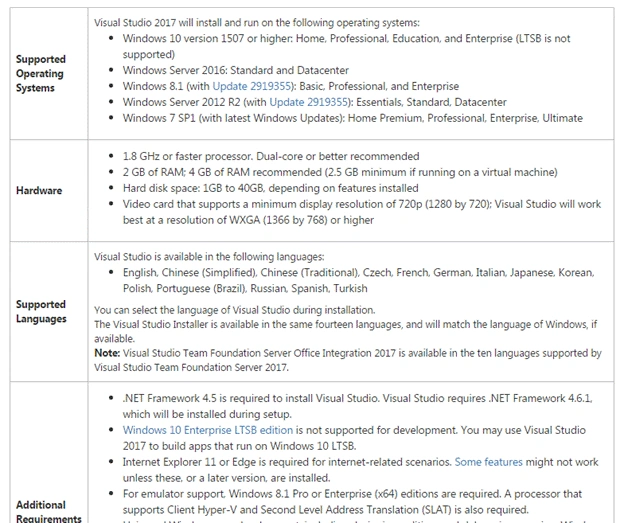
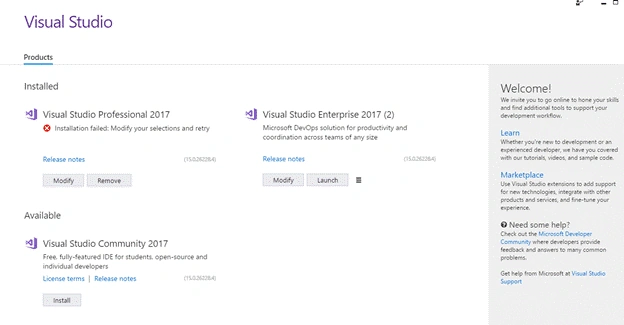
Once we feel the required prerequisites are available, we can start the installation.
Create Offline Installer
Visual Studio 2015 or previous versions of Visual Studio come with installation packages, where the whole package is downloaded when we download any of these versions. Nevertheless, this time Visual Studio is one step ahead and makes our installation very easy. Sometimes, we do not need the whole installation package, we only want to download those packages, which are required for our development, which is a custom installation package.
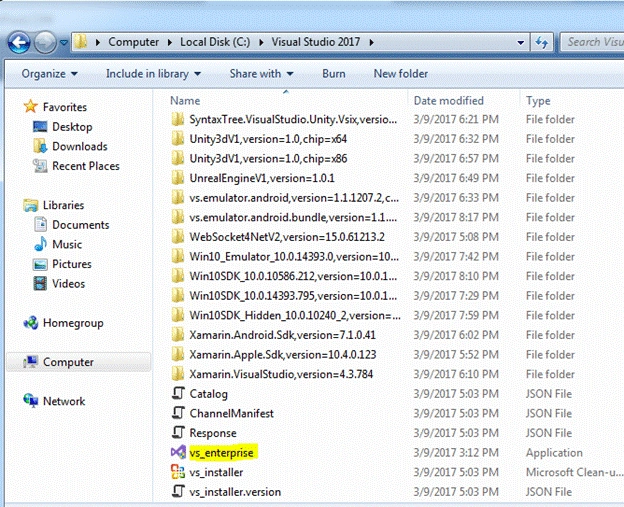
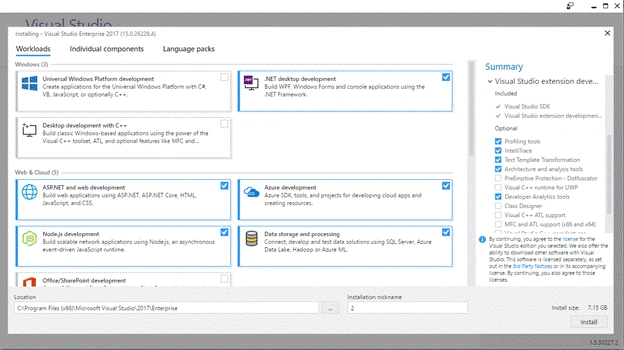
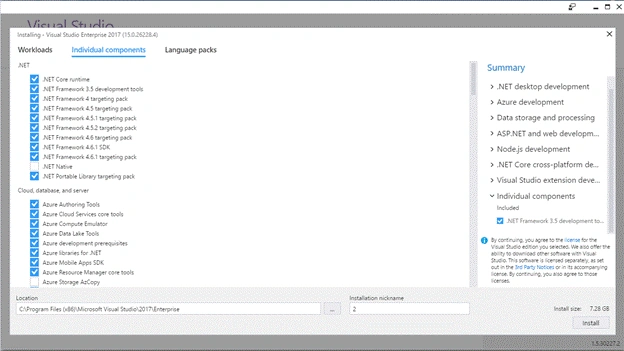
Thus, when we download Visual Studio 2017, it only provides vs_enterprise.exe (every version has a different name). When we run this EXE file, then it will ask us to choose the installation packages and based on our selection, it will download all these packages online and install them.
Even if we can install it online, sometimes we need an Offline Installer. We can make Offline Installer use the downloaded EXE file to follow these steps. First, open the command prompt and type the command given below.
vs_enterprise.exe --layout "C:\Visual Studio 2017" --lang en-US

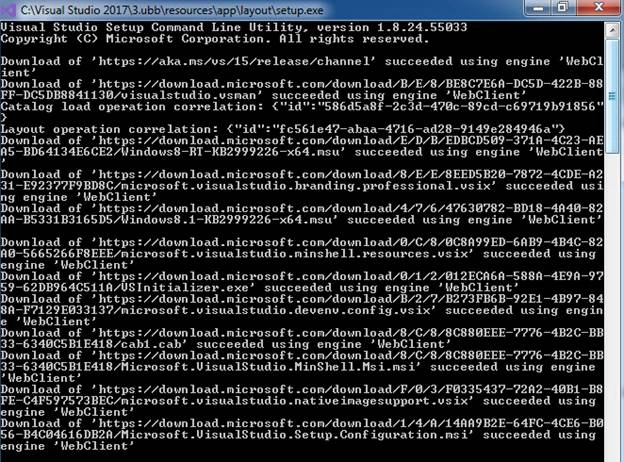
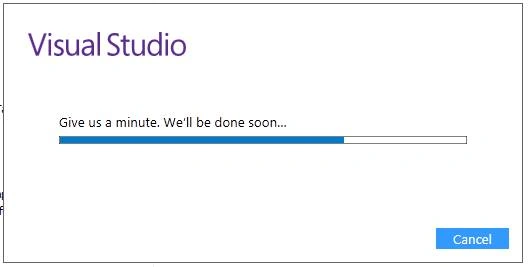
We can change our download location in place of “C:\Visual Studio 2017” and make changes in the language. When we press enter, it will take a few minutes to start downloading packages, so be patient and it will start downloading, as shown below.
Nos WareePosted Nov 9, 2022, 11:04 AM
Nice post. Your article really has detailed information about the visual studio 2017 offline installer. Keep wring articles like this.
Christopher WeberPosted Nov 2, 2022, 1:36 PM
Typical MS STUPIDITY... There are options for Web, C#, C++ native, Office... AND THEY DON'T TELL YOU WHAT THEY ARE. You are just supposed to have been born knowing their command line args such as "Microsoft.VisualStudio.Workload.ManagedDesktop", "Component.GitHub.VisualStudio", Microsoft.VisualStudio.Workload.NativeDesktop, and likely DOZENS of others. I don't suppose this is documented anywhere... Like someplace easy to find and reference?? Didn't think so.
RohitPosted Dec 30, 2018, 8:45 PM
Downloaded full Visual Studio Community 2017 v15.9.4 on 28-Dec-2018. Total size is around 43.6 GB. It took around 5-6 hours on 5 MB/S Internet plan.
On Ray AriesPosted Sep 13, 2018, 10:54 PM
Is there a way to download specific file what we want? example : workload - Universal windows platform deveploment.
Sushant ShindePosted Nov 1, 2017, 2:41 AM
Hello Sir This is Sushant here, i am facing an issue while installing VS2017.I have successfully Downloaded all the required files but when i run the Setup file it gives an error as follows : the source layout directory is too long,the layout directory name should be less than 80 characters.Please help me out of this.Thanks.
Ehsan SajjadPosted Jun 30, 2017, 8:35 AM
When installing workload for mobile cross platform it still goes for downloading packages, is there a way to download all workloads offline or specific one only offline for xamarin for example, the Android SDKs etc ?
Manav PandyaPosted Mar 16, 2017, 12:17 AM
Thanks for sharing ........