

Using the ASP.NET Core Windows Application project template as an example, this article walks you through adding a WCF service reference to the project.
In Solution Explorer, double-click the Connected Services node of the project. (For a .NET Core or .NET Standard project, right-click on the project and select Add > Connected Service.)
The Connected Services page appears as shown in the following image:
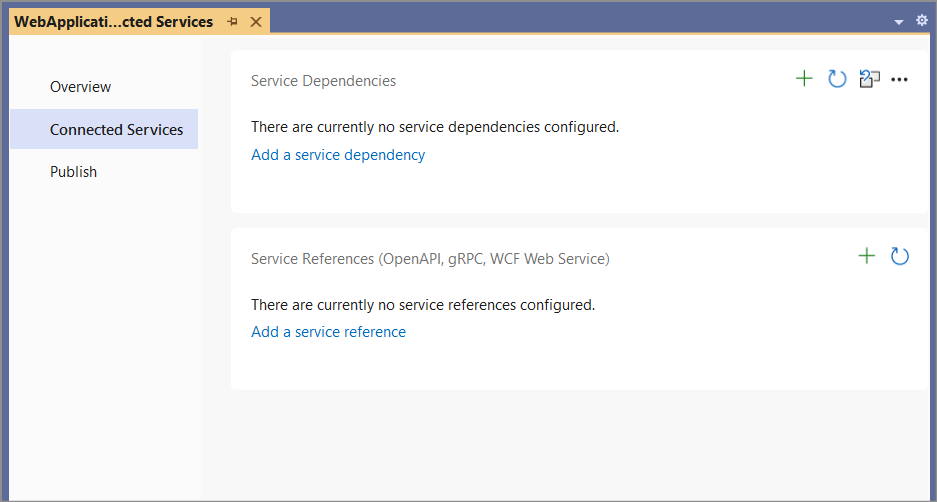
On the Connected Services page, select Add Service Reference.
The Add service reference page opens.
Select WCF Web Service, and then choose Next.
This brings up the Add new WCF Web Service service reference wizard.
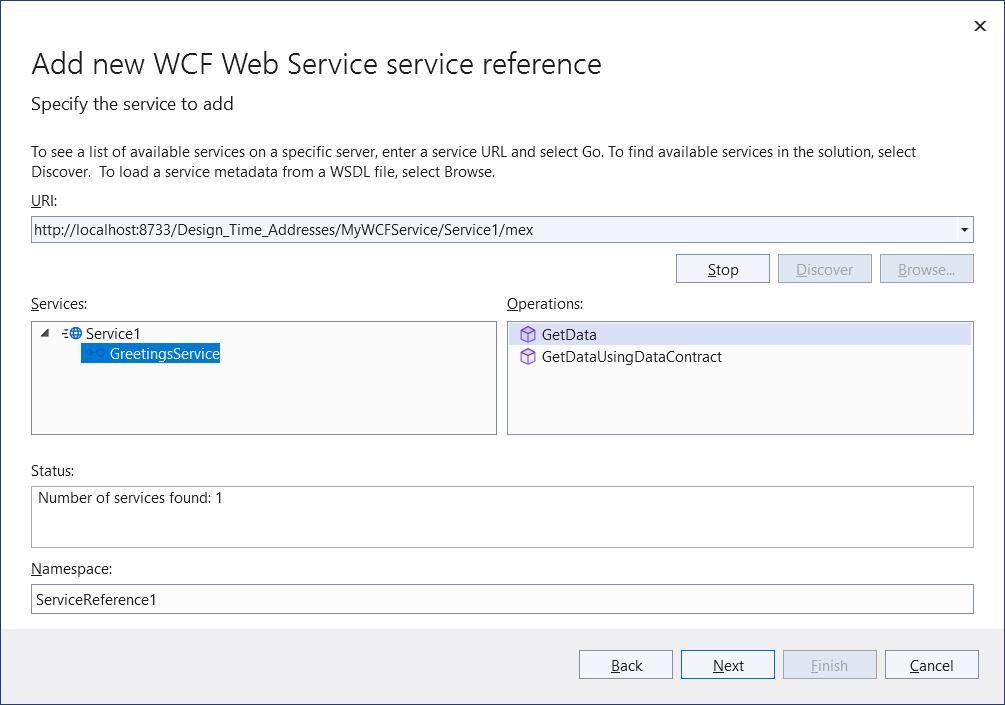
Select a service.
a. There are several services search options available:
To search for services defined in the current solution, click the Discover button.
To search for services hosted at a specified address, enter a service URL in the Address box and click the Go button.
To select a WSDL file that contains the web service metadata information, click the Browse button.
b. Select the service from the search results list in the Services box. If needed, enter the namespace for the generated code in the corresponding Namespace text box.
c. Click the Next button to specify data type options or client options. Alternatively, click the Finish button to use the default options.
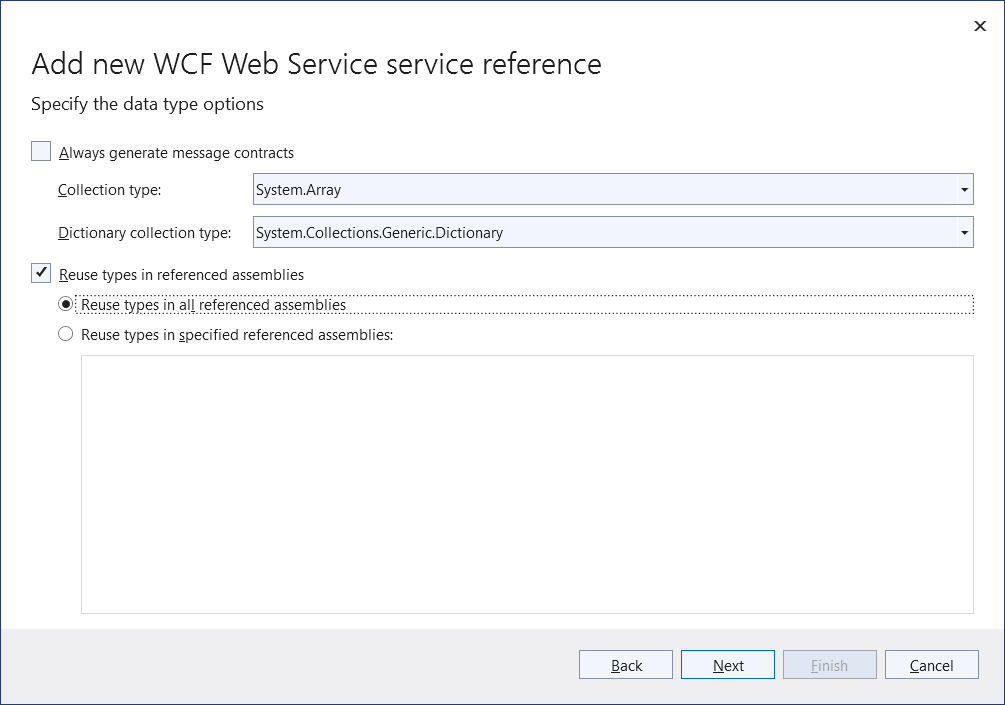
The data type options page lets refine the generated service reference configuration settings:
Note
The Reuse types in referenced assemblies check box option is useful when data types needed for service reference code generation are defined in one of your project's referenced assemblies. It's important to reuse those existing data types to avoid compile-time type clash or runtime issues.
There may be a delay while type information is loaded, depending on the number of project dependencies and other system performance factors. The Finish button is disabled during loading unless the Reuse types in referenced assemblies check box is unchecked.
Click Finish when you are done.
While displaying progress, the tool:
Downloads metadata from the WCF service.
Generates the service reference code in a file named reference.cs, and adds it to your project under the Connected Services node.
Updates the project file (.csproj) with NuGet package references required to compile and run on the target platform.
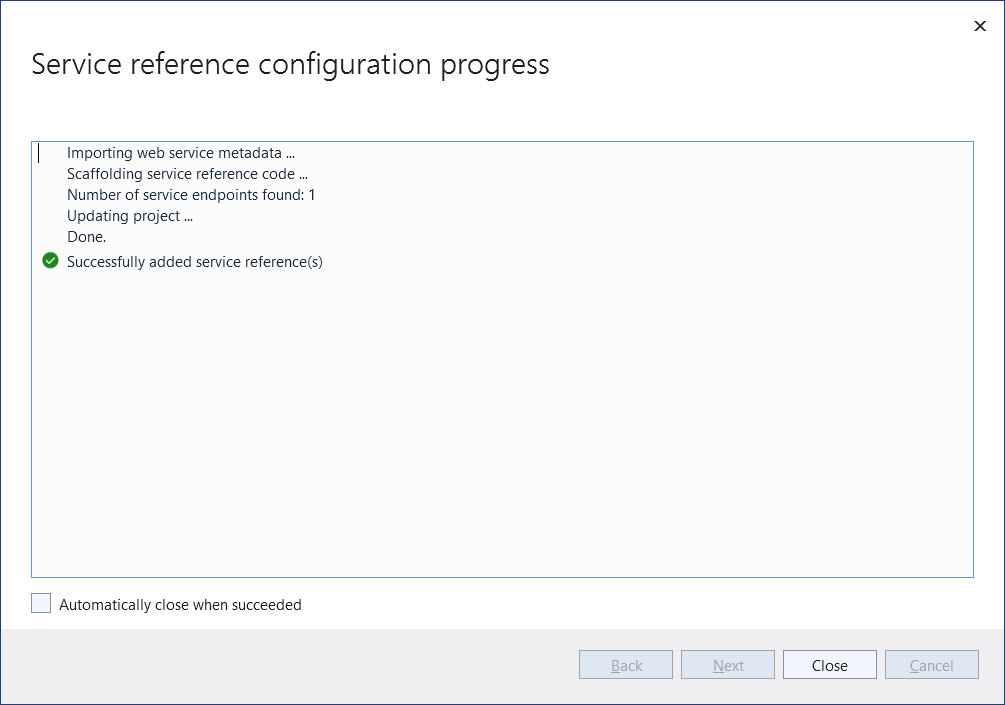
When these processes complete, you can create an instance of the generated WCF client type and invoke the service operations.
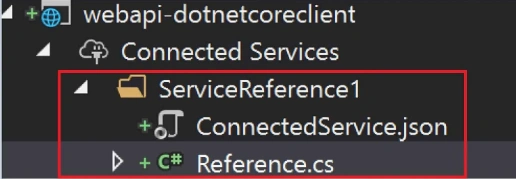
successful completion of the above steps, the service reference will be added , This Reference.cs will have a client class as highlighted below which needs to be instantiated and used to connect with the WCF Service.
Join the conversation! Your thoughts help the community grow.