

- Web API with AJAX: Understand POST request in Web API
- Web API with AJAX: Understand GET request in Web API
- Web API with AJAX: Make PUT Request in RESTful Web API Service
- Web API With AJAX: Understand DELETE Verb in Restful Web API
- Web API With AJAX: Use GetJSON() Function to Get JSON Data
- Web API with AJAX: Understand Method Name and Attribute in Web API
- Web API with AJAX: Understand FormBody and FormUri attribute inWeb API
- Web API With AJAX: Understand AcceptVerb Attribute in Web API
- Web API With AJAX: Various Parameters of jQuery Ajax() Function
- Web API with AJAX: Perform Cross-Domain AJAX Request using POST Verb
- Web API With AJAX: Cross Domain AJAX Call With GET Request
- Web API With AJAX: Return Various Data Types From Web API Service
In this article we will learn one very important concept in ajax() functionality. In day-to-day project development the common task is to submit form data to the server, in other words in the broad sense, "save user's data to server". The data sending or data passing operation can be done in various ways, we can take data from an individual control and form it in JSON format or we can serialize an entire form's data and send it to the server.
The first technique is preferable when we don't want to send all data, we will collect the necessary data and after performing business operations and filtering, we will send it in JSON (or other) format. This is the first scenario.
In the second scenario, the operation is very straight-forward. We will serialize form data using the JavaScript's serialize() method and we will send it. In our next example we will implement this mechanism.
Send Form data after serialization
Here is the code for the client part. The code is pretty simple. In the body part we have defined a form with two text boxes and using the ajax() function the data is represented as form serialized data.
<%@ Page Language="C#" AutoEventWireup="true" CodeBehind="APICall.aspx.cs" Inherits="WebApplication1.APICall" %>
<head id="Head1" runat="server">
<script src="jquery-1.7.1.js" type="text/javascript"></script>
<script>
$(document).ready(function () {
$("#Save").click(function () {
$.ajax({
url: 'http://localhost:3413/api/person',
type: 'POST',
dataType: 'json',
data: $('#form1').serialize(),
success: function (data, textStatus, xhr) {
console.log(data);
},
error: function (xhr, textStatus, errorThrown) {
console.log(textStatus);
}
});
});
});
</script>
</head>
<body>
<form name="person" id="form2">
Name:- <input type="text" name="name" id="name" />
Surname:-<input type="text" name="surname" id="surname" />
<input type="button" id="Save" value="Save Data" />
</form>
</body>
</html>
This is the implementation of the Web API part. The interesting thing to be noted is that, we have defined a person class within the Web API controller (if you don't like this way then you are allowed to implement a separate Model class) and the two properties of the person class enjoying the same name with the name attribute of the client form. Here is the code implementation.
using System;
using System.Collections.Generic;
using System.Collections.Specialized;
using System.Linq;
using System.Net;
using System.Net.Http;
using System.Net.Http.Formatting;
using System.Web.Http;
namespace WebApplication1.WebAPI
{
public class person
{
public string name { get; set; }
public string surname { get; set;}
}
public class personController : ApiController
{
[HttpPost]
public string PostAction(person form)
{
return form.name + form.surname;
}
}
}
That's fine; it's time to run the application. We are halting the application within the controller and we are seeing that the data has come from the client part. 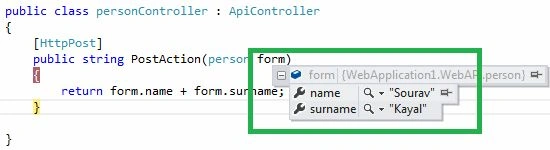
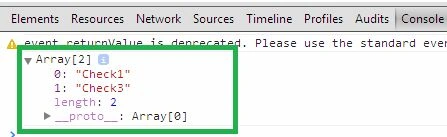
Here is the output logged by the success method within the ajax() function.
Same scenario, another solution
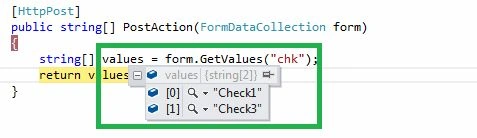
In this example we will implement the same scenario another way. One very nice class the MVC class library is called "FormDataCollection". Here we will use this class to collect all serialized form data. This is the sample client code as in the previous example.
<%@ Page Language="C#" AutoEventWireup="true" CodeBehind="APICall.aspx.cs" Inherits="WebApplication1.APICall" %>
<head id="Head1" runat="server">
<title></title>

Rehman AliPosted Feb 19, 2019, 6:12 AM
Good one. Can you explain how can we send data with key value. thanks,
Ravi PatelPosted Nov 18, 2015, 9:25 AM
well explained. thanks