

Web Services
Web Services are components on a web server that a client application can call by making HTTP requests across the Web. ASP.NET enables you to create custom Web Services or to use built-in application services and call these services from any client application.
Web Services communicate using the following standard web protocols and data formats:
- HTTP
- XML
- SOAP
The following are some terms we often use with Web Services.
SOAP: Simple Object Access Protocol. SOAP is way by which method calls are translated into XML format and sent via HTTP.
WSDL: Web Service Description Language. WSDL contains every detail regarding the use of Web Services and method and properties provided by Web Service and URLs from which those methods can be accessed and data types used.
UDDI: Universal Description, Discovery and Integration (UDDI) is a directory service where businesses can register and search for Web Services.
Discovery or .Disco Files: The DISCO file typically points to a WSDL source that in turn points to the actual Web Service when one searches for the Web Services.
Now we will see how to create and consume Web Services in ASP.Net C#. The following is my data table in Design Mode from which I will fetch data using the Web Service: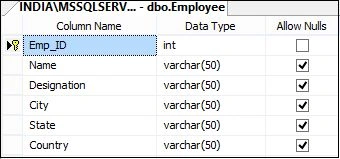
Image 1.
The following is the script of my data table:
- CREATE TABLE [dbo].[Employee](
- [Emp_ID] [int] IDENTITY(1,1) NOT NULL,
- [Name] [varchar](50) NULL,
- [Designation] [varchar](50) NULL,
- [City] [varchar](50) NULL,
- [State] [varchar](50) NULL,
- [Country] [varchar](50) NULL,
- CONSTRAINT [PK_Employee] PRIMARY KEY CLUSTERED
- (
- [Emp_ID] ASC
- )WITH (PAD_INDEX = OFF, STATISTICS_NORECOMPUTE = OFF, IGNORE_DUP_KEY = OFF, ALLOW_ROW_LOCKS = ON, ALLOW_PAGE_LOCKS = ON) ON [PRIMARY]
- ) ON [PRIMARY]
- GO

Image 2.
Now open Visual Studio then select File -> New Web Site-> ASP.NET Web Service.
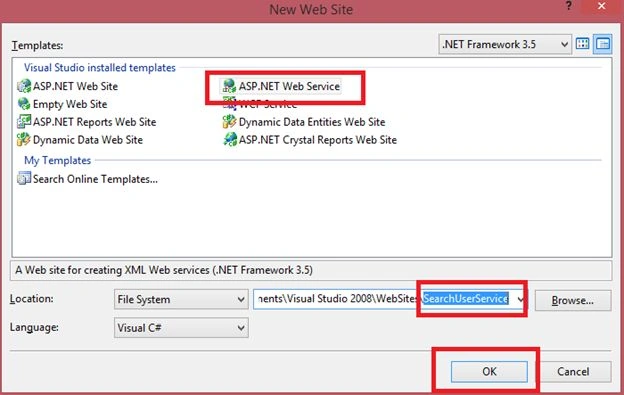
Image 3.
Now open Service.cs inside the App_Code folder to write your WebMethod as in the following:
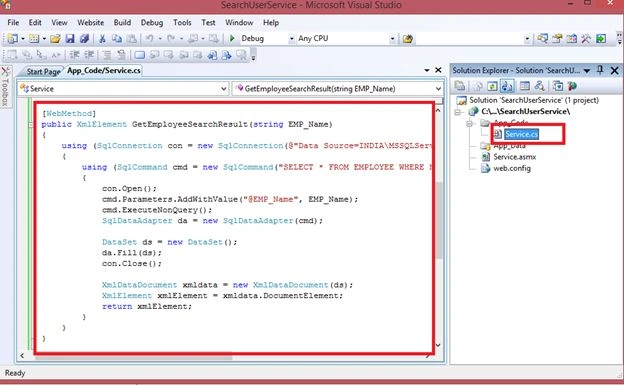
Image 4.
The following is the App_Code/Service.cs:
- using System;
- using System.Collections.Generic;
- using System.Linq;
- using System.Web;
- using System.Web.Services;
- using System.Data.SqlClient;
- using System.Data;
- using System.Xml;
- [WebService(Namespace = "http://tempuri.org/")]
- [WebServiceBinding(ConformsTo = WsiProfiles.BasicProfile1_1)]
- // To allow this Web Service to be called from script, using ASP.NET AJAX, uncomment the following line.
- // [System.Web.Script.Services.ScriptService]
- public class Service : System.Web.Services.WebService
- {
- public Service()
- {
- //Uncomment the following line if using designed components
- //InitializeComponent();
- }
- [WebMethod]
- public XmlElement GetEmployeeSearchResult(string EMP_Name)
- {
- using (SqlConnection con = new SqlConnection(@"Data Source=INDIA\MSSQLServer2k8; Initial Catalog=EmployeeManagement; Uid=sa; pwd=india;"))
- {
- using (SqlCommand cmd = new SqlCommand("SELECT * FROM EMPLOYEE WHERE Name like @EMP_Name+'%'", con))
- {
- con.Open();
- cmd.Parameters.AddWithValue("@EMP_Name", EMP_Name);
- cmd.ExecuteNonQuery();
- SqlDataAdapter da = new SqlDataAdapter(cmd);
- DataSet ds = new DataSet();
- da.Fill(ds);
- con.Close();
- XmlDataDocument xmldata = new XmlDataDocument(ds);
- XmlElement xmlElement = xmldata.DocumentElement;
- return xmlElement;
- }
- }
- }
- }
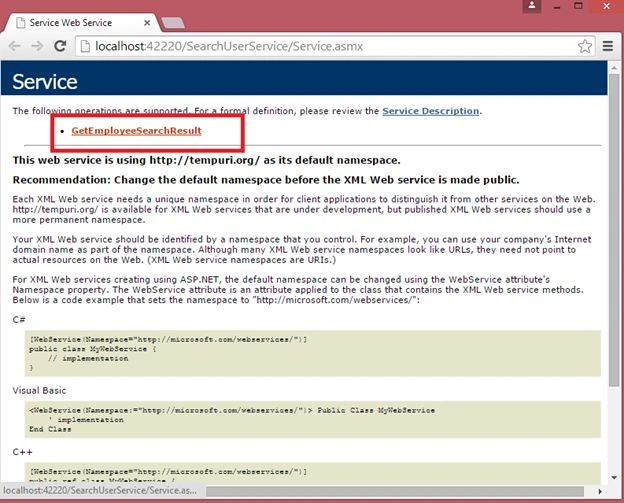
Image 5.
Now click on your Method name:
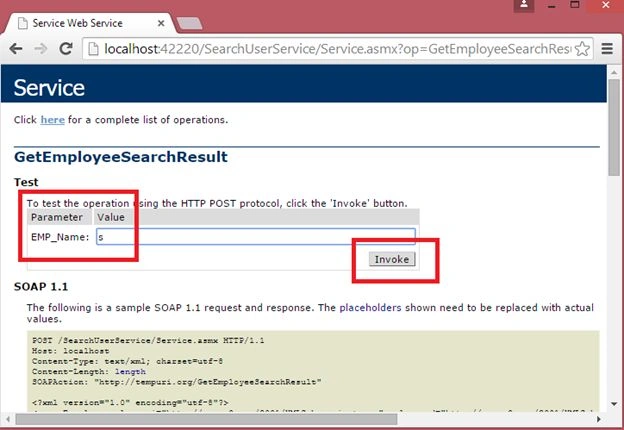
Image 6.
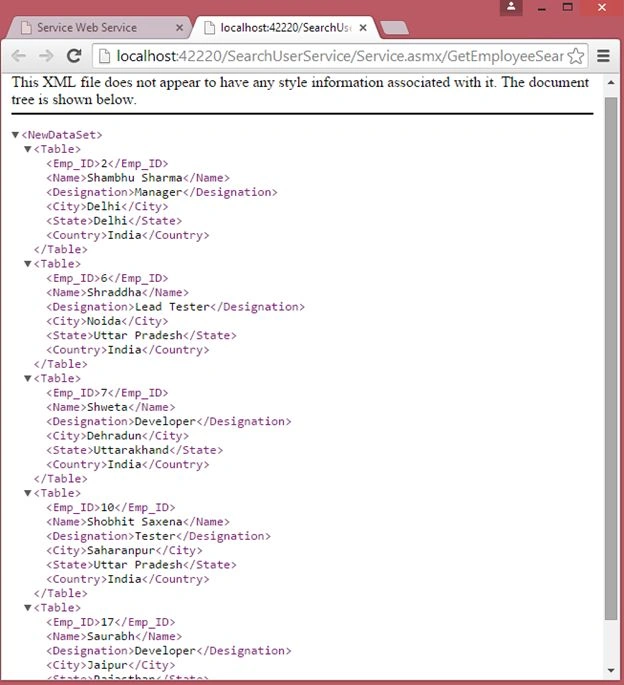
Image 7.
Now to consume this Web Service. So create a new ASP.NET application.

Image 8.
Now right-click on your application in the Solution Explorer then select Add Web Reference.

Image 9.
Type your Web Service URL and click GO. Then click on the Add Reference button:
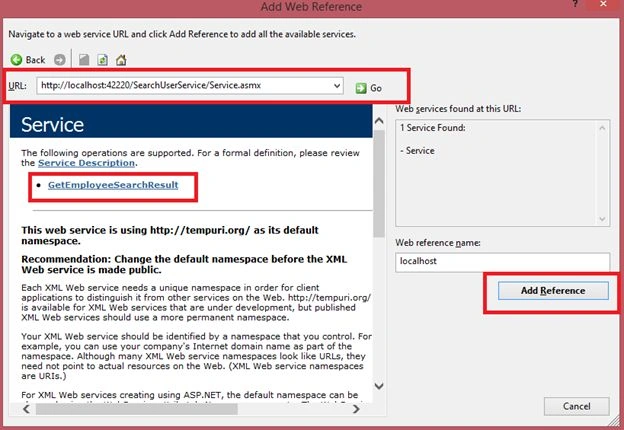
Image 10.
The following is the aspx:
- <%@ Page Language="C#" AutoEventWireup="true" CodeFile="Default.aspx.cs" Inherits="_Default" %>
- <!DOCTYPE html PUBLIC "-//W3C//DTD XHTML 1.0 Transitional//EN" "http://www.w3.org/TR/xhtml1/DTD/xhtml1-transitional.dtd">
- <html xmlns="http://www.w3.org/1999/xhtml">
- <head runat="server">
- <title></title>
- </head>
- <body>
- <form id="form1" runat="server">
- <div>
- <table style="border: solid 15px blue; width: 100%; vertical-align: central;">
- <tr>
- <td style="padding-left: 20px; padding-top: 20px; padding-bottom: 20px; background-color: skyblue;
- text-align: center; font-family: Verdana; font-size: 20pt; color: red;">
- Web Services In ASP.NET C#
- </td>
- </tr>
- <tr>
- <td style="background-color: skyblue; text-align: center; font-family: Verdana; font-size: 14pt;
- color: red;">
- <b>Enter Employee Name:</b>
- <asp:TextBox ID="txtEmpName" runat="server"></asp:TextBox>
- <asp:Button ID="btnSearchEmployee" runat="server" Text="Search Employee" OnClick="btnSearchEmployee_Click" />
- </td>
- </tr>
- <tr>
- <td>
- <table style="width: 80%; text-align: center; vertical-align: central;">
- <tr>
- <td style="text-align: left;">
- <asp:GridView ID="GridViewEmployee" runat="server" AutoGenerateColumns="False" Width="100%"
- BackColor="White" BorderColor="#3366CC" BorderStyle="None" BorderWidth="1px"
- CellPadding="4">
- <Columns>
- <asp:BoundField DataField="Name" HeaderText="Employee Name" HeaderStyle-HorizontalAlign="Left">
- <HeaderStyle HorizontalAlign="Left"></HeaderStyle>
- </asp:BoundField>
- <asp:BoundField DataField="Designation" HeaderText="Designation" HeaderStyle-HorizontalAlign="Left">
- <HeaderStyle HorizontalAlign="Left"></HeaderStyle>
- </asp:BoundField>
- <asp:BoundField DataField="City" HeaderText="City" HeaderStyle-HorizontalAlign="Left">
- <HeaderStyle HorizontalAlign="Left"></HeaderStyle>
- </asp:BoundField>
- <asp:BoundField DataField="State" HeaderText="State" HeaderStyle-HorizontalAlign="Left">
- <HeaderStyle HorizontalAlign="Left"></HeaderStyle>
- </asp:BoundField>
- <asp:BoundField DataField="Country" HeaderText="Country" HeaderStyle-HorizontalAlign="Left">
- <HeaderStyle HorizontalAlign="Left"></HeaderStyle>
- </asp:BoundField>
- </Columns>
- <FooterStyle BackColor="#99CCCC" ForeColor="#003399" />
- <HeaderStyle BackColor="#003399" Font-Bold="True" ForeColor="#CCCCFF" />
- <PagerStyle ForeColor="#003399" HorizontalAlign="Left" BackColor="#99CCCC" />
- <RowStyle BackColor="White" ForeColor="#003399" />
- <SelectedRowStyle BackColor="#009999" Font-Bold="True" ForeColor="#CCFF99" />
- </asp:GridView>
- </td>
- </tr>
- </table>
- </td>
- </tr>
- </table>
- </div>
- </form>
- </body>
- </html>
- using System;
- using System.Collections.Generic;
- using System.Linq;
- using System.Web;
- using System.Web.UI;
- using System.Web.UI.WebControls;
- using System.Data;
- using System.Xml;
- public partial class _Default : System.Web.UI.Page
- {
- protected void Page_Load(object sender, EventArgs e)
- {
- if (!IsPostBack)
- {
- BindEmployee("");
- }
- }
- protected void BindEmployee(string Emp_Name)
- {
- localhost.Service obj = new localhost.Service();
- DataSet ds = new DataSet();
- XmlElement exElement = obj.GetEmployeeSearchResult(Emp_Name);
- if (exElement != null)
- {
- XmlNodeReader nodeReader = new XmlNodeReader(exElement);
- ds.ReadXml(nodeReader, XmlReadMode.Auto);
- GridViewEmployee.DataSource = ds;
- GridViewEmployee.DataBind();
- }
- else
- {
- GridViewEmployee.DataSource = null;
- GridViewEmployee.DataBind();
- }
- }
- protected void btnSearchEmployee_Click(object sender, EventArgs e)
- {
- BindEmployee(txtEmpName.Text);
- }
- }
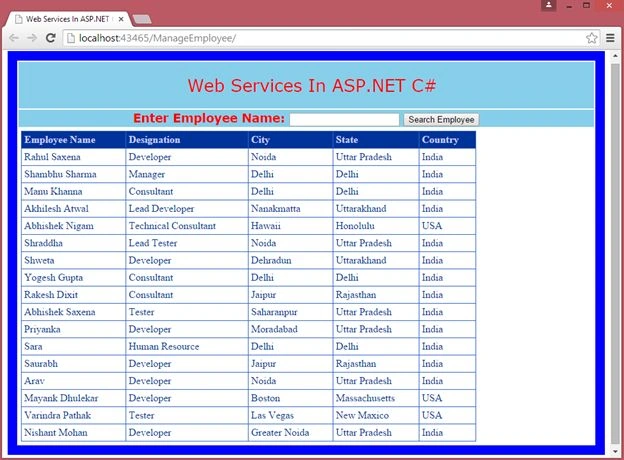
Image 11.
Now enter a name and click on Search.
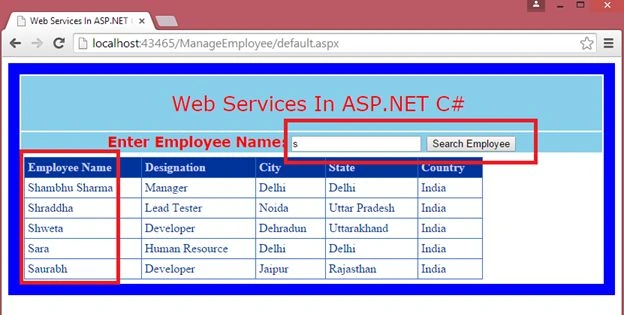
Image 12.
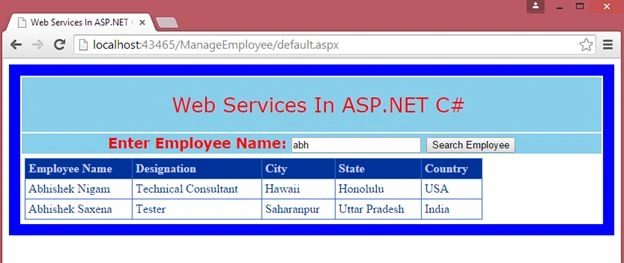
Image 13.
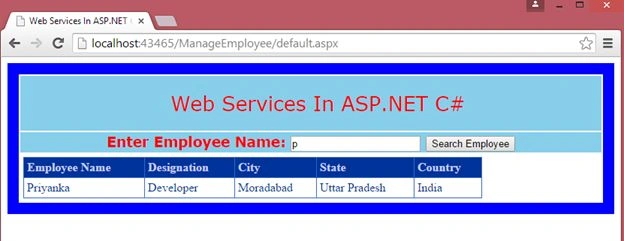
Image 14.
Rahul Kumar SaxenaPosted May 21, 2015, 2:11 PM
Thanks.Lalit Raghav
Lalit RaghavPosted May 21, 2015, 8:43 AM
very nice
Rahul Kumar SaxenaPosted May 5, 2015, 4:10 AM
Thanks Sahil Sharma...
Rahul Kumar SaxenaPosted May 5, 2015, 3:46 AM
Thanks Sahil Sharma...
Rahul Kumar SaxenaPosted May 5, 2015, 3:46 AM
Thanks wael Adel...
Rahul Kumar SaxenaPosted Feb 27, 2015, 4:06 AM
Thanks 2 all...
Rahul Kumar SaxenaPosted Feb 24, 2015, 9:22 AM
Thank u wael Adel ... :)
Rahul Kumar SaxenaPosted Feb 24, 2015, 9:22 AM
Thank u Sahil Sharma ... :)
Rahul Kumar SaxenaPosted Feb 24, 2015, 9:22 AM
Thank u Praveen Kumar ... :)
wael adelPosted Feb 24, 2015, 9:17 AM
very nice
Sahil SharmaPosted Feb 17, 2015, 5:07 AM
very nicely explained
Praveen KumarPosted Feb 17, 2015, 4:20 AM
very nice!!!