

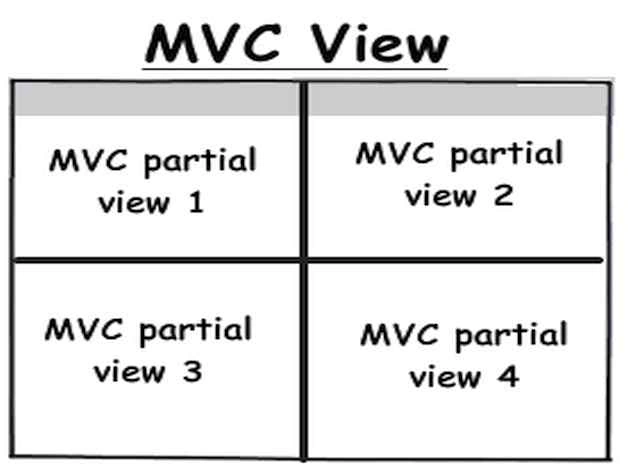
Partial Views are a type of view which can be reused across the ASP.NET MVC application. It is same as User Control in ASP.NET which can reuse multiple times inside the different views. It is not bound to any particular action method.
When to create Partial View
When you think that the particular data is required again and again in different places it can be single view or different view. In that scenario, we need to create the Partial View. The main purpose of creating the Partial View, writing the code again and again for same output or same piece of information we can create a Partial View and place the data inside it. This can be used anywhere inside the View.
So, basically Partial View is used to reduce the duplication of the same type of data. We can know it as reusable view.
There are different places where we can use Partial View like website header and footer, menu bar, category list, comment section, etc.
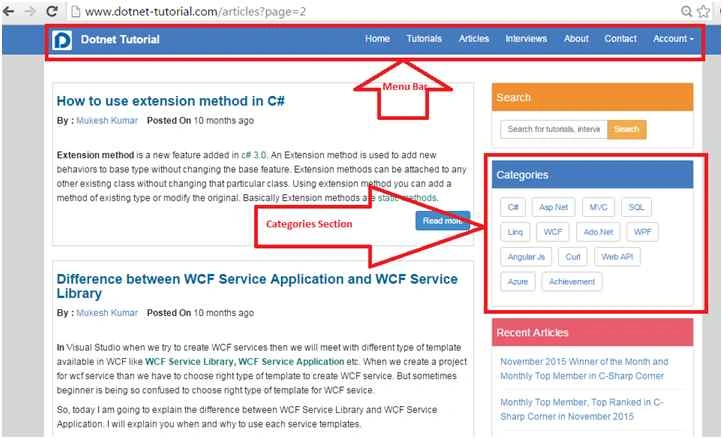
How to create Partial View
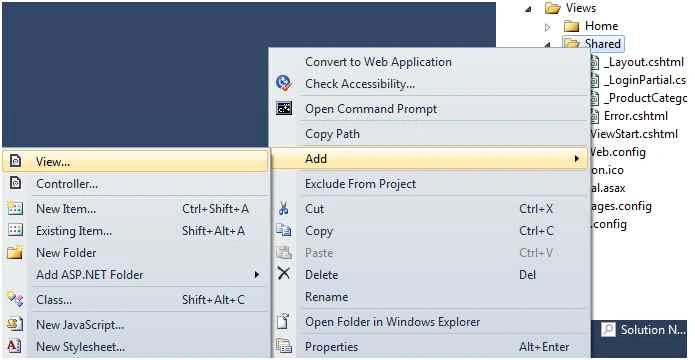
Partial View exists inside the \Views\Shared folder. Because it is accessible to all controller. To add new Partial View, Right Click on Shared folder and choose Add and then choose View;
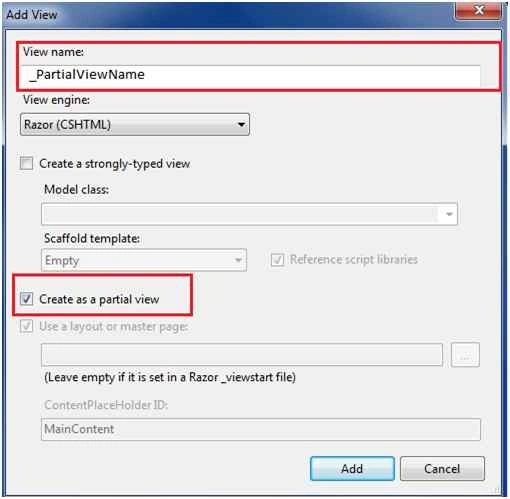
It will open a Add View window, where you can define the name of the Partial View and check the checkbox “Create as a Partial View” for making the view as partial view.
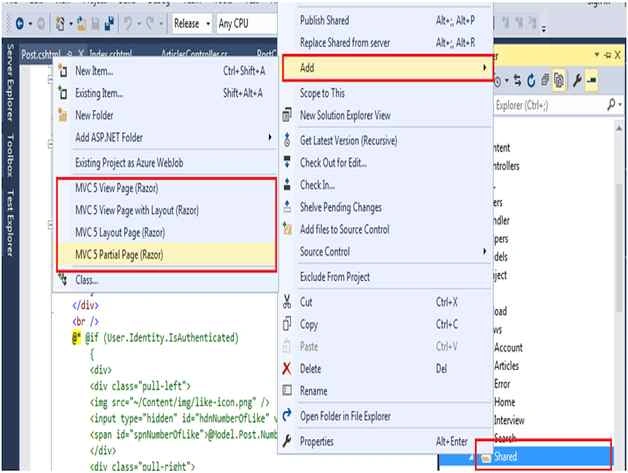
But in ASP.NET MVC 5, you can create different type of view directly as in the following image,
See the following code, which is used for menu bar. If I am going to create multiple view with menu bar then I need to write it multiple times but I can use Partial View here to make my view clear and understandable.
Menu bar HTML code
- <nav class="navbar navbar-inverse navbar-fixed-top" role="navigation">
- <div class="container">
- <div class="navbar-header">
- <button type="button" class="navbar-toggle" data-toggle="collapse" data-target="#bs-example-navbar-collapse-1"> <span class="sr-only">Toggle navigation</span> <span class="icon-bar"></span> <span class="icon-bar"></span> <span class="icon-bar"></span> </button>
- <div class="navbar-brand">
- <div class="logoimage">
- <a href="@Url.Action(" Index ", "Home ")"> <img src="~/Content/Images/logo.png" width="30" height="30" alt="D" /> </a>
- </div>
- <div class="logotitle"> <a href="@Url.Action(" Index ", "Home ")"><span style="padding-top: 0px; color: white;">Dotnet Tutorial</span></a> </div>
- </div>
- </div>
- <div class="collapse navbar-collapse" id="bs-example-navbar-collapse-1">
- <ul class="nav navbar-nav navbar-right">
- <li class="active"> <a href="@Url.Action(" Index ", "Home ")">Home</a> </li>
- <li> <a href="@Url.Action(" Index ", "Tutorials ")">Tutorials</a> </li>
- <li> <a href="@Url.Action(" Index ", "Articles ")">Articles</a> </li>
- <li> <a href="@Url.Action(" Index ", "interview ")">Interviews</a> </li>
- <li> <a href="@Url.Action(" AboutUs ", "Home ")">About</a> </li>
- <li> <a href="@Url.Action(" contactus ", "Home ")">Contact</a> </li>
- </ul> } </li>
- </ul>
- </div>
- </div>
- </nav>
- @Html.Partial("_headerPartialView ")
We can also use a Partial View inside a Partial View. See the following example, here I created a SideBar.cshtml Partial View, which will show all the shortcut menu items on the website. But to show the items I have again created more partial views.
Index.cshtml
- @Html.Partial("SideBar")
Santhakumar MunuswamyPosted Dec 23, 2015, 3:55 PM
Thanks for nice article
Sanjay SabariyaPosted Dec 17, 2015, 6:21 AM
nice one
Muhammad Aqib ShehzadPosted Dec 17, 2015, 5:56 AM
nice info
Aishwarya DPosted Dec 17, 2015, 2:33 AM
Nice one
Ankur MistryPosted Dec 17, 2015, 1:08 AM
Good information.
Gaurav KumarPosted Dec 17, 2015, 12:51 AM
Nice Article..can you provide sample project for this?
Ajay GandhiPosted Dec 17, 2015, 12:21 AM
Nice article