

Introduction
OPTION 1
Step 1
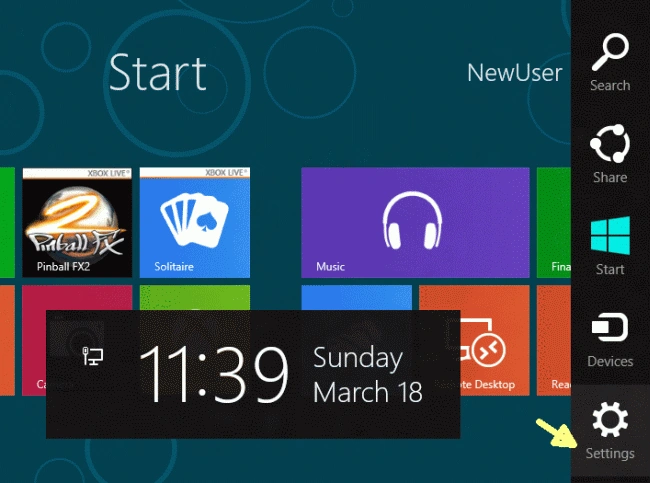
Whether you are on the Metro UI or desktop, move the mouse cursor
to the right side until the search and settings menu bar (called Charms Bar)
appears then click on the Setting icon:
Step 2
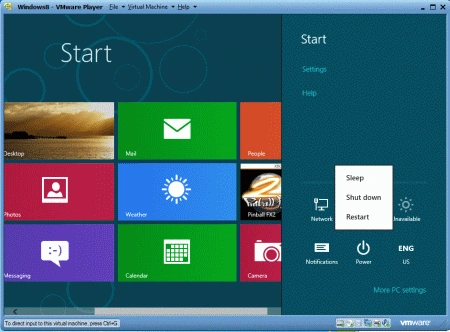
A Pane will
open on the right side that contains the option Power; select it and then
choose the option Shut Down or Restart.
OPTION 2
Step 1
Hold the Windows key and
Press I.

Step 2
A pane will open on the right
the side that contains the option Power;
select it and then choose the option Shut Down
or Restart.
OPTION 3
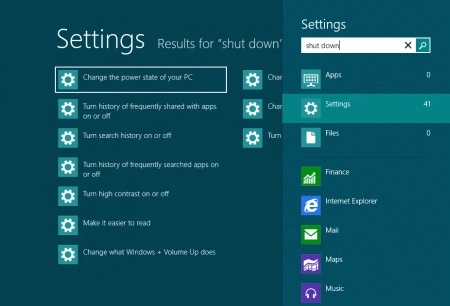
Another option is to type "Shut down"
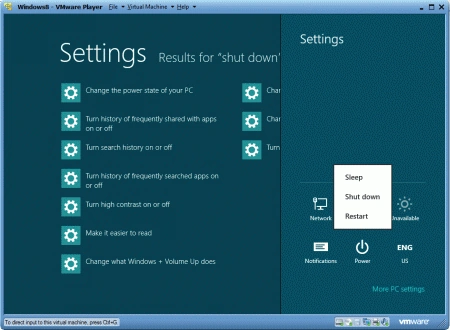
from the home screen. A search screen will open then from there you can select
Settings > Change the power state of your PC > Power.
Summary
In this way, we can shut down or restart
our PC in Windows 8.
SubashPosted Aug 28, 2016, 10:29 PM
Good