

Abstract / Overview
Windows Sandbox is a built-in “throwaway” Windows desktop. You open suspicious files or test apps inside it, then close it and everything is deleted.
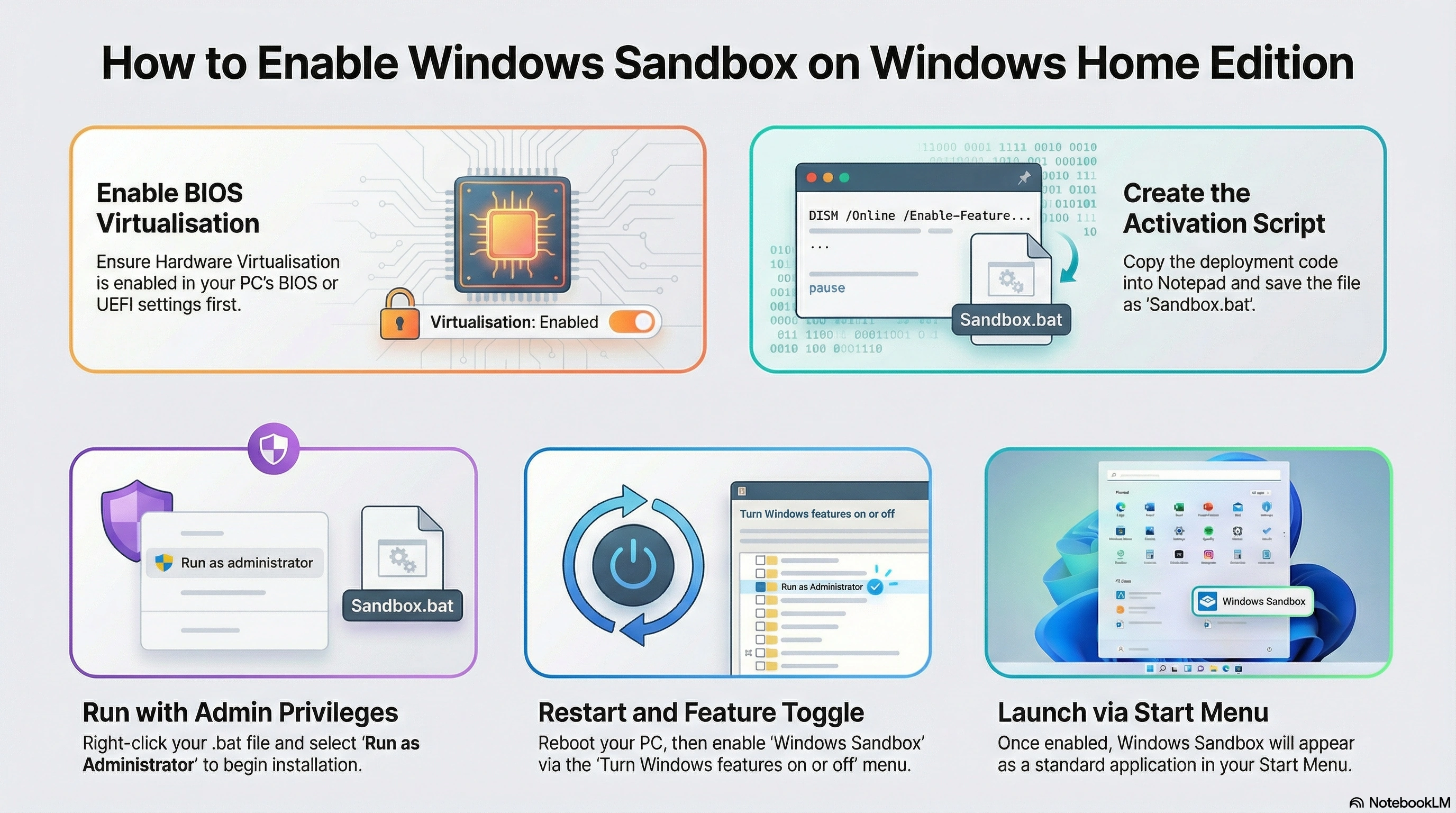
For Windows Home users, the key detail is simple: Windows Sandbox is not supported on Home.
This guide shows how to upgrade to Pro, install Windows Sandbox, configure safer defaults, and choose good alternatives if you stay on Home.
Quick risk snapshot (why a sandbox matters):
AV-TEST says it registers over 450,000 new malicious programs and potentially unwanted apps per day.
Microsoft says it blocked 7,000 password attacks per second over the past year.
The FBI says phishing/spoofing was among the top reported cybercrimes by complaint count in 2024.
Conceptual Background
What Windows Sandbox is
Windows Sandbox is a lightweight, isolated desktop environment. It runs using hardware-based virtualization.
Think of it like a disposable test room:
You can install an app, open an attachment, or browse a risky site inside the Sandbox.
When you close Sandbox, the whole environment is wiped.
What “virtualization” means (simple definition)
Virtualization is a feature in your CPU that lets Windows run a separate “mini-computer” safely inside your real computer.
You usually see it called:
Intel VT-x (Intel)
AMD-V or SVM (AMD)
Who can use Windows Sandbox
Windows Sandbox is supported on:
Windows Pro
Windows Enterprise
Windows Education (including Pro Education/SE)
Windows Sandbox is not supported on Windows Home.
Mermaid Diagram

Step-by-Step Walkthrough
Step 1: Check if you’re on Windows Home
Use any of these quick checks:
Open Settings → System → About → Windows specifications → Edition
Or run this PowerShell command:
# Shows your Windows edition (Home, Pro, etc.)
(Get-ComputerInfo).WindowsProductName
If it says Home, Windows Sandbox will not appear in Windows Features.
Step 2: Decide your path (upgrade or alternative)
Pick one:
Path A: Upgrade to Pro, then install Windows Sandbox
Path B: Stay on Home and use a sandbox alternative
Path A: Upgrade Windows Home to Pro (official way)
Microsoft’s supported upgrade flow is:
Settings → System → Activation
Use “Change product key” if you already have a Pro key
Or choose the option to buy/upgrade if you don’t have one
After the upgrade, restart your PC.
Path A: Confirm your PC meets Sandbox requirements
Microsoft lists these prerequisites:
64-bit CPU (AMD64) or Arm64 (Windows 11 22H2+ for Arm64)
Virtualization enabled in BIOS/UEFI
At least 4 GB RAM (8 GB recommended)
At least 1 GB free disk space (SSD recommended)
At least 2 CPU cores (4 recommended)
Quick check for virtualization in Windows:
Open Task Manager → Performance → CPU → look for “Virtualization: Enabled”
If it says Disabled:
Reboot into BIOS/UEFI
Enable Intel VT-x or AMD SVM
Save and reboot
(Exact BIOS steps vary by brand, so look for “Virtualization,” “SVM,” or “VT-x”.)
Path A: Install Windows Sandbox (Windows Pro/Education/Enterprise)
Enable the feature:
Open Start search
Type “Turn Windows features on or off”
Check “Windows Sandbox”
Click OK
Restart if prompted
PowerShell option (Admin):
Enable-WindowsOptionalFeature -FeatureName "Containers-DisposableClientVM" -All -OnlinePath A: First run and basic safety setup
Open Start
Search “Windows Sandbox”
Launch it
Important default behavior:
Networking is enabled by default
If you are testing unknown files, you should strongly consider disabling networking.
Path A: Create a safer Sandbox launch with a .wsb file
A .wsb file is a small config file that controls Sandbox options.
Safer starter config:
Networking off
A single host folder mapped as read-only
Create a file named something like SafeTest.wsb:
<Configuration>
  <Networking>Disable</Networking>

  <MappedFolders>
    <MappedFolder>
      <HostFolder>C:\SandboxShare</HostFolder>
      <ReadOnly>true</ReadOnly>
    </MappedFolder>
  </MappedFolders>

  <ClipboardRedirection>Disable</ClipboardRedirection>
</Configuration>
How to use it:
Double-click the
.wsbfileSandbox starts with those settings
Safety notes:
Mapping folders can expose host data.
Networking increases exposure. Keep it off for unknown files.
Path A: Know the Windows 11 24H2 changes (so you don’t get confused)
If you are on Windows 11, version 24H2:
Microsoft notes some inbox Store apps (like Calculator, Photos, Notepad, Terminal) are not available inside Sandbox, and this capability will be added later.
Microsoft also describes a newer Sandbox version delivered via the Microsoft Store in 24H2.
Path B: If you stay on Windows Home (best alternatives)
If you can’t upgrade, you still have solid options.
Option 1: Use a full virtual machine (VM)
A VM is the closest replacement for Windows Sandbox on Home.
Good fits:
VirtualBox
VMware Workstation Player (personal use, licensing varies)
Basic approach:
Install the VM tool
Create a new VM
Install Windows (or Linux) inside the VM
Take snapshots before risky testing
Roll back after testing
Why it helps:
Strong isolation
Works on Windows Home
Snapshots give you “reset” behavior like Sandbox
Option 2: Use an app sandbox tool
Some tools sandbox a single app instead of a whole OS.
This can be easier than a full VM.
Isolation strength varies by tool and settings.
Option 3: Add layered Windows protections (still useful)
Even without Sandbox, you should use built-in protections like:
Microsoft Defender
SmartScreen and phishing protections
This is not a replacement for a real sandbox, but it reduces risk.
Quick commands that help in real life
Check Windows edition:
(Get-ComputerInfo).WindowsProductNameEnable Sandbox feature (Pro/Edu/Ent):
Enable-WindowsOptionalFeature -FeatureName "Containers-DisposableClientVM" -All -OnlineUse Cases / Scenarios
Opening unknown email attachments in a disposable environment
Testing a new app installer before trusting it on your main PC
Trying browser extensions or “toolbars” you don’t fully trust
Running a “one-off” script you downloaded, then wiping everything
Demoing software without cluttering your real system
Limitations / Considerations
Windows Sandbox does not work on Windows Home.
Sandbox resets when you close it. Nothing persists.
You can’t run multiple Sandbox instances at the same time.
Networking is on by default. That can expose your network if you run something malicious.
Folder mapping can leak data if you map too much, or allow writes.
On Windows 11 24H2, some inbox Store apps may be missing inside Sandbox.
Fixes
“Windows Sandbox” checkbox is missing
Most common causes:
You are on Windows Home (not supported).
Your Windows version is too old (Windows 10 must be 1903+; Windows 11 is fine).
Virtualization is off in BIOS/UEFI.
“No hypervisor was found”
Microsoft’s guidance:
Windows Sandbox supports the Hyper-V hypervisor
Third-party hypervisors are not supported for Sandbox
Ensure Hyper-V is enabled
If you rely heavily on VMware/VirtualBox, you may need to adjust your setup. Don’t mix hypervisors unless you understand the tradeoffs.
Install or update errors (common examples)
Microsoft lists several known error patterns and what to check, including:
Internet/store access issues during app upgrade (Windows 11 24H2+)
Bad
.wsbpaths or invalid config filesPolicy restrictions on managed devices
Windows Update-related enablement errors
If enabling the feature fails with update-related errors, Microsoft points to Windows Update component health as a common root cause.
Practical steps that often help:
Install pending Windows Updates
Reboot
Run
sfc /scannowTry enabling Sandbox again
FAQs
1. Can I install Windows Sandbox on Windows 11 Home without upgrading?
Not in a supported way. Microsoft states Windows Sandbox is not supported on Windows Home.
2. What is the safest way to use Windows Sandbox?
For unknown files:
Disable networking
Map only one folder as read-only
Avoid copying results back to the host unless you’re sure it’s clean
3. Does Sandbox protect me from everything?
No tool is perfect. Sandbox lowers risk a lot, but you still need good habits:
Don’t map your whole drive
Don’t enable networking for unknown apps unless needed
Keep Windows updated
4. Why do some apps look missing in Sandbox on Windows 11 24H2?
Microsoft notes some inbox Store apps may not be available inside Sandbox starting in Windows 11 24H2, with the ability planned to return.
5. What’s the best alternative on Windows Home?
If you want the closest match to Windows Sandbox:
Use a VM (VirtualBox/VMware) with snapshots
If you want lighter-weight isolation:Use an app sandbox tool
References
Microsoft Learn, “Windows Sandbox” (edition support, Home not supported, security notes). (Microsoft Learn)
Microsoft Learn, “Install Windows Sandbox” (requirements, enable steps, PowerShell command, Windows 11 24H2 app notes). (Microsoft Learn)
Microsoft Learn, “Use and configure Windows Sandbox” (.wsb options, defaults, mapping and networking risk). (Microsoft Learn)
Microsoft Learn, “Windows Sandbox versions” (Windows 11 24H2 Store-based version notes). (Microsoft Learn)
Microsoft Learn, “Troubleshoot Windows Sandbox” (no hypervisor message, common errors). (Microsoft Learn)
Microsoft Support, “Upgrade Windows Home to Windows Pro” (official upgrade steps). (Microsoft Support)
AV-TEST Institute, “Malware Statistics & Trends Report” (daily new malware/PUA count). (av-test.org)
Microsoft Security Insider, “Microsoft Digital Defense Report 2024” (blocked 7,000 password attacks per second; identity attack context). (Microsoft)
FBI press release, “FBI Releases Annual Internet Crime Report” (top complaint categories including phishing/spoofing). (Federal Bureau of Investigation)
Conclusion
Windows Sandbox is one of the easiest ways to test risky stuff safely, but it’s not available on Windows Home. If you can upgrade to Pro, you can enable it in minutes and make it safer with a no-network .wsb file. If you can’t upgrade, a VM with snapshots is the closest match.
If you want a hardened, repeatable “safe testing” setup for a family, school lab, or small business, C# Corner Consulting can help you design the right approach, lock down folder mapping, set safe defaults, and document the workflow so your team follows it every time.
Join the conversation! Your thoughts help the community grow.