

Introduction
This article shows how to easily integrate Facebook into your Windows Phone Store 8.1 application.
This topic contains the following sections:
- Installation of Facebook SDK
- Linking App with Facebook
- Work with Facebook Login Page
- Post status message on Facebook Wall
- Logout from Facebook Page

Why Facebook Integration
Facebook users increasingly rely on their Facebook identity to access apps, play games with friends, share playlists or comment in a forum. As a developer, you may also rely on a Facebook Login to tap into the Facebook social graph to enhance your app's experience, enable new scenarios and open up the app to new customers, resulting in better revenue opportunities.
Requirements
- This sample is targeted for the Windows Phone Store 8.1 OS, so be sure you've downloaded and installed the Windows Phone 8.1 SDK. For more information, see Get the SDK.
- I assume you're going to test your app on the Windows Phone emulator. If you want to test your app on a phone, you need to use an additional procedure. For more info, see Register your Windows Phone device for development.
- This article assumes you're using Microsoft Visual Studio Express 2013 for Windows.
Description
First of all, open Microsoft Visual Studio Express 2013 for Windows and then create a new project type Blank App (for example: FaceBookWp8.1).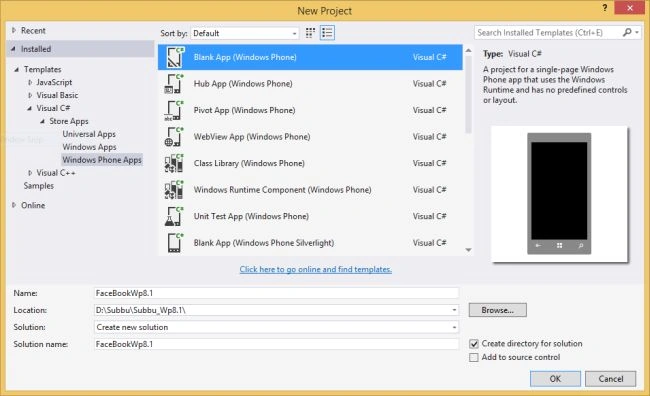
1.1 Installation of Facebook SDK
Install the Facebook Nuget package into the solution by starting the Package Manager PowerShell by following:
Tools -> Library Package Manager -> Package Manager console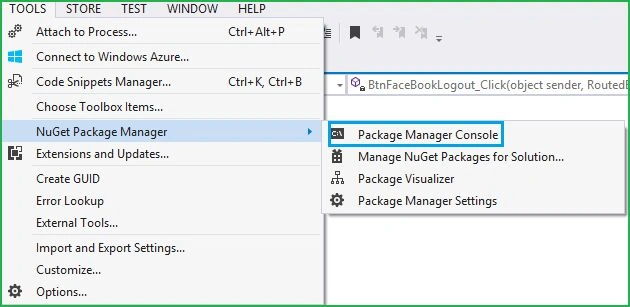
Once the powershell command prompt is running, enter the following command.
Install-Package Facebook 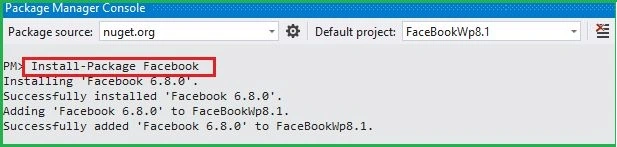
This will add the Facebook SDK into the current project as in the following.
1.2 Linking App with Facebook
First of all, you need to create a Facebook application on the website. Here is the link to do so. Click the "Add New App" button.
Enter the Display Name, namespace (optional) and then click "Create App ID".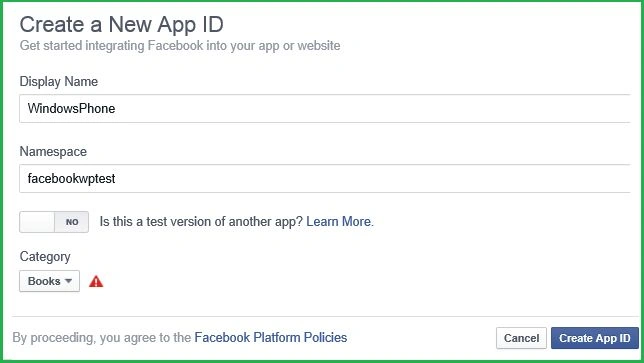
Now go to Settings. There click on add platform.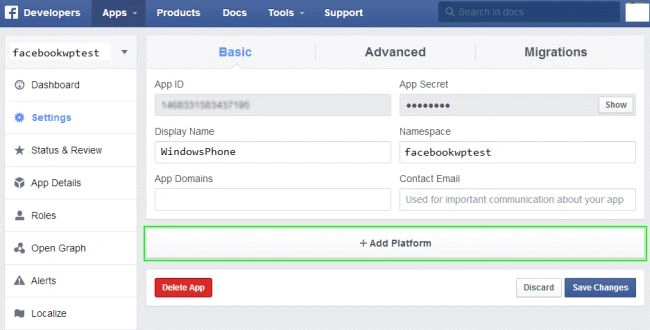
Please note the preceding App Id. You must select Windows App as a platform, because in this sample we are trying to connect Windows Phone 8.1 store apps.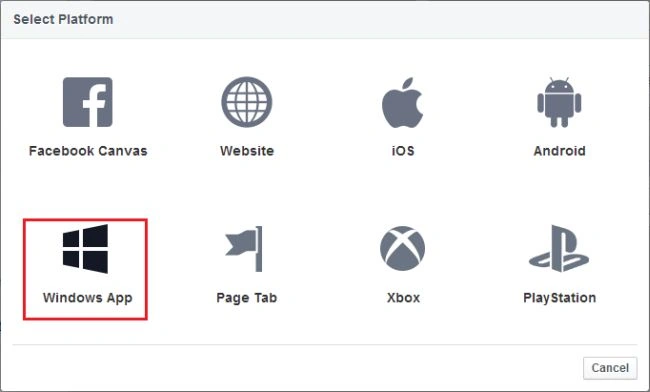
And now the most important step is we need to fill in the Windows Store ID.
There are a couple of ways to get the value to be put into that field, for one of them in this sample I will use the WebAuthenticationBroker class like this:
Uri _callbackUri = WebAuthenticationBroker.GetCurrentApplicationCallbackUri();
In my case the preceding statement returns the following URI, you may check the preceding code by downloading the sample and looking at the "FaceBookHelper.cs" class from the "Helpers" folder in a project.
We proceed to copy that URI, on the page Facebook App "facebookwptest" a new platform and select Windows App. There two fields appear, since this app is creating for Windows Phone 8.1 and then we place the URI Windows Store ID. If I were developing a Silverlight App Windows Phone 8.1 we should use another field and a different URI.
For the URI we must place there the GUID by copying everything from "s-" without inclkuir rl "/" end being something like: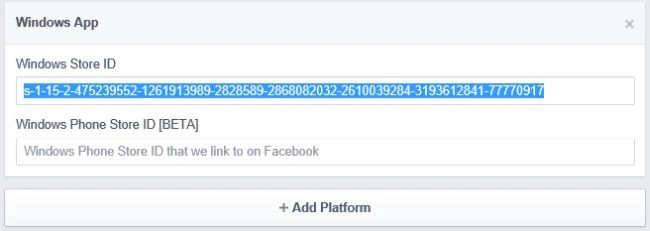
Note: Since we are creating a Windows Phone Store app, ignore the field for Windows Phone and we look only at the Windows Store ID.
1.3 Work with Facebook Login Page
Before going to login any social networks, oAuth is the common authentication method nowadays for Apps and Websites. In this article I am interested in using WebAuthenticationBroker.
Note: Unlike the Windows WebAuthenticationBroker, the Phone version does not use the AuthenticateAsync method. It uses AuthenticateAndContinue instead. This is related to the lifecycle on the phone, since it is more likely that an WINPRT app is suspended than on Windows (at least that's the official reason).
But we are able to get it working, no worries. First, we need the so called ContinuationManager. This class brings the user back to the app where the fun begun. So create a folder named "Helpers" and add the following class.
- namespace FaceBookWp8._1.Helpers
- {
- class ContinuationManager
- {
- public void ContinueWith(IActivatedEventArgs args)
- {
- var rootFrame = Window.Current.Content as Frame;
- if (rootFrame == null)
- return;
- switch (args.Kind)
- {
- case ActivationKind.PickFileContinuation:
- break;
- case ActivationKind.PickFolderContinuation:
- break;
- case ActivationKind.PickSaveFileContinuation:
- break;
- case ActivationKind.WebAuthenticationBrokerContinuation:
- var continuator = rootFrame.Content as IWebAuthenticationBrokerContinuable;
- if (continuator != null)
- continuator.ContinueWithWebAuthenticationBroker((WebAuthenticationBrokerContinuationEventArgs)args);
- break;
- default:
- break;
- }
- }
- }
- interface IWebAuthenticationBrokerContinuable
- {
- void ContinueWithWebAuthenticationBroker(WebAuthenticationBrokerContinuationEventArgs args);
- }
- }
The next step we need to do is some modifications into the App.xaml.cs file.
- protected async override void OnActivated(IActivatedEventArgs args)
- {
- CreateRootFrame();
- if (args.PreviousExecutionState == ApplicationExecutionState.Terminated)
- {
- try
- {
- await SuspensionManager.RestoreAsync();
- }
- catch { }
- }
- if (args is IContinuationActivatedEventArgs)
- _continuator.ContinueWith(args);
- Window.Current.Activate();
- }
- private void CreateRootFrame()
- {
- Frame rootFrame = Window.Current.Content as Frame;
- if (rootFrame == null)
- {
- rootFrame = new Frame();
- SuspensionManager.RegisterFrame(rootFrame, "AppFrame");
- Window.Current.Content = rootFrame;
- }
- }
Then, we are checking if the activation is a Continuation. We need this check there, otherwise the app will not be able to receive the Tokens after returning from the WebAuthenticationBroker.
Note: declare the ContinuationManager globally in App.xaml.cs with this to avoid multiple instances (that will crash the app for sure).
- ContinuationManager _continuator = new ContinuationManager();
- private async void OnSuspending(object sender, SuspendingEventArgs e)
- {
- var deferral = e.SuspendingOperation.GetDeferral();
- await SuspensionManager.SaveAsync();
- deferral.Complete();
- }
- namespace FaceBookWp8._1.Helpers
- {
- public class FaceBookHelper
- {
- FacebookClient _fb = new FacebookClient();
- readonly Uri _callbackUri = WebAuthenticationBroker.GetCurrentApplicationCallbackUri();
- readonly Uri _loginUrl;
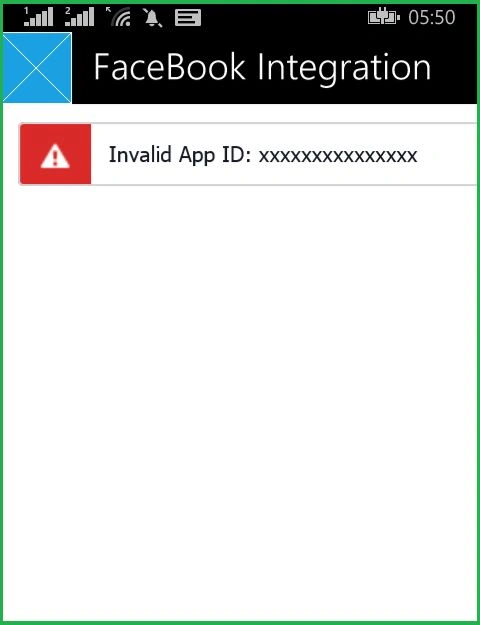
- private const string FacebookAppId = "xxxxxxxxxxxxxxx";//Enter your FaceBook App ID here
- private const string FacebookPermissions = "user_about_me,read_stream,publish_stream";
- public string AccessToken
- {
- get { return _fb.AccessToken; }
- }
- public FaceBookHelper()
- {
- _loginUrl = _fb.GetLoginUrl(new
- {
- client_id = FacebookAppId,
- redirect_uri = _callbackUri.AbsoluteUri,
- scope = FacebookPermissions,
- display = "popup",
- response_type = "token"
- });
- Debug.WriteLine(_callbackUri);//This is useful for fill Windows Store ID in Facebook WebSite
- }
- private void ValidateAndProccessResult(WebAuthenticationResult result)
- {
- if (result.ResponseStatus == WebAuthenticationStatus.Success)
- {
- var responseUri = new Uri(result.ResponseData.ToString());
- var facebookOAuthResult = _fb.ParseOAuthCallbackUrl(responseUri);
- if (string.IsNullOrWhiteSpace(facebookOAuthResult.Error))
- _fb.AccessToken = facebookOAuthResult.AccessToken;
- else
- {//error de acceso denegado por cancelación en página
- }
- }
- else if (result.ResponseStatus == WebAuthenticationStatus.ErrorHttp)
- {// error de http
- }
- else
- {
- _fb.AccessToken = null;//Keep null when user signout from facebook
- }
- }
- public void LoginAndContinue()
- {
- WebAuthenticationBroker.AuthenticateAndContinue(_loginUrl);
- }
- public void ContinueAuthentication(WebAuthenticationBrokerContinuationEventArgs args)
- {
- ValidateAndProccessResult(args.WebAuthenticationResult);
- }
- }
- }
Now our project hierarchy will be like this.
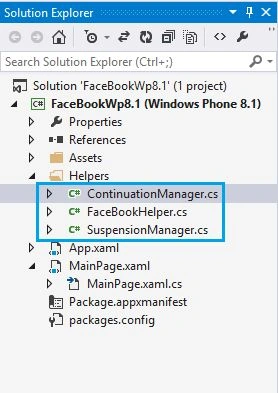
Wow! Now we are nearly done, let's make the following UI in the MainPage.xaml page to use the preceding helpers.
- <StackPanel>
- <!--Title-->
- <TextBlock Text="FaceBook Integration in WP8.1:" FontSize="28" Foreground="Gray"/>
- <!--Buttons for Login & Logout-->
- <Button Name="BtnLogin" Content="FaceBook Login" HorizontalAlignment="Stretch" Background="#FF00A9CF" Click="BtnFaceBookLogin_Click"/>
- <Button Visibility="Collapsed" Name="BtnLogout" Content="FaceBook Logout" HorizontalAlignment="Stretch" Background="#FF00A9CF" Click="BtnFaceBookLogout_Click"/>
- <StackPanel Visibility="Collapsed" Name="StckPnlProfile_Layout">
- <!--Display facebook profile info-->
- <TextBlock Text="User Profile :" FontSize="30" TextWrapping="Wrap" Foreground="White"/>
- <Image Stretch="None" x:Name="picProfile" HorizontalAlignment="Left" />
- <TextBlock FontSize="20" Name="TxtUserProfile" TextWrapping="Wrap" Foreground="White"/>
- <!--Post wall-->
- <TextBox Name="TxtStatusMsg" MinHeight="150" TextWrapping="Wrap" Header="Status Message:" FontSize="18" Foreground="Black"/>
- <Button Content="Post Status on FaceBook" HorizontalAlignment="Stretch" Background="#FF00A9CF" Click="BtnFaceBookPost_Click"/>
- </StackPanel>
- </StackPanel>
- For displaying sample title.
- Buttons for Login and Logout.
- UI for displaying user profile info, after successfully logging into Facebook.
- Post message to wall.
In the MainPage.cs file, create the following two global objects for the "FaceBookHelper.cs" class and FacebookClient.
- FaceBookHelper ObjFBHelper = new FaceBookHelper();
- FacebookClient fbclient = new FacebookClient();
- private void BtnFaceBookLogin_Click(object sender, RoutedEventArgs e)
- {
- ObjFBHelper.LoginAndContinue();
- }
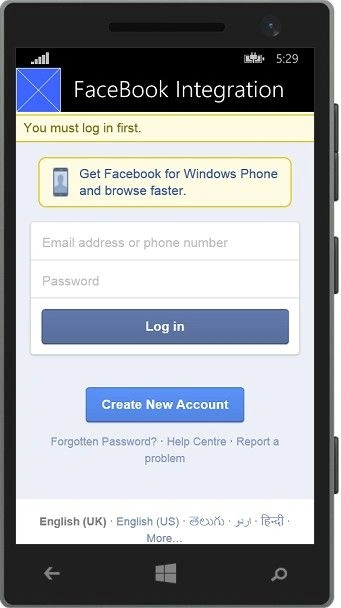
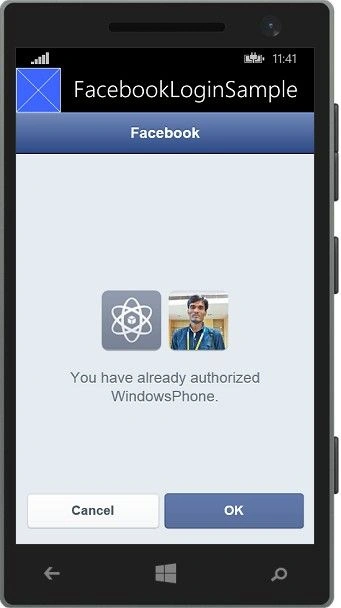
The Facebook username and password entered will be processed for authentication and then will be ask for your permissions. Press OK to successfully log into the Facebook page.
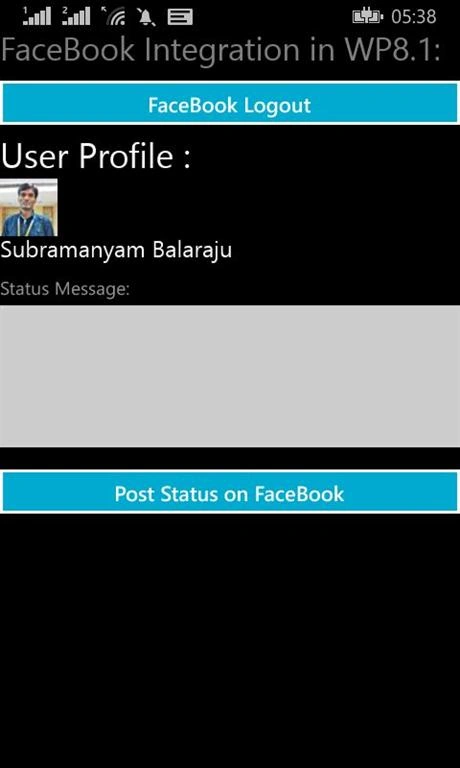
After successfully logging into the Facebook page, add the following method for fetching the user profile data in the MainPage.cs file.
- public async void ContinueWithWebAuthenticationBroker(WebAuthenticationBrokerContinuationEventArgs args)
- {
- ObjFBHelper.ContinueAuthentication(args);
- if (ObjFBHelper.AccessToken != null)
- {
- fbclient = new Facebook.FacebookClient(ObjFBHelper.AccessToken);
- //Fetch facebook UserProfile:
- dynamic result = await fbclient.GetTaskAsync("me");
- string id = result.id;
- string email = result.email;
- string FBName = result.name;
- //Format UserProfile:
- GetUserProfilePicture(id);
- TxtUserProfile.Text = FBName;
- StckPnlProfile_Layout.Visibility = Visibility.Visible;
- BtnLogin.Visibility = Visibility.Collapsed;
- BtnLogout.Visibility = Visibility.Visible;
- }
- else
- {
- StckPnlProfile_Layout.Visibility = Visibility.Collapsed;
- }
- }
- private void GetUserProfilePicture(string UserID)
- {
- string profilePictureUrl = string.Format("https://graph.facebook.com/{0}/picture?type={1}&access_token={2}", UserID, "square", ObjFBHelper.AccessToken);
- picProfile.Source = new BitmapImage(new Uri(profilePictureUrl));
- }
1.4 Post status message on Facebook Wall
When clicking on the Post Status button, add the following code to the MainPage.cs file:
- private async void BtnFaceBookPost_Click(object sender, RoutedEventArgs e)
- {
- var postParams = new
- {
- name = "Facebook Post Testing from App.",
- caption = "WindowsPhone 8.1 FaceBook Integration.",
- link = "http://bsubramanyamraju.blogspot.in",
- description=TxtStatusMsg.Text,
- picture = "http://facebooksdk.net/assets/img/logo75x75.png"
- };
- try
- {
- dynamic fbPostTaskResult = await fbclient.PostTaskAsync("/me/feed", postParams);
- var responseresult = (IDictionary<string, object>)fbPostTaskResult;
- MessageDialog SuccessMsg = new MessageDialog("Message posted sucessfully on facebook wall");
- await SuccessMsg.ShowAsync();
- }
- catch (Exception ex)
- {
- //MessageDialog ErrMsg = new MessageDialog("Error Ocuured!");
- }
- }
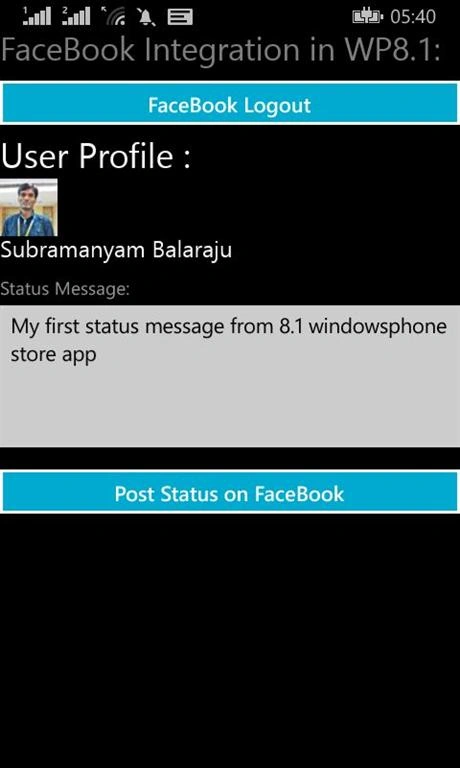
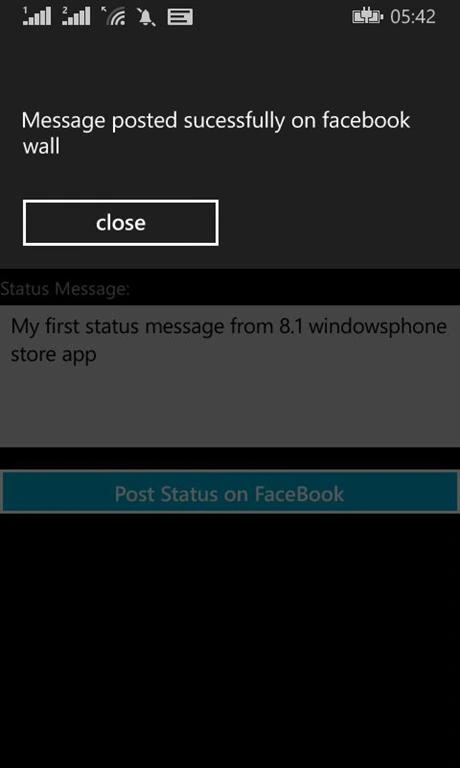
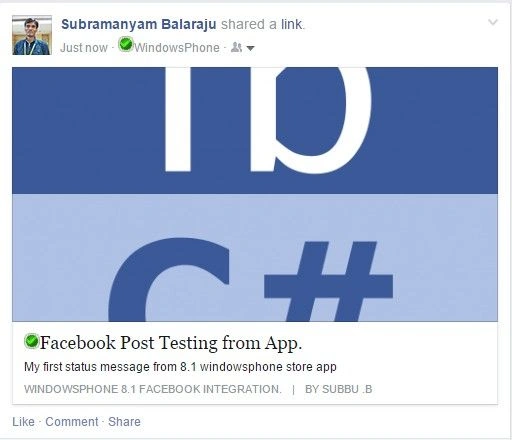
After posting status, we will get a found status message on the Facebook timeline as in the following:
1.5 Logout from Facebook Page
When clicking on the Logout button, add the following code to the MainPage.cs file:
- private async void BtnFaceBookLogout_Click(object sender, RoutedEventArgs e)
- {
- _logoutUrl = fbclient.GetLogoutUrl(new
- {
- next = "https://www.facebook.com/connect/login_success.html",
- access_token = ObjFBHelper.AccessToken
- });
- WebAuthenticationBroker.AuthenticateAndContinue(_logoutUrl);
- BtnLogin.Visibility = Visibility.Visible;
- BtnLogout.Visibility = Visibility.Collapsed;
- }
From this article we have learned "Facebook Integration in Windows Phone 8.1 application". I hope I wrote this article with my best level. When writing this article, I tried really hard to make a nice presentation and make the article understandable at the beginner's level.
This article is also available at my original blog.
Guest UserPosted Jan 11, 2017, 5:25 AM
Please provide the code for gmail authentication process.please please its urjent for me any body can u help??
Guest UserPosted Jan 3, 2017, 4:28 AM
Please provide the code for gmail authentication process
Ibad RehmanPosted Aug 10, 2015, 6:41 AM
Please help me with my issue. Whenever I click on 'Log in' it gives me the error as 'Given URL is not permitted by the Application configuration: One or more of the given URLs is not permitted by the App's settings. It must match the website URL or canvas URL, or domain must be the subdomain of one of the App's domains. '
joe satriaPosted Jul 29, 2015, 2:40 AM
great artcile, it works well. i implement this in my app when i'm jump to another page it will log out, please let me know how to keep my app logged in with facebook.
prince sanghiPosted Jun 3, 2015, 3:27 AM
Same Problem I am also facing. When I clicke on login button.it is not going to facebook page.it is again Coming back to the main page. What is the problem and how can i fixed it
Silvio TerziPosted Jan 28, 2015, 6:20 AM
I've tried your example, but I met some problems. When I logon with FB, I get a "This does not let the app post to Facebook" warning and when I try to post I get the error: "(OAuthException - #200) (#200) The user hasn't authorized the application to perform this action". What I've missed?
Sam HobbsPosted Jan 27, 2015, 2:37 PM
I think all your hard work was worthwhile. It looks like fun, I wish I had time to spend with this.