
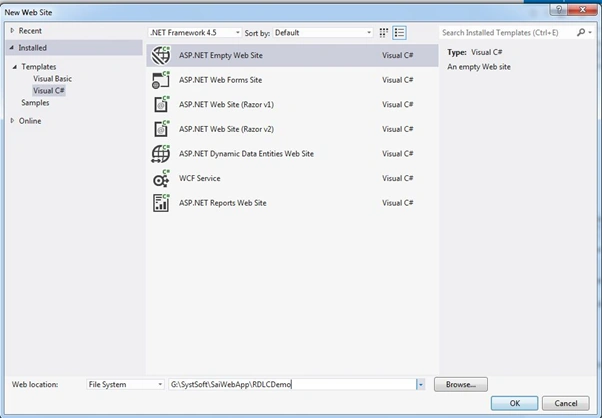
- Create Empty Web Site Project
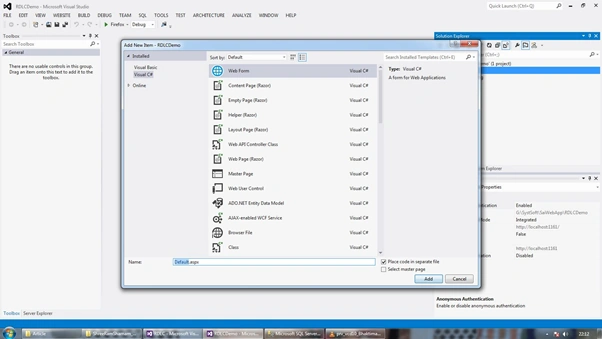
- Add New Web Form.
- Add Connection String in WEB.CONFIG file.
- <connectionStrings>
- <add name="ConnectionString1" connectionString="Data Source=SERVER NAME;Initial Catalog=DATABASE NAME;Integrated Security=True" providerName="System.Data.SqlClient" />
- </connectionStrings>
- Insert REPORTVIEWER tool on DEFAULT.ASPX,
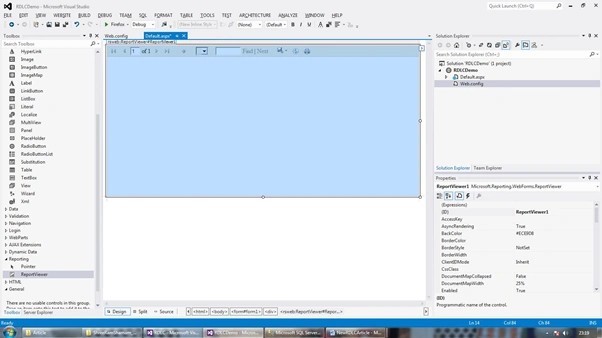
While you drag and drop ReportViewer on Default.aspx page, at the backend Visual Studio insert the following code into WEB.CONFIG File.
- <compilation debug="false" targetFramework="4.5">
- <assemblies>
- <add assembly="Microsoft.ReportViewer.WebForms, Version=11.0.0.0, Culture=neutral, PublicKeyToken=89845DCD8080CC91" />
- <add assembly="Microsoft.ReportViewer.Common, Version=11.0.0.0, Culture=neutral, PublicKeyToken=89845DCD8080CC91" />
- <add assembly="Microsoft.Build.Framework, Version=4.0.0.0, Culture=neutral, PublicKeyToken=B03F5F7F11D50A3A" /> </assemblies>
- <buildProviders>
- <add extension=".rdlc" type="Microsoft.Reporting.RdlBuildProvider, Microsoft.ReportViewer.WebForms, Version=11.0.0.0, Culture=neutral, PublicKeyToken=89845dcd8080cc91" /> </buildProviders>
- </compilation>
- Insert strongly typed DATASET, right click on,
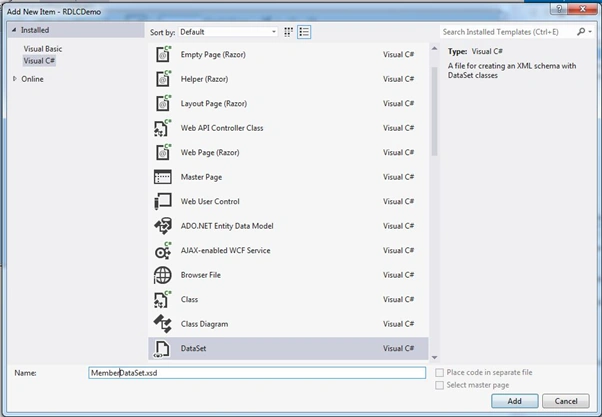
- As you insert above DATASET into project, visual studio will ask you confirmation about location of dataset that is APP_CODE. Select Yes for this dialogue box.
APP_CODE: By default Visual Studio place all code and dataset related things inside this folder. Advantage of placing inside APP_CODE is that it will compile all things into one dll file called APP_CODE.DLL.
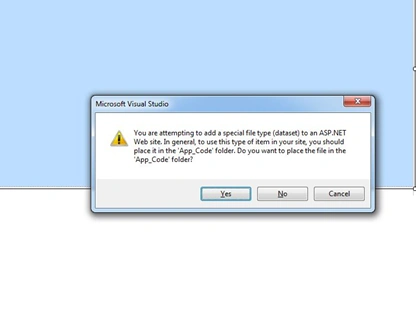
- Double click on MemberDataSet.xsd file.
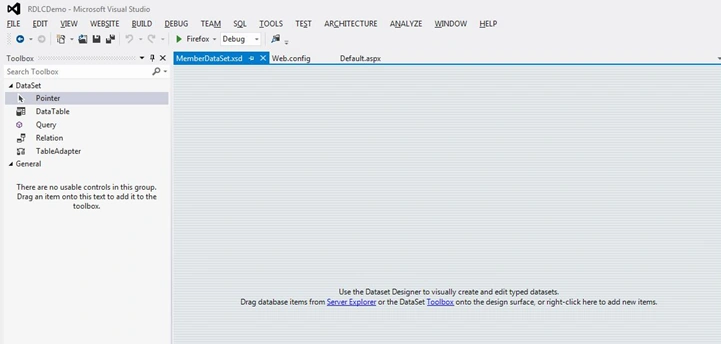
MemberDataset canvas will open. Right click on canvas.
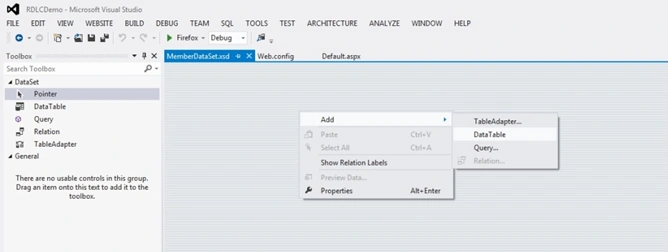
- Right click on canvas and select DataTable option.

- Create strongly typed DATATABLE. By default datable will be created with named DATATABLE1, By right click or single click on Title DATATABLE you can Rename the DataTable with MemberDataTable.
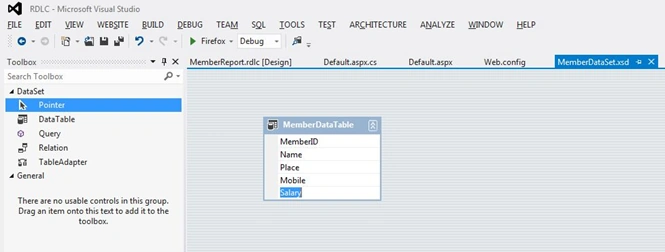
- Now right click again on MemberDataTable select ADDCOLUMN option or simply press CTRL + L to add what you want.
- Your DataTable should look like the following,
- Add the following NAMESPACE at top of the DEAFULT.ASPX FILE.
using System.Configuration;
Above namespace for fetching connection string from WEB.CONFIG file.
using System.Data;
Above namespace for creating or using DATASET things (ADO.NET).
using System.Data.SqlClient;
Above namespace for interacting with Microsoft SQL Server.
using Microsoft.Reporting.WebForms;
Above namespace for interacting with Report Data Source and Report component for web form. As you insert above namespace system will add the following code into web.config file.
- <httpHandlers>
- <add path="Reserved.ReportViewerWebControl.axd" verb="*" type="Microsoft.Reporting.WebForms.HttpHandler, Microsoft.ReportViewer.WebForms, Version=11.0.0.0, Culture=neutral, PublicKeyToken=89845dcd8080cc91" validate="false" />
- </httpHandlers>
- Right click on project or solution explorer and add REPORT that is RDLC extension file. Give the name MemberReport.rdlc.
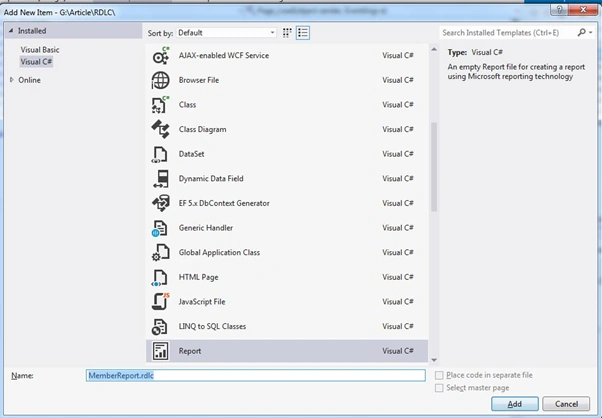
- By default empty RDLC (report file) will look like the following,
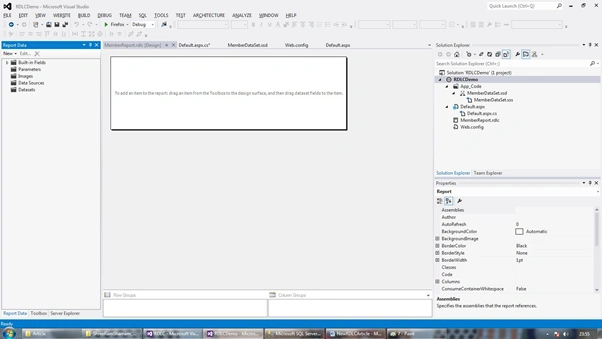
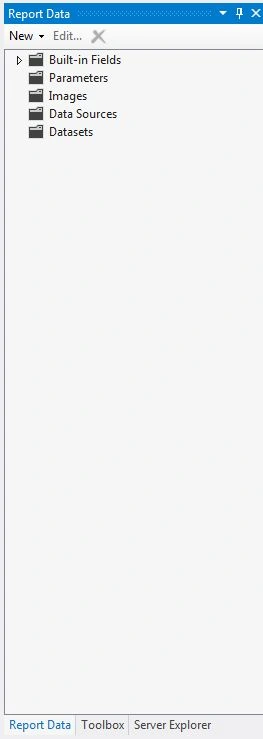
- You can see left hand side Report Data | ToolBox | Server Explorer.
ReportData : To manage report dataset and fields.
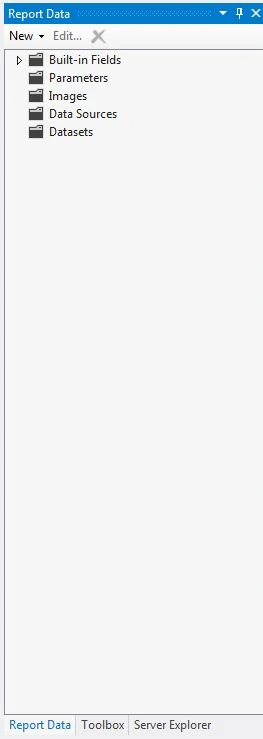
ToolBox
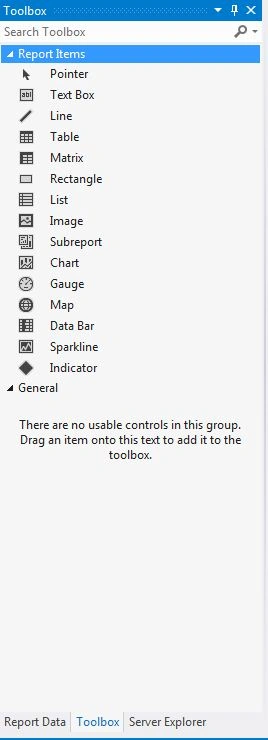
- Now click on Report Data and click on New and select Datasets option just below title of toolbox REPORT.
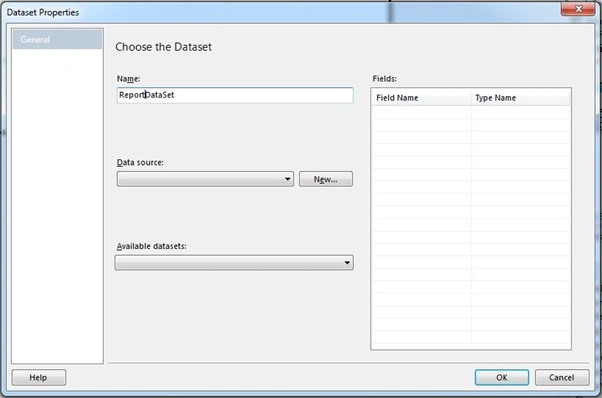
- The following dialogue box will appear.
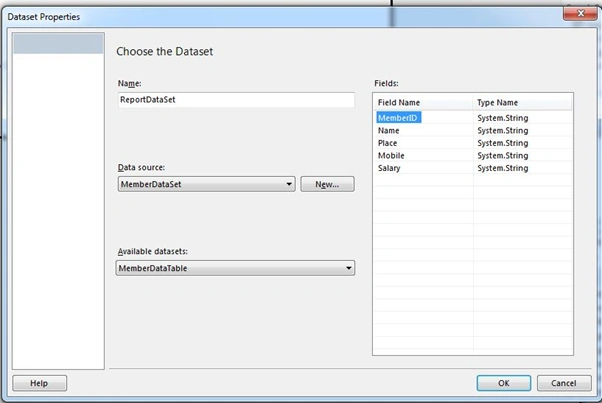
Give Name as ReportDataSet and select DataSource as previously created STRONGLY TYPED DATASET called MemberDataSet from dropdownlist. Available Datasets will be your STRONGLY TYPED TABLE.
Your table columns and datatype table will appear.
Update this dialogue as in the details above,
Now switch to ToolBox menu and select Table tool and drag and drop on report file. After drag and drop Table, adjust table and report canvas area by stretching. On table you can create columns as per your requirement.
To Insert field on report’s table there are two ways.

Second way is drag and drop field from REPORT DATA toolbox select DATASETS, DataSet, Select Field which you want on report.
You can create extra columns by right click on table.
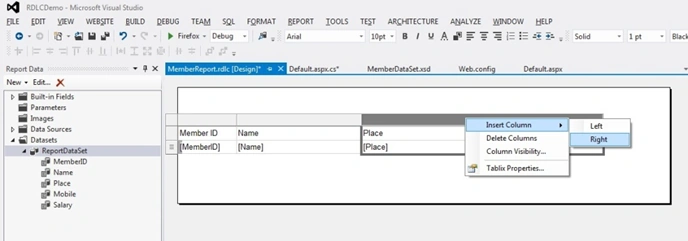
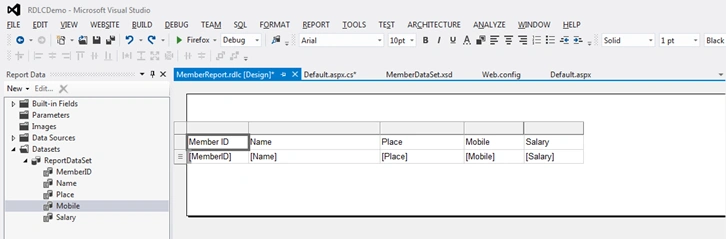
- After inserting columns your report canvas will display as above image.
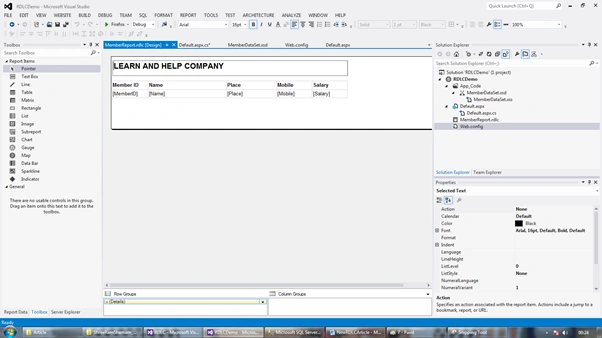
- To make report title BOLD select table header row and mark BOLD from toolbar.
- For title report header select TEXTBOX from TOOLBOX and write header detail and marked bold, italic as you like.
- My Report designing completed.
- Now, we understand code behind file code to execute report on report viewer of aspx page.
Code Behind Code of DEFAULT.ASPX.CS
- using System;
- using System.Collections.Generic;
- using System.Linq;
- using System.Web;
- using System.Web.UI;
- using System.Web.UI.WebControls;
- using System.Configuration;
- using System.Data;
- using System.Data.SqlClient;
- using Microsoft.Reporting.WebForms;
- public partial class _Default: System.Web.UI.Page
- {
- protected void Page_Load(object sender, EventArgs e)
- {
- if (!IsPostBack)
- {
- //set Processing Mode of Report as Local
- ReportViewer1.ProcessingMode = ProcessingMode.Local;
- //set path of the Local report
- ReportViewer1.LocalReport.ReportPath = Server.MapPath("~/MemberReport.rdlc");
- //creating object of DataSet dsMember and filling the DataSet using SQLDataAdapter
- MemberDataSet dsMember = new MemberDataSet();
- string ConStr = ConfigurationManager.ConnectionStrings["ConnectionString1"].ConnectionString;
- SqlConnection con = new SqlConnection(ConStr);
- con.Open();
- SqlDataAdapter adapt = new SqlDataAdapter("select * from tblMembers", con);
- adapt.Fill(dsemp, "MemberDataTable");
- con.Close();
- //Providing DataSource for the Report
- ReportDataSource rds = new ReportDataSource("ReportDataSet", dsMember.Tables[0]);
- ReportViewer1.LocalReport.DataSources.Clear();
- //Add ReportDataSource
- ReportViewer1.LocalReport.DataSources.Add(rds);
- }
- }
- }
- Now switch to DEFAULT.ASPX and drag and drop SCRIPT MANAGER inside main tool box of AJAX EXTENSIONS.
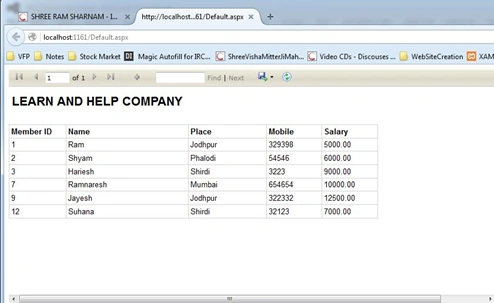
- Now run and see your report will display as in the following screenshot,
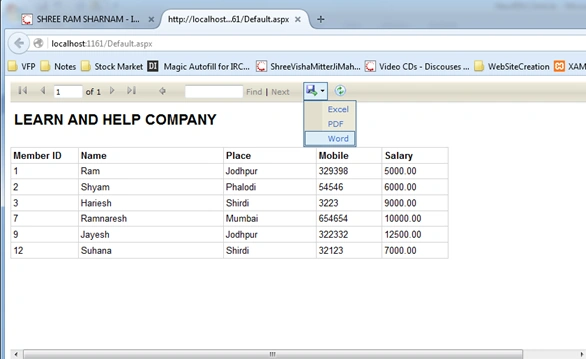
You can convert above report with the following format,
1. Excel
2. PDF
3. Word
- Table Structure
- USE [Member]
- GO
- /****** Object: Table [dbo].[TblMembers] Script Date: 12/08/2015 23:29:28 ******/
- SET ANSI_NULLS ON
- GO
- SET QUOTED_IDENTIFIER ON
- GO
- SET ANSI_PADDING ON
- GO
- CREATE TABLE [dbo].[TblMembers](
- [MemberID] [bigint] IDENTITY(1,1) NOT NULL,
- [name] [varchar](50) NULL,
- [place] [varchar](50) NULL,
- [mobile] [varchar](50) NULL,
- [Salary] [decimal](18, 2) NULL,
- CONSTRAINT [PK_TblMembers2] PRIMARY KEY CLUSTERED
- (
- [MemberID] ASC
- )WITH (PAD_INDEX = OFF, STATISTICS_NORECOMPUTE = OFF, IGNORE_DUP_KEY = OFF, ALLOW_ROW_LOCKS = ON, ALLOW_PAGE_LOCKS = ON) ON [PRIMARY]
- ) ON [PRIMARY]
- Default.aspx
- <%@ Page Language="C#" AutoEventWireup="true" CodeFile="Default.aspx.cs" Inherits="_Default" %>
- <%@ Register Assembly="Microsoft.ReportViewer.WebForms, Version=11.0.0.0, Culture=neutral, PublicKeyToken=89845dcd8080cc91" Namespace="Microsoft.Reporting.WebForms" TagPrefix="rsweb" %>
- <!DOCTYPE html>
- <html xmlns="http://www.w3.org/1999/xhtml">
- <head runat="server">
- <title></title>
- </head>
- <body>
- <form id="form1" runat="server">
- <div>
- <asp:ScriptManager ID="ScriptManager1" runat="server"></asp:ScriptManager>
- <rsweb:ReportViewer ID="ReportViewer1" runat="server" Width="828px"></rsweb:ReportViewer>
- </div>
- </form>
- </body>
- </html>
- Default.aspx.cs
Please, feel free to ask me any doubt or questions.- using System;
- using System.Collections.Generic;
- using System.Linq;
- using System.Web;
- using System.Web.UI;
- using System.Web.UI.WebControls;
- using System.Configuration;
- using System.Data;
- using System.Data.SqlClient;
- using Microsoft.Reporting.WebForms;
- public partial class _Default: System.Web.UI.Page
- {
- protected void Page_Load(object sender, EventArgs e)
- {
- if (!IsPostBack)
- {
- //set Processing Mode of Report as Local
- ReportViewer1.ProcessingMode = ProcessingMode.Local;
- //set path of the Local report
- ReportViewer1.LocalReport.ReportPath = Server.MapPath("~/MemberReport.rdlc");
- //creating object of DataSet dsmember and filling the DataSet using SQLDataAdapter
- MemberDataSet dsMember = new MemberDataSet();
- string ConStr = ConfigurationManager.ConnectionStrings["ConnectionString1"].ConnectionString;
- SqlConnection con = new SqlConnection(ConStr);
- con.Open();
- SqlDataAdapter adapt = new SqlDataAdapter("select * from tblMembers", con);
- adapt.Fill(dsMember, "MemberDataTable");
- con.Close();
- //Providing DataSource for the Report
- ReportDataSource rds = new ReportDataSource("ReportDataSet", dsMember.Tables[0]);
- ReportViewer1.LocalReport.DataSources.Clear();
- //Add ReportDataSource
- ReportViewer1.LocalReport.DataSources.Add(rds);
- }
- }
- }

Working On RDLC Report In C#
Join the conversation! Your thoughts help the community grow.
Sign in to leave a comment
It is the same account you read, post and publish with — and you will come straight back to this page.
Darshan PatelPosted May 10, 2022, 12:20 PM
The base class includes the field 'ReportViewer1', but its type (Microsoft.Reporting.WebForms.ReportViewer) is not compatible with the type of control (Microsoft.Reporting.WebForms.ReportViewer). sir can you help me to solve this..
BhumiPosted Apr 14, 2022, 12:53 PM
I have an issue, i want to change the size(database size)of fields in the report. How to do this?
Christian RubioPosted Mar 17, 2021, 4:23 PM
I have an inssue that when i print the report it shows the total row that i've added, but in the app it doesn't show the row. Any hint to solve this?
Sinnathamby SaseenthiranPosted May 31, 2020, 7:06 AM
Nice article sir. This is work on localhost. but when I published my project on server It display the error "microsoft.reportviewer.processingobjectmodel version=12.0.0.0" not found. please tell the suggestion for it
k jPosted Mar 7, 2018, 5:53 AM
Hi Manoj, i am getting error like Unknown Server tag 'rsweb:ReportViewer'
Eng HazymehPosted Feb 22, 2017, 3:56 PM
Alot of thnaks bro
Kumaresh RajalingamPosted Feb 14, 2016, 5:11 AM
Nice
MOHAMED ELSHEIKHPosted Feb 10, 2016, 3:06 PM
thank you for your help, can you explain why should we use empty table adaptor ?
Muhammad Aqib ShehzadPosted Dec 11, 2015, 5:55 AM
nice share
Sibeesh VenuPosted Dec 10, 2015, 12:31 AM
Nice Share
Santhakumar MunuswamyPosted Dec 9, 2015, 2:05 PM
Thanks for nice article and uploaded for your code
kalu singh raoPosted Dec 9, 2015, 10:21 AM
Great job
Raja TPosted Dec 9, 2015, 6:08 AM
Nice Sir, thanks for sharing
Humayun Kabir MamunPosted Dec 9, 2015, 4:57 AM
Nice...
Manas MohapatraPosted Dec 9, 2015, 4:47 AM
Good one SIR!!
Ankur MistryPosted Dec 9, 2015, 4:18 AM
Nice share