

Introduction
This article shall describe an approach to working with delimited text files. In
general it will discuss the construction of the connection strings and
schema.ini files needed to bind to a delimited text file and it will define an
approach for editing and saving delimited text files.
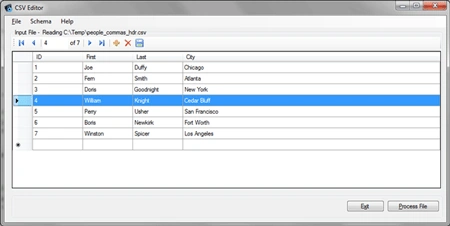
Figure 1: CSV Editor File displaying a delimited text file
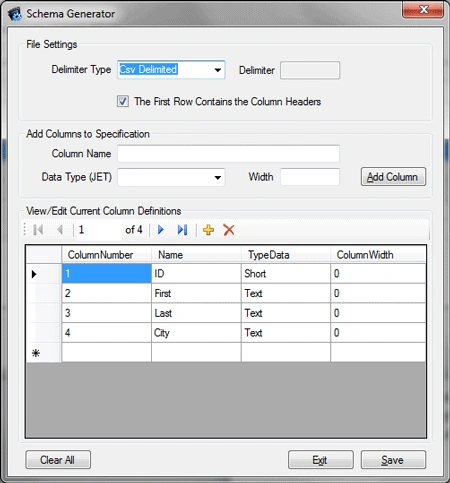
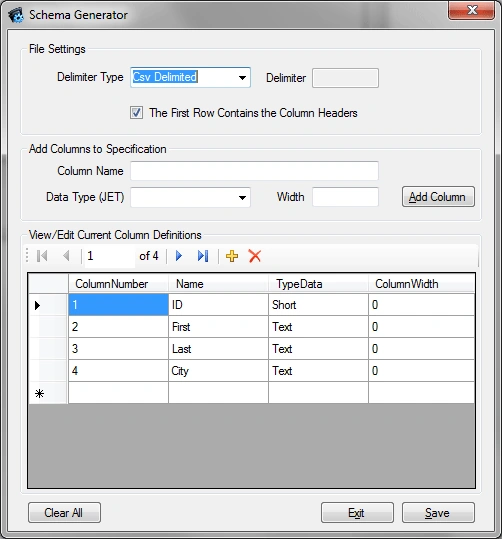
Figure 2: Creating a schema file definition
Working with delimited text files can be a barrel of laughs but it is certainly
something one expects to do from time to time. The article will focus on
creating connections for binding to and reading/editing comma delimited text
files, tab delimited text files, custom character delimited text files, and
fixed column width text files. Different types of delimited files exist because
not all delimiter types work for all files as based upon the contents of those
files. For example, if one of the columns of the file contains a business name
and the file is comma delimited, it is going to cause a bit of trouble if the
business name is something like "Acme Tool Company, Inc." In such cases, if the
fields may contain commas, using a comma as a delimiter is a bad idea.
In order to establish an OLE DB connection to a delimited file, you need to have
a schema.ini file residing in the same location as the delimited file you are
trying to open for viewing or edit (or some other processing). To that end, the
approach used in this application is to provide a dialog used to capture the
content needed to construct a schema.ini file. This information is also used to
build a connection string used to connect to the file as a viable data source.
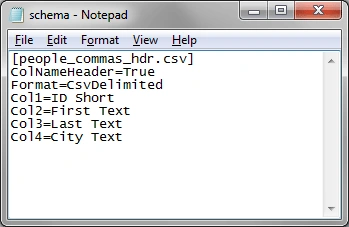
Figure 3: A Schema.ini file opened in Notepad
The schema.ini file shown in Figure 3 is used to open a comma delimited file
that contains column headers in the first row and that contains four columns.
The first column is called "ID" and the data type is a short, the next three
columns are "First", "Last", and "City" and those columns are all text. This
schema.ini file was build using the application and it may be used to open the
file shown in brackets on the first line of the file.
Getting Started
The solution contains two projects; the first is a Windows form application
entitled, "CsvEditor" and the second is a class library project entitled, "SchemaSpec".
The windows form application contains three forms, the editor form is used to
open, edit, save, and close a delimited text file. The schema form is used to
build a viable schema definition that may be then used to build a schema.ini
file. The last form is just an about box.
The schema definition file in the second project contains two classes; one is
used to store the schema definition, and the other is used to hold the column
specifications for each of the columns present in the delimited text file.
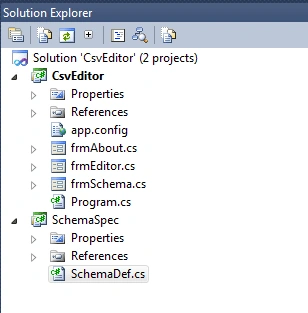
Figure 4: Solution Explorer with the Projects Visible
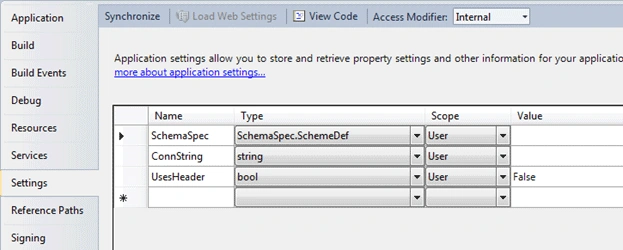
Figure 5: Application Settings used to hold the schema definition and connection
string
First Project - SchemaSpec:
Code: Schema Definition Class File (SchemaDef.cs)
The schema specification file contains two classes; the details for the two
classes are contained in the notation included with the file.
using System;
using System.Collections.Generic;
using System.Linq;
using System.Text;
// Used to contain information about the delimited file to be opened
// using the CSV editor application
namespace SchemaSpec
{
/// <summary>
/// The item specification class is used to
/// define the columns contained within the
/// delimited file to be opened. For each column
/// we need to know the data type (and I am
/// using the jet data types here), the column
/// number, the column name, data type, and
/// column width (if the file is delimited
/// using fixed widths alone) - a list of
/// item specification is added to the
/// schema definition trailing this class
/// </summary>
[Serializable]
public class ItemSpecification
{
// this enumeration is used to
// limit the type data property to
// a matching jet data type
public enum JetDataType
{
Bit,
Byte,
Short,
Long,
Currency,
Single,
Double,
DateTime,
Text,
Memo
};
// the position of the column beginning with 1 to n
public int ColumnNumber { get; set; }
// the column name
public string Name { get; set; }
// the data type
public JetDataType TypeData { get; set; }
// optional column width for fixed width files
public int ColumnWidth { get; set; }
}
/// <summary>
/// The schema definition class is used to hold the
/// contents of the schema.ini file used by the
/// connection to open a delimited file (using
/// an oledb connection). The schema dialog is used
/// to define a schema definition which is stored as a
/// application property
/// </summary>
[Serializable]
public class SchemeDef
{
/// <summary>
/// the constructor will create a default comma delimited
/// file definition with an empty list of items specifications
/// and will default to set the first row is a header row
/// option to false
/// </summary>
public SchemeDef()
{
DelimiterType = DelimType.CsvDelimited;
ColumnDefinition = new List<ItemSpecification>();
UsesHeader = FirstRowHeader.No;
}
// this enumeration is used to limit the delimiter types
// to one of the four we are interested in which are
// comma delimited, tab delimited, custom delimited
// (such as a pipe or an underscore), or fixed column
// widths
public enum DelimType
{
CsvDelimited,
TabDelimited,
CustomDelimited,
FixedWidth
};
// This enum allows the first row is a header
// row option to be set to yes or no; that text
// is used in the connection string (rather than
// true or false)
public enum FirstRowHeader
{
Yes,
No
};
// The properties used to build the schema.ini file include the
// delimiter type, a custom delimiter (if used), a list of
// column definitions, and a determination as to whether
// the first row of the file contains header information rather
// than data
public DelimType DelimiterType { get; set; }
public string CustomDelimiter { get; set; }
public List<ItemSpecification> ColumnDefinition { get; set; }
public FirstRowHeader UsesHeader { get; set; }
}
}
Second Project - CSV Editor
Code: Editor Form (frmEditor.cs)
The editor form is used to open, edit, and save a delimited text file. The code
will create a connection string and a schema.ini file (placed in the path of the
file you are trying to open) when a file is opened. The schema definition is
stored in the application settings when the user creates a schema definition
using the schema definition dialog; this form will recover that definition and
use it to construct the schema.ini file and the connection string. Files are
opened using an OLE DB connection and files saves are accomplished by
overwriting the contents of the file using the contents of the data grid (which
allows saving the edits made in the grid; it also allows cancelling the edits
since nothing is committed until the file is overwritten). A binding source and
navigator are used to traverse, view, and edit the data.
You may not need to do all of that, you might just want to connect to a
delimited text file in some fixed format; if so, just look at the connection
string and schema.ini file related code relevant to that particular task. If you
just want to save grid based edits to a delimited text file, you might just want
to look at the code used to save the file.
The code for this form class is annotated and should be easy enough to follow.
The code contained in the LoadDataFile and SaveFileChanges methods will cover
the more important parts of the form's code and the purpose of each is
self-explanatory.
Lastly, there is a "Process File" button on the form; it does nothing but the
intent was, if you wanted to open a delimited text file and do something with
it, the code present will get the file open, you can use the button's click
event handler to do something with the file contents. Once the connection to the
file is open, you can loop through the contents as you would with any other OLE
DB connection.
using System;
using System.Collections.Generic;
using System.ComponentModel;
using System.Data;
using System.Drawing;
using System.Linq;
using System.Text;
using System.Windows.Forms;
using System.Data.OleDb;
using System.IO;
using System.Net;
namespace CsvEditor
{
public partial class frmEditor : Form
{
#region Form Variable Declarations
private string CsvFilePath;
private BindingSource bsrc;
private OleDbDataAdapter adp;
private DataTable dt;
#endregion
/// <summary>
/// Create a new, empty binding source in construction
/// </summary>
public frmEditor()
{
InitializeComponent();
bsrc = new BindingSource();
}
/// <summary>
/// Open the editor used to define the current schema;
this tool will allow the user
///
define
the schema that will be used to create a connection string and a schema.ini file
/// </summary>
/// <param name="sender"></param>
/// <param name="e"></param>
private void createToolStripMenuItem_Click(object sender, EventArgs e)
{
frmSchema f = new frmSchema();
f.ShowDialog();
}
/// <summary>
/// Display the current connection string; this applies to the last
/// open file as the connection string is
/// not really defined and stored until a file is actually opened with the defined schema
/// </summary>
/// <param name="sender"></param>
/// <param name="e"></param>
private void viewCurrentSchemaToolStripMenuItem_Click(object sender,
EventArgs e)
{
MessageBox.Show(Properties.Settings.Default.ConnString,
"Current Connection");
}
/// <summary>
/// Use the current schema to build a connection string for the
/// delimited text file and use that connection
/// string to open a delimited text file
/// </summary>
/// <param name="sender"></param>
/// <param name="e"></param>
private void openToolStripMenuItem_Click(object sender, EventArgs e)
{
// define the open file dialog particulars; you could add txt files if you were
// so inclined
openFileDialog1.Title = "Source CSV File";
openFileDialog1.Filter = "csv files (*.csv)|*.csv";
openFileDialog1.FileName = string.Empty;
// return if the user cancels the open file dialog
if (openFileDialog1.ShowDialog() == DialogResult.Cancel)
return;
// set the string variable used to hold the path to the delimited text file
// to the open file dialog's file name
CsvFilePath = openFileDialog1.FileName;
// if the string is empty, give warning and return
if (String.IsNullOrEmpty(CsvFilePath))
{
MessageBox.Show("File path does not exist", "File");
return;
}
// make certain the file actually exists before proceeding
if (System.IO.File.Exists(CsvFilePath) == false)
{
MessageBox.Show(String.Format("File {0} does not exist",
CsvFilePath), "Missing File");
return;
}
// Load the delimited file into the form's data grid
LoadFileData(CsvFilePath);
// if the file actually has content, enable saving
if (bsrc.Count > 0)
bindingNavigatorSave.Enabled = true;
}
/// <summary>
/// Load the CSV file into the data grid view for
/// user inspection and edit
/// </summary>
/// <param name="inputFile">Path to the source CSV file</param>
private void LoadFileData(string inputFile)
{
// verify the file
path string has content
if (String.IsNullOrEmpty(inputFile))
{
MessageBox.Show("You must provide a source file in order to proceed",
"Missing File");
return;
}
// get the path to use in defining the connection string
string path = Path.GetDirectoryName(inputFile);
// create the schema file
using the requested file path and the existing schema definition;
// the
schema definition is stored in app settings as an instance of the SchemaDef
class
CreateSchemaIni(inputFile);
// create a new schema definition, make sure the user has created a schema file
// before proceeding - the schema definition is stored in the application properties
SchemaSpec.SchemeDef sdef = new SchemaSpec.SchemeDef();
if (Properties.Settings.Default.SchemaSpec == null)
{
MessageBox.Show("No schema has been defined; prior to opening
a CSV file, use the Schema tool to construct a schema definition",
"Missing Schema");
return;
}
else
{
sdef = Properties.Settings.Default.SchemaSpec;
}
// create a variable to hold the connection string
string connbit = string.Empty;
// based upon the use of a header line and the delimiter type, create the correct
// type of connection string
switch (sdef.DelimiterType)
{
case SchemaSpec.SchemeDef.DelimType.CsvDelimited:
if(sdef.UsesHeader == SchemaSpec.SchemeDef.FirstRowHeader.Yes)
connbit = "Provider=Microsoft.Jet.OLEDB.4.0;Data Source="
+ path + @";Extended Properties=
""Text;HDR=Yes;FMT=CsvDelimited""";
else
connbit = "Provider=Microsoft.Jet.OLEDB.4.0;Data Source="
+ path + @";Extended Properties=
""Text;HDR=No;FMT=CsvDelimited""";
break;
case SchemaSpec.SchemeDef.DelimType.CustomDelimited:
if (sdef.UsesHeader == SchemaSpec.SchemeDef.FirstRowHeader.Yes)
connbit = "Provider=Microsoft.Jet.OLEDB.4.0;Data Source="
+ path + @";Extended Properties=
""Text;HDR=Yes;FMT=Delimited("
+ sdef.CustomDelimiter + ")" + "\"";
else
connbit = "Provider=Microsoft.Jet.OLEDB.4.0;Data Source="
+ path + @";Extended Properties=
""Text;HDR=No;FMT=Delimited("
+ sdef.CustomDelimiter + ")" + "\"";
break;
case SchemaSpec.SchemeDef.DelimType.FixedWidth:
if (sdef.UsesHeader == SchemaSpec.SchemeDef.FirstRowHeader.Yes)
connbit = "Provider=Microsoft.Jet.OLEDB.4.0;Data Source="
+ path + @";Extended Properties=
""Text;HDR=Yes;FMT=FixedLength""";
else
connbit = "Provider=Microsoft.Jet.OLEDB.4.0;Data Source="
+ path + @";Extended Properties=
""Text;HDR=No;FMT=FixedLength""";
break;
case SchemaSpec.SchemeDef.DelimType.TabDelimited:
if (sdef.UsesHeader == SchemaSpec.SchemeDef.FirstRowHeader.Yes)
connbit = "Provider=Microsoft.Jet.OLEDB.4.0;Data Source="
+ path + @";Extended Properties=
""Text;HDR=Yes;FMT=TabDelimited""";
else
connbit = "Provider=Microsoft.Jet.OLEDB.4.0;Data Source="
+ path + @";Extended Properties=
""Text;HDR=No;FMT=TabDelimited""";
break;
default:
break;
}
// put the connection string into the properties and save the properties
Properties.Settings.Default.ConnString = connbit;
Properties.Settings.Default.Save();
// make sure we have a connection string before proceeding
if (String.IsNullOrEmpty(connbit))
{
MessageBox.Show("Invalid Schema; use the scheme utility to
define a schema for the file you are attempting to open",
"Invalid Schema");
}
// use the connection string to open an ole db connection to the delimited file
using (OleDbConnection conn = new OleDbConnection(connbit))
{
using (OleDbCommand cmd =
new OleDbCommand("SELECT * FROM " +
Path.GetFileName(inputFile), conn))
{
conn.Open();
adp = new OleDbDataAdapter(cmd);
dt = new DataTable();
adp.Fill(dt);
// set the binding source's data source to the data table
// and set the grid's data source to the binding source
bsrc.DataSource = dt;
dgvMaster.DataSource = bsrc;
// create a variable to keep track of the column position
int i = 0;
foreach (SchemaSpec.ItemSpecification s in sdef.ColumnDefinition)
{
// set the column header text to match the column name from the
// item specification
dgvMaster.Columns[i].HeaderText = s.Name;
i++;
}
// widen out the last row to fill the available space to tidy up
// the grid a bit
dgvMaster.Columns[dgvMaster.Columns.Count - 1]
.AutoSizeMode = DataGridViewAutoSizeColumnMode.Fill;
// set the binding source navigator to the binding source
bnav.BindingSource = bsrc;
// display the file name to the user
groupBox1.Text = "Input File" + " - Reading " + inputFile;
}
}
}
/// <summary>
/// Overwrite the existing input file will all changes made
/// thus far.
/// </summary>
private void SaveFileChanges()
{
// if the data adapter is not null, end the edit session
if (adp != null)
{
dgvMaster.EndEdit();
// make the the schema definition exists and set the current schema
// definition to the stored schema definition
SchemaSpec.SchemeDef sdef = new SchemaSpec.SchemeDef();
if (Properties.Settings.Default.SchemaSpec == null)
{
MessageBox.Show("No schema has been defined; prior to
working with a CSV file, use the Schema tool to construct
a schema definition", "Missing Schema");
return;
}
else
{
sdef = Properties.Settings.Default.SchemaSpec;
}
// create a string builder instance to hold our text from the
// data grid
StringBuilder sb = new StringBuilder();
int intCols = dt.Columns.Count;
switch (sdef.DelimiterType)
{
case SchemaSpec.SchemeDef.DelimType.CsvDelimited:
// if the file uses a header, add the column header text
//
back in as the column name source
// we will just get it from the grid though the grid may not
//
initially match the text file as the
// user may define the columns using any name they want to apply to it
if (Properties.Settings.Default.UsesHeader == true)
{
StringBuilder sbTitleRow = new StringBuilder();
for(int i=0; i<dgvMaster.ColumnCount; i++)
{
sbTitleRow.Append(dgvMaster.Columns[i].HeaderText);
if ((i + 1) != intCols)
sbTitleRow.Append(",");
else
sbTitleRow.Append("\n");
}
sb.Append(sbTitleRow.ToString());
}
// populate the rows with the data (including any edits); that version
// will overwrite the
// existing content in the file so as to capture those edits –
// of course in your version you
// may wish to disable editing altogether.
foreach (DataRowView dr in dt.DefaultView)
{
for (int x = 0; x < intCols; x++)
{
sb.Append(dr[x].ToString());
if ((x + 1) != intCols)
{
sb.Append(","); // comma delimited
}
}
sb.Append("\n"); // terminate the row
}
break;
case SchemaSpec.SchemeDef.DelimType.CustomDelimited:
// if the file uses a header, add the column header
//
text back in as the column name source
if (Properties.Settings.Default.UsesHeader == true)
{
StringBuilder sbTitleRow = new StringBuilder();
for (int i = 0; i < dgvMaster.ColumnCount; i++)
{
sbTitleRow.Append(dgvMaster.Columns[i].HeaderText);
if ((i + 1) != intCols)
sbTitleRow.Append(sdef.CustomDelimiter);
// user defined delimiter such as a pipe
else
sbTitleRow.Append("\n"); // terminate the row
}
sb.Append(sbTitleRow.ToString());
}
// populate the rows
foreach (DataRowView dr in dt.DefaultView)
{
for (int x = 0; x < intCols; x++)
{
sb.Append(dr[x].ToString());
if ((x + 1) != intCols)
{
sb.Append(sdef.CustomDelimiter);
// user defined delimiter
}
}
sb.Append("\n"); // terminate the line
}
break;
case SchemaSpec.SchemeDef.DelimType.FixedWidth:
// if the file uses a header, add the column header
//text back in as the column name source
if (Properties.Settings.Default.UsesHeader == true)
{
StringBuilder sbTitleRow = new StringBuilder();
for (int i = 0; i < dgvMaster.ColumnCount; i++)
{
// being fixed width, we need to right pad the
//
values to attain the proper
// column widths-the column widths are stored with the
//schema definition,
// we don't use any delimiters on this type so just the
// padding goes in
sbTitleRow.Append(dgvMaster.Columns[i].HeaderText.
ToString().Trim().PadRight(
sdef.ColumnDefinition[i].ColumnWidth));
David GrayPosted Oct 5, 2013, 11:30 PM
After working with it for most of the day, I discovered, to my dismay, that it disregards, and overwrites, a schema.ini file with whatever was last stored in the user's settings.
DanUtsoe hernanPosted Jan 23, 2013, 3:54 PM
cet vien m´amie !!!!
DanUtsoe hernanPosted Jan 23, 2013, 3:53 PM
cet vien moi amie !!!!
Bilal NazereditedPosted Aug 10, 2012, 1:55 AMEdited Aug 10, 2012, 1:55 AM
Great Article Helped a lot. Thanks, Bilal Nazer.
Steve StacelPosted Mar 6, 2012, 11:29 AM
Scott, Great piece of code. Thanks for posting it. I have to process a | delimeted CSV file and this will save me hours of having to write the code myself. Steve
Mahesh ChandPosted Nov 3, 2011, 9:08 AM
Hope all is well.
Dinesh BeniwalPosted Nov 3, 2011, 8:09 AM
Good work Scott.