

Today, I am talking about Images in SharePoint and their uses. In this article I will be discussing all about Picture library and we will have a demo for various ways to upload and add images in SharePoint Site pages.
-
About Picture Library
-
How to add Pictures in Library and Page with various ways
Let us start from one by one as said above,
About Picture Library: It is an inbuilt library from SharePoint online which enables us to share collections of digital pictures or graphics. We can upload images to picture Library from sites such as team sites, Blogs, Wikis or other publishing sites. We can use the same images from anywhere in the same site collection and can access them centrally. Picture Library is an inbuilt Application and Web part for SharePoint online or On-premises from 2010 version. If we will see in the SharePoint site collection there will be three types of Image Libraries which will show up under the site contents page,
- Picture Library
- Wiki Page Library
- Asses Library
Below is the screen shot for Picture Library from SharePoint Online,
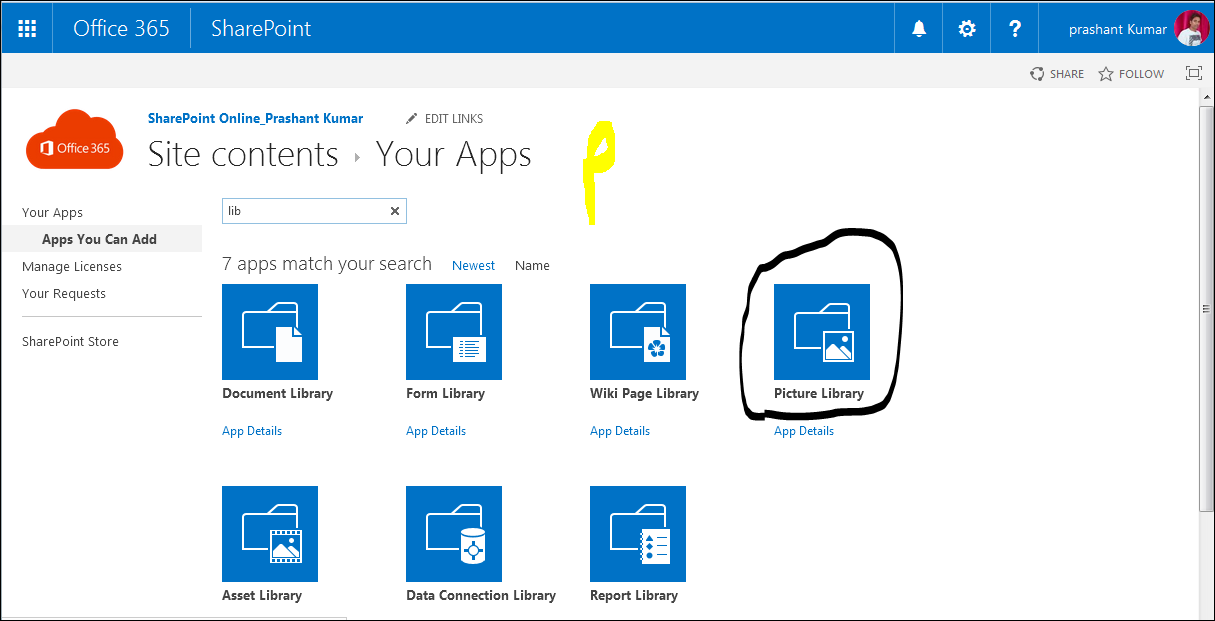
How to add Pictures in Library and Page in various ways: In this section, I will describe more about how to add pictures in the Picture Library or other page in the SharePoint Online in multiple ways.
Let us start one by one adding images in the SharePoint page,
-
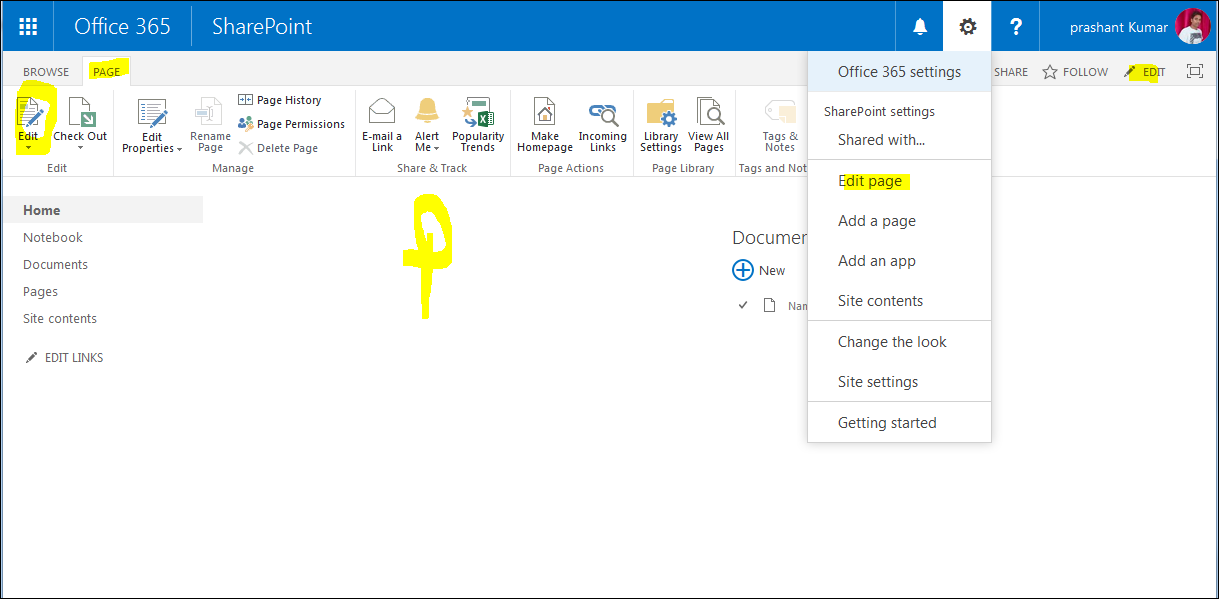
Open any site page of SharePoint online, click on edit from the Ribbon and Page tab or left side edit option will be available, also you can edit the page from site settings gearbox and select edit page. Below is the Screen shot for all above said options,
-
Now remove default, Get the start web part and we will see how to add images here.
-
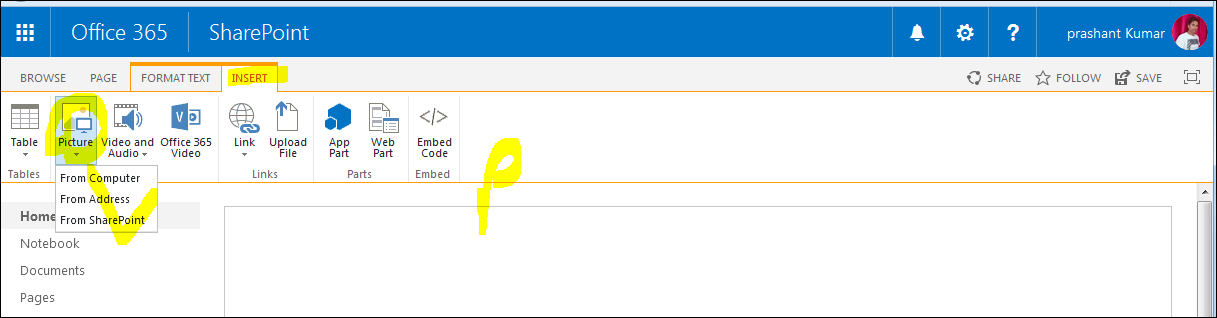
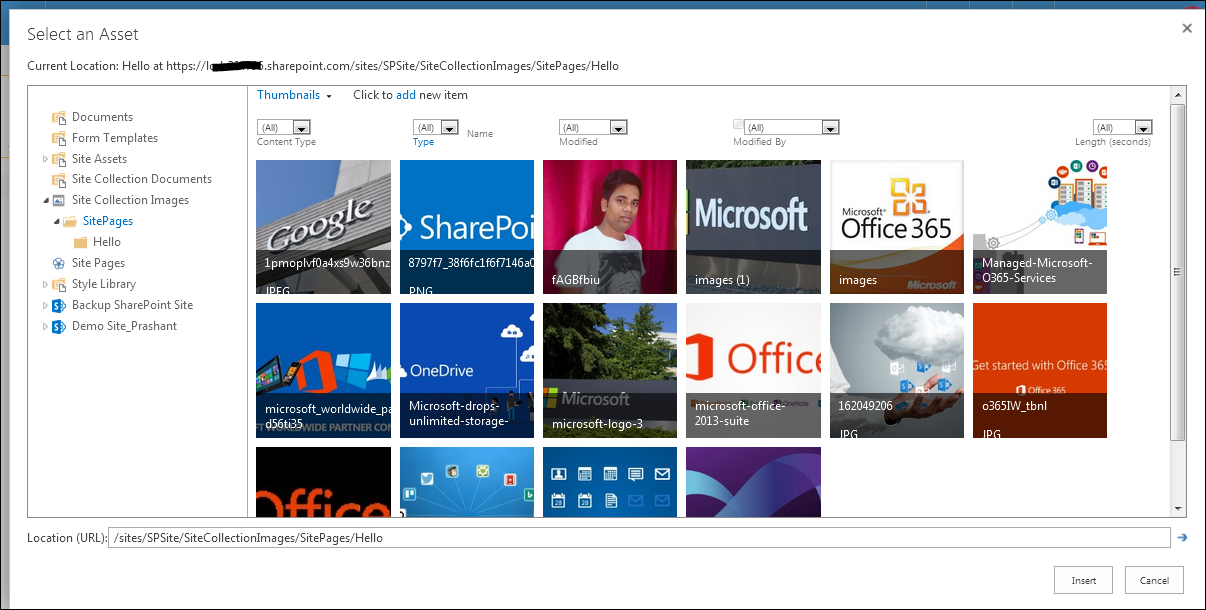
Click on Insert tab from SharePoint Online Ribbon page and click on Picture, it will get drop down option with three options: From Computer, From Address, From SharePoint
From Computer
If we are selecting from computer option from insert image on SharePoint Online:
-
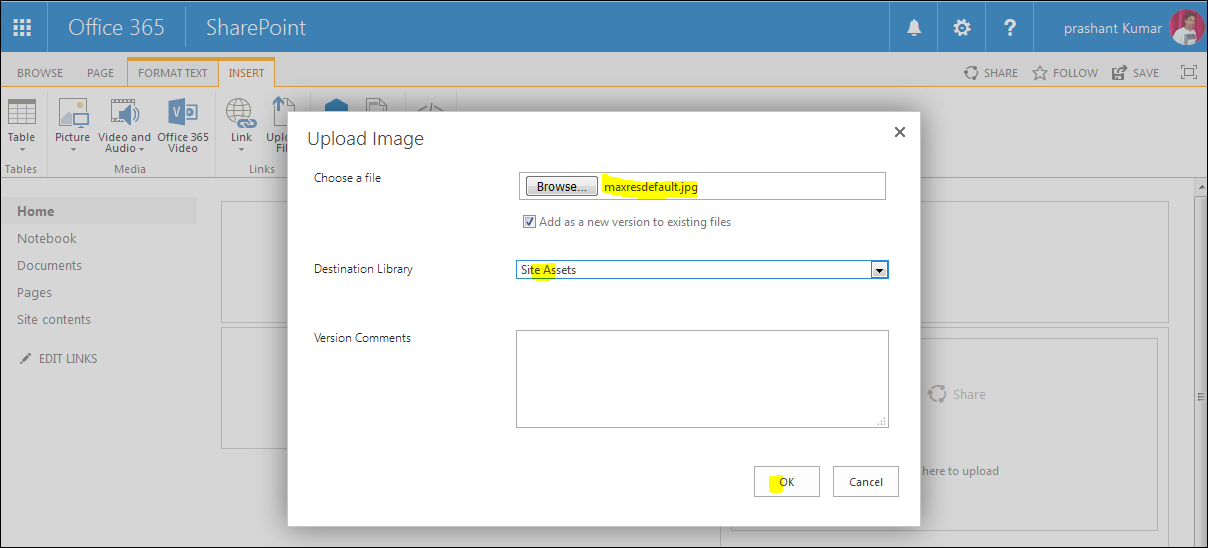
We need to browse and Upload Image from Local system. Select path by clicking on Browse option, check box for existing same name, and add new version for same name of image.
-
Select destination Library by default Site collection Image Library will be selected, you can select other Images from other available library drop down box.
-
Version Comment write a comment and click on ok, see below screen shot for more details,
From Address
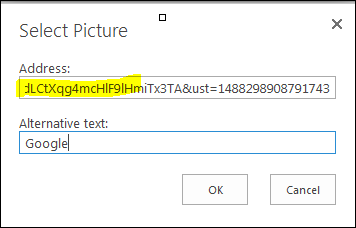
using this option we can copy any available image on the Internet and can insert to any of page.
Note
If copied Link image will be deleted from destination folder or URL, Image will be unavailable from inserted page.


Join the conversation! Your thoughts help the community grow.