

Introduction
In this article, we'll learn how to create a layout and use it in the site using WebMatrix. We've created a Cricketer Site so far. Now we need to change the layout of our site.
In that context, we'll learn how to create a layout page, associate it with dynamic content and pass values through it. So, let's proceed with the following sections:
- Layout Brief
- Working with Layout
- Working with CSS
- Add CSS with Page
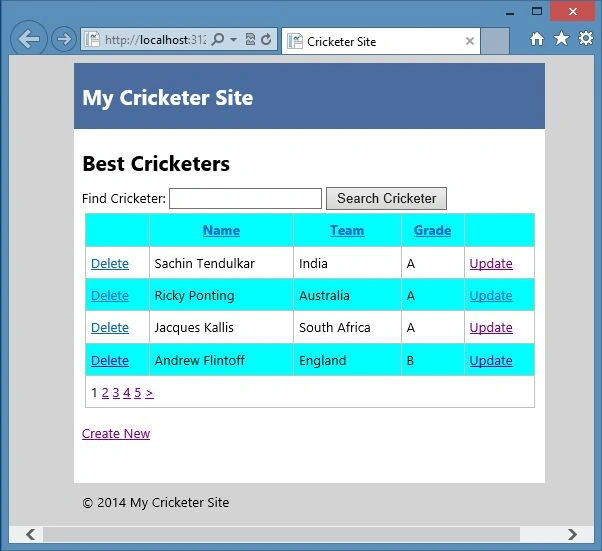
- Run the Site Page
Layout Brief
So far the site we've created does not have a standard look or any common elements. The sites in the current scenario have the persistent look and layout.
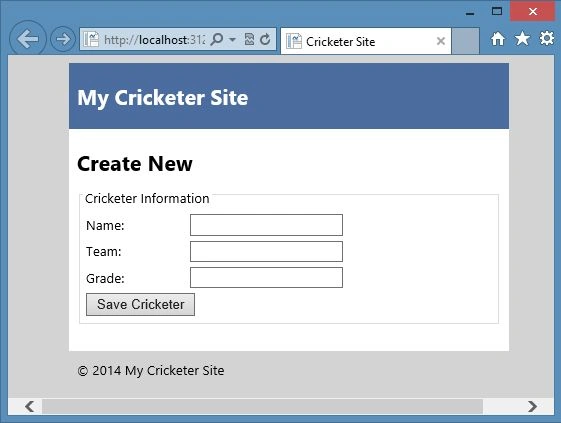
For example, in the following screenshot there is a perfect layout for the website.
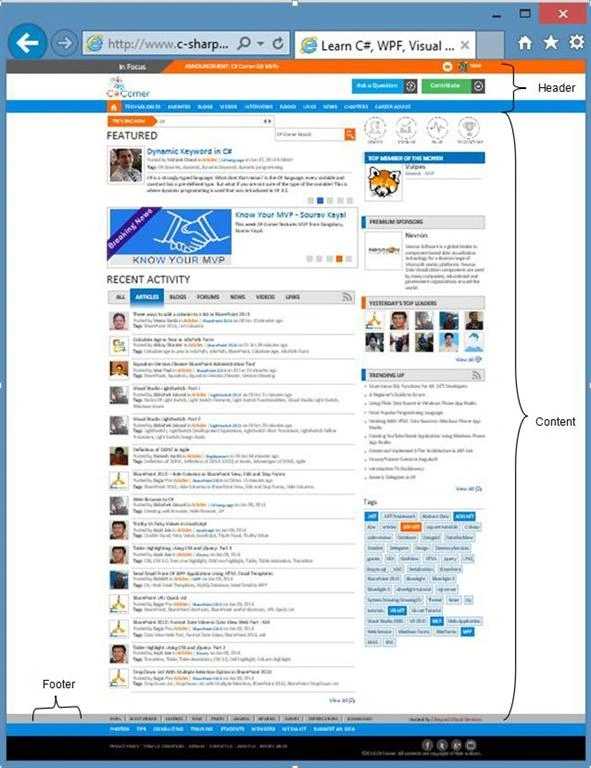
It means that this layout has the header, content and the footer. The layout is shared with all the pages. In our site if we need to change it then we need to change it in each page. This is the reason for improving the Layout pages.
We can define the layout page in the ASP.NET Web Pages that provide an overall container for the pages on the site. We create the layout page only and that page is shared with all the content pages. The content page has a line of code that tells ASP.NET what layout page you want to display in the content.
Working with Layout
So, here we'll add the layout page using the following steps:
Step 1: Create a CSHTML page named _LayoutPage.
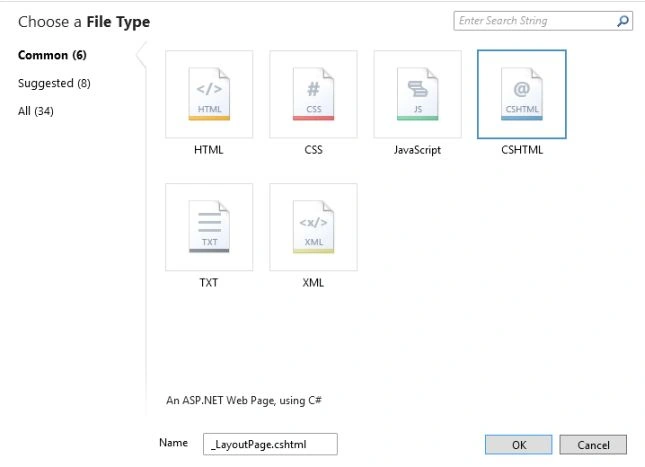
Step 2: Replace the HTML code with the code below:
- <html lang="en">
- <head>
- <meta charset="utf-8" />
- <title>Cricketer Site</title>
- <link href="~/Styles/Site.css" rel="stylesheet" type="text/css" />
- </head>
- <body>
- <div id="container">
- <div id="header">
- <h1>My Cricketer Site</h1>
- </div>
- <div id="content">
- @RenderBody()
- </div>
- <div id="footer">
- © @DateTime.Now.Year My Cricketer Site
- </div>
- </div>
- </body>
- </html>
In the code above are the three sections header, content and footer in the container. In the head part of the page a reference of the CSS file (to be created later) is added. In the header part the site name is placed. In the content part the @RenderBody() is used that is the placeholder where the content will go when this layout is merged with the another page. In the footer part the Razor code is used to get the current date and year.
Working with CSS
So, here we'll add the CSS file for presenting the layout theme. So, proceed with the following.
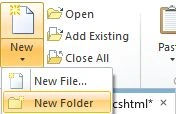
Step 1: Create a New Folder to add the Styles Folder to contain the CSS.
Step 2: Just right-click on that folder to add a CSS file.

Step 3: Select the CSS file and enter the named as Site.

Step 4: Replace the content with the following code:


Join the conversation! Your thoughts help the community grow.