

Introduction
BlackBerry is a line of mobile e-mail and smartphone devices developed and designed by Research In Motion (RIM) since 1999 and the two BlackBerry development environments produced by RIM. The BlackBerry Java Development Environment (JDE), and the BlackBerry JDE Plug-in for Eclipse, you already learned in my previous article "Start developing BlackBerry Application". Now we start working on BlackBerry User Interface.
When we talk about BlackBerry User Interface the very first thing which you have to know that is Layout Managers.
What is Layout Manager
RIM's layout managers are akin to Swing layout
managers, and allow you to arrange lots of fields on the screen, it is
responsible for determining where a UI element will be positioned on the
display. The BlackBerry software library comes with a set of pre-made layout
managers, and the MainScreen class uses the VerticalFieldManager as its default
layout manager.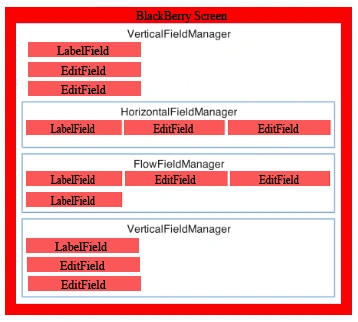
The Screen Class has "layout managers", but we called it as Field Managers. We have several Screen Classes:
Hierarchy of Screen Class
java.lang.Object
--net.rim.device.api.ui.Field
--net.rim.device.api.ui.Manager
--net.rim.device.api.ui.Screen
This Screen is the base class for all screens.
The BlackBerry User interface API follows a Fields/Layout Managers/Screens models: Fields are contained within layout managers, which arrange and draw them in spacific positions. We have some built in layout managers:
Built in Managers
We have four built in layout managers:
- VerticalFieldManager : This layout manager simply lays out the fields you add to it, from top/bottom.
- HorizontalFieldManager : This layout manager simply lays out the fields you add to it, from left to right, on one row.
- FlowFieldManager : This layout manager lays out fields in a horizontal-then-vertical flow.
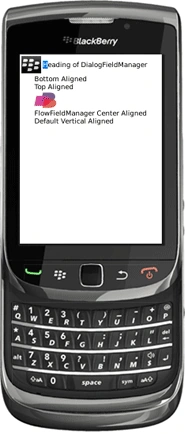
- DialogFieldManager : This layout manager used for Dialogs and status screens. It handles an icon, a message, and an area to hold a list of user specified fields.
Now Lets Code:
Step 1 : Open BlackBerry Java
Plug-in/Eclipse.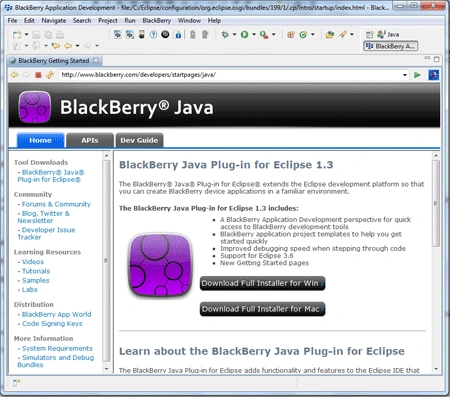
Step 2 : Choose a Project from File/New.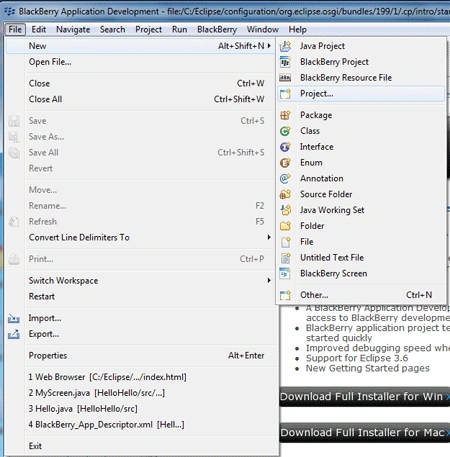
Step 3 : Choose BlackBerry Project
wizard and click on Next.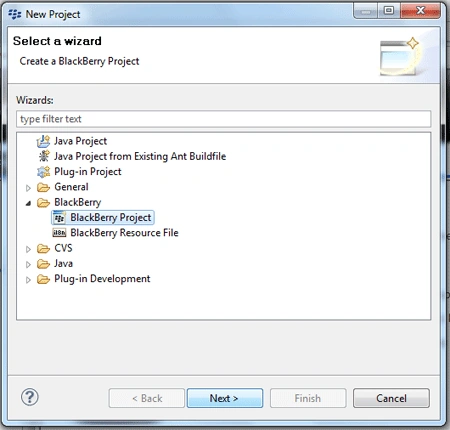
Step 4 : Now give a name to your project
like I gave "Layouts" and click on Finish.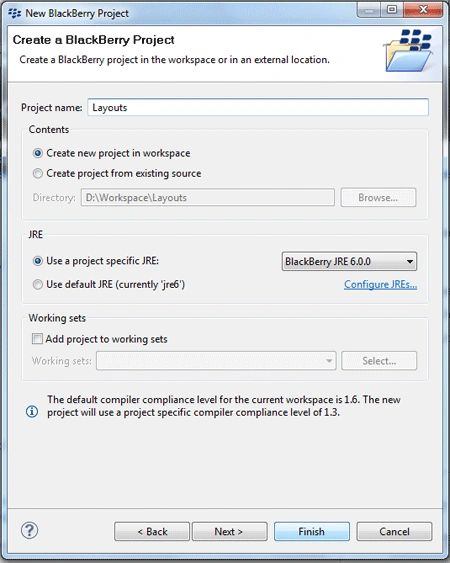
Step 5 : Go to the Project Explorer and
You will see two auto-generated class's "MyApp.java and MyScreen.java"
under Layouts project folder src/mypackage.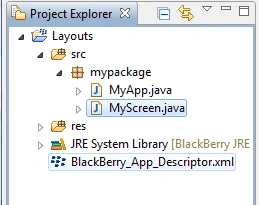
MyApp.java class is contains the main(String[] args) method and so is where we define our application. If you want any kind of user interaction, then one of your classes must extend this class because it provides all the default behavior for such an app. Within the main(String[] args) method, you must define an instance of the class like for MyScreen.java.
Code Behind of
MyApp.java Class
This class is auto-generated, you do not need to change any code in this
class let it be remain same:
package
mypackage;
import
net.rim.device.api.ui.UiApplication;
/**
* This class extends the UiApplication class, providing a
* graphical user interface.
*/
public
class
MyApp
extends
UiApplication
{
/**
* Entry point for application
*
@param
args Command line arguments (not used)
*/
public
static
void
main(String[] args)
{
// Create
a new instance of the application and make the currently
//
running thread the application's event dispatch thread.
MyApp theApp =
new
MyApp();
theApp.enterEventDispatcher();
}
/**
* Creates a new MyApp object
*/
public
MyApp()
{
// Push a
screen onto the UI stack for rendering.
pushScreen(new
MyScreen());
}
}
Step 6 : Open the MyScreen.java
class and code inside this class for different layout managers:
First you have to import this three classes:
import
net.rim.device.api.ui.*;
import
net.rim.device.api.ui.component.*;
import
net.rim.device.api.ui.container.*;
Now code as per your
required FieldManager.
Code for VerticalFieldManager
package
mypackage;
import
net.rim.device.api.ui.*;
import
net.rim.device.api.ui.component.*;
import
net.rim.device.api.ui.container.*;
public
final
class
MyScreen
extends
MainScreen
{
public
MyScreen()
{
// create
a manager and allow scrolling when lots of fields are added
VerticalFieldManager vrfm =
new
VerticalFieldManager(Manager.VERTICAL_SCROLL);
LabelField label1 =
new
LabelField("VerticalFieldManager"){
public
void
paint(Graphics graphics) {
graphics.setBackgroundColor(Color.LIGHTGREEN);
graphics.clear();
super.paint(graphics);
}
};
LabelField label2 =
new
LabelField("Default
horizontal left alignment"){
public
void
paint(Graphics graphics) {
graphics.setBackgroundColor(Color.LIGHTPINK);
graphics.clear();
super.paint(graphics);
}
};
LabelField label3 =
new
LabelField("Using
all width and long label",
LabelField.ELLIPSIS
| LabelField.USE_ALL_WIDTH){
public
void
paint(Graphics graphics) {
graphics.setBackgroundColor(Color.LIGHTSKYBLUE);
graphics.clear();
super.paint(graphics);
}
};
LabelField label4 =
new
LabelField("Horizontally
centered alignment",Field.FIELD_HCENTER){
public
void
paint(Graphics graphics) {
graphics.setBackgroundColor(Color.LIGHTGOLDENRODYELLOW);
graphics.clear();
super.paint(graphics);
}
};
vrfm.add(label1);
vrfm.add(label2);
vrfm.add(label3);
vrfm.add(label4);
add(vrfm);
}
}
In the above code by using setBackgroundColor() method for the specific "LabelFields" and overriding the "LabelFields" paint routines we get the "LabelFields" with different color's.
In the constructor of VFMScreen, a vertical field manager is created and a style parameter is passed to it, telling it to enable vertical scrolling if lots of fields are added.
Note : Don't forget to add vertical field manager to the screen at last in the program like I do "add(vrfm);".
Screenshot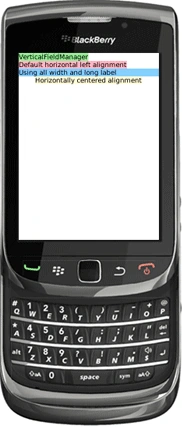


Paul SmithPosted Sep 23, 2011, 12:32 AM
Awesome article....