

Introduction
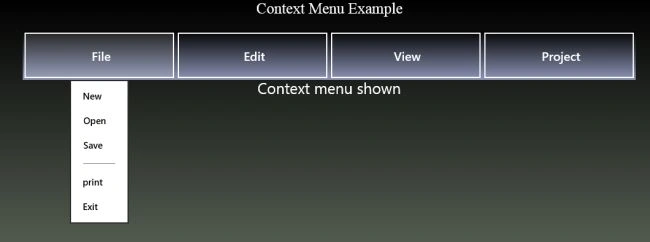
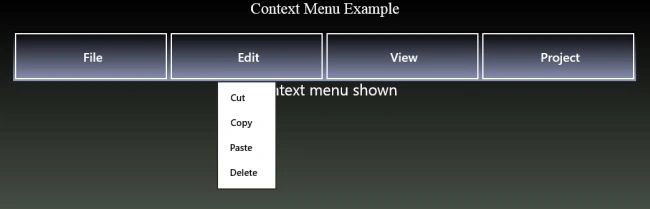
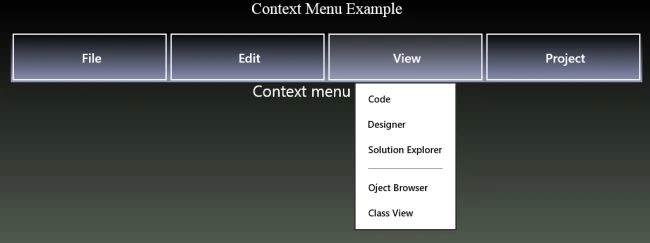
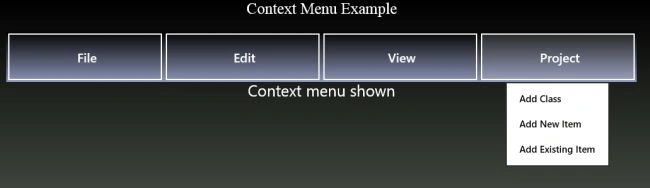
Today I am going to explain how to create a popup menu in Windows Store apps. This also represents the context menu in the Windows Store. When we open any application there is a menu bar; when we click on any menu item the popup menu will be shown from which we can select any popup menu item. In this article I explain how to create a Context menu / Popup menu and select an item.
For creating the popup menu we use the PopupMenu class in the Windows.UI.Popup namespace. This class is used only in Windows Store apps. We can create the instance of this class and use the methods and properties of this class. To add the menu item in the popup menu we use the command property of the PopupMenu class, and by using the ShowForSelectionAsync method we can specify where the popup will open.
Now to work with a Popup menu use the following instructions.
Step 1
Open Visual Studio 2012 and click File -> New -> Project, choose Windows Store from Visual C# and Blank Page. Give the name of your application as "ContextMenu". Don't confuse with Context menu and Popup menu, in this Popup menu is a Context menu.
Step 2
Open the MainPage.xaml file and write the code as follows:
<Page
x:Class="ContextMenu.MainPage"
xmlns="http://schemas.microsoft.com/winfx/2006/xaml/presentation"
xmlns:x="http://schemas.microsoft.com/winfx/2006/xaml"
xmlns:local="using:ContextMenu"
xmlns:d="http://schemas.microsoft.com/expression/blend/2008"
xmlns:mc="http://schemas.openxmlformats.org/markup-compatibility/2006"
mc:Ignorable="d">
<Grid>
<Grid.Background>
<LinearGradientBrush EndPoint="0.5,1" StartPoint="0.5,0">
<GradientStop Color="Black"/>
<GradientStop Color="#FFE3F9D9" Offset="1"/>
</LinearGradientBrush>
</Grid.Background>
<Grid.RowDefinitions>
<RowDefinition Height="50"/>
<RowDefinition Height="80"/>
<RowDefinition Height="200"/>
</Grid.RowDefinitions>
<TextBlock Text="Context Menu Example" Grid.Row="0" FontSize="25" FontFamily="Times New Roman" HorizontalAlignment="Center"/>
<StackPanel Orientation="Horizontal" Grid.Row="1" HorizontalAlignment="Center">
<StackPanel.Background>
<LinearGradientBrush EndPoint="0.5,1" StartPoint="0.5,0">
<GradientStop Color="Black"/>
<GradientStop Color="#FF8E96B8" Offset="1"/>
</LinearGradientBrush>
</StackPanel.Background>
<Button Name="File" Content=" File" Width="250" FontSize="20" Padding="10" Height="80" RightTapped="File_RightTapped"/>
<Button Name="Edit" Content=" Edit" Width="250" FontSize="20" Padding="10" Height="80" RightTapped="Edit_RightTapped"/>
<Button Name="View" Content=" View" Width="250" FontSize="20" Padding="10" Height="80" RightTapped="View_RightTapped"/>
<Button Name="Project" Content=" Project" Width="250" FontSize="20" Padding="10" Height="80" RightTapped="Project_RightTapped"/>
</StackPanel>
<TextBlock Name="output" Grid.Row="2" HorizontalAlignment="Center" FontSize="25"/>
</Grid>
</Page>
Step 3
In the XAML code the Button event RightTabbed is used, that means when I right-click on the button then this event is generated. I choose this event because I want that when I right-click on the button then the Popup menu is shown.
Step 4
Now in the MainPage.xaml.cs file, add the following namespace:
using Windows.UI.Popups;
Step 5
In the RightTabbed event of the button create the instance of the PopupMenu class as:
PopupMenu menu = new PopupMenu();
Step 6
Now to add the command or the context menu item in this Popup menu, add the command name in the UICommand Class. The UICommand class can be used to represent a command in a context menu. So we use it as:
menu.Commands.Add(new UICommand("New", (command) =>
{
output.Text = "'" + command.Label + "' selected";
}));
The Output.Text shows the method when the Command New is created.
Step 7
We can also apply the Separator bar between the Popup menu item using the UICommandSeparator class, as:
menu.Commands.Add(new UICommandSeparator());
Step 8
The method ShowForSelectionAsync can be used to show the context menu above the specified selection. For which I create a method that represents a rectangle whose definition is as:
public static Rect GetElementRect(FrameworkElement element)
{
GeneralTransform buttonTransform = element.TransformToVisual(null);
Point point = buttonTransform.TransformPoint(new Point());
return new Rect(point, new Size(element.ActualWidth, element.ActualHeight));
}
This definition can get the height and width of the Button so that the popup menu will be shown depending on it.
Step 9
The full code of the MainPage.xaml.cs file is as:
namespace ContextMenu
{
public sealed partial class MainPage : Page
{
public MainPage()
{
this.InitializeComponent();
}
public static Rect GetElementRect(FrameworkElement element)
{
GeneralTransform buttonTransform = element.TransformToVisual(null);
Point point = buttonTransform.TransformPoint(new Point());
return new Rect(point, new Size(element.ActualWidth, element.ActualHeight));
}
private async void File_RightTapped(object sender, RightTappedRoutedEventArgs e)

Richa GargPosted Sep 26, 2012, 4:51 AM
Thanx Arun......
Arun ChoudharyPosted Sep 21, 2012, 6:51 AM
Awesome article