

Introduction
I have started an article series. In the first part: Working With Stored Procedures Using Entity Framework: Part 1, we saw how to work with Stored Procedures using the Entity Framework 6. In that article, I created an ASP.NET Library in the ASP.NET Web Application, added an ADO.NET Entity Data Model and we can access the database using a class.
In this article, we will learn to add a new Web Forms Project Template, and using that library we will access the database. So, let's begin with the step-by-step procedure and follow the sections given below:
- Adding Web Forms Project Template
- Working with Web Application
Adding Web Forms Project Template
At first, we need to have the Project Template to work in the application. So follow the procedure given below:
Step 1
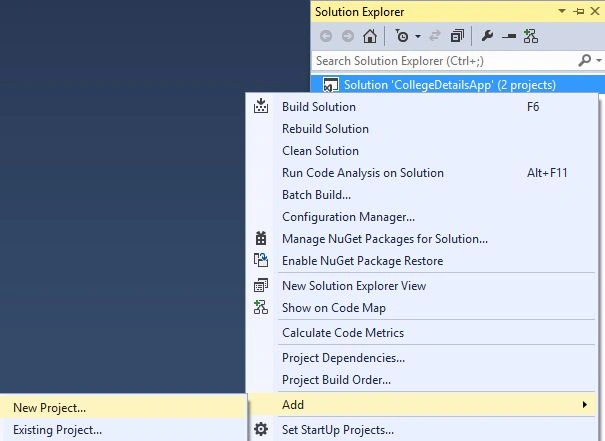
Right-click on the Solution and go to Add a New Project.
Step 2
Select ASP.NET Web Application and after entering the name, select the Web Forms Project Template and click OK.
Step 3
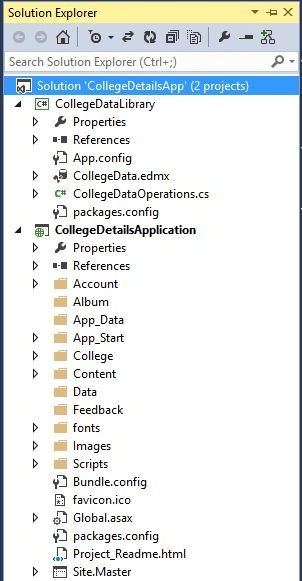
Now set the second project as a Startup Project. Add a new folder named College to the project. Now you can see that there are projects available in the Solution Explorer.
Working with Web Application
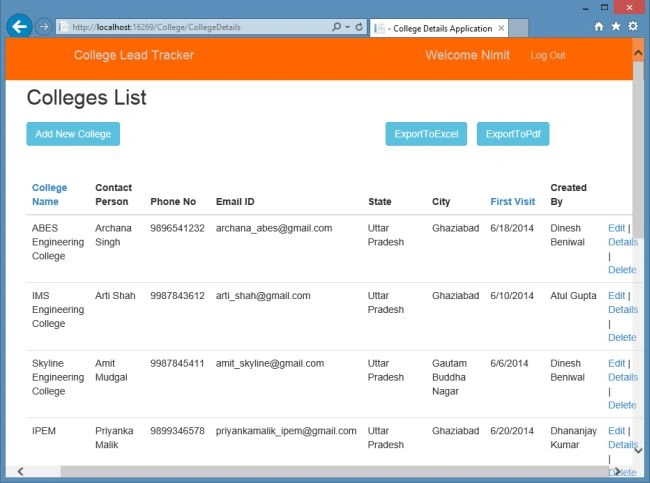
In this section, we'll create the web application. We will do the paging and sorting functionality in the ListView. We will also export the data to Excel and PDF files. To export to a PDF file, we need to get a reference for the iTextSharp.dll file. You can download it.
Doing the Read Operation
In this section, we will create the list view in the web form and access the college list in it. So use the following procedure.
Step 1
First, add the reference of the library and iTextSharp to the project.
Step 2
In the College folder, add a new page named CollegeDetails and design it with the following code:
- <asp:Content ID="Content1" ContentPlaceHolderID="MainContent" runat="server">
- <h2>Colleges List</h2>
- <div class="user">
- <asp:LinkButton runat="server" CssClass="btn btn-info leftButton" PostBackUrl="~/College/AddCollegeDetails.aspx" Text="Add New College" />
- <asp:Button ID="ExportToPdf" Text="ExportToPdf" runat="server" OnClick="ExportToPdf_Click" CssClass="btn btn-info" style="float: right;" />
- <asp:Button ID="ExportToExcel" Text="ExportToExcel" runat="server" OnClick="ExportToExcel_Click" CssClass="btn btn-info" style=" float: right; margin:0 14px; "/>
- </div>
- <div class="clear"></div>
- <div class="page">
- <asp:ListView runat="server" ID="CollegeDetailsView"
- DataKeyNames="CollegeID" ItemType="CollegeDataLibrary.CollegeDetail"
- AutoGenerateColumns="false" ItemPlaceholderID="CollegeItem"
- AllowPaging="true" AllowSorting="true" SelectMethod="GetData">
- <EmptyDataTemplate>
- There are no entries found for Colleges
- </EmptyDataTemplate>
- <LayoutTemplate>
- <table class="table">
- <thead>
- <tr>
- <th>
- <asp:LinkButton ID="LblCollegeName" CommandArgument="CollegeName" CommandName="Sort" Text="College Name" runat="server" /></th>
- <th>Contact Person</th>
- <th>Phone No</th>
- <th>Email ID</th>
- <th>State</th>
- <th>City</th>
- <th>
- <asp:LinkButton ID="LblFirstVisit" CommandArgument="FirstVisitDate" CommandName="Sort" Text="First Visit" runat="server" /></th>
- <th>Created By</th>
- <th> </th>
- </tr>
- </thead>
- <tbody>
- <asp:PlaceHolder runat="server" ID="CollegeItem"></asp:PlaceHolder>
- </tbody>
- </table>
- </LayoutTemplate>
- <ItemTemplate>
- <tr>
- <td>
- <asp:DynamicControl runat="server" DataField="CollegeName" ID="CollegeName" />
- </td>
- <td>
- <asp:DynamicControl runat="server" DataField="ContactPerson" ID="ContactPerson" />
- </td>
- <td>
- <asp:DynamicControl runat="server" DataField="ContactPersonPhoneNo" ID="ContactPersonPhoneNo" />
- </td>
- <td>
- <asp:DynamicControl runat="server" DataField="ContactPersonEmailID" ID="ContactPersonEmailID" />
- </td>
- <td>
- <asp:DynamicControl runat="server" DataField="State" ID="State" />
- </td>
- <td>
- <asp:DynamicControl runat="server" DataField="City" ID="City" />
- </td>
- <td>
- <asp:DynamicControl runat="server" DataField="FirstVisitDate" ID="FirstVisitDate" />
- </td>
- <td>
- <asp:DynamicControl runat="server" DataField="CreatedBy" ID="CreatedBy" />
- </td>
- <td>
- <asp:HyperLink ID="EditLink" runat="server" NavigateUrl='<%# "EditCollegeDetails.aspx?ID=" + Eval("CollegeID") %>'>Edit</asp:HyperLink>
- |
- <asp:HyperLink ID="DetailsLink" runat="server" NavigateUrl='<%# "ManageCollegeDetails.aspx?ID=" + Eval("CollegeID") %>'>Details</asp:HyperLink>
- |
- <asp:HyperLink ID="DeleteLink" runat="server" NavigateUrl='<%# "DeleteCollegeDetails.aspx?ID=" + Eval("CollegeID") %>'>Delete</asp:HyperLink>
- </td>
- </tr>
- </ItemTemplate>
- </asp:ListView>
- <asp:DataPager ID="DataPager1" runat="server" PagedControlID="CollegeDetailsView"
- PageSize="10">
- <Fields>
- <asp:NumericPagerField ButtonCount="3" />
- </Fields>
- </asp:DataPager>
- </div>
- </asp:Content>
Step 3
In the code page, replace the code with the following code:
- using CollegeDataLibrary;
- using System;
- using System.Collections.Generic;
- using System.IO;
- using iTextSharp.text;
- using iTextSharp.text.pdf;
- using iTextSharp.text.html.simpleparser;
- using System.Linq;
- using System.Web.UI;
- using System.Web.UI.WebControls;
- using System.Web;
- namespace CollegeDetailsApplication
- {
- public partial class CollegeDetails : System.Web.UI.Page
- {
- CollegeDataOperations DataOperations = new CollegeDataOperations();
- CollegeDetail detail = new CollegeDetail();
- protected void Page_Load(object sender, EventArgs e)
- {
- }
- //This method is used to get the college details
- //Created on 20th June
- public IQueryable<CollegeDataLibrary.CollegeDetail> GetData()
- {
- var context = DataOperations.GetCollegeDetails();
- return context.AsQueryable();
- }
- protected void ExportToExcel_Click(object sender, EventArgs e)
- {
- string File = "CollegeDetails";
- var result = GetData().ToList();
- ExportIntoExcel(result, File);
- }
- public void ExportIntoExcel(List<CollegeDetail> result, string FileName)
- {
- StringWriter writer = new StringWriter();
- HtmlTextWriter htmlWriter = new HtmlTextWriter(writer);
- GridView gridView = new GridView();
- gridView.DataSource = result;
- gridView.AutoGenerateColumns = true;
- gridView.DataBind();
- gridView.RenderControl(htmlWriter);
- htmlWriter.Close();
- Response.Clear();
- Response.AddHeader("content-disposition", "attachment;filename=" + FileName + ".xls");
- Response.Charset = "";
- Response.Write(writer.ToString());
- Response.End();
- }
- protected void ExportToPdf_Click(object sender, EventArgs e)
- {
- string File = "PDFCollegeDetails";
- var result = DataOperations.GetCollege();
- ExportListToPDF(result, File);
- }
- private void ExportListToPDF(List<CollegeData> result, string File)
- {
- Response.ContentType = "application/pdf";
- Response.AddHeader("content-disposition", "attachment;filename=CollegeDetailsInPdf.pdf");
- Response.Cache.SetCacheability(HttpCacheability.NoCache);
- StringWriter sw = new StringWriter();
- HtmlTextWriter hw = new HtmlTextWriter(sw);
- GridView gridView = new GridView();
- gridView.DataSource = result;
- gridView.DataBind();
- gridView.RenderControl(hw);
- gridView.HeaderRow.Style.Add("width", "100%");
- gridView.HeaderRow.BackColor = System.Drawing.Color.Green;
- gridView.HeaderRow.Style.Add("color", "green");
- gridView.Style.Add("text-decoration", "none");
- gridView.Style.Add("font-family", "Arial, Helvetica, sans-serif;");
- gridView.Style.Add("font-size", "8px");
- StringReader sr = new StringReader(sw.ToString());
- Document pdfDoc = new Document(PageSize.A4, 10f, 10f, 10f, 0f);
- HTMLWorker htmlparser = new HTMLWorker(pdfDoc);
- PdfWriter.GetInstance(pdfDoc, Response.OutputStream);
- pdfDoc.Open();
- htmlparser.Parse(sr);
- pdfDoc.Close();
- Response.Write(pdfDoc);
- Response.End();
- gridView.AutoGenerateColumns = true;
- }
- }
- }


Gowtham RajamanickamPosted May 28, 2015, 10:44 AM
this is great..
Yogesh KaralePosted Sep 10, 2014, 12:47 AM
it's good to creating gridView in ASP.Net..... but same thing used MVC3 how