
In this article I will be showing how to start working with Telerik controls in
ASP.Net MVC Project.
I will be showing all the prerequisites for using a Telerik control in
ASP.Net MVC Project.
I will be using Visual Studio 2010 ( ASP.NET MVC 2.0)
1. To start using Telerik - The first step would be to Download Telerik
Extensions for ASP.NET MVC by logging in your Telerik account.
(http://www.telerik.com/account.aspx) - Create your account if you are a new
user.
2. Open Visual Studio 2010 - Create new ASP.Net MVC2 Web Application.
Select File -> New -> Project and from the new project dialog select ASP.Net MVC
2 Web Application -> Name it -> say - MVCwithTelerikSample
3. For this sample application - Let's not create the unit test project.- So
select the radio button - No, Do not create a unit Test Project.
4. Now we need to copy the dll Telerik.Web.Mvc.dll from the downloaded folder
in our hard drive to the local bin folder of our project. (Check for this dll in
the downloaded folder - after installing Telerik and go to subfolder
Binaries\MVC2 ) - since we are using MVC2 Project here
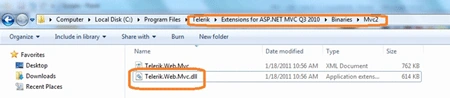
5. Add a reference to the above dll
Right Click the Solution explorer - Add Reference - Browse - bin (folder - where
you have placed the telerik dll) - Select Telerik.Web.Mvc.dll) -Click Ok
6. Include the Scripts folder from the installed Telerik
location from your hard drive) to the project
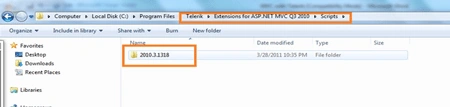
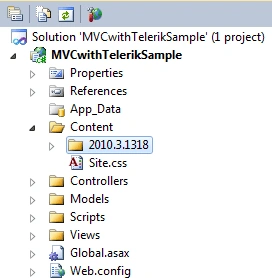
The folder name- 2010.3.1318 highlighted above inside the Scripts folder may
have a different Version number if you are downloading the latest version.
Go to the Script sub-folder in the installed Telerik location on your harddrive and drag and drop the entire folder (Ex folder name -2010.3.1318) inside the
Scripts folder in the solution explorer of your current project
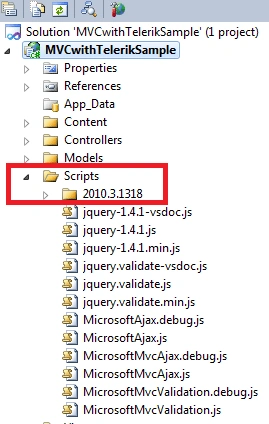
7. Include the Content folder from the installed Telerik location(from your hard
drive) to the project.
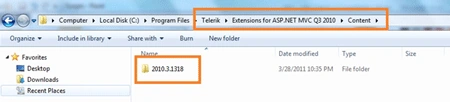
Go to the Content sub-folder (refer above Screen shot) in the installed Telerik
location in your harddrive Drag and drop the entire folder (Ex folder name
-2010.3.1318) inside the Content folder in the solution explorer of your current
project.
Note - Suppose after completing the project - in future if there is an
Telerik upgrade - we can just copy the new scripts folder, Content folder, along
with the new dll reference.
8. Update the Web.config file
In web.config file-in the namespace section - include - <add namespace="Telerik.Web.Mvc.UI"
/>
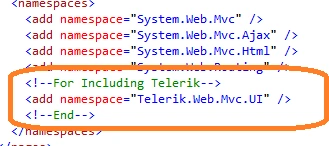
This will help us work with Telerik extension methods inside of all views
9. Build the Project - Do a quick build of the project which will help
intellisense in Visual Studio to catch up with Extension methods.
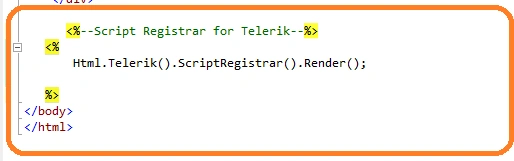
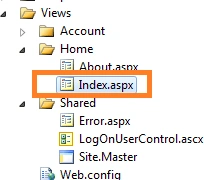
10. We have added the Scripts and Themes to our Projects folder - Now we need to
add it in the Views where we are going to use it.
For this sample application, the best place to add it would be in the master Page -
since it is used in all the Views.
Go to Views->Shared->Site.master ->need to add .css in the head of the page
->within server tags
<%--Including
Telerik Style Sheets--%>
<%
Html.Telerik().StyleSheetRegistrar()
.DefaultGroup(group => group.Add("telerik.common.min.css")
.Add("telerik.vista.min.css"))
.Render();

Working with Telerik Controls in ASP.NET MVC2
Join the conversation! Your thoughts help the community grow.
Sign in to leave a comment
It is the same account you read, post and publish with — and you will come straight back to this page.
nilesh mondePosted Mar 11, 2013, 6:38 AM
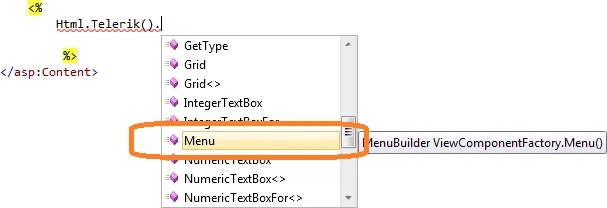
hi i see one option in vs2010 Telerik . is this same what u wanted to install or different?
nilesh mondePosted Mar 4, 2013, 6:16 AM
i m new on mvc .Telerik Extensions for ASP.NET MVC i downloaded and install but i have folder Binaries\MVC3 instead of MVC2. I M WORKING ON MVC 2. CAN IT WORKS FOR MV2 OR NOT?
Gopi KumarPosted Apr 22, 2012, 7:34 AM
Made my day!!! Thanx
sujith monyPosted Nov 4, 2011, 11:06 AM
can you please add some article regarding Telerik editor. how to customize a document,how to add picture.after adding all content how to save that document in server.after that user want to retrieve the document from the server
Manish TewatiaPosted Oct 7, 2011, 2:14 AM
Very useful Article saurabh thanx for sharing...........