

Prerequisites
- Visual Studio 2015
Introduction
The Canvas element represents a Canvas Control in XAML.
- <Canvas ...>
- one Or More UI Elements
- </Canvas>
- -or-
- <Canvas .../>
In addition, provide Canvas.Left and Canvas.Top values for the x-coordinates and y-coordinates for laying out items on a canvas.
- <Canvas>
- <Button Content="Positioned at 75,20" Canvas.Left="75" Canvas.Top="40"/>
- </Canvas>
It is also possible to provide a Canvas.ZIndex value that determines how the items, positioned on the canvas, are overlaid relative to each other.
- <Canvas>
- <Button Content="Positioned at 75,20" Canvas.ZIndex ="30"/>
- </Canvas>
Now, let's get started with the following steps:
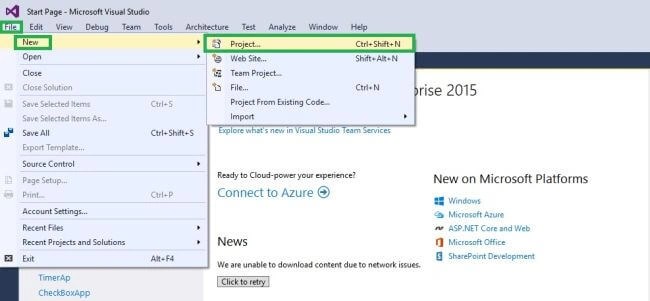
Step 1 - Create Windows Universal Project
Step 2 - Giving the Project Name
Then, New Project Window will open. There, you can select Installed -> Template -> Visual C# -> Windows -> Universal and select a Blank App (Universal Windows).
Type Project Name as CanvasApp and click the OK button.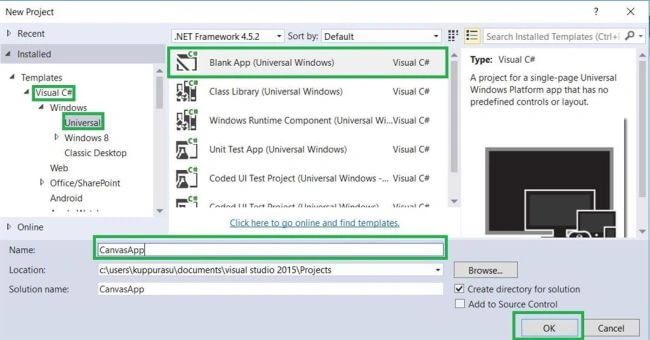
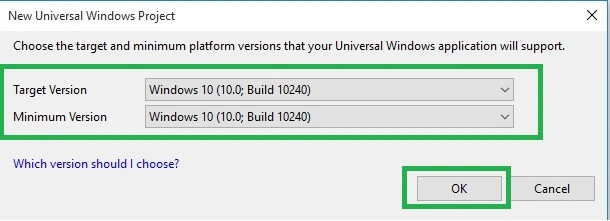
Here, we choose the Target Version and Minimum Version for our Universal Windows application. Click OK button.
Step 4 - Choose Designer Window
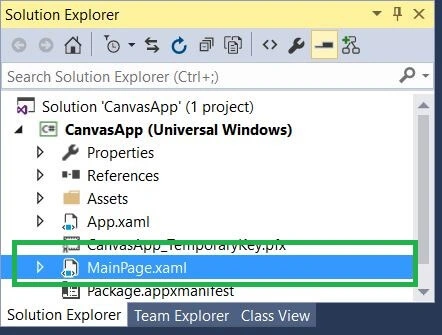
Now, go to the Solution Explorer and select MainPage.xaml.
Step 5 - Add the Coding
Now, add the following XAML code in MainPage.xaml.
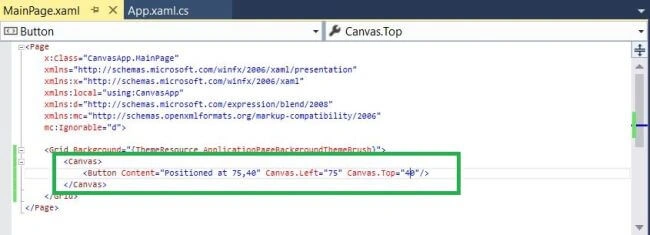
- <Canvas>
- <Button Content="Positioned at 75,20" Canvas.Left="75" Canvas.Top="40"/>
- </Canvas>
Step 6 - Run the Application
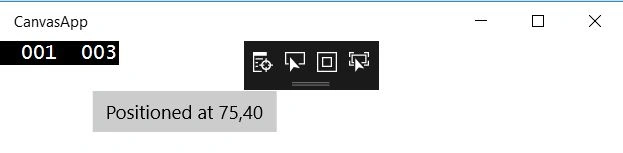
Now, we are ready to run our Project. So, click Local Machine for running the application.

Output:
Conclusion - I hope you understood Canvas Control in Universal Window and how to run it.
Vignesh ManiPosted Sep 19, 2016, 8:26 AM
Good One