

- WPF Layout System: An Introduction
- WPF Layout: Size, Width and Height
- WPF Layout: Margins
- WPF Layout: Horizontal and Vertical Alignment
- WPF Layout: Content Alignments
- WPF Layout: Dealing with Percentage Size in WPF
- WPF Layout: Panels
- WPF Layout: Canvas
- WPF Layout: DockPanel
- WPF Layout: Grid
- WPF Layout: StackPanel
- WPF Layout: WrapPanel
- WPF Layout: Border
- WPF Layout: VirtualizingStackPanel
Introduction
In the previous article, WPF Layout: Size, Width and Height, I explained how to manage the size of elements. Margins are another vital piece of the layout system. This article focuses on the margins only.
Margin
The margin is the space between an element and the parent element or other adjacent element on the same parent element. The margin adds extra space around the outside edges of an element.
The Margin property of FrameworkElement represents the margin of an element. It is a type of Thickness structure. The Thickness structure has the four properties Left, Top, Right and Bottom. You can either pass a single double value or four double values. When a single double value is passed to a Thickness, it applies to all four properties of the Thickness structure. If all four values of Thickness are passed, they apply to the Left, Top, Right and Bottom properties respectively.
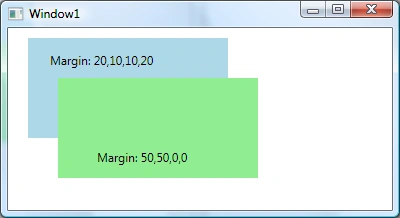
The code snippet in Listing 1 creates two rectangles and sets the margin of the first rectangle by passing only one value 20 that sets the margin for all the four directions left, top, bottom and right to 20 each. The margin for the second rectangle is set to 50,50,0,0.
Santhakumar MunuswamyPosted Apr 25, 2015, 7:41 AM
Thanks for nice one sir
Shaili DashoraPosted Mar 2, 2015, 1:17 PM
Nice sir thanks