Let’s start,
First, we create a gesture event. Refer to part one,
Step 1: We already created the project and did some pages. Here, we create a card backend page and animation XML file.
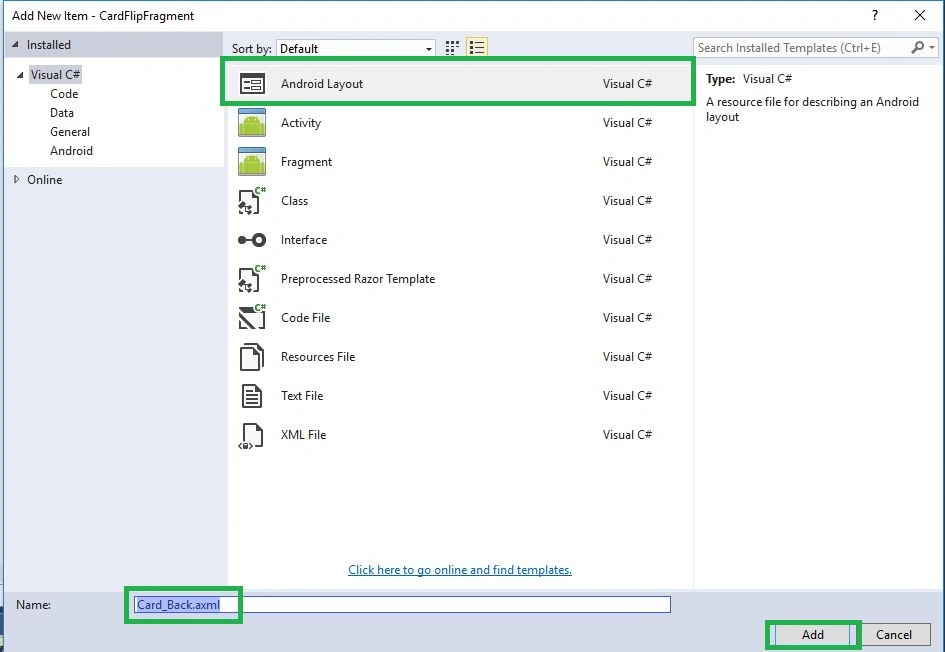
Step 2: Create Card_Back.axml page. Go to Solution Explorer-> Project Name-> Resources-> Layout. Right click to Add-> New Item and open the new dialog box.
Step 3: This dialog box is required to select Android Layout and give the name for Card_back. axml.
Step 4: Go to Solution Explorer-> Project Name-> Resources. Right click to Add->New Folder and give the name for Anim.
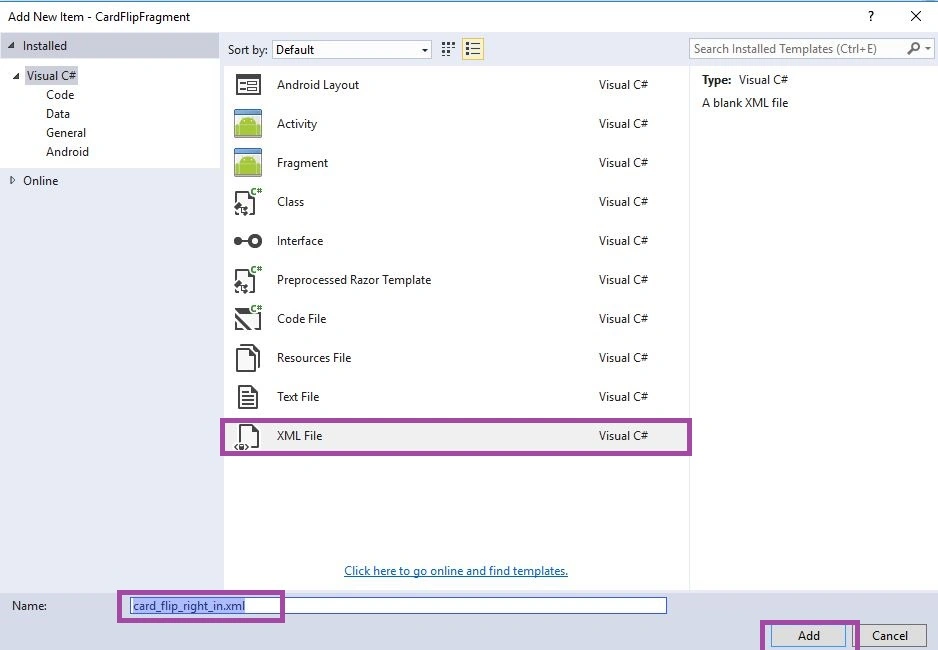
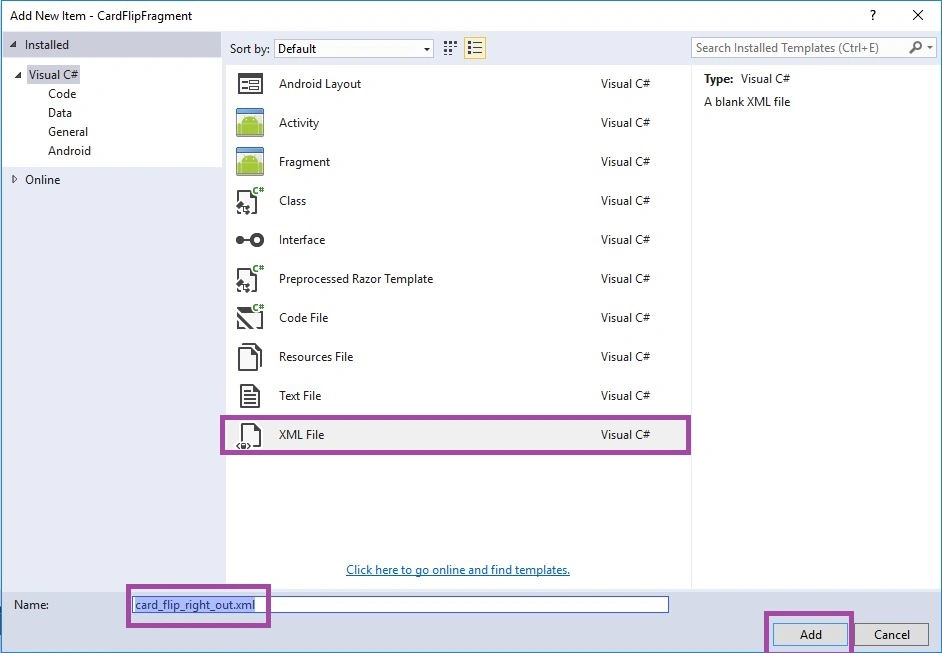
Step 5: Here, we will create four animations. Thus, we create XML resource. Go to Solution Explorer-> Project Name-> Resources-> Anim. Right click to Add-> New Item and open a new dialog box. This dialog box is required to select XML and give the name for Card_flip_left_in.xml, Card_flip_left_out.xml, Card_flip_right_in.xml and Card_flip_right_out.xml.
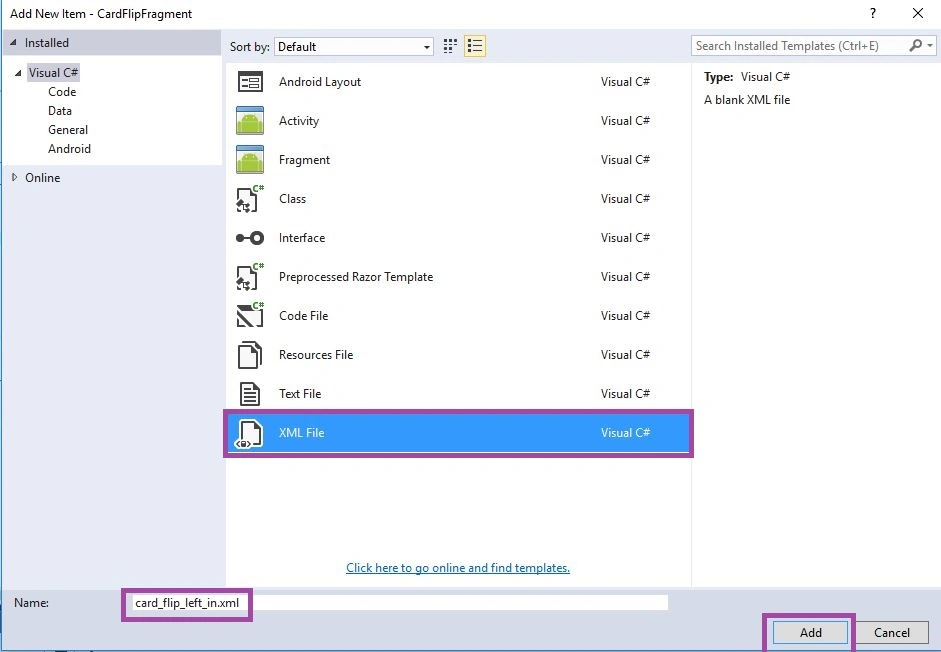
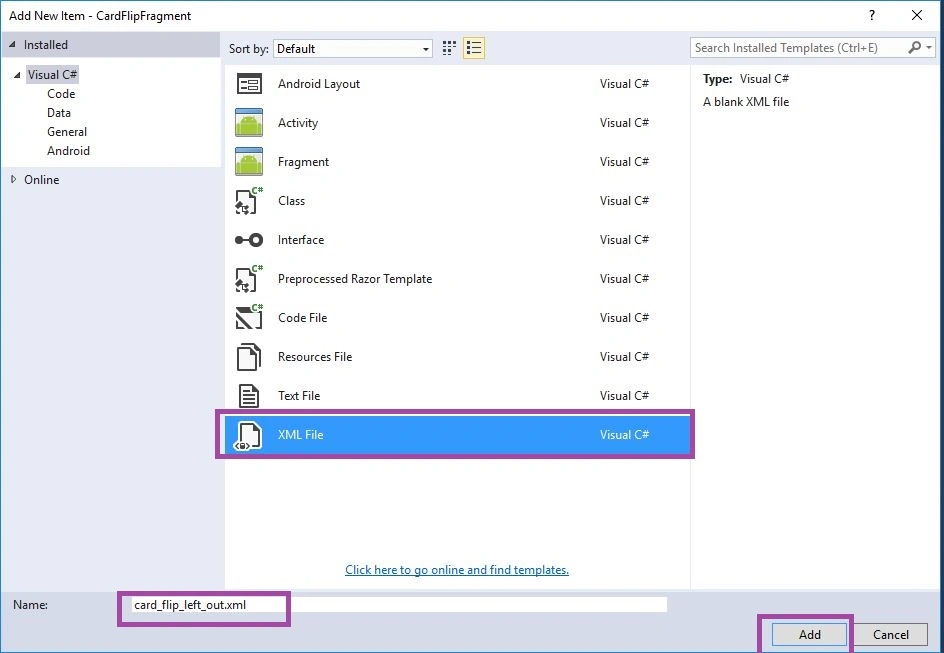
Step 6: Go to Solution Explorer-> Project Name-> Resources-> values. Right click to Add->New Item and select XML. Give the name for Integers.xml.
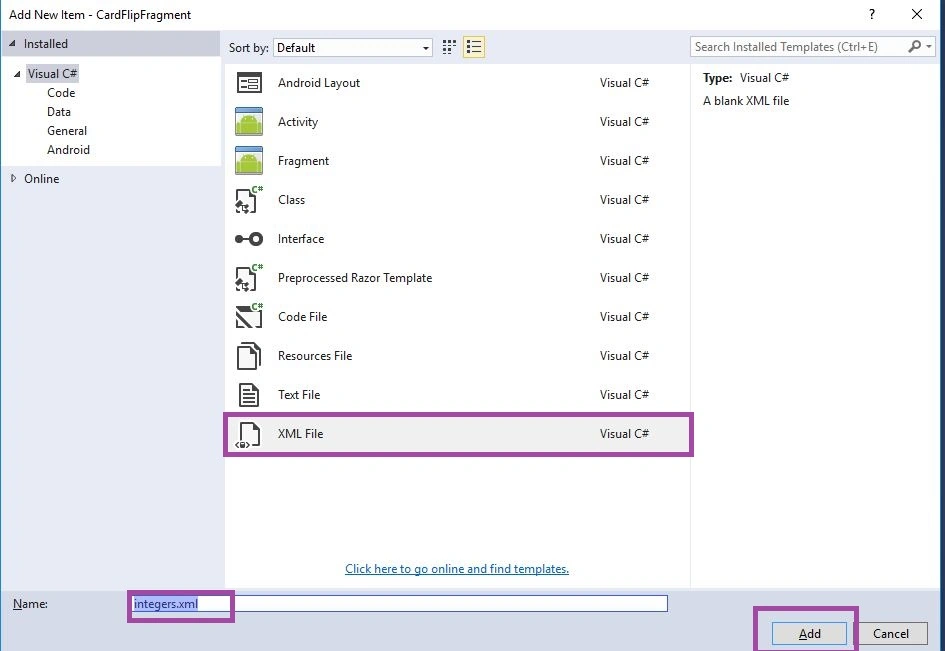
Step 7: Open Solution Explorer-> Project Name-> Resources-> Anim -> card_flip_left_in.xml. Click to open and add the code, given below:
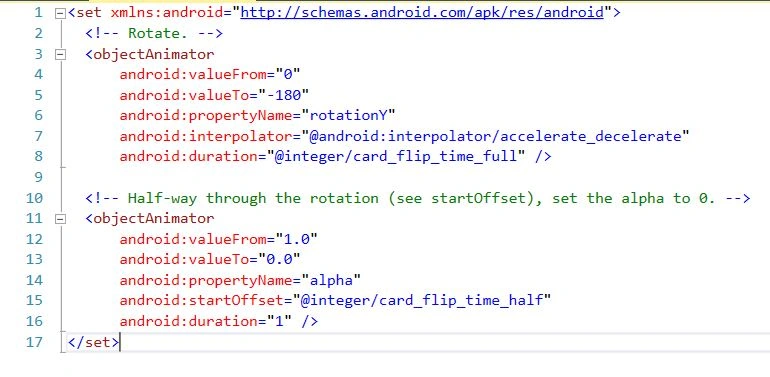
- <set xmlns:android="http://schemas.android.com/apk/res/android">
-
-
- <objectAnimator
- android:valueFrom="1.0"
- android:valueTo="0.0"
- android:propertyName="alpha"
- android:duration="0" />
-
- <objectAnimator
- android:valueFrom="-180"
- android:valueTo="0"
- android:propertyName="rotationY"
- android:interpolator="@android:interpolator/accelerate_decelerate"
- android:duration="@integer/card_flip_time_full" />
-
- <objectAnimator
- android:valueFrom="0.0"
- android:valueTo="1.0"
- android:propertyName="alpha"
- android:startOffset="@integer/card_flip_time_half"
- android:duration="1" />
- </set>
Step 8: Open Solution Explorer-> Project Name-> Resources-> Anim -> card_flip_left_out.xml. Click to open and add the code, given below:
- <set xmlns:android="http://schemas.android.com/apk/res/android">
-
- <objectAnimator
- android:valueFrom="0"
- android:valueTo="180"
- android:propertyName="rotationY"
- android:interpolator="@android:interpolator/accelerate_decelerate"
- android:duration="@integer/card_flip_time_full" />
-
- <objectAnimator
- android:valueFrom="1.0"
- android:valueTo="0.0"
- android:propertyName="alpha"
- android:startOffset="@integer/card_flip_time_half"
- android:duration="1" />
- </set>
Step 9: Open Solution Explorer-> Project Name->Resources->Anim -> card_flip_right_in.xml. Click to open add the code, given below:
- <set xmlns:android="http://schemas.android.com/apk/res/android">
-
- <objectAnimator
- android:valueFrom="1.0"
- android:valueTo="0.0"
- android:propertyName="alpha"
- android:duration="0" />
-
- <objectAnimator
- android:valueFrom="180"
- android:valueTo="0"
- android:propertyName="rotationY"
- android:interpolator="@android:interpolator/accelerate_decelerate"
- android:duration="@integer/card_flip_time_full" />
-
- <objectAnimator
- android:valueFrom="0.0"
- android:valueTo="1.0"
- android:propertyName="alpha"
- android:startOffset="@integer/card_flip_time_half"
- android:duration="1" />
- </set>
Step 10: Open Solution Explorer-> Project Name->Resources->Anim -> card_flip_right_out.xml. Click to open and add the code, given below:
- <set xmlns:android="http://schemas.android.com/apk/res/android">
-
- <objectAnimator
- android:valueFrom="0"
- android:valueTo="-180"
- android:propertyName="rotationY"
- android:interpolator="@android:interpolator/accelerate_decelerate"
- android:duration="@integer/card_flip_time_full" />
-
- <objectAnimator
- android:valueFrom="1.0"
- android:valueTo="0.0"
- android:propertyName="alpha"
- android:startOffset="@integer/card_flip_time_half"
- android:duration="1" />
- </set>
Step 11: Open Solution Explorer-> Project Name->Resources->values -> Integers.xml. Click to open and add the code, given below:
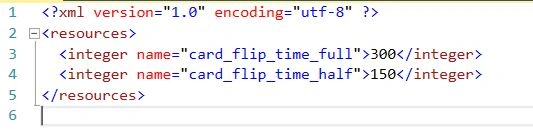
- <?xml version="1.0" encoding="utf-8" ?>
- <resources>
- <integer name="card_flip_time_full">300</integer>
- <integer name="card_flip_time_half">150</integer>
- </resources>
Step 12: Open Solution Explorer-> Project Name->Resources->drawable->Card_Back.axml. Click to open Design View. Give the following code:
- <?xml version="1.0" encoding="utf-8"?>
- <LinearLayout xmlns:android="http://schemas.android.com/apk/res/android"
- android:orientation="vertical"
- android:layout_width="match_parent"
- android:layout_height="match_parent"
- android:background="@android:color/holo_blue_dark">
- <TextView
- android:text="Card Back"
- android:textAppearance="?android:attr/textAppearanceLarge"
- android:layout_width="match_parent"
- android:layout_height="wrap_content"
- android:id="@+id/textView2"
- android:gravity="center_horizontal" />
- <TextView
- android:text="Card Back Side"
- android:textAppearance="?android:attr/textAppearanceLarge"
- android:layout_width="match_parent"
- android:layout_height="wrap_content"
- android:id="@+id/textView2"
- android:gravity="center_horizontal|center_vertical" />
- </LinearLayout>
Step 13: Open MainActivity.cs page, below OnCreate(), create a new class for FlipCard.
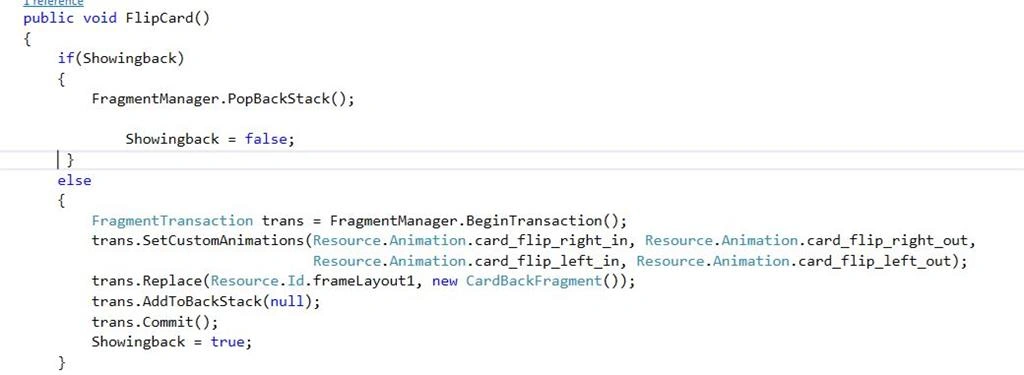
- public void FlipCard()
- {
- if (Showingback) {
- FragmentManager.PopBackStack();
- Showingback = false;
- } else {
- FragmentTransaction trans = FragmentManager.BeginTransaction();
- trans.SetCustomAnimations(Resource.Animation.card_flip_right_in, Resource.Animation.card_flip_right_out, Resource.Animation.card_flip_left_in, Resource.Animation.card_flip_left_out);
- trans.Replace(Resource.Id.frameLayout1, new CardBackFragment());
- trans.AddToBackStack(null);
- trans.Commit();
- Showingback = true;
- }
- }
Step 14: Define Back_card function to create new class fragment.
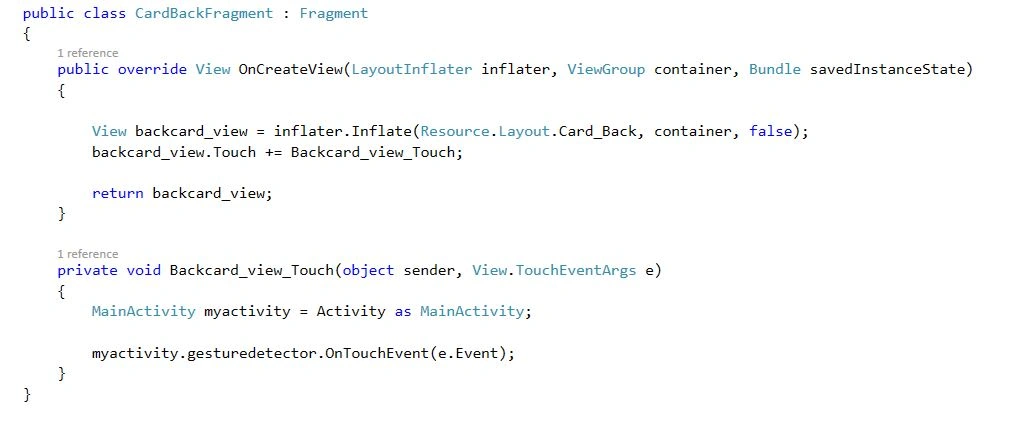
C# Code
- public class CardBackFragment: Fragment
- {
- public override View OnCreateView(LayoutInflater inflater, ViewGroup container, Bundle savedInstanceState) {
- View backcard_view = inflater.Inflate(Resource.Layout.Card_Back, container, false);
- backcard_view.Touch += Backcard_view_Touch;
- return backcard_view;
- }
- private void Backcard_view_Touch(object sender, View.TouchEventArgs e) {
- MainActivity myactivity = Activity as MainActivity;
- myactivity.gesturedetector.OnTouchEvent(e.Event);
- }
- }
Step 15: Open MyGestureListener and add the code, given below:
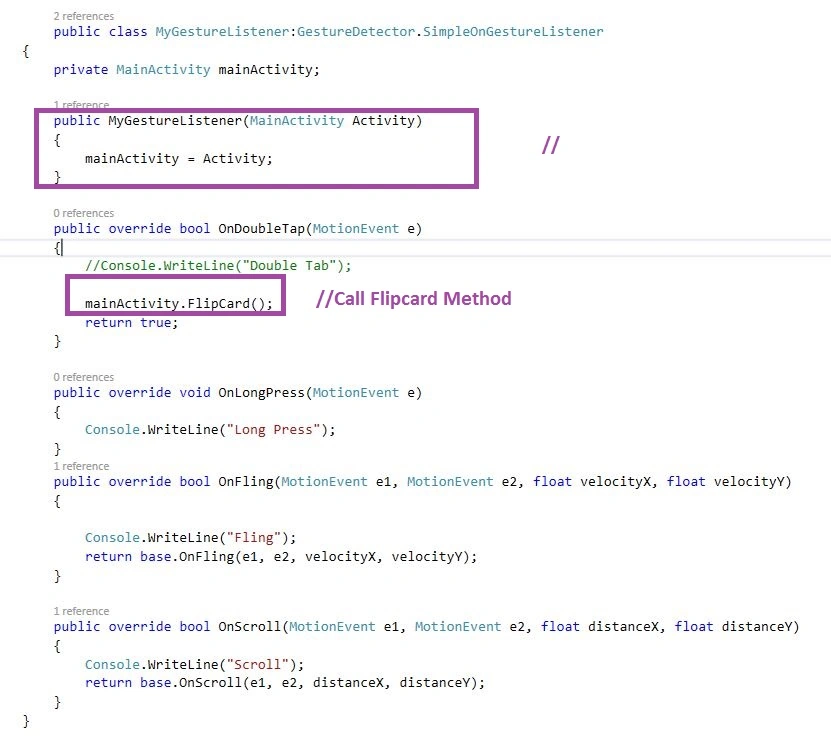
C# Code
- public class MyGestureListener: GestureDetector.SimpleOnGestureListener
- {
- private MainActivity mainActivity;
- public MyGestureListener(MainActivity Activity) {
- mainActivity = Activity;
- }
- public override bool OnDoubleTap(MotionEvent e) {
-
- mainActivity.FlipCard();
- return true;
- }
- public override void OnLongPress(MotionEvent e) {
- Console.WriteLine("Long Press");
- }
- public override bool OnFling(MotionEvent e1, MotionEvent e2, float velocityX, float velocityY) {
- Console.WriteLine("Fling");
- return base.OnFling(e1, e2, velocityX, velocityY);
- }
- public override bool OnScroll(MotionEvent e1, MotionEvent e2, float distanceX, float distanceY) {
- Console.WriteLine("Scroll");
- return base.OnScroll(e1, e2, distanceX, distanceY);
- }
- }
Step 16: Debug and run the app.

Finally, we successfully created Xamarin Android flip card animation between the fragments, using Gesture event.


Priyanka AlachiyaPosted Jul 5, 2018, 7:09 AM
What if i want to flip the same view that self rotates left to right?
Prasana SPosted Nov 24, 2017, 2:22 AM
Found the answer to set textbox2 value in c# fragment use this below code public override void OnViewCreated(View view, Bundle savedInstanceState) { base.OnViewCreated(view, savedInstanceState); var txttab = view.FindViewById<TextView>(Resource.Id.textView2); txttab.SetText("prasi", TextView.BufferType.Normal); }
Prasana SPosted Nov 23, 2017, 7:33 AM
In your card back fragment if i add this var txttab = FindViewById<TextView>(Resource.Id.textView2); in line78 before the code return backcard_view; I get this error "Severity Code Description Project File Line Suppression State Error CS0120 An object reference is required for the non-static field, method, or property 'Activity.FindViewById<TextView>(int)' CardFlipFragment C:\Users\psenthil\Documents\house\x\AndroidGestureCardFlipFragment_II\CardFlipFragment\CardFlipFragment\MainActivity.cs 78 Active"
Arvind ChourasiyaPosted Feb 16, 2017, 10:36 AM
Yeah thank you i got it work :)
Arvind ChourasiyaPosted Feb 14, 2017, 12:33 AM
But it is working when we click twice, how can i got it work in single click. thank you.
Arvind ChourasiyaPosted Feb 14, 2017, 12:32 AM
Hii bro nice example what i need
Anbu ManiPosted Jan 6, 2017, 7:35 AM
Hi sry...I dont know its possible to working SupportFragmentManager...
Kamil WachPosted Jan 5, 2017, 5:30 PM
How can I get card flip animation with SupportFragmentManager ?
Vivek KumarPosted Aug 9, 2016, 11:35 AM
Nice one
Vignesh ManiPosted Jul 20, 2016, 11:11 AM
Nice
Anu VPosted Jul 18, 2016, 12:12 AM
Nice
Bhavik PatelPosted Jul 16, 2016, 9:50 PM
Nic