

Introduction
In this article, you will learn how to download an image from a URL address into your Xamarin Android application.
The prerequisites
- Android Support Library v7 AppCompat
- Any Image URL
The steps given below are required to be followed in order to create an app that lets you download an image from the URL with Progress-bar.
Step 1 - Create Android Project
Create your Android solution in Visual Studio or Xamarin Studio. Select Android and from the list, choose Android Blank App. Give it a name, like SaveWithProgress.
Step 2 - Add Android Support v7 AppCompat Library
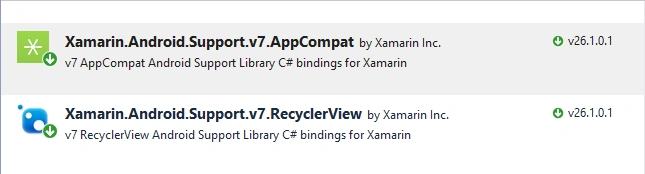
First of all, in References, add a reference Android.Support.v7. AppCompat using NuGet Package Manager, as shown below.
Step 3 - Add XML File
After successful installation of AppCompat, add a new XML file. For that, go to Solution Explorer-> Project Name-> Resources-> Values-> Right-click to add a new item, select XML, and give it a name, such as style.xml. Open this XML file and add the following code.
(Folder Name: values, File Name: style.xml)
XML Code
- <?xml version="1.0" encoding="utf-8" ?>
- <resources>
- <style name="MyTheme" parent="MyTheme.Base">
- </style>
- <!--Base theme applied no matter what API-->
- <style name="MyTheme.Base" parent="Theme.AppCompat.Light.DarkActionBar">
- <item name="windowNoTitle">true</item>
- <!--We will be using the toolbar so no need to show ActionBar-->
- <item name="windowActionBar">false</item>
- <!--Set theme color from http://www.google.com/design/spec/style/color.html#color-co-->
- <!--Color Primary is used for default action bar backround-->
- <item name="colorPrimary">#009688</item>
- <!--Color Primary Dark is use for status bar-->
- <item name="colorPrimaryDark">#1976D2</item>
- <!--ColorAccent is used as the default value for
- ColorControlActivated which is used to tint widgts-->
- <item name="colorAccent">#FF4081</item>
- <item name="colorControlHighlight">#FF4081</item>
- <!--You can also set ColorControlNormal ColorControlActivated
- ColorControlHihglight colorSwitchThumbNormal.-->
- </style>
- </resources>
Step 4 - Add XML File
Now, add a new folder to the Resources Folder with name values-v21. Similarly, add a new XML file inside values-v21 folder - style.xml and add the following code.
(Folder Name: values-v21, File Name: style.xml)
XML Code
- <?xml version="1.0" encoding="utf-8" ?>
- <resources>
- <!--
- Base Application theme for API 21+. this theme
- replaces MyTheme from res/style.xml on API 21+ devices-->
- <style name="MyTheme" parent="MyTheme.Base">
- <item name="android:windowContentTransitions">true</item>
- <item name="android:windowAllowEnterTransitionOverlap">true</item>
- <item name="android:windowAllowReturnTransitionOverlap">true</item>
- <item name="android:windowSharedElementEnterTransition">@android:transition/move</item>
- <item name="android:windowSharedElementExitTransition">@android:transition/move</item>
- <item name="android:windowTranslucentStatus">true</item>
- </style>
- </resources>
Step 5 - Writing DownloadImageFromUrl Class
Before you go further, you need to write your DownloadImageFromUrl class. For this, go to Solution Explorer-> Project Name and right-click. Select Add -> New Item-> Class. Give it a name like DownloadImageFromUrl.cs and write the following code with appropriate namespaces.
(File Name: DownloadImageFromUrl.cs)
C# Code
- using System;
- using System.Collections.Generic;
- using System.Linq;
- using System.Text;
- using Android.App;
- using Android.Content;
- using Android.Graphics.Drawables;
- using Android.OS;
- using Android.Runtime;
- using Android.Views;
- using Android.Widget;
- using Java.IO;
- using Java.Net;
- namespace SaveWithProgress
- {
- public class DownloadImageFromUrl : AsyncTask<string, string, string>
- {
- private ProgressDialog pDialog;
- private ImageView imgView;
- private Context context;
- public DownloadImageFromUrl(Context context, ImageView imgView)
- {
- this.context = context;
- this.imgView = imgView;
- }
- protected override void OnPreExecute()
- {
- pDialog = new ProgressDialog(context);
- pDialog.SetMessage("Downloading file. Please wait...");
- pDialog.Indeterminate = false;
- pDialog.Max = 100;
- pDialog.SetProgressStyle(ProgressDialogStyle.Horizontal);
- pDialog.SetCancelable(true);
- pDialog.Show();
- base.OnPreExecute();
- }
- protected override void OnProgressUpdate(params string[] values)
- {
- base.OnProgressUpdate(values);
- pDialog.SetProgressNumberFormat(values[0]);
- pDialog.Progress = int.Parse(values[0]);
- }
- protected override void OnPostExecute(string result)
- {
- string strongPath = Android.OS.Environment.ExternalStorageDirectory.Path;
- string filePath = System.IO.Path.Combine(strongPath, "download.jpg");
- pDialog.Dismiss();
- imgView.SetImageDrawable(Drawable.CreateFromPath(filePath));
- }
- protected override string RunInBackground(params string[] @params)
- {
- string strongPath = Android.OS.Environment.ExternalStorageDirectory.Path;
- string filePath = System.IO.Path.Combine(strongPath, "download.jpg");
- int count;
- try
- {
- URL url = new URL(@params[0]);
- URLConnection connection = url.OpenConnection();
- connection.Connect();
- int LengthOfFile = connection.ContentLength;
- InputStream input = new BufferedInputStream(url.OpenStream(), LengthOfFile);
- OutputStream output = new FileOutputStream(filePath);
- byte[] data = new byte[1024];
- long total = 0;
- while ((count = input.Read(data)) != -1 )
- {
- total += count;
- PublishProgress(""+(int)((total / 100) / LengthOfFile));
- output.Write(data, 0, count);
- }
- output.Flush();
- output.Close();
- input.Close();
- }
- catch (Exception e)
- {
- }
- return null;
- }
- }
- }
Step 6 - Main Layout
Open Solution Explorer-> Project Name-> Resources-> Layout-> Main.axml. Open this main layout file and add the following code.
(File Name: Main.axml , Folder Name: Layout)
XML Code
- <?xml version="1.0" encoding="utf-8"?>
- <LinearLayout xmlns:android="http://schemas.android.com/apk/res/android"
- xmlns:local="http://schemas.android.com/apk/res-auto"
- android:orientation="vertical"
- android:layout_width="match_parent"
- android:layout_height="match_parent">
- <android.support.v7.widget.Toolbar
- android:id="@+id/toolbar"
- android:fitsSystemWindows="true"
- android:layout_width="match_parent"
- android:layout_height="wrap_content"
- android:minHeight="?attr/actionBarSize"
- android:background="?attr/colorPrimary"
- android:theme="@style/ThemeOverlay.AppCompat.Dark.ActionBar"
- local:popupTheme="@style/ThemeOverlay.AppCompat.Light" />
- <Button
- android:text="Download Image"
- android:layout_width="match_parent"
- android:layout_height="wrap_content"
- android:id="@+id/btnDownload" />
- <ImageView
- android:src="@android:drawable/ic_menu_gallery"
- android:layout_width="match_parent"
- android:layout_height="wrap_content"
- android:id="@+id/imageView" />
- </LinearLayout>
Step 7 - Main Activity Class
Now, go to Solution Explorer-> Project Name-> MainActivity and add the following code to the main activity with appropriate namespaces.
(FileName: MainActivity)
C# Code
- using Android.App;
- using Android.Widget;
- using Android.OS;
- using Android.Support.V7.App;
- namespace SaveWithProgress
- {
- [Activity(Label = "SaveWithProgress", MainLauncher = true , Theme ="@style/MyTheme")]
- public class MainActivity : AppCompatActivity
- {
- protected override void OnCreate(Bundle savedInstanceState)
- {
- base.OnCreate(savedInstanceState);
- // Set our view from the "main" layout resource
- SetContentView(Resource.Layout.Main);
- var btnDownload = FindViewById<Button>(Resource.Id.btnDownload);
- var imageView = FindViewById<ImageView>(Resource.Id.imageView);
- btnDownload.Click += delegate
- {
- DownloadImageFromUrl download = new DownloadImageFromUrl(this, imageView);
- download.Execute("http://www.qygjxz.com/data/out/244/4304228-wallpaper-phone-hd.jpg");
- };
- }
- }
- }
Step 8 - Permissions From Device
We need permissions from the device. So, go to Solution Explorer-> Properties-> AndroidManifest and add this code inside application tags.
- <uses-permission android:name="android.permission.WRITE_EXTERNAL_STORAGE" />
- <uses-permission android:name="android.permission.INTERNET" />
Output

Summary
This was the process of creating an app that allows the users to download an image from a URL with ProgressBar in Xamarin.Android. Please share your comments and feedback.
SOFT DASHPosted Sep 19, 2019, 7:19 AM
Pls help how to send capture image by camera in xamrin android
Stefano MastrocinquePosted Jul 17, 2018, 10:29 AM
Sorry but your progress calculation doesn't work for me. This is the right value for progress: PublishProgress("" + (int)(((float)total * (float)100) / (float)LengthOfFile)); you make a division instead of a multiplication