

Xamarin is a platform to develop cross-platform and multi-platform apps. (Ex. Windows phone, Android, iOS) In the Xamarin platform, code sharing concept is used. Xamarin Studio is avalable in Visual Studio also.
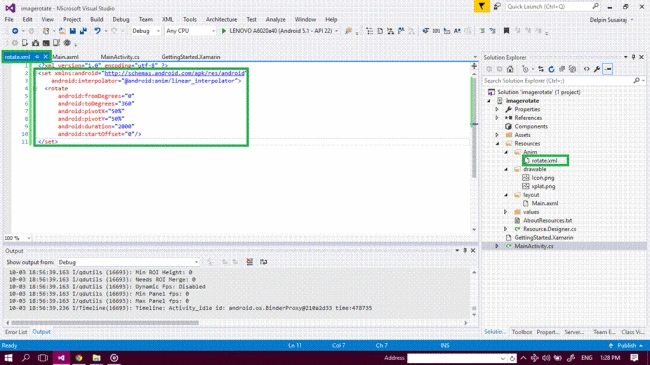
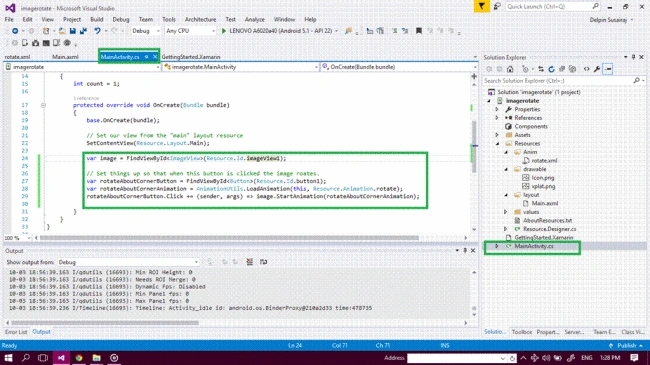
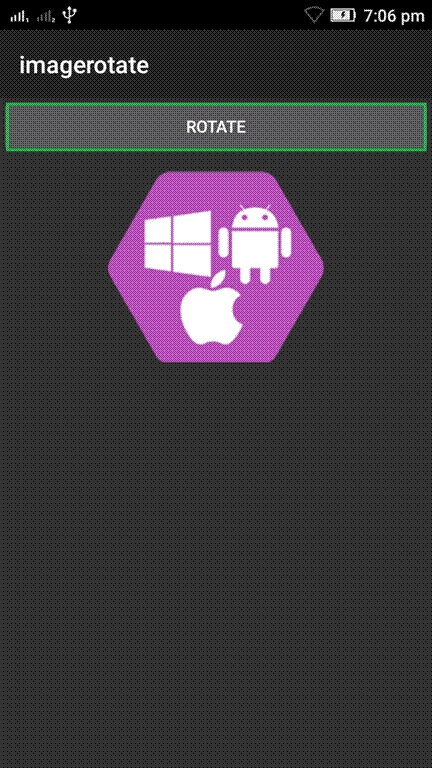
Image rotate animation is called if Button image is clicked and will rotate one round.
Prerequisites
- Visual Studio 2015 Update 3
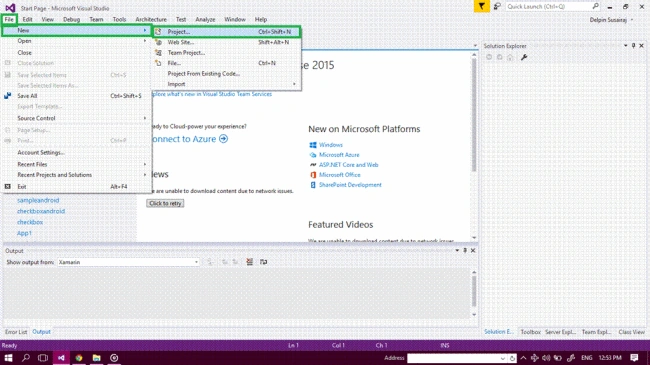
Step 1 - Click file--> Select New--> Next select Project. The project needs to be clicked after opening all the types of projects in Visual studio or click Ctrl+Shift+N.
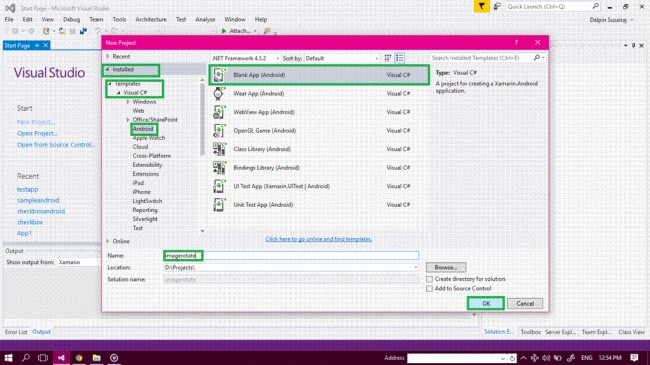
Step 2 - After opening New Project, select Installed-->Templates-->Visual C#-->Android-->choose the Blank app (Android).
Subsequently, give your Android app name (Ex:sample) and give the path of your project. Afterwards, click OK.
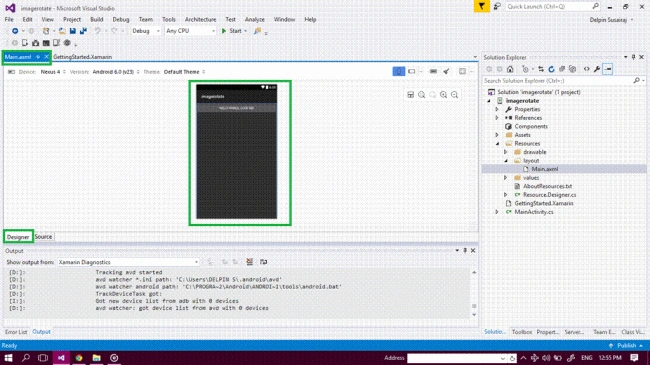
Step 3 - Now, go to Solution explorer. In Solution Explorer, get all the files and sources in your project.
Now, select Resource-->Layout-->double click to open main.axml page. You want select the source to write XAML code.
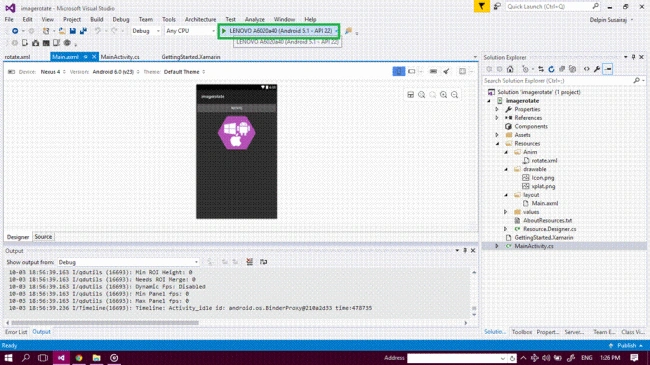
If you want design, choose the designer Window and you can design your app.

Step 4 - After opening main.axml,the file will open the main page designer. In this page, you can select which type you want and you can design this page.
Now, delete the Default hello world button. Go to main.axml page source panel and you can see the button coding. You need to delete it.
After deleting, XAML code, delete C# button action code.
Go to MainActivity.cs page, you will delete the button code.
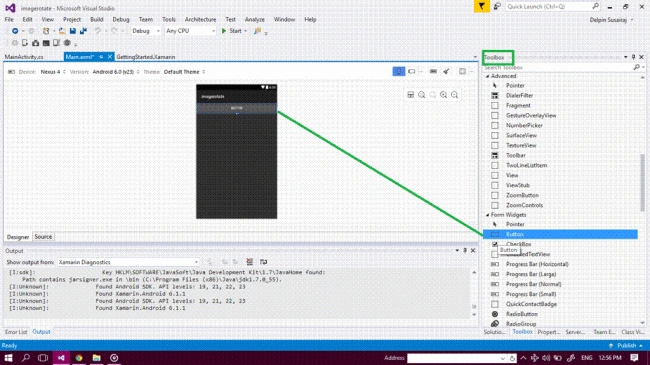
Step 5 - Now, go to the toolbox Window. The toolbox window has the all types of tools and controls.You will go to the toolbox window, next scroll down
You will see the all tools and controls.
You will drag and drop the button.
Step 6 - Now, drag and drop the LinearLayout (Vertical).
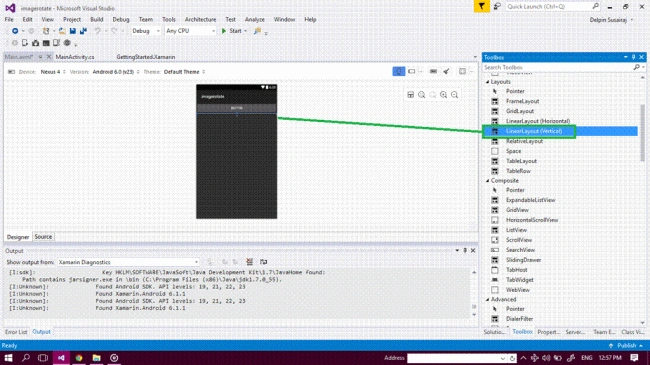
Step 7 - You will drag and drop the image view in LinearLayout.
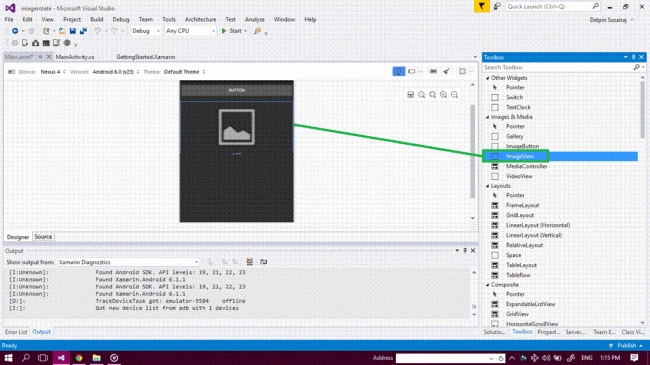
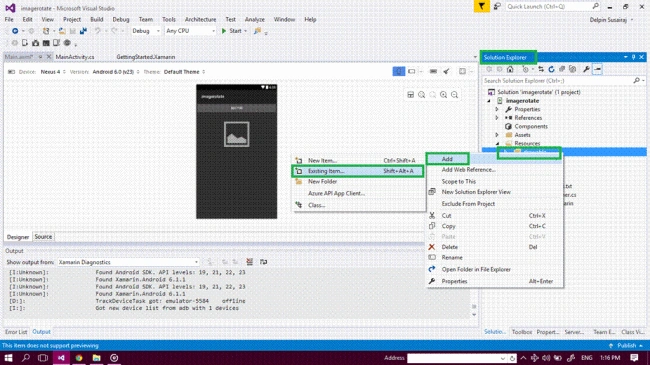
Step 8 - Now, add the image in your app.
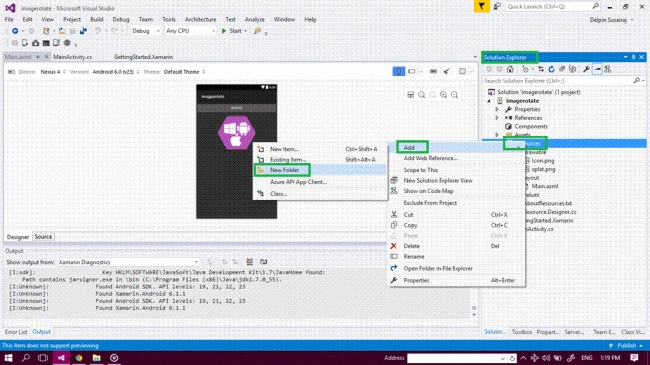
Go to Solution Explorer, select the Resource-->drawable. Now, after the right click-->add--> Existing Item or (Shift + Alt + A)
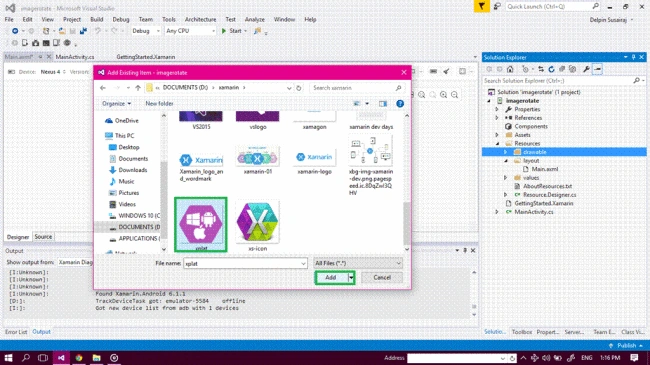
Step 9 - Now, browse the image. Go to the your image path (location) and select the image. Afterwards, click the add button.
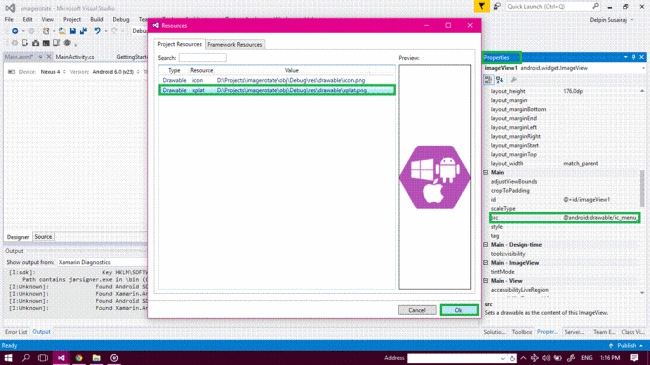
Step 10 - Afterwards, add the image, go to the properties Window. You will add the image source path.
Imageview1-->Main-->src.
Afterwards, click src and Resource window will open. Now, you can select the uploaded image. Subsequently, click OK.
Step 11 - Now, go to the main.axml page source tab and you will edit the button Id and imageview Id (Ex: CheckBox android:id="@+id/checkbox" ) or note it.
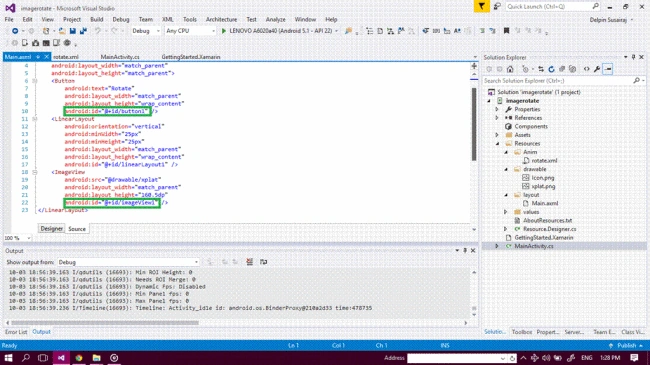
Main.axml
- <Button android:text="Rotate" android:layout_width="match_parent" android:layout_height="wrap_content" android:id="@+id/button1" />
- <LinearLayout android:orientation="vertical" android:minWidth="25px" android:minHeight="25px" android:layout_width="match_parent" android:layout_height="wrap_content" android:id="@+id/linearLayout1" />
- <ImageView android:src="@drawable/xplat" android:layout_width="match_parent" android:layout_height="160.5dp" android:id="@+id/imageView1" />

Prasanna MuraliPosted Oct 9, 2016, 10:09 AM
Nice post..
Humayun Kabir MamunPosted Oct 8, 2016, 11:07 AM
Nice...