

Introduction
In this article, I shall show you how to make a weather Android app using Open-Weather-Map API by geographic coordinates.
Prerequisites
- Weather API Key
- Newtonsoft.json Packages
- AppCompat Android Library v7
- Picasso Images Caching Library
Step1
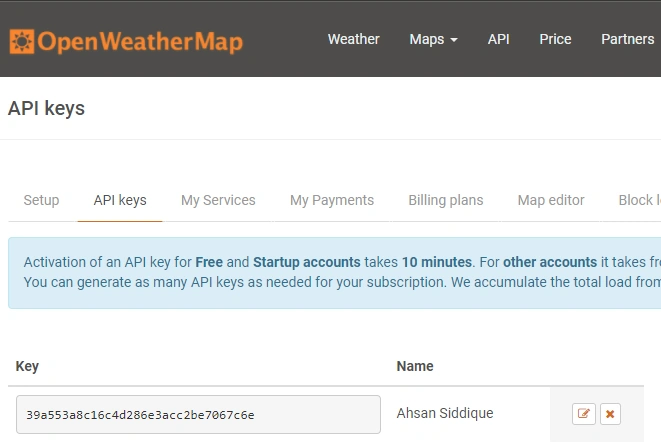
First, we need to open Weather Map API key. Go to https://openweathermap.org create an account and get the API key.
Step2
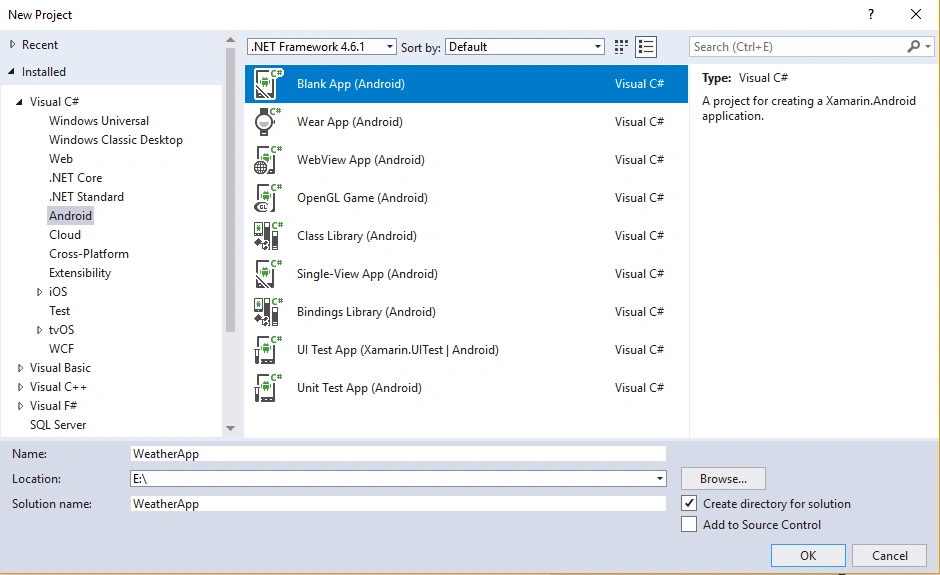
Open Visual Studio and go to New Project-> Templates-> Visual C#-> Android-> Blank app. Give it a name, like WeatherApp.
Step3
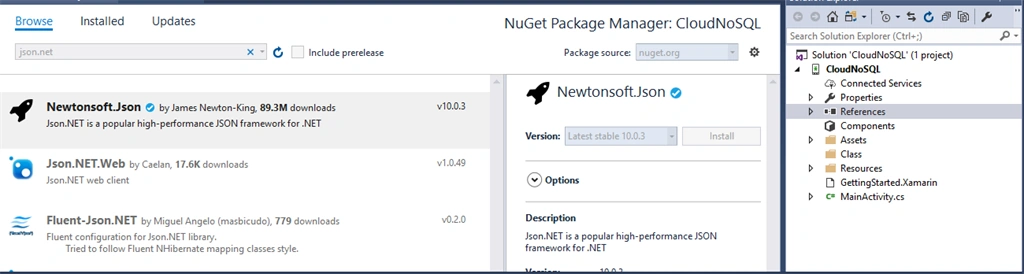
Next, go to Solution Explorer-> Project Name-> References. Then, right-click to "Manage NuGet Packages" and search for JSON. Install the Newtonsoft.Json Packages.
Step4
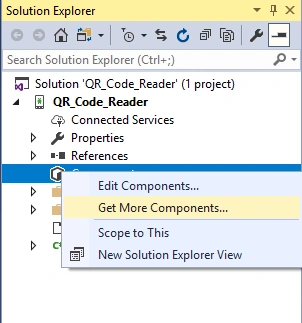
Next, we need to add a component that is required for layout. Open Solution Explorer and go to Components -> Get More Components. In this way, you can move on Xamarin Components Store, then search for AppCompat and click "Add to App".
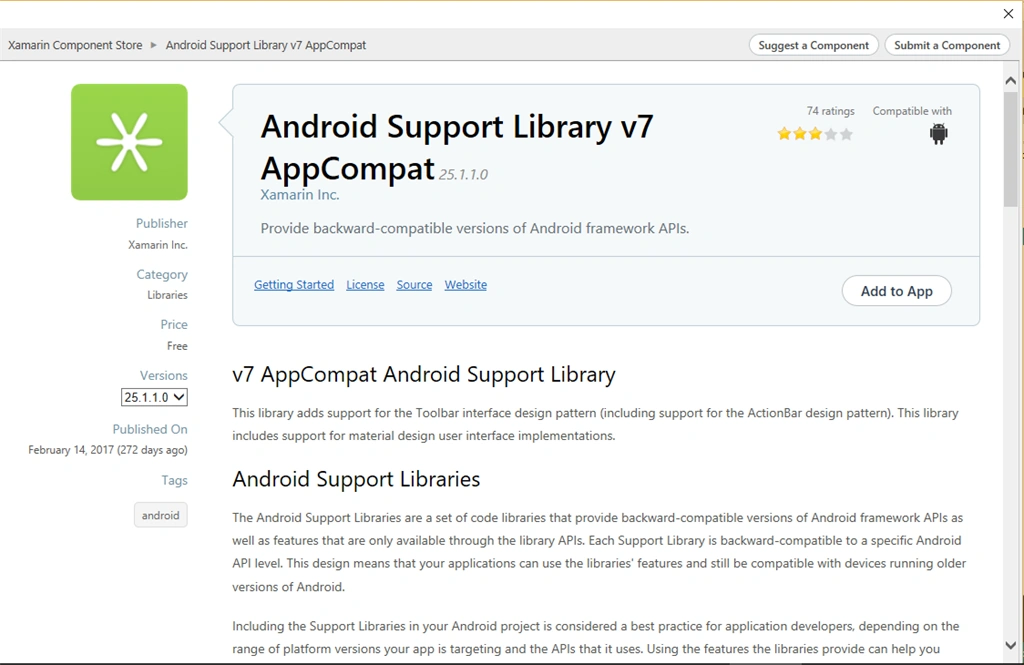
Step5
Next, we need to add a more component that is required for caching images from web. Open Solution Explorer and go to Components -> Get More Components. In this way, you can move on Xamarin Components Store, then search for Picasso and click "Add to App".
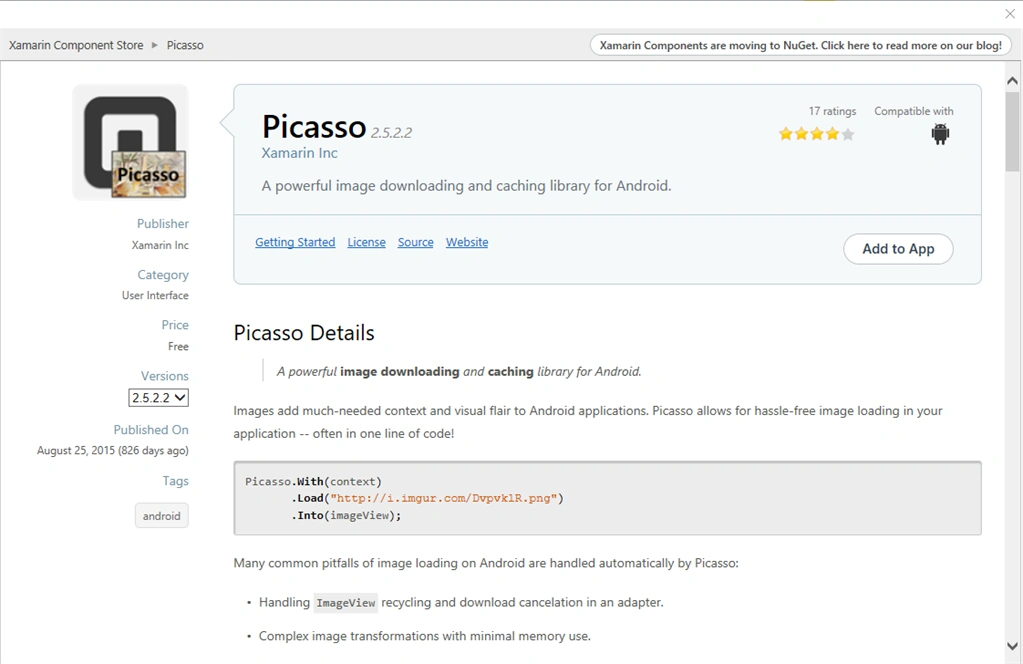
Step6
Next, go to Solution Explorer-> Project Name and right-click. Select Add -> New Item-> Class. Give it a name, like Common.cs and write the following code with appropriate namespaces.
(Class Name: Common)
Note
Please must change API_KEY of your common class.
Please must change API_KEY of your common class.
- using System;
- using System.Text;
- namespace XamarinWeatherApp.Common {
- class Common {
- public static string API_KEY = "39a553a8c16c4d286e3acc2be7067c6e";
- public static string API_LINK = "https://api.openweathermap.org/data/2.5/weather";
- public static string APIRequest(string lat, string lng) {
- StringBuilder sb = new StringBuilder(API_LINK);
- sb.AppendFormat("?lat={0}&lon={1}&APPID={2}&units=metric", lat, lng, API_KEY);
- return sb.ToString();
- }
- public static DateTime UnixTimeStampToDateTime(double unixTimeStamp) {
- DateTime dt = new DateTime(1970, 1, 1, 0, 0, 0, DateTimeKind.Utc);
- dt = dt.AddSeconds(unixTimeStamp).ToLocalTime();
- return dt;
- }
- public static string GetImage(string icon) {
- return $ "http://openweathermap.org/img/w/{icon}.png";
- }
- }
- }
Similarly, create another class named as OpenWeatherMap.cs and write the following code with appropriate namespaces.
(File Name - OpenWeatherMap)
- using System.Collections.Generic;
- namespace XamarinWeatherApp.Model {
- public class Coord {
- public double lon {
- get;
- set;
- }
- public double lat {
- get;
- set;
- }
- }
- public class Weather {
- public int id {
- get;
- set;
- }
- public string main {
- get;
- set;
- }
- public string description {
- get;
- set;
- }
- public string icon {
- get;
- set;
- }
- }
- public class Main {
- public double temp {
- get;
- set;
- }
- public double pressure {
- get;
- set;
- }
- public int humidity {
- get;
- set;
- }
- public double temp_min {
- get;
- set;
- }
- public double temp_max {
- get;
- set;
- }
- public double sea_level {
- get;
- set;
- }
- public double grnd_level {
- get;
- set;
- }
- }
- public class Wind {
- public double speed {
- get;
- set;
- }
- public double deg {
- get;
- set;
- }
- }
- public class Clouds {
- public int all {
- get;
- set;
- }
- }
- public class Sys {
- public double message {
- get;
- set;
- }
- public string country {
- get;
- set;
- }
- public int sunrise {
- get;
- set;
- }
- public int sunset {
- get;
- set;
- }
- }
- public class OpenWeatherMap {
- public Coord coord {
- get;
- set;
- }
- public List < Weather > weather {
- get;
- set;
- }
- public string @base {
- get;
- set;
- }
- public Main main {
- get;
- set;
- }
- public Wind wind {
- get;
- set;
- }
- public Clouds clouds {
- get;
- set;
- }
- public int dt {
- get;
- set;
- }
- public Sys sys {
- get;
- set;
- }
- public int id {
- get;
- set;
- }
- public string name {
- get;
- set;
- }
- public int cod {
- get;
- set;
- }
- }
- }
Step8
Next, create another class named as Helper.cs and write the following code with appropriate namespaces.
(File Name - Helper)
- using Java.IO;
- using Java.Net;
- using System;
- using System.Text;
- namespace XamarinWeatherApp.Helper {
- public class Helper {
- static String stream = null;
- public Helper() {}
- public String GetHTTPData(String urlString) {
- try {
- URL url = new URL(urlString);
- using(var urlConnection = (HttpURLConnection) url.OpenConnection()) {
- if (urlConnection.ResponseCode == HttpStatus.Ok) {
- BufferedReader r = new BufferedReader(new InputStreamReader(urlConnection.InputStream));
- StringBuilder sb = new StringBuilder();
- String line;
- while ((line = r.ReadLine()) != null) sb.Append(line);
- stream = sb.ToString();
- urlConnection.Disconnect();
- }
- }
- } catch (Exception ex) {
- System.Diagnostics.Debug.WriteLine(ex.Message);
- }
- return stream;
- }
- }
- }
Now, open Solution Explorer-> Project Name-> Resources-> Layout-> Main.axml. Open this main layout file and add the following code.
(File Name: Main.axml)
(Folder Name: Layout)
- <?xml version="1.0" encoding="utf-8"?>
- <LinearLayout xmlns:android="http://schemas.android.com/apk/res/android" android:orientation="vertical" android:layout_width="match_parent" android:layout_height="match_parent">
- <TextView android:id="@+id/txtCity" android:layout_width="match_parent" android:layout_height="wrap_content" android:layout_marginTop="40dp" android:text="" android:textSize="36sp" android:gravity="center" />
- <TextView android:id="@+id/txtLastUpdate" android:layout_width="match_parent" android:layout_height="wrap_content" android:text="" android:textSize="16sp" android:gravity="center" />
- <ImageView android:id="@+id/imageView" android:layout_width="100dp" android:layout_height="100dp" android:layout_gravity="center" />
- <TextView android:layout_width="match_parent" android:layout_height="wrap_content" android:id="@+id/txtDescription" android:text="" android:textSize="30sp" android:gravity="center" />
- <TextView android:id="@+id/txtHumidity" android:layout_width="match_parent" android:layout_height="wrap_content" android:text="" android:textSize="30sp" android:gravity="center" />
- <TextView android:id="@+id/txtTime" android:layout_width="match_parent" android:layout_height="wrap_content" android:text="" android:textSize="36sp" android:gravity="center" />
- <TextView android:id="@+id/txtCelsius" android:layout_width="match_parent" android:layout_height="wrap_content" android:text="" android:textSize="80sp" android:gravity="center" />
- </LinearLayout>
Next, open Solution Explorer-> Project Name-> MainActivity. Open the main activity file and add the following code using appropriate namespaces.
Main Activity
- using Android.App;
- using Android.Widget;
- using Android.OS;
- using Android.Locations;
- using XamarinWeatherApp.Model;
- using Android.Runtime;
- using System;
- using Square.Picasso;
- using Newtonsoft.Json;
- using Android.Content;
- namespace XamarinWeatherApp {
- [Activity(Label = "WeatherApp", MainLauncher = true, Icon = "@drawable/icon", Theme = "@style/Theme.AppCompat.Light.NoActionBar")]
- public class MainActivity: Activity, ILocationListener {
- TextView txtCity, txtLastUpdate, txtDescription, txtHumidity, txtTime, txtCelsius;
- ImageView imgView;
- LocationManager locationManager;
- string provider;
- static double lat, lng;
- OpenWeatherMap openWeatherMap = new OpenWeatherMap();
- protected override void OnCreate(Bundle bundle) {
- base.OnCreate(bundle);
- // Set our view from the "main" layout resource
- SetContentView(Resource.Layout.Main);
- locationManager = (LocationManager) GetSystemService(Context.LocationService);
- provider = locationManager.GetBestProvider(new Criteria(), false);
- Location location = locationManager.GetLastKnownLocation(provider);
- if (location == null) System.Diagnostics.Debug.WriteLine("No Location");
- }
- protected override void OnResume() {
- base.OnResume();
- locationManager.RequestLocationUpdates(provider, 400, 1, this);
- }
- protected override void OnPause() {
- base.OnPause();
- locationManager.RemoveUpdates(this);
- }
- public void OnLocationChanged(Location location) {
- lat = Math.Round(location.Latitude, 4);
- lng = Math.Round(location.Longitude, 4);
- new GetWeather(this, openWeatherMap).Execute(Common.Common.APIRequest(lat.ToString(), lng.ToString()));
- }
- public void OnProviderDisabled(string provider) {}
- public void OnProviderEnabled(string provider) {}
- public void OnStatusChanged(string provider, [GeneratedEnum] Availability status, Bundle extras) {}
- private class GetWeather: AsyncTask < string, Java.Lang.Void, string > {
- private ProgressDialog pd = new ProgressDialog(Application.Context);
- private MainActivity activity;
- OpenWeatherMap openWeatherMap;
- public GetWeather(MainActivity activity, OpenWeatherMap openWeatherMap) {
- this.activity = activity;
- this.openWeatherMap = openWeatherMap;
- }
- protected override void OnPreExecute() {
- base.OnPreExecute();
- pd.Window.SetType(Android.Views.WindowManagerTypes.SystemAlert);
- pd.SetTitle("Please wait....");
- pd.Show();
- }
- protected override string RunInBackground(params string[] @params) {
- string stream = null;
- string urlString = @params[0];
- Helper.Helper http = new Helper.Helper();
- //urlString = Common.Common.APIRequest(lat.ToString(), lng.ToString());
- stream = http.GetHTTPData(urlString);
- return stream;
- }
- protected override void OnPostExecute(string result) {
- base.OnPostExecute(result);
- if (result.Contains("Error: Not City Found")) {
- pd.Dismiss();
- return;
- }
- openWeatherMap = JsonConvert.DeserializeObject < OpenWeatherMap > (result);
- pd.Dismiss();
- //Controls
- activity.txtCity = activity.FindViewById < TextView > (Resource.Id.txtCity);
- activity.txtLastUpdate = activity.FindViewById < TextView > (Resource.Id.txtLastUpdate);
- activity.txtDescription = activity.FindViewById < TextView > (Resource.Id.txtDescription);
- activity.txtHumidity = activity.FindViewById < TextView > (Resource.Id.txtHumidity);
- activity.txtTime = activity.FindViewById < TextView > (Resource.Id.txtTime);
- activity.txtCelsius = activity.FindViewById < TextView > (Resource.Id.txtCelsius);
- activity.imgView = activity.FindViewById < ImageView > (Resource.Id.imageView);
- //Add Data
- activity.txtCity.Text = $ "{openWeatherMap.name},{openWeatherMap.sys.country}";
- activity.txtLastUpdate.Text = $ "Last Updated: {DateTime.Now.ToString("
- dd MMMM yyyy HH: mm ")}";
- activity.txtDescription.Text = $ "{openWeatherMap.weather[0].description}";
- activity.txtHumidity.Text = $ "Humidity: {openWeatherMap.main.humidity} %";
- activity.txtTime.Text = $ "{Common.Common.UnixTimeStampToDateTime(openWeatherMap.sys.sunrise).ToString("
- HH: mm ")}/{Common.Common.UnixTimeStampToDateTime(openWeatherMap.sys.sunset).ToString("
- HH: mm ")}";
- activity.txtCelsius.Text = $ "{openWeatherMap.main.temp} °C";
- if (!string.IsNullOrEmpty(openWeatherMap.weather[0].icon)) {
- Picasso.With(activity.ApplicationContext).Load(Common.Common.GetImage(openWeatherMap.weather[0].icon)).Into(activity.imgView);
- }
- }
- }
- }
- }
We need some permissions from device. Let's open Solution Explorer and go to Properties-> AndroidManifest and add the following code inside application tags.
- <uses-permission android:name="android.permission.WRITE_EXTERNAL_STORAGE" />
- <uses-permission android:name="android.permission.INTERNET" />
- <uses-permission android:name="android.permission.ACCESS_FINE_LOCATION" />
- <uses-permission android:name="android.permission.ACCESS_COARSE_LOCATION" />
- <uses-permission android:name="android.permission.ACCESS_NETWORK_STATE" />
- <uses-permission android:name="android.permission.SYSTEM_ALERT_WINDOW" />
- <uses-permission android:name="com.google.android.providers.gsf.permission.READ_GSERVICES" />
Finally, we have done our Weather app just rebuild and run the project. You will have the result like below.
Output
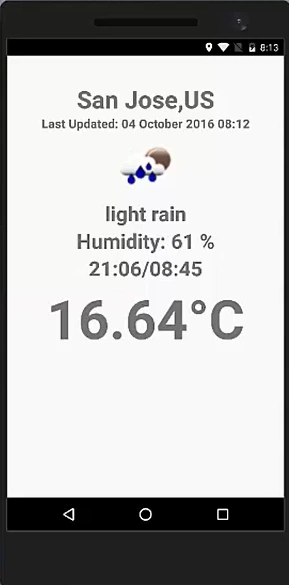
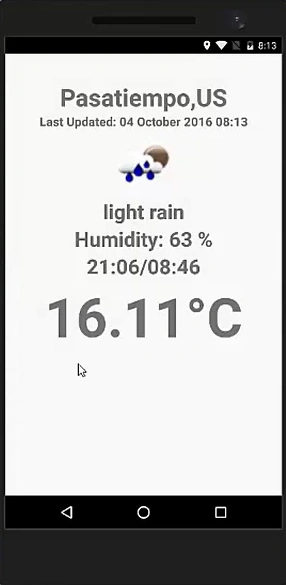
Join the conversation! Your thoughts help the community grow.