

Introduction
In this article, I shall show you how to build a text recognition application by using the device camera. Through this tutorial, I would like to present to readers the amazing feature of Mobile Vision API: Text recognition by using a mobile camera.
In this article, I shall show you how to build a text recognition application by using the device camera. Through this tutorial, I would like to present to readers the amazing feature of Mobile Vision API: Text recognition by using a mobile camera.
Text Recognition
Mobile Vision is an API which helps us to find the text in pictures and video streams to observe the content checked in that.
Structure of Text
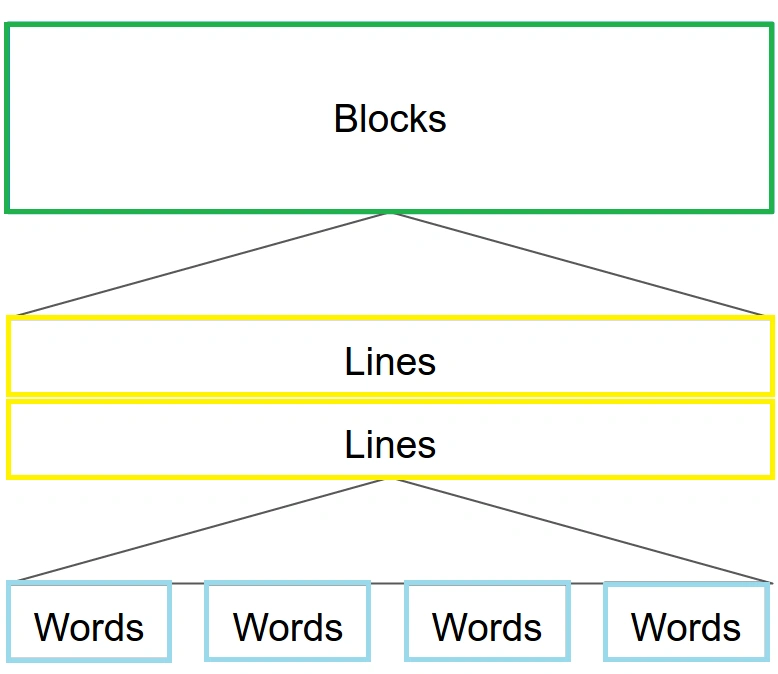
The text recognizer breaks the content into pieces, lines, and words.
- A word is a contiguous arrangement of alphanumeric characters on a similar vertical axis.
- A line is an adjoining set of words on a similar vertical axis.
- A chunk is a bordering set of text lines.
Step 1
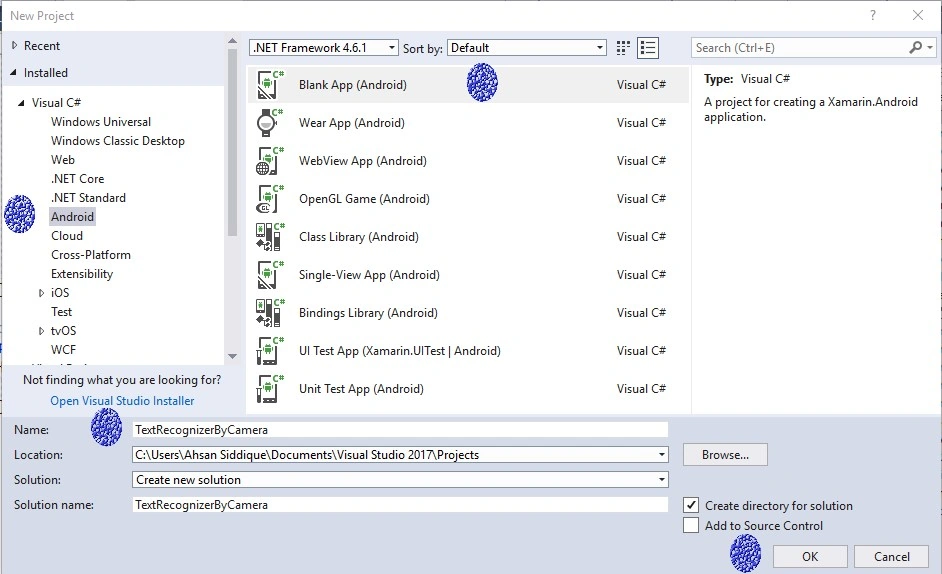
Open Visual Studio. Go to New Project-> Templates-> Visual C#-> Android-> Blank app. Select Blank app. Give the project
a name like TextRecognizerByCamera.
ProjectName: TextRecognizerByCamera
Step 2
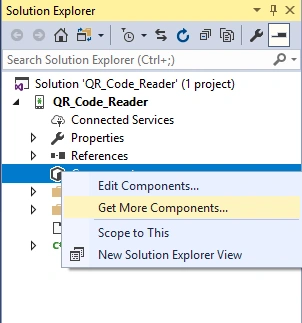
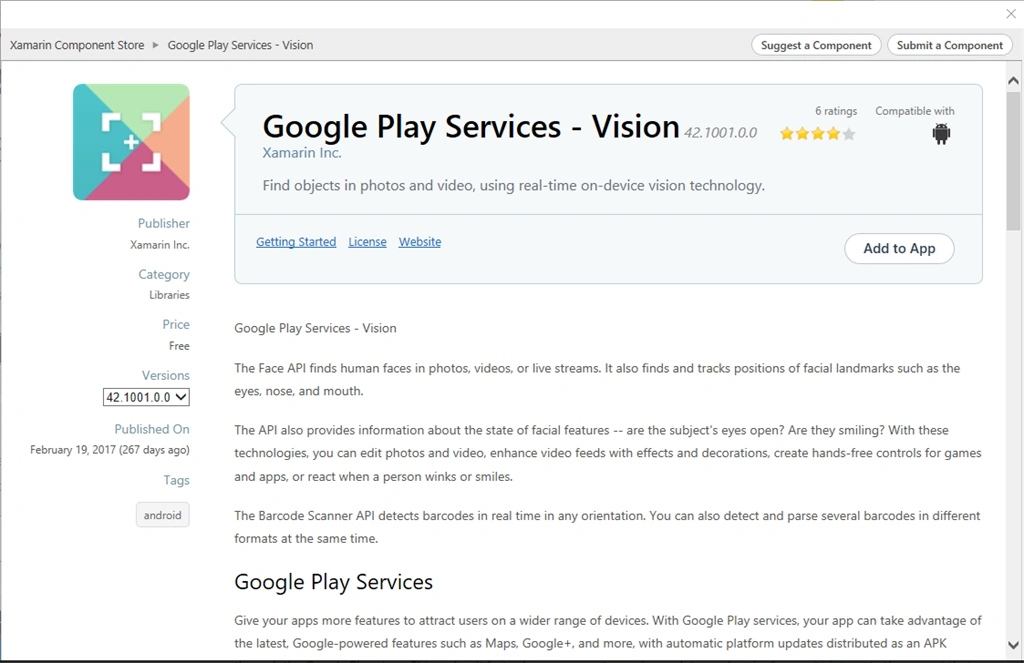
First of all, we need to add a component that is required for text recognition. Open Solution Explorer and go to Components -> Get More Components. In this way, you can move on Xamarin Components Store, then search for Vision and click "Add to App".
ProjectName: TextRecognizerByCamera
Step 2
First of all, we need to add a component that is required for text recognition. Open Solution Explorer and go to Components -> Get More Components. In this way, you can move on Xamarin Components Store, then search for Vision and click "Add to App".
Step 3
We need a permission from the device because we shall be using the device’s camera to capture texts. Please add CAMERA permission to your AndroidManifest.xml.
Let's open Solution Explorer-> Properties-> AndroidManifest and let's add the code inside application tags.
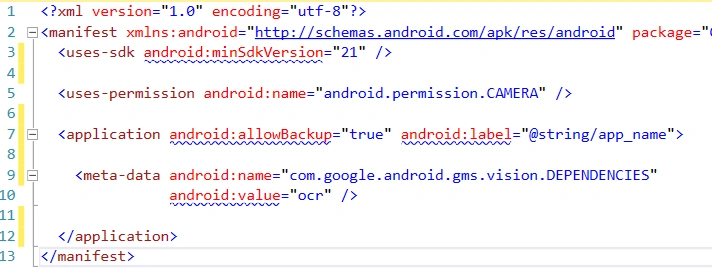
Camera Permission
- <uses-permission android:name="android.permission.CAMERA" />
- <application android:allowBackup="true" android:label="@string/app_name">
- <meta-data android:name="com.google.android.gms.vision.DEPENDENCIES" android:value="ocr" />
- </application>
Step 4
Open Solution Explorer-> Project Name-> Resources-> Layout-> Main.axml and add the following code.
Open Solution Explorer-> Project Name-> Resources-> Layout-> Main.axml and add the following code.
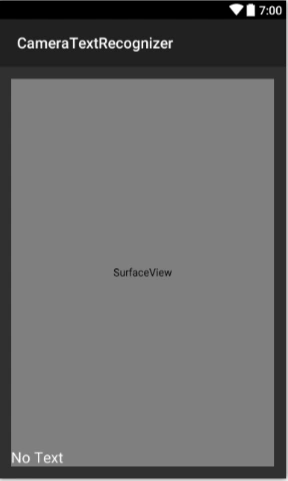
The layout will have a SurfaceView in order to display the preview frames captured by the camera. I also added a TextView to display the contents of the recognized text.
(FileName: Main.axml)
XAML Code
XAML Code
Layout
- <?xml version="1.0" encoding="utf-8"?>
- <RelativeLayout xmlns:android="http://schemas.android.com/apk/res/android" android:padding="16dp" android:layout_width="match_parent" android:layout_height="match_parent">
- <SurfaceView android:id="@+id/surface_view" android:layout_width="match_parent" android:layout_height="match_parent" />
- <TextView android:id="@+id/txtview" android:text="No Text" android:textSize="20sp" android:textColor="@android:color/white" android:layout_width="match_parent" android:layout_height="wrap_content" android:layout_alignParentBottom="true" />
- </RelativeLayout>
Step 6
Open Solution Explorer-> Project Name-> MainActivity and add the following code to main activity and use appropriate namespaces.
Complete Code of Main Activity
- using Android.App;
- using Android.Widget;
- using Android.OS;
- using Android.Views;
- using Android.Gms.Vision;
- using Android.Gms.Vision.Texts;
- using Android.Util;
- using Android.Graphics;
- using Android.Runtime;
- using Android.Support.V4.App;
- using Android;
- using Android.Content.PM;
- using static Android.Gms.Vision.Detector;
- using System.Text;
- namespace CameraTextRecognizer {
- [Activity(Label = "CameraTextRecognizer", MainLauncher = true)]
- public class MainActivity: Activity, ISurfaceHolderCallback, IProcessor {
- private SurfaceView cameraView;
- private TextView txtView;
- private CameraSource cameraSource;
- private
- const int RequestCameraPermissionID = 1001;
- public override void OnRequestPermissionsResult(int requestCode, string[] permissions, [GeneratedEnum] Permission[] grantResults) {
- switch (requestCode) {
- case RequestCameraPermissionID:
- {
- if (grantResults[0] == Permission.Granted) {
- cameraSource.Start(cameraView.Holder);
- }
- }
- break;
- }
- }
- protected override void OnCreate(Bundle savedInstanceState) {
- base.OnCreate(savedInstanceState);
- // Set our view from the "main" layout resource
- SetContentView(Resource.Layout.Main);
- cameraView = FindViewById < SurfaceView > (Resource.Id.surface_view);
- txtView = FindViewById < TextView > (Resource.Id.txtview);
- TextRecognizer txtRecognizer = new TextRecognizer.Builder(ApplicationContext).Build();
- if (!txtRecognizer.IsOperational) {
- Log.Error("Main Activity", "Detector dependencies are not yet available");
- } else {
- cameraSource = new CameraSource.Builder(ApplicationContext, txtRecognizer).SetFacing(CameraFacing.Back).SetRequestedPreviewSize(1280, 1024).SetRequestedFps(2.0 f).SetAutoFocusEnabled(true).Build();
- cameraView.Holder.AddCallback(this);
- txtRecognizer.SetProcessor(this);
- }
- }
- public void SurfaceChanged(ISurfaceHolder holder, [GeneratedEnum] Format format, int width, int height) {}
- public void SurfaceCreated(ISurfaceHolder holder) {
- if (ActivityCompat.CheckSelfPermission(ApplicationContext, Manifest.Permission.Camera) != Android.Content.PM.Permission.Granted) {
- //Request permission
- ActivityCompat.RequestPermissions(this, new string[] {
- Android.Manifest.Permission.Camera
- }, RequestCameraPermissionID);
- return;
- }
- cameraSource.Start(cameraView.Holder);
- }
- public void SurfaceDestroyed(ISurfaceHolder holder) {
- cameraSource.Stop();
- }
- public void ReceiveDetections(Detections detections) {
- SparseArray items = detections.DetectedItems;
- if (items.Size() != 0) {
- txtView.Post(() => {
- StringBuilder strBuilder = new StringBuilder();
- for (int i = 0; i < items.Size(); ++i) {
- strBuilder.Append(((TextBlock) items.ValueAt(i)).Value);
- strBuilder.Append("\n");
- }
- txtView.Text = strBuilder.ToString();
- });
- }
- }
- public void Release() {}
- }
- }
Output
Running this project, and scanning a text block on the paper, you may have result like this.

daagyddPosted Nov 27, 2023, 7:54 PM
Awesome for Native Android and thanksALot
Alex AraujoPosted Dec 21, 2021, 7:37 PM
How can i show a green box at word scanned?
Mohamed CissePosted Jul 17, 2021, 1:50 PM
Great . How can I do the same with xamarin forms ?
Ufuk TükenmezPosted Apr 28, 2020, 6:12 PM
Hello thank you how about IOS version of this project ?
Muhammad ZubairPosted Feb 6, 2020, 10:53 PM
Hi, did you do this in xamarin forms ?
Poornesh VPosted Oct 20, 2019, 10:37 AM
Hi , I see that Google vision OCR doesn't work when it's installed in few devices. Also I have seen in few devices it doesn't work initially but after some time it started to. Can you let me know the exact reason for this?
paulo silvaPosted Sep 15, 2019, 9:35 AM
How would you zoom the camera?
Suraj BinorkarPosted Jul 29, 2019, 5:54 AM
Hello sir, I am new in xamarin forms, and I got task to create ocr application, I go through your blog, and found really helping. I got stuck in step 2, actually I am not able to find any get more components options in visual studio 2017. So how do I install google play service - vision in xamarin forms using visual studio 2017. Do you have any idea about this, please let me know. Thanks in advance :)
aa aaPosted Jan 25, 2019, 5:08 AM
Hii, ((TextBlock) items.ValueAt(i)) here , how can we change TextBlock with Line? when I did it, there is error as a cast invalid.
aa aaPosted Jan 18, 2019, 6:00 AM
Hi, how can I extract the name , organization name vs. separetely from image??
aa aaPosted Jan 3, 2019, 1:09 AM
Hi, I also want to ask, how can capture card image.I dont want textview changes when movement?
aa aaPosted Dec 31, 2018, 2:50 AM
Hi Ahsan, How can I save this text?
Asep DadanPosted Dec 16, 2018, 5:52 AM
Hi ahsan, can you show me example xamarin form, please?
niny ninyPosted Nov 8, 2018, 8:38 PM
Hi Ahsan, How i create dynamic SurfaceView ?
Ping KingPosted Oct 20, 2018, 3:20 PM
Hi Ahsan, I am using the nutget below "Xamarin.GooglePlayServices.Vision" 60.1142.1 But i get the error below when txtRecognizer.IsOperational is false Log.Error("Main Activity", "Detector dependencies are not yet available"); My device might not have Google Play Services. Is it possible to archieve the similar features on Lollipop without Google Play Services?
Hiteshkumar PatelPosted Jul 27, 2018, 10:32 PM
But I want to Text reading from specific size just like BAR READING
Hiteshkumar PatelPosted Jul 27, 2018, 10:30 PM
Great Article,
Subhamoy BurmanPosted Jul 2, 2018, 12:19 AM
Sir, thank you for your comment. But my current requirement is - something like this- https://www.youtube.com/watch?v=FOSgiPjGwx4 , I want to Camera area such shown in this video.
Subhamoy BurmanPosted Jun 29, 2018, 11:41 PM
Great Article Sir, please let me know how can I fix up a camera area here? I want the user to put the text into that particular area of Camera View only...