

Introduction
In part one, we had developed the RESTFul API in Node JS and Mongodb. In this article we will consume this RESTFul API in Xamarin.Android.
Client Application
Step 1 - Create a Xamarin Android Project
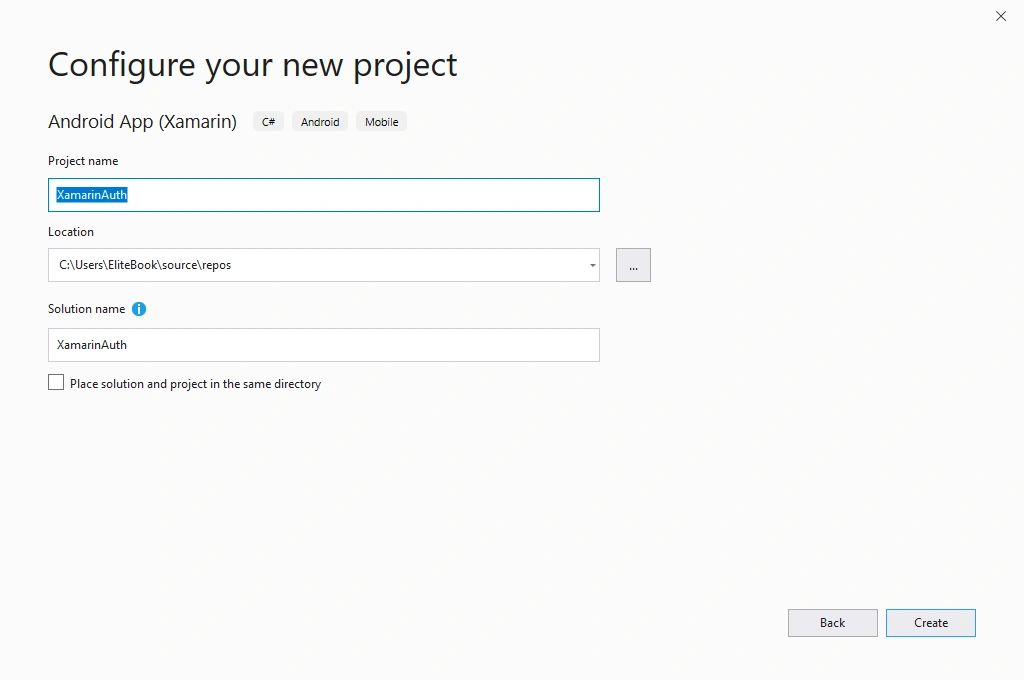
Open Visual Studio-> New Project-> Templates-> Visual C#-> Android-> Blank app and give the project name XamarinAuth.
(ProjectName: XamarinAuth)
After creating a blank project, first, add Refit NuGet package to this project by right-clicking on References and select manage NuGet packages.
Step 3 - Create Login Layout


Next, open Solution Explorer-> Project Name-> Resources-> Layout-> Main.axml. Open activity_main.axml file and add the following code.
(FileName: activity_main.axml)
- <?xml version="1.0" encoding="utf-8"?>
- <LinearLayout xmlns:android="http://schemas.android.com/apk/res/android"
- xmlns:app="http://schemas.android.com/apk/res-auto"
- xmlns:tools="http://schemas.android.com/tools"
- android:layout_width="match_parent"
- android:orientation="vertical"
- android:background="@android:color/white"
- android:padding="16dp"
- android:layout_margin="16dp"
- android:layout_height="match_parent">
- <TextView
- android:layout_width="match_parent"
- android:layout_height="wrap_content"
- android:textStyle="bold"
- android:text="Login Page"
- android:textSize="25sp"
- android:textAlignment="center"
- android:textColor="@color/colorPrimary"/>
- <EditText
- android:layout_width="match_parent"
- android:layout_height="wrap_content"
- android:hint="Email"
- android:inputType="textEmailAddress"
- android:id="@+id/edt_email"/>
- <EditText
- android:layout_width="match_parent"
- android:layout_height="wrap_content"
- android:hint="Password"
- android:inputType="textPassword"
- android:id="@+id/edt_password"/>
- <LinearLayout
- android:orientation="horizontal"
- android:layout_width="match_parent"
- android:layout_height="wrap_content"
- android:weightSum="2">
- <Button
- android:layout_width="0dp"
- android:layout_height="wrap_content"
- android:layout_weight="1"
- android:hint="Login"
- android:id="@+id/btn_login"
- android:layout_marginTop="15dp"/>
- <Button
- android:layout_width="0dp"
- android:layout_height="wrap_content"
- android:layout_weight="1"
- android:hint="Register"
- android:id="@+id/btn_registeration"
- android:layout_marginTop="15dp"/>
- </LinearLayout>
- </LinearLayout>
Step 3 - Create Registration Layout
Add a new layout by going to Solution Explorer-> Project Name-> Resources-> Layout. Right click to add a new item, select layout, and give it the name activity_register.
Open this layout file and add the following code.
- <?xml version="1.0" encoding="utf-8"?>
- <LinearLayout xmlns:android="http://schemas.android.com/apk/res/android"
- xmlns:app="http://schemas.android.com/apk/res-auto"
- xmlns:tools="http://schemas.android.com/tools"
- android:layout_width="match_parent"
- android:orientation="vertical"
- android:background="@android:color/white"
- android:padding="16dp"
- android:layout_margin="16dp"
- android:layout_height="match_parent">
- <TextView
- android:layout_width="match_parent"
- android:layout_height="wrap_content"
- android:textStyle="bold"
- android:text="Register Page"
- android:textSize="25sp"
- android:textAlignment="center"
- android:textColor="@color/colorPrimary"/>
- <EditText
- android:layout_width="match_parent"
- android:layout_height="wrap_content"
- android:hint="First Name"
- android:inputType="text"
- android:id="@+id/edt_fname"/>
- <EditText
- android:layout_width="match_parent"
- android:layout_height="wrap_content"
- android:hint="Last Name"
- android:inputType="text"
- android:id="@+id/edt_lname"/>
- <EditText
- android:layout_width="match_parent"
- android:layout_height="wrap_content"
- android:hint="Mobile"
- android:inputType="text"
- android:id="@+id/edt_mobile"/>
- <EditText
- android:layout_width="match_parent"
- android:layout_height="wrap_content"
- android:hint="Email"
- android:inputType="textEmailAddress"
- android:id="@+id/edt_email"/>
- <EditText
- android:layout_width="match_parent"
- android:layout_height="wrap_content"
- android:hint="Password"
- android:inputType="textPassword"
- android:id="@+id/edt_password"/>
- <LinearLayout
- android:orientation="horizontal"
- android:layout_width="match_parent"
- android:layout_height="wrap_content"
- android:weightSum="2">
- <Button
- android:layout_width="0dp"
- android:layout_height="wrap_content"
- android:layout_weight="1"
- android:hint="Register"
- android:id="@+id/btn_register"
- android:layout_marginTop="15dp"/>
- <Button
- android:layout_width="0dp"
- android:layout_height="wrap_content"
- android:layout_weight="1"
- android:hint="Cancel"
- android:id="@+id/btn_cancel"
- android:layout_marginTop="15dp"/>
- </LinearLayout>
- </LinearLayout>
Step 4 - Create Dashboard Layout
Similarly add a new layout by going to Solution Explorer-> Project Name-> Resources-> Layout. Right click to add a new item, select layout, and give it the name activity_dashboard. Open this layout file and add the following code.
- <?xml version="1.0" encoding="utf-8"?>
- <LinearLayout xmlns:android="http://schemas.android.com/apk/res/android"
- android:orientation="vertical"
- android:layout_width="match_parent"
- android:layout_height="match_parent">
- <TextView
- android:layout_marginTop="20dp"
- android:layout_width="match_parent"
- android:layout_height="wrap_content"
- android:textStyle="bold"
- android:text="Welcome To Dashboard"
- android:textSize="25sp"
- android:textAlignment="center"
- android:textColor="@color/colorPrimary"/>
- <Button
- android:layout_marginLeft="120dp"
- android:layout_width="wrap_content"
- android:layout_height="wrap_content"
- android:hint="Back To Home"
- android:id="@+id/btn_cancel"
- android:layout_marginTop="30dp"/>
- </LinearLayout>
Join the conversation! Your thoughts help the community grow.