

Introduction
Xamarin Insights is used for using analytics and crash reporting for Xamarin. For more details, you can click here.
Let’s start
Before starting an Android application, we need to register the Xamarin Insights dashboard new app.
Step 1
Goto https://insights.xamarin.com/. Now, click New App button. Open New Window.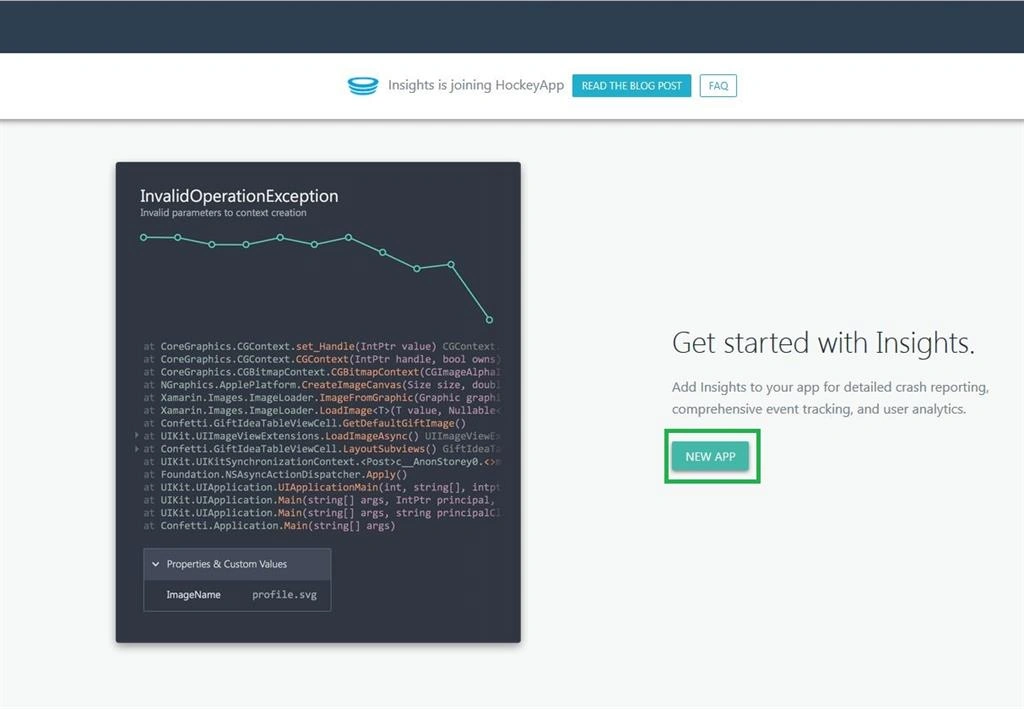
Step 2
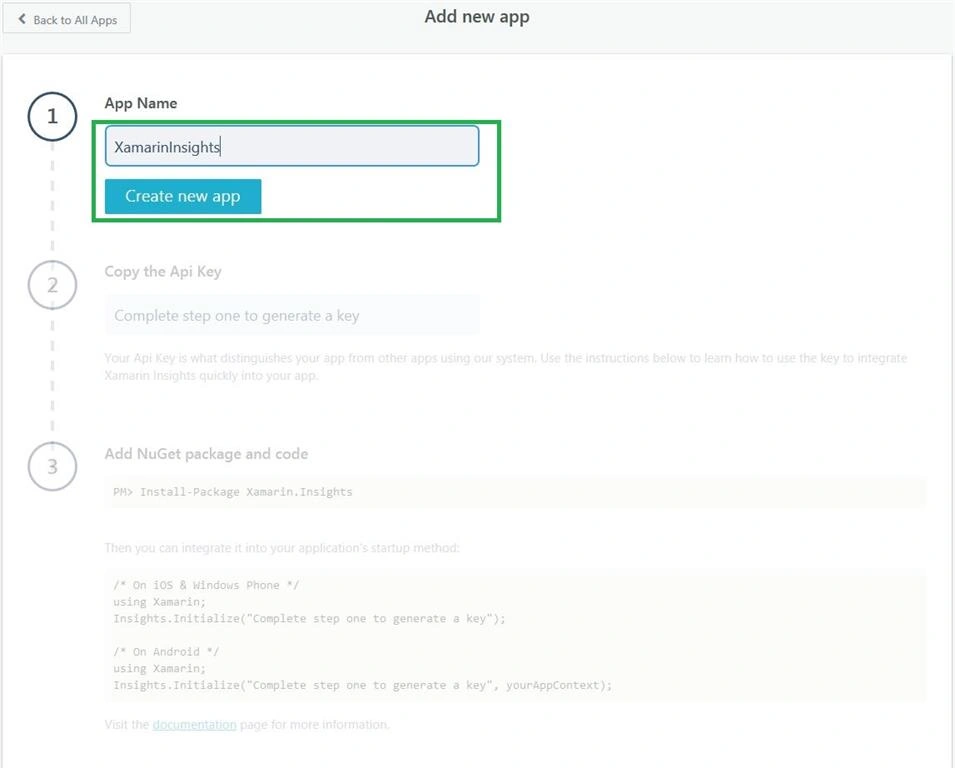
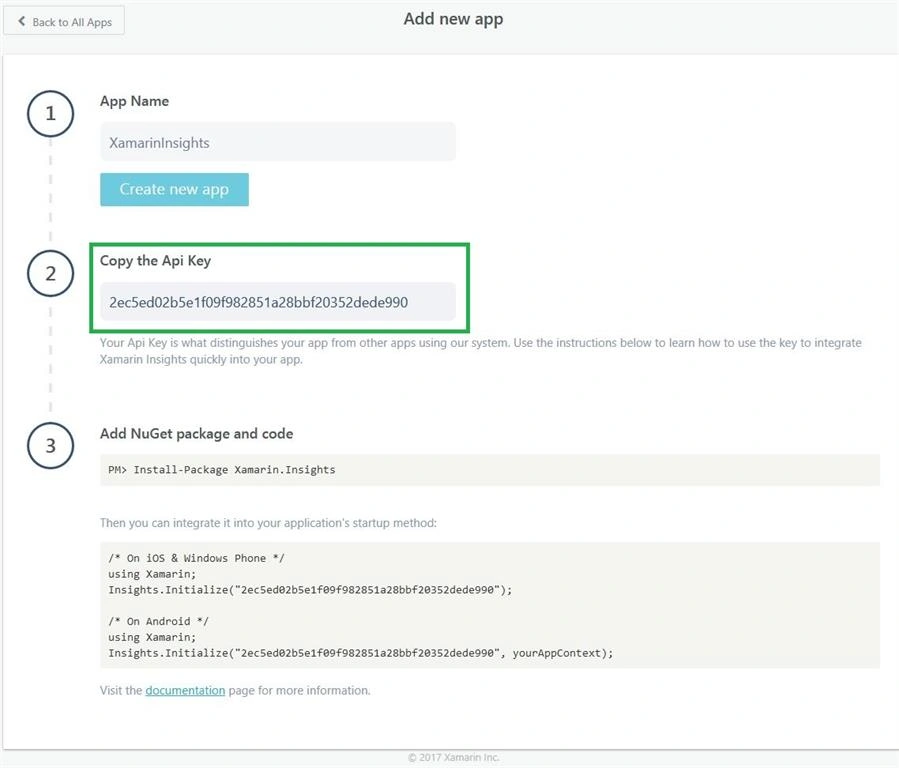
In the new window, enter new app's name. Click "Create new app" button. Afterwards, the system generates new API key. This key uses Android app, so copy the API key value.
Step 3
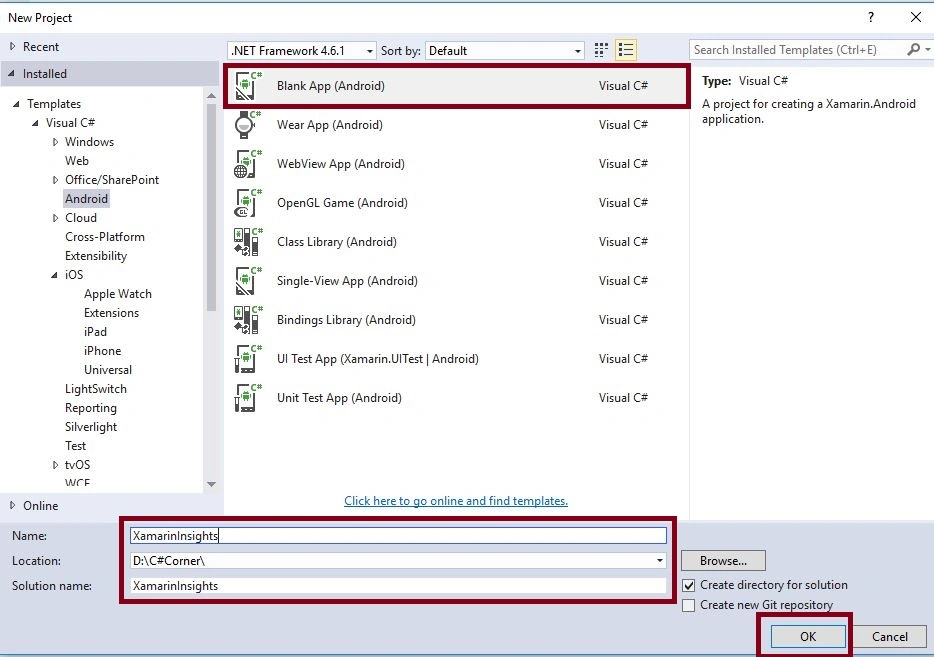
Open Visual Studio->New Project->Templates->Visual C#->Android->Blank App.
Select Blank App. Give your project a name and assign the project location.
Step 4
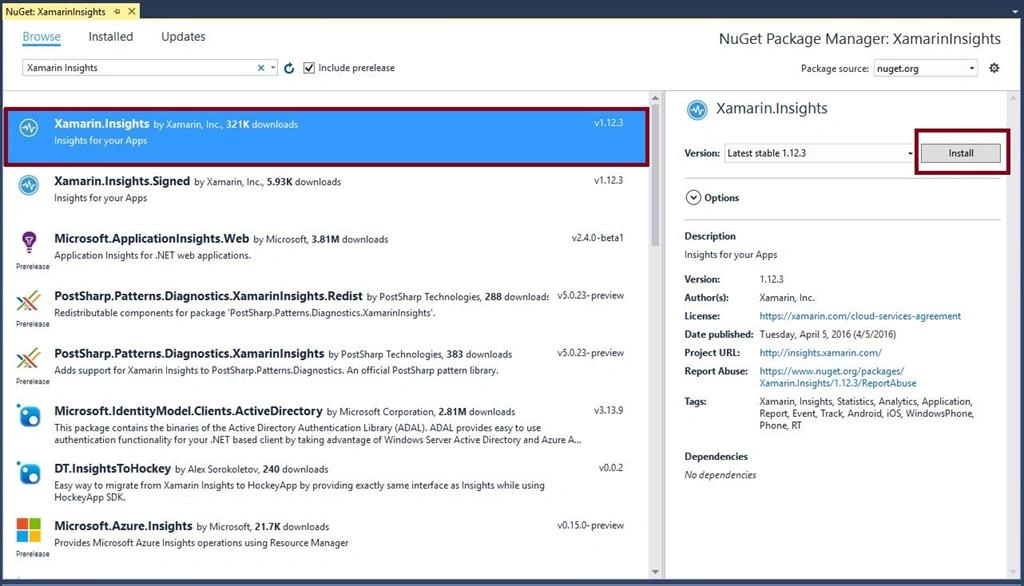
Go to Solution Explorer-> Project Name-> References. Right click on "Manage NuGet Packages" and open new dialog box. This dialog box is required to search Xamarin Insights, followed by installing Xamarin.Insights Packages.
Step 5
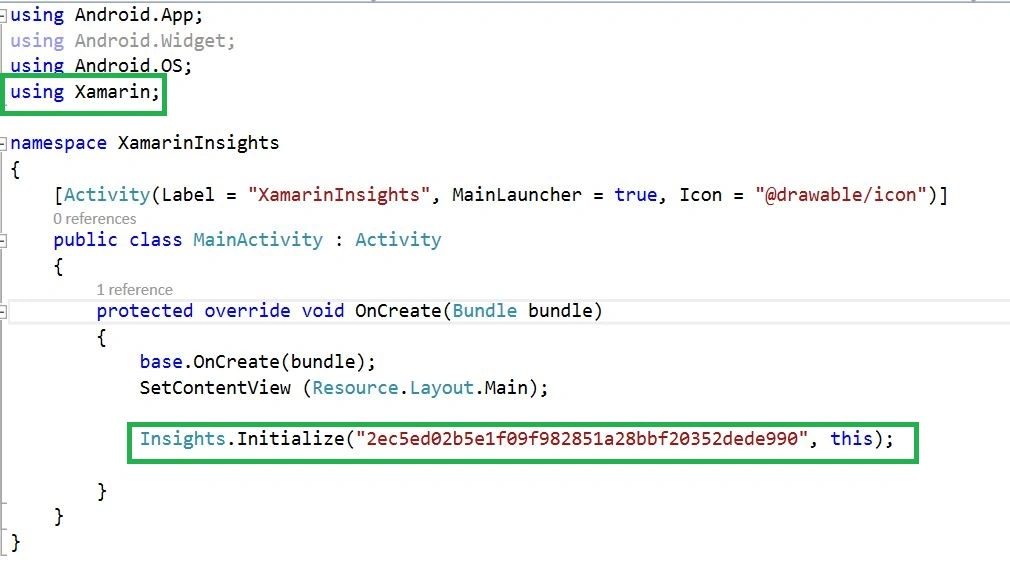
Now, we need to initialize Xamarin.Insights in MainActvity.cs and add the new namespace given below.
using Xamarin;
Step 6
Open Solution Explorer-> Project Name-> MainActivity.cs. Click Open CS code page view, followed by adding namespaces given below.
C# Code
- namespace XamarinInsights {
- [Activity(Label = "XamarinInsights", MainLauncher = true, Icon = "@drawable/icon")]
- public class MainActivity: Activity {
- Context context;
- protected override void OnCreate(Bundle bundle) {
- base.OnCreate(bundle);
- SetContentView(Resource.Layout.Main);
- Insights.Initialize("API_KEY", this);
- }
- }
Join the conversation! Your thoughts help the community grow.