

Introduction
This article demonstrates how to use a button adapter web browser in Android using Xamarin.Forms. Xamarin is a platform that allows us to create a multi-platform mobile application for platforms, like Android, Windows, and iOS through a single integrated development environment (IDE). And with Xamarin.Forms, the interface design for all three platforms can be accomplished within its XAML-based framework. Xamarin apps are built with standard, native user-interface controls.

Let's start!
Step 1
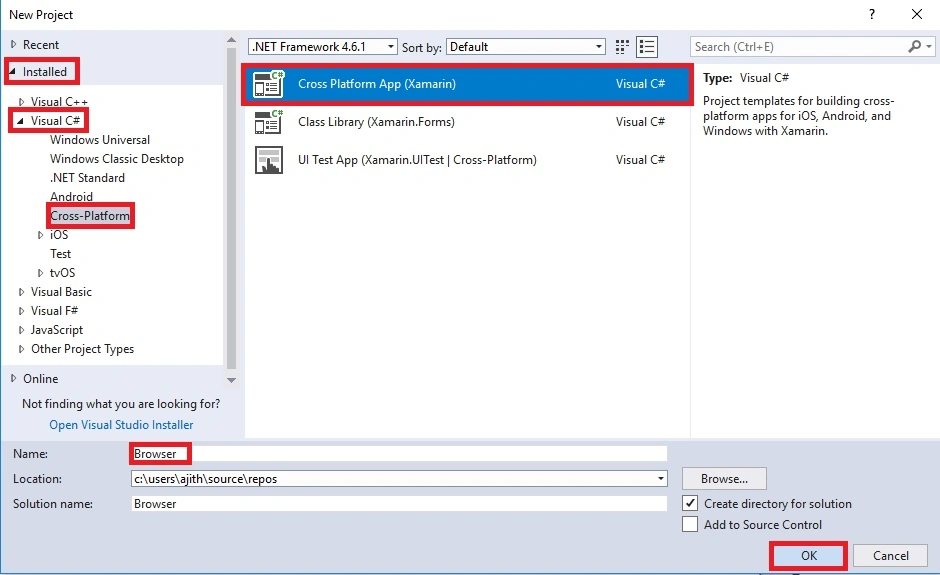
Open Visual Studio and go to New Project >> Installed >> Visual C# >> Cross-Platform. Select Cross-Platform app, then give your project a name and location and click "OK" button.
Step 2
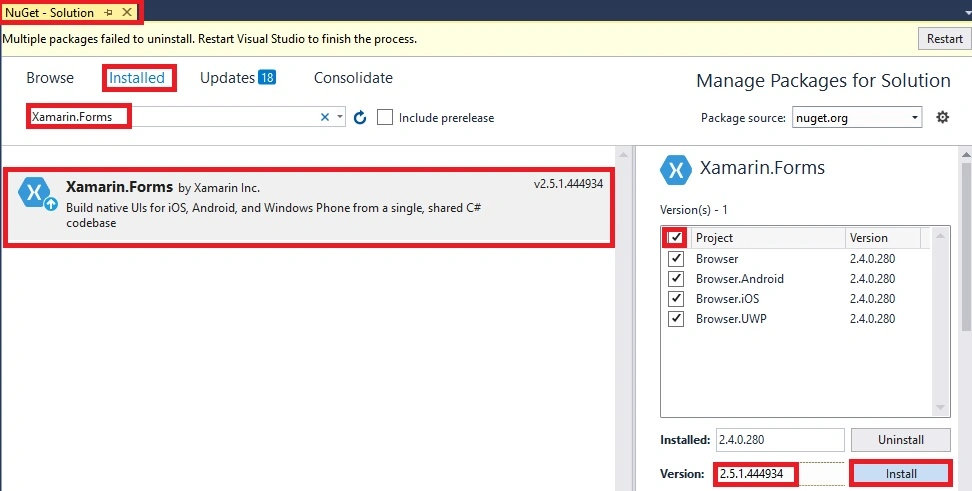
Next, go to project name > right click > Manage NuGet package for the solution. Select "Manage NuGet package". Just update the following NuGet packages to your project.

Now, select the following NuGet package and select your project to install on it.
- Xamarin.Forms
Step 3
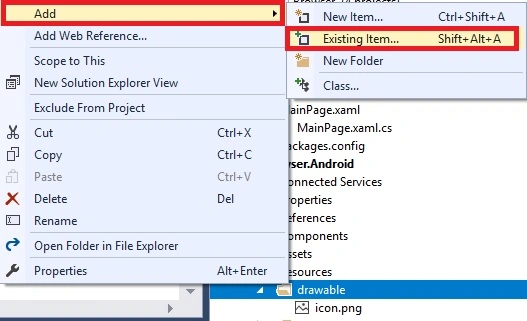
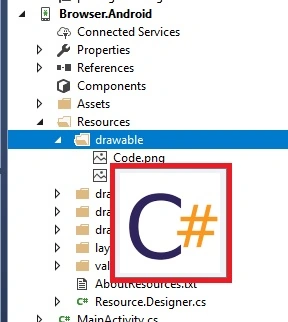
Next, add an image to Solution Explorer >> Project Name.Android >> Resources >> Right-Click >> Drawable >> Add >> Existing Item. When I click an existing item button, now it opens a dialog box.
Next, a dialog box will appear. Choose image location and add images.
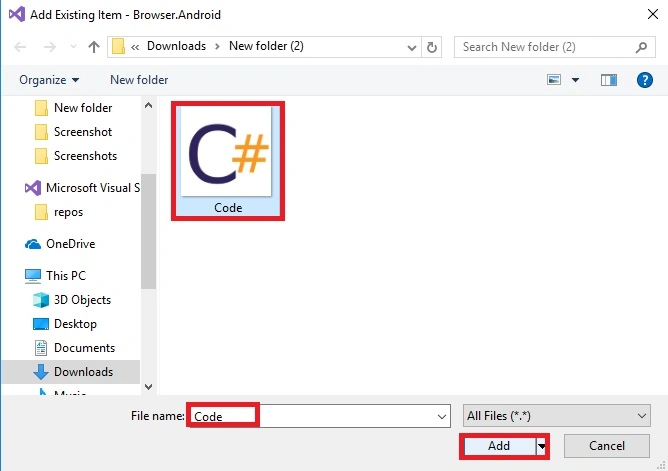
The Images are added successfully. Then, move the cursor to that image and just verify the image.
Step 4
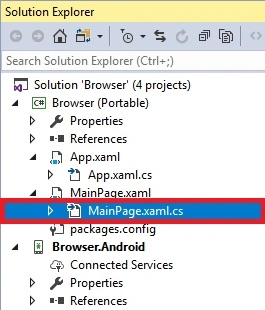
Open Solution Explorer >> Project Name (Portable) >> MainPage.xaml. Double click for opening the design view of this page.
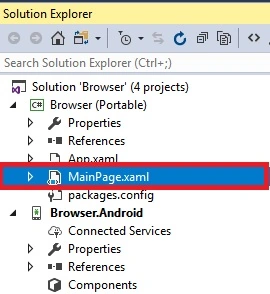
The code is given below.
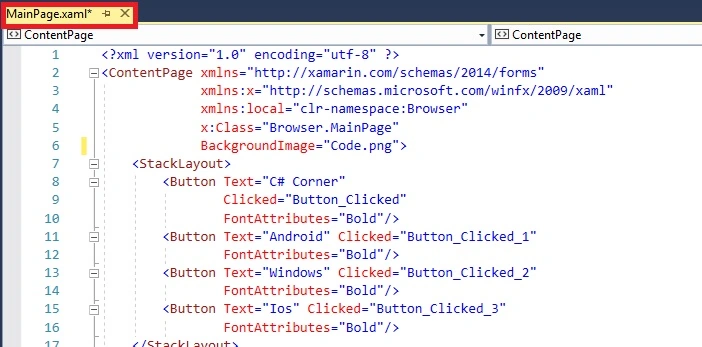
XAML Code

We created four buttons inside the stackLayout and BackgroundImage for adding the Contentpage. The button names are "C# Corner", "Android", "Windows", "IOS". Code copy is given here.
- <?xml version="1.0" encoding="utf-8" ?>
- <ContentPage xmlns="http://xamarin.com/schemas/2014/forms"
- xmlns:x="http://schemas.microsoft.com/winfx/2009/xaml"
- xmlns:local="clr-namespace:Browser"
- x:Class="Browser.MainPage"
- BackgroundImage="Code.png">
- <StackLayout>
- <Button Text="C# Corner"
- Clicked="Button_Clicked"
- FontAttributes="Bold"/>
- <Button Text="Android"
- Clicked="Button_Clicked_1"
- FontAttributes="Bold"/>
- <Button Text="Windows"
- Clicked="Button_Clicked_2"
- FontAttributes="Bold"/>
- <Button Text="Ios"
- Clicked="Button_Clicked_3"
- FontAttributes="Bold"/>
- </StackLayout>
Join the conversation! Your thoughts help the community grow.