
Introduction

Before starting, you can go through the following URL for an overview of Bing Web Search.
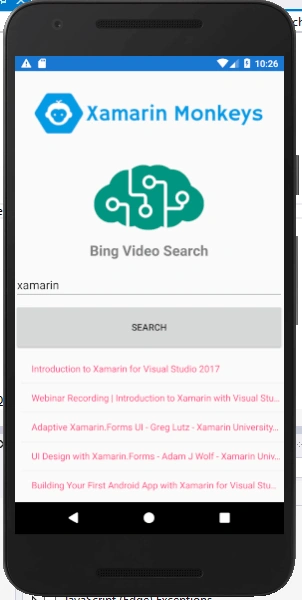
Xamarin.Forms - Bing Video Search Using Cognitive Service
Xamarin.Forms code runs on multiple platforms - each of which has its own filesystem. This means that reading and writing files is most easily done using the native file APIs on each platform. Alternatively, embedded resources are a simpler solution to distribute data files with an app.
Cognitive Services

Xamarin.Forms - Bing Video Search Using Cognitive Service
Xamarin and Cognitive Services together can infuse your apps, websites, and bots with intelligent algorithms to see, hear, speak, understand and interpret your user needs through natural methods of communication. Also, they help you transform your business with AI today.
Use AI to solve business problems
  • Vision
  • Speech
  • Knowledge
  • Search
  • Language
Bing Video Search API
  1. Bing Video Search API provides an experience similar to Bing Videos.
  2. Bing Video Search API lets you send a search query to Bing and get back a list of relevant videos from the Bing Video Search API.
Prerequisites
  • Visual Studio 2017 or Later(Windows or Mac)
  • Bing Search API Key
Setting up a Xamarin.Forms Project
Start by creating a new Xamarin.Forms project. You’ll learn more by going through the steps yourself.
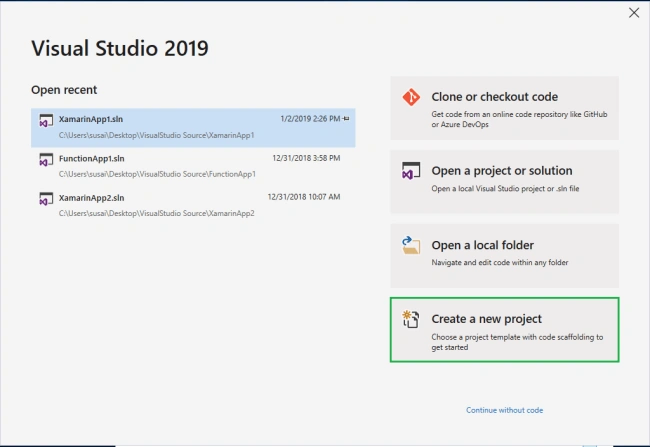
Visual Studio 2019 has more options in the opening window. Clone or check out the code from any repository or, open a project or solution for your computer.
Now, you need to click "Create a new project".
Xamarin.Forms - Bing Video Search Using Cognitive Service
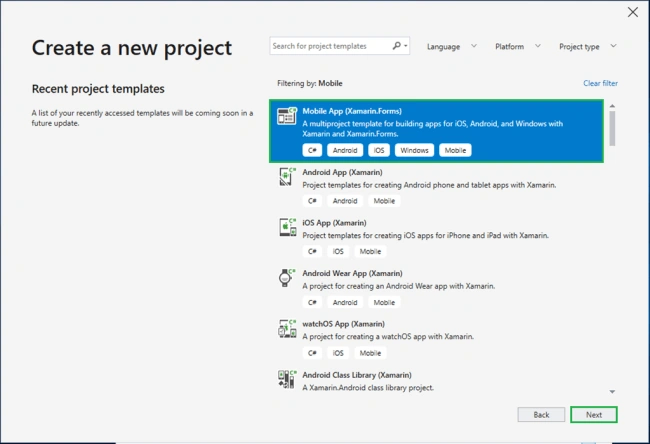
Now, filter by Project Type: Mobile
Choose the Mobile App (Xamarin. forms) project under C# and Mobile.
Xamarin.Forms - Bing Video Search Using Cognitive Service
Name your app. You probably want your project and solution to use the same name as your app. Put it on your preferred location for projects and click "Create".

Xamarin.Forms - Bing Video Search Using Cognitive Service
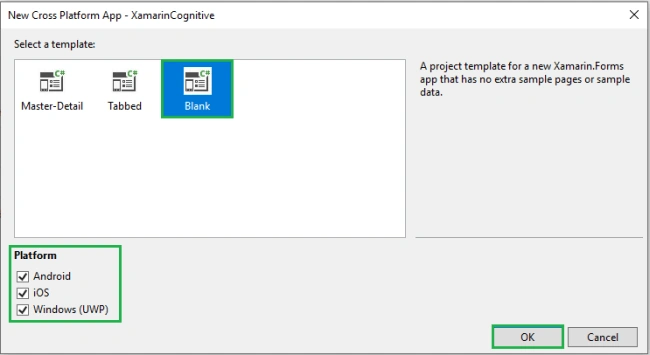
Now, select the blank app and target platforms - Android, iOS and Windows (UWP).
Xamarin.Forms - Bing Video Search Using Cognitive Service
Subsequently, go to the solution. In there, you get all the files and sources of your project (.NET Standard). Now, select XAML page and double-click to open the MainPage.Xaml page.
You now have a basic Xamarin.Forms app. Click the Play button to try it out.
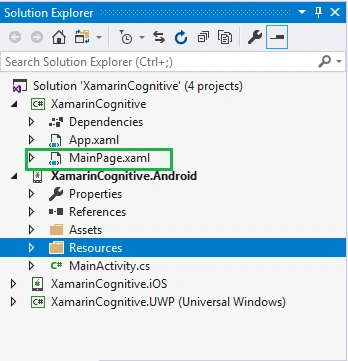
Xamarin.Forms - Bing Video Search Using Cognitive Service
Get Bing Search API Key
In this step, get Bing Search API Key. Go to the following link.
https://azure.microsoft.com/en-in/services/cognitive-services/
Click "Try Cognitive Services for free".

Xamarin.Forms - Bing Video Search Using Cognitive Service
Now, you can choose Bing Search APIs under Search APIs. Afterward, click "Get API Key".
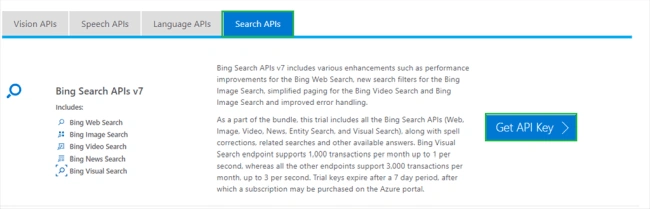
Xamarin.Forms - Bing Video Search Using Cognitive Service
Read the terms, and select your country/region. Afterward, click "Next".

Xamarin.Forms - Bing Video Search Using Cognitive Service
Now, log in using your preferred account.

Xamarin.Forms - Bing Video Search Using Cognitive Service
Now, the API key is activated. You can use it now.
Note
The trial key is available only for 7 days.
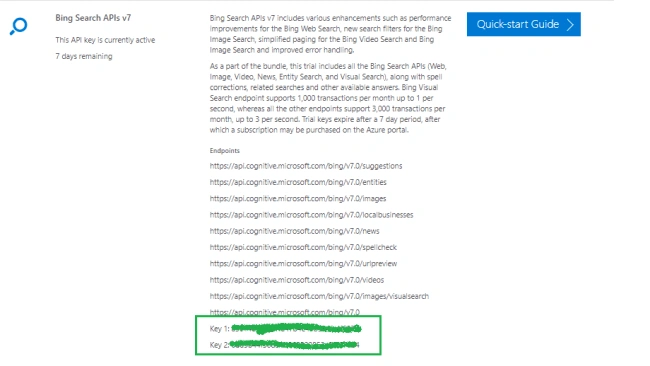
Xamarin.Forms - Bing Video Search Using Cognitive Service
Setting up the User Interface
Go to MainPage.Xaml and write the following code.
MainPage.xaml
  1. <?xml version="1.0" encoding="utf-8" ?>
  2. <ContentPage xmlns="http://xamarin.com/schemas/2014/forms"
  3. xmlns:x="http://schemas.microsoft.com/winfx/2009/xaml"
  4. xmlns:local="clr-namespace:XamarinCognitive"
  5. x:Class="XamarinCognitive.MainPage">
  6. <StackLayout>
  7. <StackLayout>
  8. <StackLayout HorizontalOptions="Center" VerticalOptions="Start">
  9. <Image x:Name="imgBanner" Source="banner.png" ></Image>
  10. <Image Margin="0,0,0,10" x:Name="imgEmail" HeightRequest="100" Source="cognitiveservice.png" ></Image>
  11. <Label Margin="0,0,0,10" Text="Bing Video Search" FontAttributes="Bold" FontSize="Large" TextColor="Gray" HorizontalTextAlignment="Center" ></Label>
  12. <Entry x:Name="txtSearch" Placeholder="Type here.."></Entry>
  13. <Button x:Name="btnSearch" WidthRequest="50" Text="Search" Clicked="BtnSearch_Clicked" />
  14. <StackLayout HorizontalOptions="CenterAndExpand" Margin="10,0,0,10">
  15. <ListView x:Name="listVideos">
  16. </ListView>
  17. </StackLayout>
  18. </StackLayout>
  19. </StackLayout>
  20. </StackLayout>
  21. </ContentPage>
Click the play button to try it out.
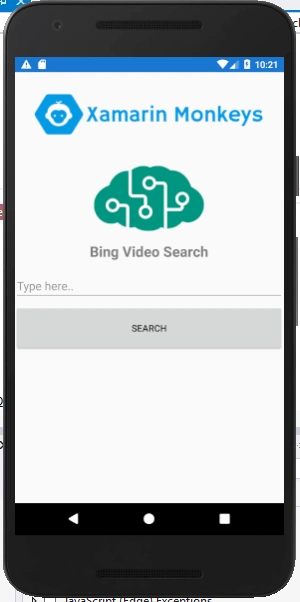
Xamarin.Forms - Bing Video Search Using Cognitive Service
NuGet Packages
Now, add the following NuGet Packages.
  • Newtonsoft.Json
Add Newtonsoft.Json NuGet
Go to Solution Explorer and select your solution. Right-click and select "Manage NuGet Packages for Solution". Search "Newtonsoft.Json" and add Package. Remember to install it for each project (.NET Standard, Android, iO, and UWP).
Create a Model
In this step, you can create a model for Deserializing your response.
ResponseModel.cs
  1. using System;
  2. using System.Collections.Generic;
  3. using System.Text;
  4. namespace XamarinCognitive
  5. {
  6. public class ResponseModel
  7. {
  8. public string _type { get; set; }
  9. public Instrumentation instrumentation { get; set; }
  10. public string readLink { get; set; }
  11. public string webSearchUrl { get; set; }
  12. public QueryContext queryContext { get; set; }
  13. public int totalEstimatedMatches { get; set; }
  14. public List<Value> value { get; set; }
  15. public int nextOffset { get; set; }
  16. public List<QueryExpansion> queryExpansions { get; set; }
  17. public List<PivotSuggestion> pivotSuggestions { get; set; }
  18. public List<RelatedSearch> relatedSearches { get; set; }
  19. }
  20. public class Instrumentation
  21. {
  22. public string _type { get; set; }
  23. }
  24. public class QueryContext
  25. {
  26. public string originalQuery { get; set; }
  27. public string alterationDisplayQuery { get; set; }
  28. public string alterationOverrideQuery { get; set; }
  29. public string alterationMethod { get; set; }
  30. public string alterationType { get; set; }
  31. }
  32. public class Publisher
  33. {
  34. public string name { get; set; }
  35. }
  36. public class Creator
  37. {
  38. public string name { get; set; }
  39. }
  40. public class Thumbnail
  41. {
  42. public int width { get; set; }
  43. public int height { get; set; }
  44. }
  45. public class Value
  46. {
  47. public string webSearchUrl { get; set; }
  48. public string name { get; set; }
  49. public string description { get; set; }
  50. public string thumbnailUrl { get; set; }
  51. public DateTime datePublished { get; set; }
  52. public List<Publisher> publisher { get; set; }
  53. public Creator creator { get; set; }
  54. public bool isAccessibleForFree { get; set; }
  55. public bool isFamilyFriendly { get; set; }
  56. public string contentUrl { get; set; }
  57. public string hostPageUrl { get; set; }
  58. public string encodingFormat { get; set; }
  59. public string hostPageDisplayUrl { get; set; }
  60. public int width { get; set; }
  61. public int height { get; set; }
  62. public string duration { get; set; }
  63. public string motionThumbnailUrl { get; set; }
  64. public string embedHtml { get; set; }
  65. public bool allowHttpsEmbed { get; set; }
  66. public int viewCount { get; set; }
  67. public Thumbnail thumbnail { get; set; }
  68. public string videoId { get; set; }
  69. public bool allowMobileEmbed { get; set; }
  70. public bool isSuperfresh { get; set; }
  71. }
  72. public class Thumbnail2
  73. {
  74. public string thumbnailUrl { get; set; }
  75. }
  76. public class QueryExpansion
  77. {
  78. public string text { get; set; }
  79. public string displayText { get; set; }
  80. public string webSearchUrl { get; set; }
  81. public string searchLink { get; set; }
  82. public Thumbnail2 thumbnail { get; set; }
  83. }
  84. public class Thumbnail3
  85. {
  86. public string thumbnailUrl { get; set; }
  87. }
  88. public class Suggestion
  89. {
  90. public string text { get; set; }
  91. public string displayText { get; set; }
  92. public string webSearchUrl { get; set; }
  93. public string searchLink { get; set; }
  94. public Thumbnail3 thumbnail { get; set; }
  95. }
  96. public class PivotSuggestion
  97. {
  98. public string pivot { get; set; }
  99. public List<Suggestion> suggestions { get; set; }
  100. }
  101. public class Thumbnail4
  102. {
  103. public string thumbnailUrl { get; set; }
  104. }
  105. public class RelatedSearch
  106. {
  107. public string text { get; set; }
  108. public string displayText { get; set; }
  109. public string webSearchUrl { get; set; }
  110. public string searchLink { get; set; }
  111. public Thumbnail4 thumbnail { get; set; }
  112. }
  113. }
Bing Video Search
In this step, write the following code for Bing Video Search.
MainPage.xaml.cs
  1. using Xamarin.Forms;
  2. using Newtonsoft.Json;
  3. namespace XamarinCognitive
  4. {
  5. public partial class MainPage : ContentPage
  6. {
  7. public static string APIKey = "a30148ca5fc********e49b554fc4f683";
  8. public static string baseURl = "https://api.cognitive.microsoft.com/bing/v7.0/videos/search";
  9. struct SearchResult
  10. {
  11. public String jsonResult;
  12. public Dictionary<String, String> relevantHeaders;
  13. }
  14. List<string> videoList = new List<string>();
  15. public MainPage()
  16. {
  17. InitializeComponent();
  18. }
  19. private void BtnSearch_Clicked(object sender, EventArgs e)
  20. {
  21. SearchResult bingResult = BingVideoSearch(txtSearch.Text);
  22. var res = JsonConvert.DeserializeObject<ResponseModel>(bingResult.jsonResult);
  23. for (int i = 0; i < res.value.Count; i++)
  24. {
  25. videoList.Add(res.value[i].name);
  26. }
  27. listVideos.ItemsSource = videoList;
  28. }
  29. //Bing Video Search
  30. static SearchResult BingVideoSearch(string searchQuery)
  31. {
  32. var uriQuery = baseURl + "?q=" + Uri.EscapeDataString(searchQuery);
  33. WebRequest request = HttpWebRequest.Create(uriQuery);
  34. request.Headers["Ocp-Apim-Subscription-Key"] = APIKey;
  35. HttpWebResponse response = (HttpWebResponse)request.GetResponseAsync().Result;
  36. string json = new StreamReader(response.GetResponseStream()).ReadToEnd();
  37. var searchResult = new SearchResult();
  38. searchResult.jsonResult = json;
  39. searchResult.relevantHeaders = new Dictionary<String, String>();
  40. foreach (String header in response.Headers)
  41. {
  42. if (header.StartsWith("BingAPIs-") || header.StartsWith("X-MSEdge-"))
  43. searchResult.relevantHeaders[header] = response.Headers[header];
  44. }
  45. return searchResult;
  46. }
  47. }
  48. }
Click the "Play" button to try it out.
Xamarin.Forms - Bing Video Search Using Cognitive Service
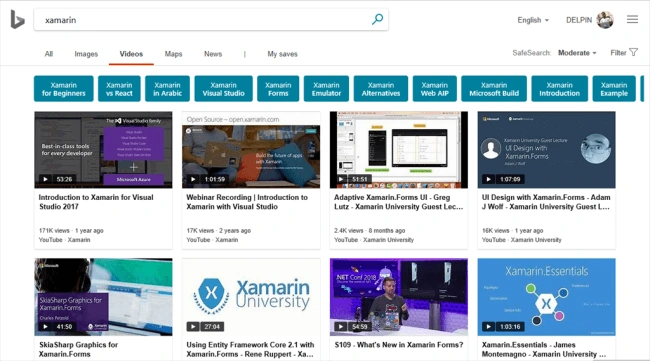
Bing Web Result
Xamarin.Forms - Bing Video Search Using Cognitive Service
I hope you have understood how to search for videos using Bing Search API using Cognitive Service Bing Search API in Xamarin.Forms.
Thanks for reading. Please share comments and feedback. Happy Coding :)