Introduction
In mobile applications we often have lists to display, this is easy only if the list contains a simple and not complex structure. This article demonstrates how we create a complex Expandable ListView with a sub ListView in Xamarin.Forms.. This Expandable List allows user to Expand and Collapse items via a simple click. We have a list of hotels and each hotel contains a list of rooms. One click on a hotel will display its rooms while a double click will collapse it.
To do that follow the steps below,
Step 1
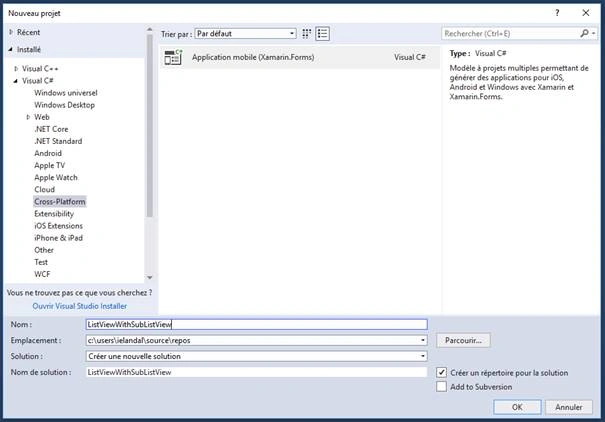
Create a new Xamarin Forms project with a .NetStandard or shared project.
Project Name - ListViewWithSubListView
Step 2 - Add MVVM folders and Classes
Open Solution Explorer >> ListViewWithSubListView ( .NetStandard or shared) project and add the following folders :
- Models
- Views
- ViewModels
Step 3 - Add Models classes
Create a new Class named “Hotel”
CS code
- public class Hotel {
- public string Name {
- get;
- set;
- }
- public List < Room > Rooms {
- get;
- set;
- }
- public bool IsVisible {
- get;
- set;
- } = false;
- public Hotel() {}
- public Hotel(string name, List < Room > rooms) {
- Name = name;
- Rooms = rooms;
- }
Create a new Class named “Room”
CS code
- public class Room {
- public string RoomName {
- get;
- set;
- }
- public int TypeID {
- get;
- set;
- }
- public Room() {}
- public Room(string name, int typeID) {
- RoomName = name;
- TypeID = typeID;
- }
- }
Step 4 - Add ViewModels Classes
Create a new Class named “RoomViewModel”
Cs Code
- public class RoomViewModel {
- private Room _room;
- public RoomViewModel(Room room) {
- _room = room;
- }
- public string RoomName {
- get {
- return _room.RoomName;
- }
- }
- public int TypeID {
- get {
- return _room.TypeID;
- }
- }
- public Room Room {
- get => _room;
- }
- }
Create a new Class named “HotelViewModel”
The hotel view Model is an observable collection of RoomViewModel. I used the MVVMHelpers plugin to inherit from ObservableRangeCollection,
- public class HotelViewModel: ObservableRangeCollection < RoomViewModel > , INotifyPropertyChanged {
-
- private ObservableRangeCollection < RoomViewModel > hotelRooms = new ObservableRangeCollection < RoomViewModel > ();
- public HotelViewModel(Hotel hotel, bool expanded = false) {
- Hotel = hotel;
- _expanded = expanded;
- foreach(Room room in hotel.Rooms) {
- Add(new RoomViewModel(room));
- }
- if (expanded) AddRange(hotelRooms);
- }
- public HotelViewModel() {}
- private bool _expanded;
- public bool Expanded {
- get {
- return _expanded;
- }
- set {
- if (_expanded != value) {
- _expanded = value;
- OnPropertyChanged(new PropertyChangedEventArgs("Expanded"));
- OnPropertyChanged(new PropertyChangedEventArgs("StateIcon"));
- if (_expanded) {
- AddRange(hotelRooms);
- } else {
- Clear();
- }
- }
- }
- }
- public string StateIcon {
- get {
- if (Expanded) {
- return "arrow_a.png";
- } else {
- return "arrow_b.png";
- }
- }
- }
- public string Name {
- get {
- return Hotel.Name;
- }
- }
- public Hotel Hotel {
- get;
- set;
- }
- }
HotelViewModel contains a StateIcon and Expanded properties used to expand or Collapse a hotel via INotifyPropertieChanged.
To represent the list of hotels we will add a new view Model Named HotelsGroupViewModel
CS code
- public class HotelsGroupViewModel: BaseViewModel {
- private HotelViewModel _oldHotel;
- private ObservableCollection < HotelViewModel > items;
- public ObservableCollection < HotelViewModel > Items {
- get => items;
- set => SetProperty(ref items, value);
- }
- public Command LoadHotelsCommand {
- get;
- set;
- }
- public Command < HotelViewModel > RefreshItemsCommand {
- get;
- set;
- }
- public HotelsGroupViewModel() {
- items = new ObservableCollection < HotelViewModel > ();
- Items = new ObservableCollection < HotelViewModel > ();
- LoadHotelsCommand = new Command(async () => await ExecuteLoadItemsCommandAsync());
- RefreshItemsCommand = new Command < HotelViewModel > ((item) => ExecuteRefreshItemsCommand(item));
- }
- public bool isExpanded = false;
- private void ExecuteRefreshItemsCommand(HotelViewModel item) {
- if (_oldHotel == item) {
-
- Expanded = !item.Expanded;
- } else {
- if (_oldHotel != null) {
-
- Expanded = false;
- }
-
- Expanded = true;
- }
- _oldHotel = item;
- }
- async System.Threading.Tasks.Task ExecuteLoadItemsCommandAsync() {
- try {
- if (IsBusy) return;
- IsBusy = true;
- Clear();
- List < Room > Hotel1rooms = new List < Room > () {
- new Room("Jasmine", 1), new Room("Flower Suite", 2), new Room("narcissus", 1)
- };
- List < Room > Hotel2rooms = new List < Room > () {
- new Room("Princess", 1), new Room("Royale", 1), new Room("Queen", 1)
- };
- List < Room > Hotel3rooms = new List < Room > () {
- new Room("Marhaba", 1), new Room("Marhaba Salem", 1), new Room("Salem Royal", 1), new Room("Wedding Roome", 1), new Room("Wedding Suite", 2)
- };
- List < Hotel > items = new List < Hotel > () {
- new Hotel("Yasmine Hammamet", Hotel1rooms), new Hotel("El Mouradi Hammamet", Hotel2rooms), new Hotel("Marhaba Royal Salem", Hotel3rooms)
- };
- if (items != null && items.Count > 0) {
- foreach(var hotel in items)
- Add(new HotelViewModel(hotel));
- } else {
- IsEmpty = true;
- }
- } catch (Exception ex) {
- IsBusy = false;
- WriteLine(ex);
- } finally {
- IsBusy = false;
- }
- }
- }
This view model is used by the view and it contains commands to load and refresh the list of hotels.
Step 5 - Add Views Classes
Add a content View named “Hotel”:
The list of hotels is represented by a grouped list view; the headers are the hotels and the items are the rooms.
You shouldn’t forget to set IsGroupingEnabled="True" in the ListView declaration.
To detect the user click event I added a TapGestureRecogniser to the Grid.
XAML code
- <?xml version="1.0" encoding="utf-8" ?>
- <ContentPage xmlns="http://xamarin.com/schemas/2014/forms" xmlns:x="http://schemas.microsoft.com/winfx/2009/xaml" x:Name="currentPage" xmlns:local="clr-namespace:ListViewWithSubListView.Views" x:Class="ListViewWithSubListView.Views.Hotels">
- <ContentPage.Content>
- <Grid>
- <StackLayout x:Name="hotelStack" Padding="1,0,1,0">
- <ListView x:Name="HotelsList" BackgroundColor="White" IsGroupingEnabled="True" IsPullToRefreshEnabled="true" IsRefreshing="{Binding IsBusy, Mode=OneWay}" ItemsSource="{Binding Items}" RefreshCommand="{Binding LoadHotelsCommand}">
- <ListView.ItemTemplate>
- <DataTemplate>
- <ViewCell>
- <StackLayout Orientation="Horizontal" VerticalOptions="Center">
- <Label VerticalOptions="Center" FontAttributes="Bold" FontSize="Medium" Text="{Binding .RoomName}" TextColor="Black" VerticalTextAlignment="Center" /> </StackLayout>
- </ViewCell>
- </DataTemplate>
- </ListView.ItemTemplate>
- <ListView.GroupHeaderTemplate>
- <DataTemplate>
- <ViewCell>
- <Grid>
- <Label FontAttributes="Bold" FontSize="Small" Text="{Binding Name}" TextColor="Gray" VerticalTextAlignment="Center" />
- <Image x:Name="ImgA" Source="{Binding StateIcon}" Margin="0,0,5,0" HeightRequest="20" WidthRequest="20" HorizontalOptions="End" />
- <Grid.GestureRecognizers>
- <TapGestureRecognizer Command="{Binding Source={x:Reference currentPage}, Path=BindingContext.RefreshItemsCommand}" NumberOfTapsRequired="1" CommandParameter="{Binding .}" />
- </Grid.GestureRecognizers>
- </Grid>
- </ViewCell>
- </DataTemplate>
- </ListView.GroupHeaderTemplate>
- </ListView>
- </StackLayout>
- </Grid>
- </ContentPage.Content>
- </ContentPage>
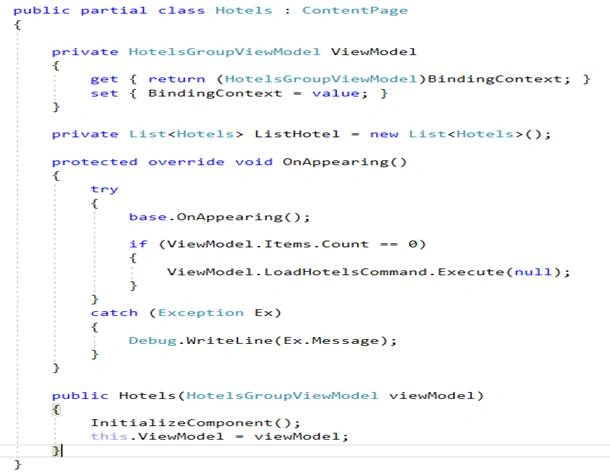
Cs Code
Step 6 - Run The App
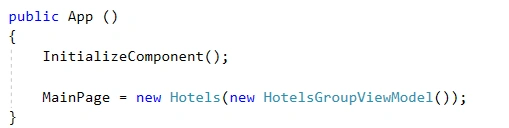
In App.Xaml.cs Change MainPage by Hotel . Click "F5" or "Build " to "Run" your application.Running your project, you will have the result like below.
You can download the code from my Github. or Visual Studio Market place.
Advantages
- 100% cross platform Expandable ListView
- Avoid problem of nested ListView in Android platform



Gopi VissaPosted Apr 20, 2024, 6:44 AM
Thanks for giving excellent idea to create expandable list view in Xamarin. Forms. Infact we have a large enterprise mobile app which is using expandable list view like above pattern from past 4 years. But after MAUI migration we got below block issue. Issue Description: After removing/adding items some items are missing only in UI. Due to this we are not able to continue with MAUI. Reference Link: https://github.com/dotnet/maui/issues/19334 Could you please check once and let me know if there is any workaround or fix.
Athour RahmnPosted Sep 11, 2019, 5:29 AM
public Room Room { get => _room; } .what is the meaning of this (=>) .is this equals to return. Thanks in advance
Athour RahmnPosted Sep 6, 2019, 8:13 AM
You save my days ,Thanks Mam
Norbert TamasPosted Aug 2, 2019, 1:55 AM
Hello.We are using your method but our sublistView has incorrect data with the recycle strategy.Any ideas why this could happen,we are using bindings to update the UI of the cells.
Robert HellestraePosted Jul 22, 2019, 5:18 PM
Excellent sample for an expandable List View with Xamarin Forms;
Mubeen RehmanPosted Jul 20, 2019, 9:12 AM
What if there is data to be extracted from JSON?
Mobile TeamPosted Apr 25, 2019, 4:58 AM
Who to navigate on child items tapped
Dinesh KumarPosted Apr 24, 2019, 1:15 AM
Hi.. Is there any possible to add child view to the child view ..example yasmine---jasmine---child; I need to add another child view to jasmine . Is it possible. can you help how to achieve this?
Elmehdi ElmellaliPosted Mar 21, 2019, 3:53 AM
Chokran Ichrak very useful
Virginia SotomayorPosted Jan 10, 2019, 11:17 AM
This is awesome - Thank you for sharing. If I wanted to group the list view items with a header, what would that look like in code?
neimar juniorPosted Nov 1, 2018, 7:48 AM
In my project when I run in the emulate of android is only a blank screen
Venkata Swamy BalarajuPosted Jul 18, 2018, 11:03 AM
Awesome, Thanks for sharing Ishrak El Andaloussi
Ishrak El AndaloussiPosted Jul 16, 2018, 4:40 AM
Thank you all for your support
Hadshana KamalanathanPosted Jul 15, 2018, 12:33 PM
Thank you for sharing
Viknaraj ManogararajahPosted Jul 14, 2018, 10:42 PM
Nice Article, Thank you for sharing.........
Viknaraj ManogararajahPosted Jul 14, 2018, 10:42 PM
Nice Article, Thank you for sharing.........