

Introduction
AI Builder is a component of Microsoft Power Platform which adds artificial intelligence in applications, workflow, chatbots and data analytics. This article will describe the simple steps to build train the model using AI builder which can be used to automate processes intelligently. AI builder helps to add intelligence in workflows and automate business processes using power apps and power automate. In this article we will learn how to build a model and train it for further use in power platform.
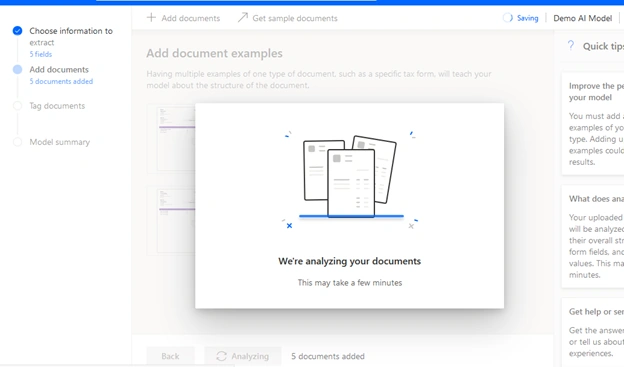
Here, I will show how to extract the data from a form and train the model accordingly. We will use form processing to extract data from the document. Form Processing identifies format or structure of the provided sample documents and extracts text from the matching form. Those extracted data can be save into our database, SharePoint list, library property and loaded in power apps form for further use. We will use invoices as sample documents to train and test the model for demonstration purposes in this article.
Steps
Power Apps Studio or Microsoft Flow website provides navigation pane to access AI Builder. Go to AI builder from Power Apps Studio or Power Automate/Flow Website.
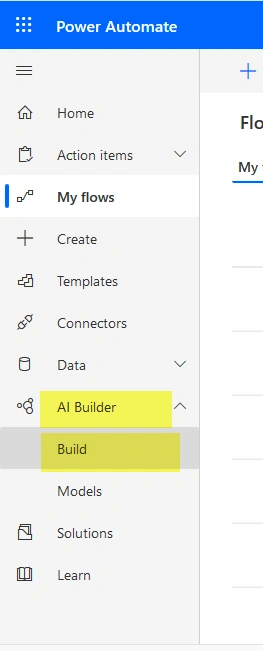
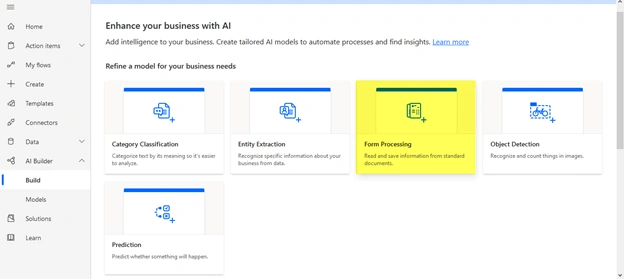
We can get different types of AI builders in power apps studio or Microsoft flow site, such as Category Classification, Entity Extraction, Form Processing, Object Detection, Prediction and many more. In our case, we will use form processing as we are going to extract the data from invoice document. Form Processing works like Optical Character Recognition, so we need this for our scenario. It is recommended to use standard documents( same format of documents) for training and testing the model to get proper accuracy.
Secondly, select and click on Form Processing. Give the name of your AI model and click on create. For my case, I am giving name as Demo AI Model.
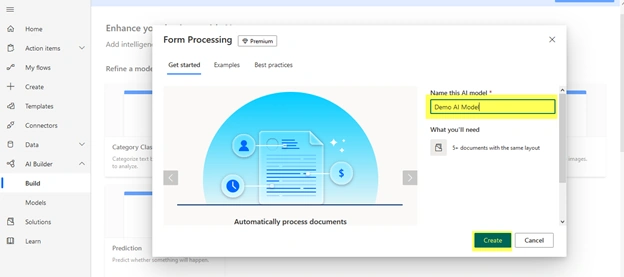
Then, click on create as depicted above which automatically brings you to the below screen.
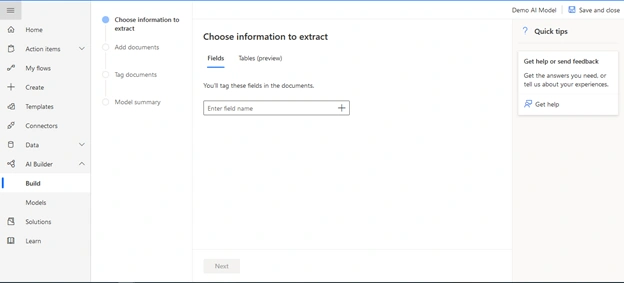
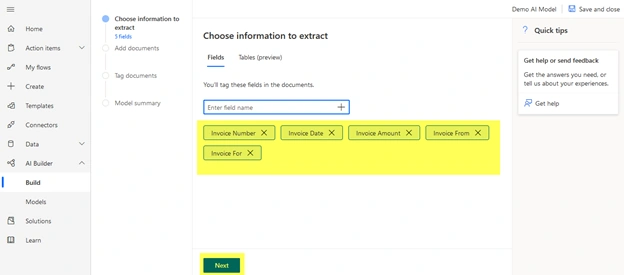
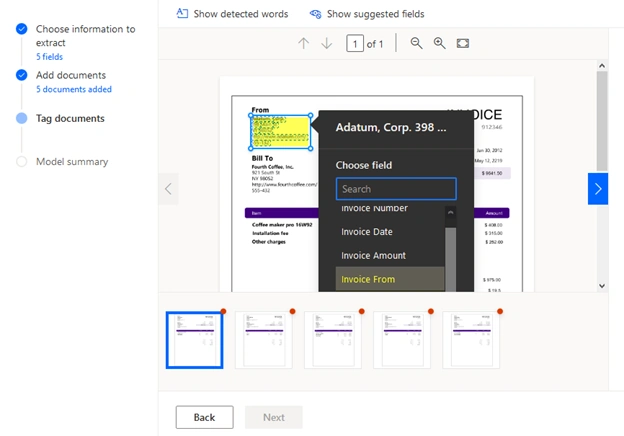
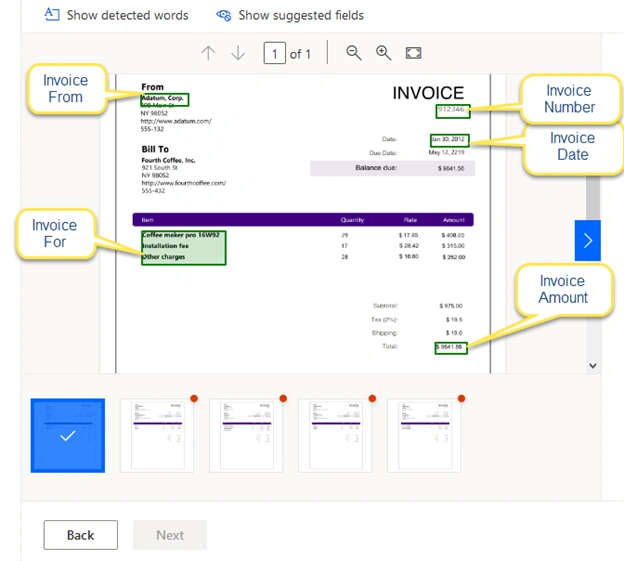
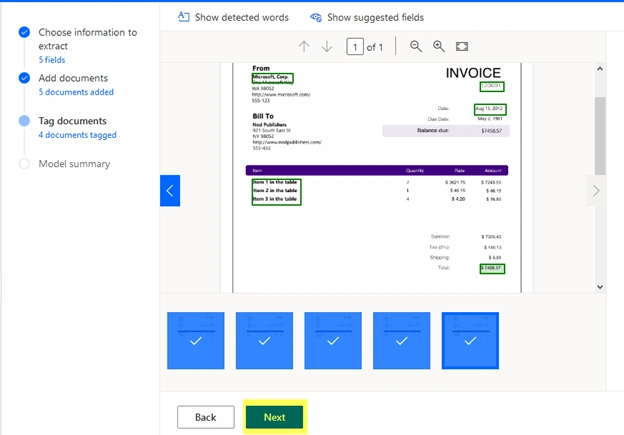
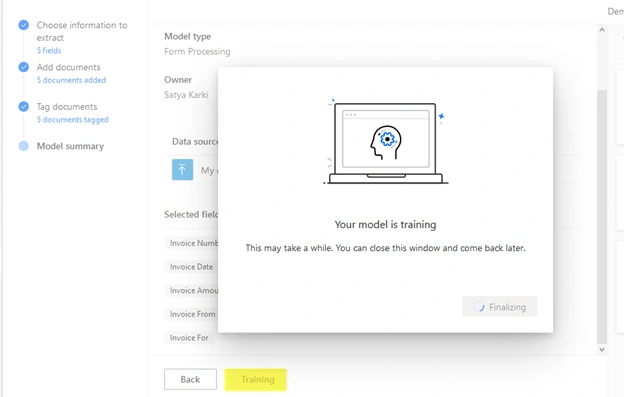
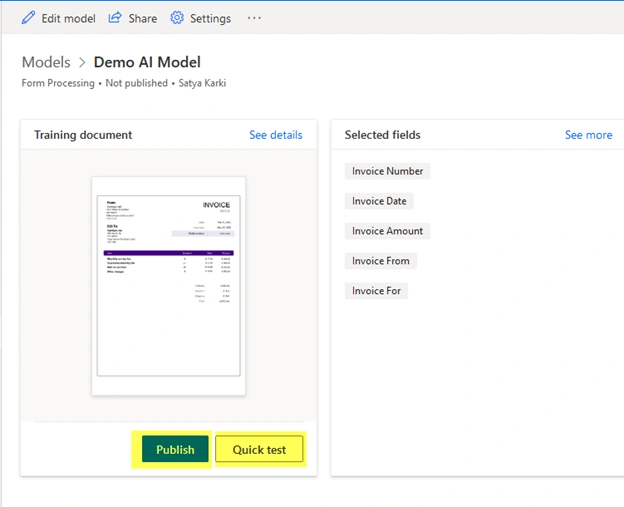
Now, it’s time to choose information or fields which we are going to extract using this model. I am going to show an example of extracting data from an invoice document. Thus, I am adding fields: Invoice Number, Invoice Date, Invoice Amount, Invoice From and Invoice For as extracting fields.
Add necessary fields and click on Next.
Rijwan AnsariPosted Jan 14, 2021, 4:39 PM
Excellent article and can be applied in several applications....