
Introduction
We will learn CRUD (Create, Read, Update, and Delete) operations in ASP.NET Core MVC (.Net 6.0). We will use Entity Framework Core 6 to interact with the SQL Server database. We will use two Entity for CRUD operation.
Cover the following points in this blog.
- Create ASP.NET Core MVC 6.0 project in visual studio 2022
- Install all the necessary packages from NuGet.
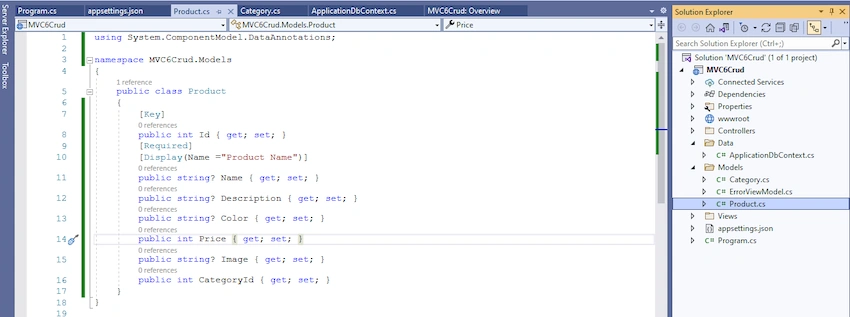
- Create entities in the Model folder.
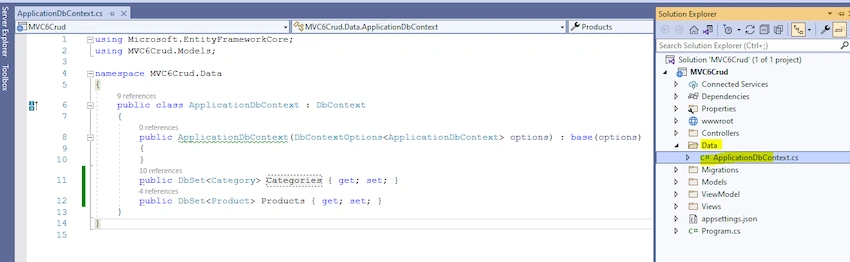
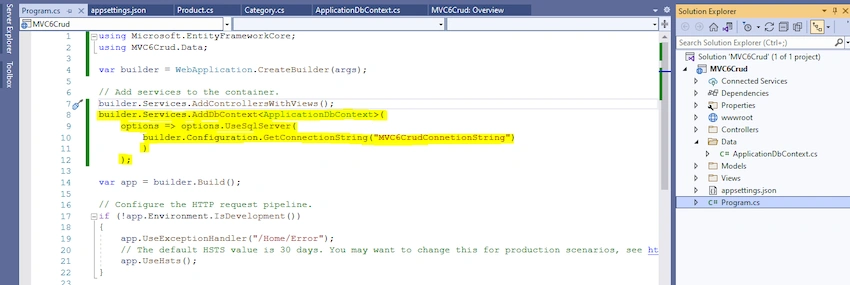
- Crete ApplicationDbContext class to interact with Database
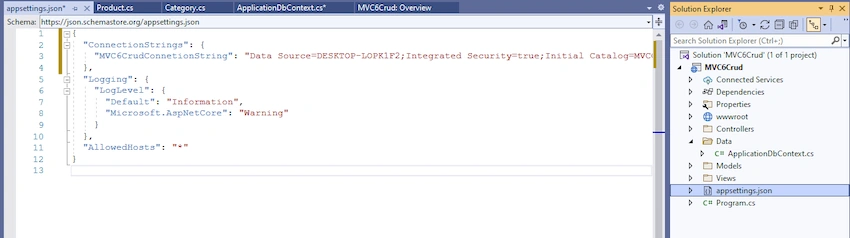
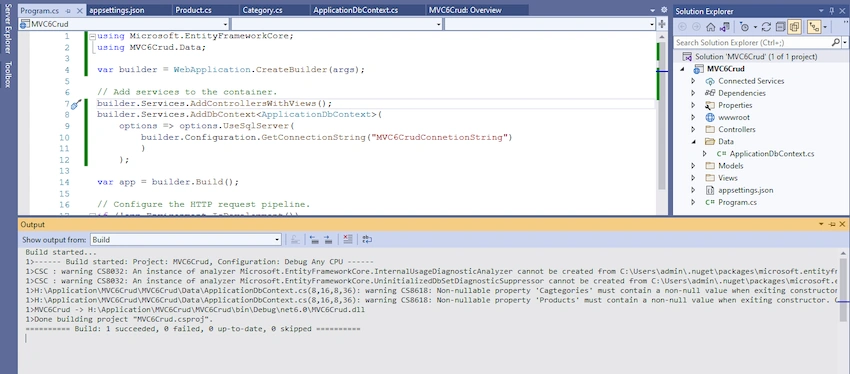
- Add connection string of SQL Server database into appsettings.json file
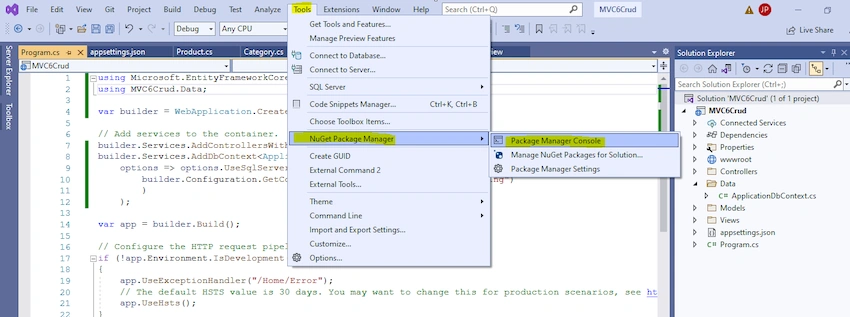
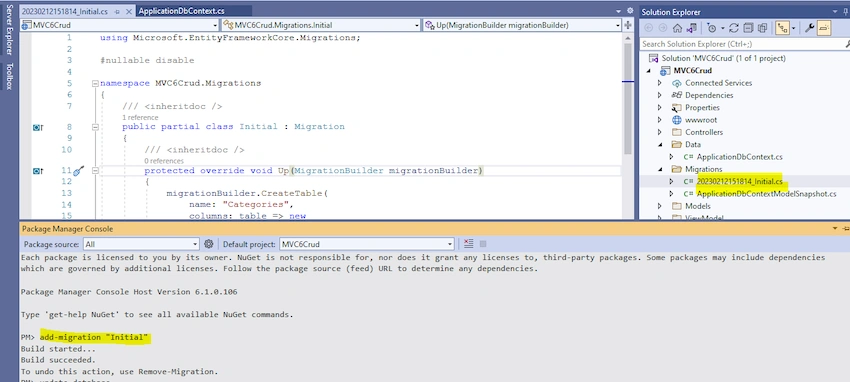
- Run migration commands inside Package Manager Console (PMC)
- Add-Migration "Initial"
- Update-Database
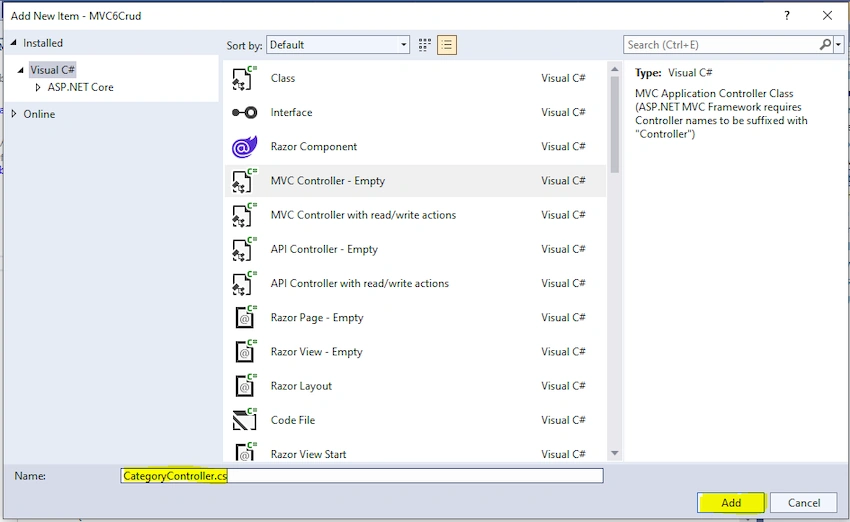
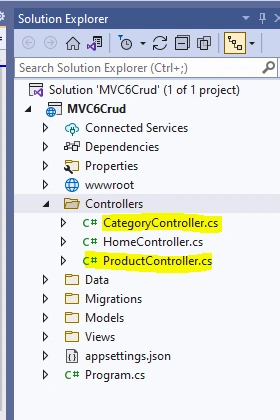
- Add controllers inside the controller folder
- Add view models
- Add Views
- Add Validation
Prerequisites
- Visual Studio 2022 (.Net 6.0)
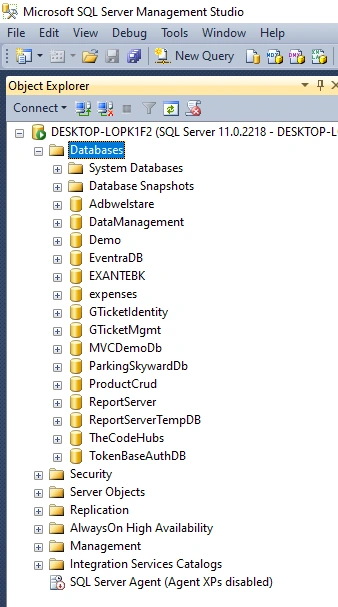
- SQL Server
Step 1. Create ASP.NET Core MVC 6 project
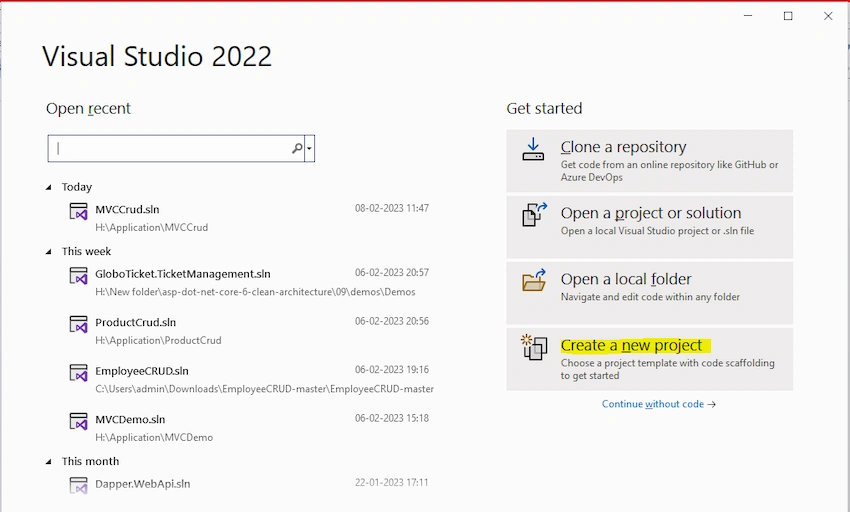
First, open Visual Studio 2022 and click on "Create a New Project" (highlighted in yellow color)
Search "MVC" in the Search box (Search for templates (Alt+s)) and select ASP.NET Core Web App (Model-View-Controller) as a project template and click the Next button.

Enter a project name and click next.

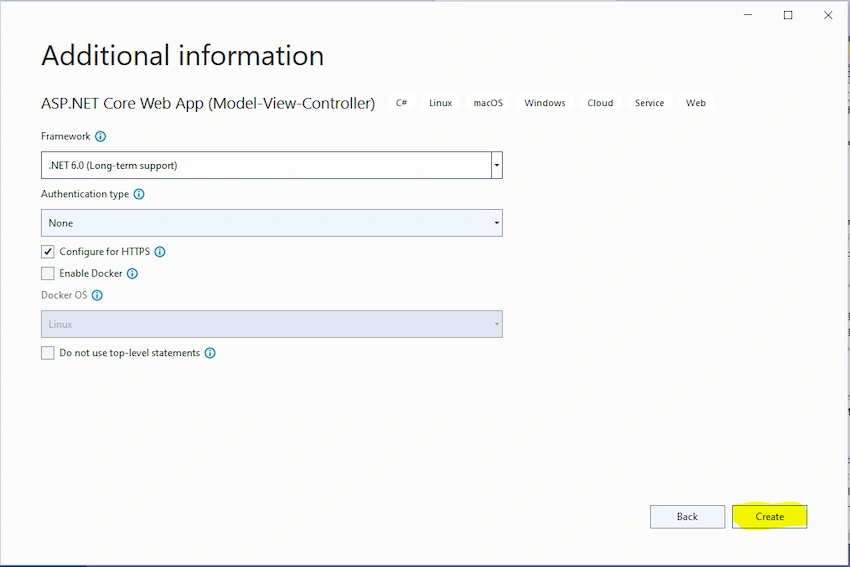
Go with the basic configuration as per the below screen; click Next.
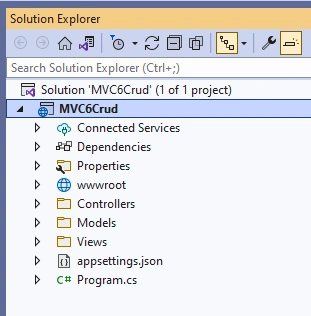
ASP.NET Core MVC (.Net 6.0) project structure
Step 2. Install the required package from NuGet
Required package for ASP.NET Core MVC (.Net 6.0) CRUD operation application
- Microsoft.EntityFrameworkCore
- Microsoft.EntityFrameworkCore.SqlServer
- Microsoft.EntityFrameworkCore.Tools
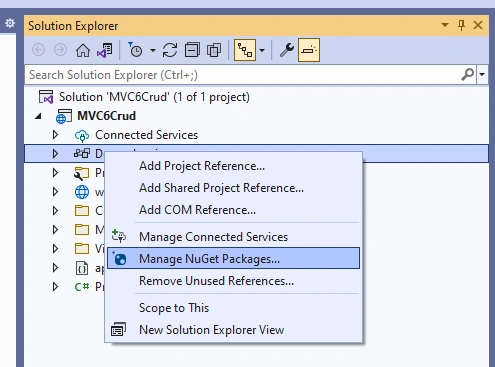
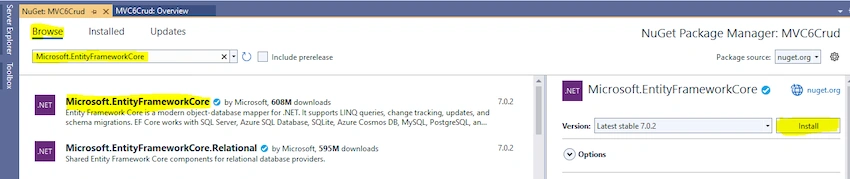
Now, we install the above package one by one. Right-click on Dependencies and select "Manage NuGet Packages…"
Install Microsoft.EntityFrameworkCore package.
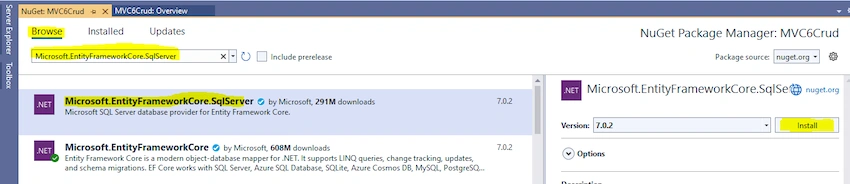
Install Microsoft.EntityFrameworkCore.SqlServer package.
Install Microsoft.EntityFrameworkCore.Tools package.

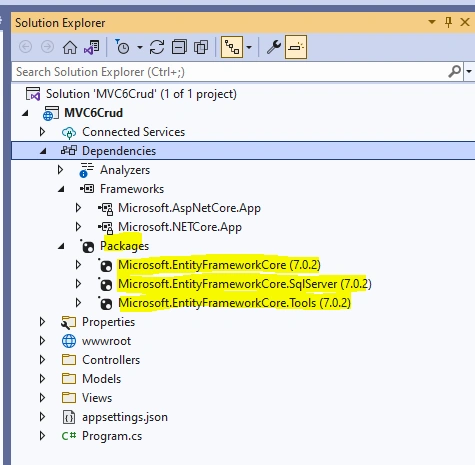
All install packages are showing in Dependencies -> Packages
Elvis ChimusePosted Aug 22, 2024, 6:17 PM
This was so HELPFUL, especially for my school project. Thank you!
Ham VuiPosted Jun 28, 2024, 3:51 PM
Upload image???
NALLAPOTHULA KRISHNAPosted Apr 27, 2024, 6:30 AM
Where is the rest of the code?
hehehePosted Mar 14, 2024, 2:09 AM
Where is the rest of instructions?
majid saidiPosted Jan 29, 2024, 4:15 PM
Thanks. It is a very good sample for core mvc.
panagiotis kartisPosted Nov 4, 2023, 5:28 PM
Good morningit throws an exception what to do
panagiotis kartisPosted Nov 4, 2023, 5:27 PM
// CategoryName = _context.Categories.Where(c => c.CategoryId == item.CategoryId).Select(c => c.CategoryName).FirstOrDefault()
khaled nabilPosted Oct 11, 2023, 9:27 PM
Great Job thanks
For GotPosted Oct 3, 2023, 3:02 PM
The provided file is not opening.
Former memberPosted Jul 27, 2023, 12:17 PM
Thanks Sir
Shakti SrivastavPosted Jul 24, 2023, 9:00 AM
.rar file is not proper