

Introduction
As opposed to the Azure Service Bus (my article on service bus queue) where messages wait in a queue to be consumed, event hubs broadcast the data to subscribers. Event Hubs can ingest millions of records per second which makes it favorable for telemetry (from IoT devices) and logging purposes.
Event Hubs is best for one-way traffic from publisher to subscriber; i.e., no acknowledgment from the subscriber to publisher.
Azure Event Hubs work on the concept of “Partition Consumer Pattern”. This pattern decouples the message delivery by implementing partitions. Partitions are physical storage that keeps the event data from the producer temporarily for a finite time (a couple of hours to a few days). Increasing the number of partitions increases the physical storage, hence no data overflow. Producer chooses the partition to send event data.
The consumer, on the other hand, reads data from one or more partitions. It keeps track of the offset, i.e., until what position the event data has been read in a partition. In case the consumer stops, it starts from where it left. The consumer traverses through the partition in the round-robin manner, i.e., in this instance, the consumer will go and read from Partition 1 and then Partition 2
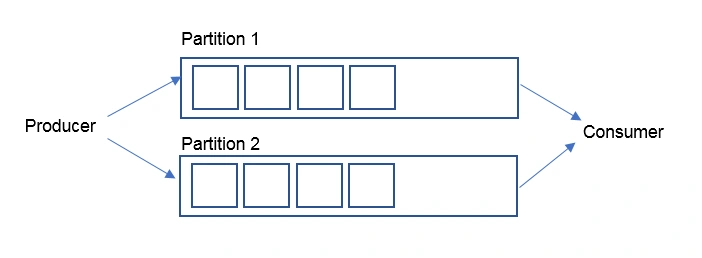
I will use the same “Pizza Order Delivery” system for demonstration. In the context of Event Hubs, I will modernize the delivery system by providing regular updates to the customer.
For example, when you order a pizza and opt for home delivery, you will be provided with a complete update on each event, i.e., how much the pizza is cooked, when it is ready for delivery and tracking of the order on the way to home delivery. To demonstrate how this works, I will develop a console application “producer” to produce events and another app “consumer” to consume events.
Implementation
Let’s start with creating a namespace for Event Hubs in Azure. I named it “OrderProcessingEventHub” and pricing tier to be basic.
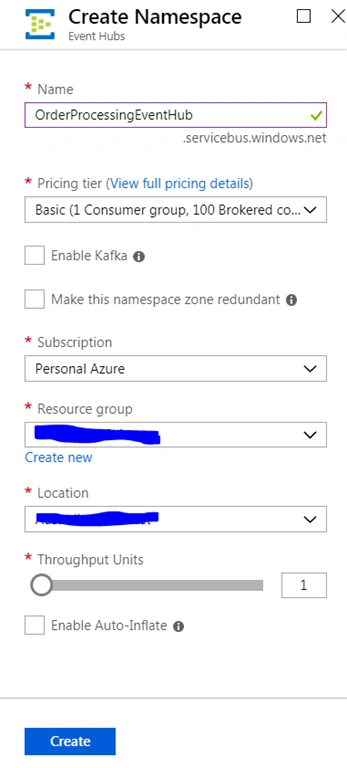
Click "Create" and it will do the necessary background work to create a namespace.
Then, select “Event Hubs” from Entities and create one for the project.
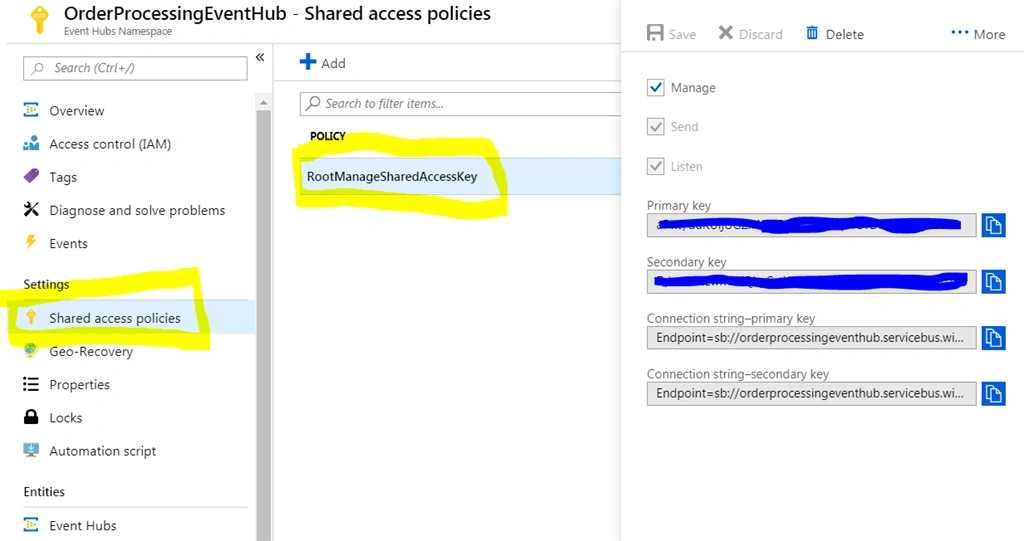
I have created it with the name “ordereventhub”. Note down the event hub name and “Connection string – primary key”. Notice the partition count default 2. You can make to this count before you proceed as later, it cannot be changed. So consider setting it to maximum 32.
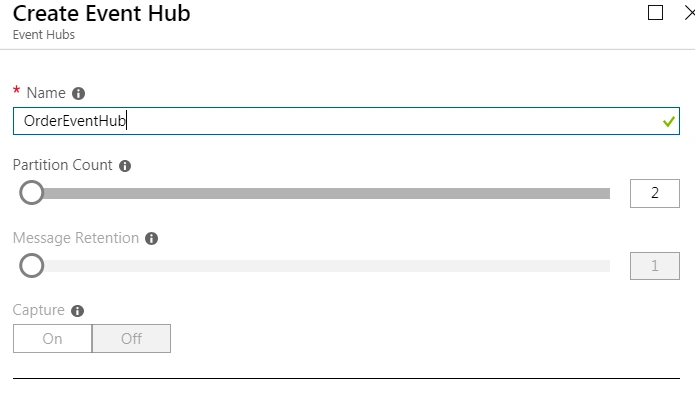
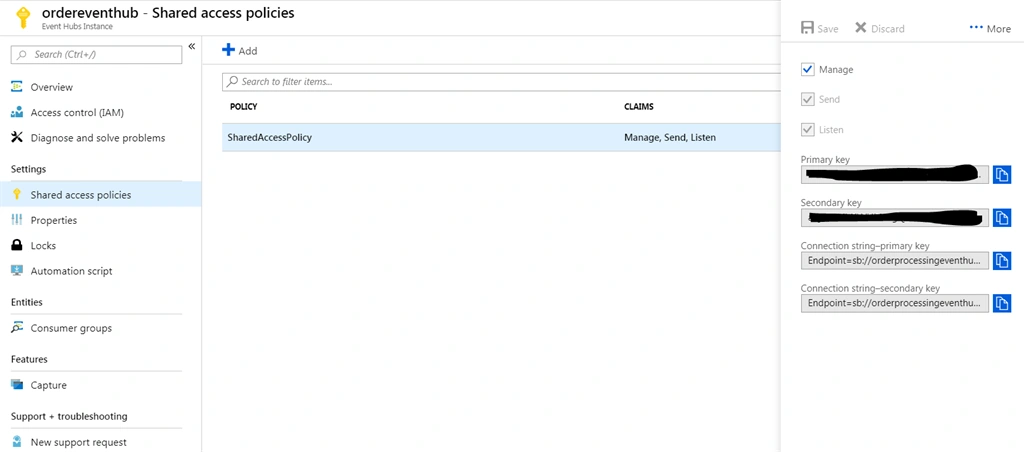
Event hub setup in Azure is complete. Now, we need one producer/publisher to publish events.
For that, let’s create an application to generate the event data.
I will create a console application as it is simple to create to demonstrate the concept. Add a NuGet reference “WindowsAzure.ServiceBus”.
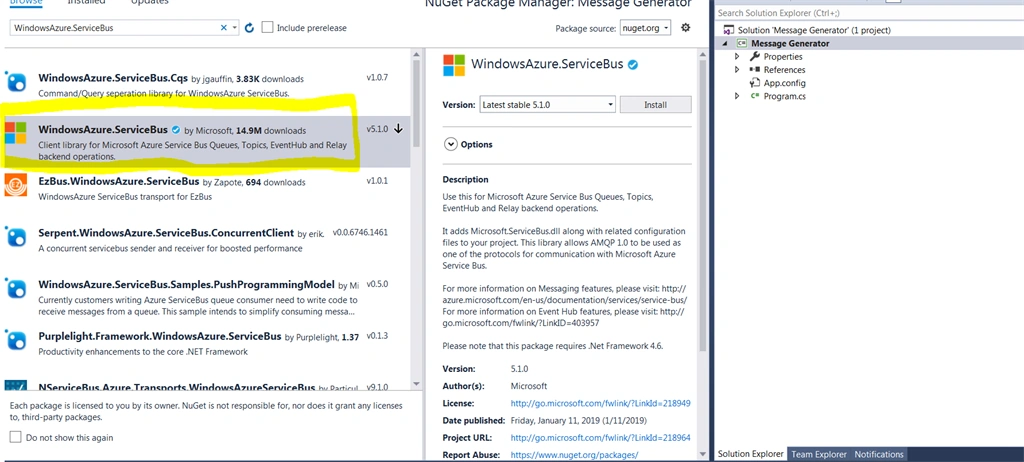
Update the “Program.cs” class to be like following. Replace the “Connection string – Primary Key” with the one you copied before.
This program, once run, will send the random Event Data to Event Hub in the interval of 1 second.
- class Program
- {
- static void Main(string[] args)
- {
- GenerateRandomMessages();
- }
- public static void GenerateRandomMessages()
- {
- var primaryConnectionString = <connection string - primary key>;
- var client = EventHubClient.CreateFromConnectionString(primaryConnectionString);
- Random randomNumberGenerator = new Random();
- while (true)
- {
- try
- {
- // generate any random numbet between 1 and 1000
- var randomMessage = string.Format("Message {0}", randomNumberGenerator.Next(1,1000));
- Console.WriteLine("Generated message: {0}", randomMessage);
- client.Send(new EventData(Encoding.UTF8.GetBytes(randomMessage)));
- }
- catch (Exception exception)
- {
- Console.WriteLine(exception.Message);
- }
- Thread.Sleep(1000);
- }
- }
- }
That’s it for a producer/publisher. Now, we will create a consumer/subscriber.
As I stated before, the event gets stored in a partition where the subscriber consumes it. So, it is obvious that it should be stored in some storage for it to work.
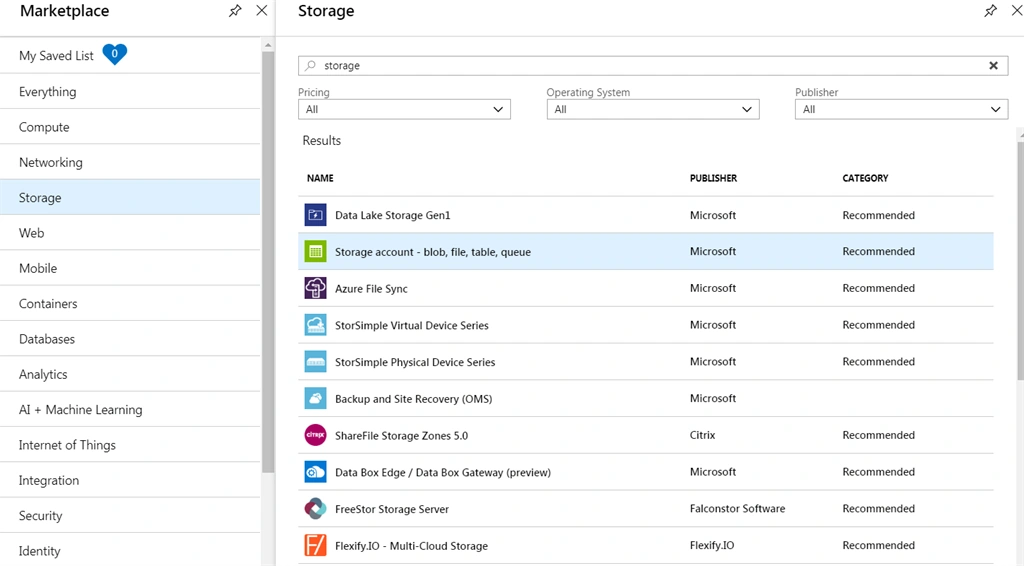
So, I will go ahead and search for “Storage” in Azure.

Then, select the Storage account.
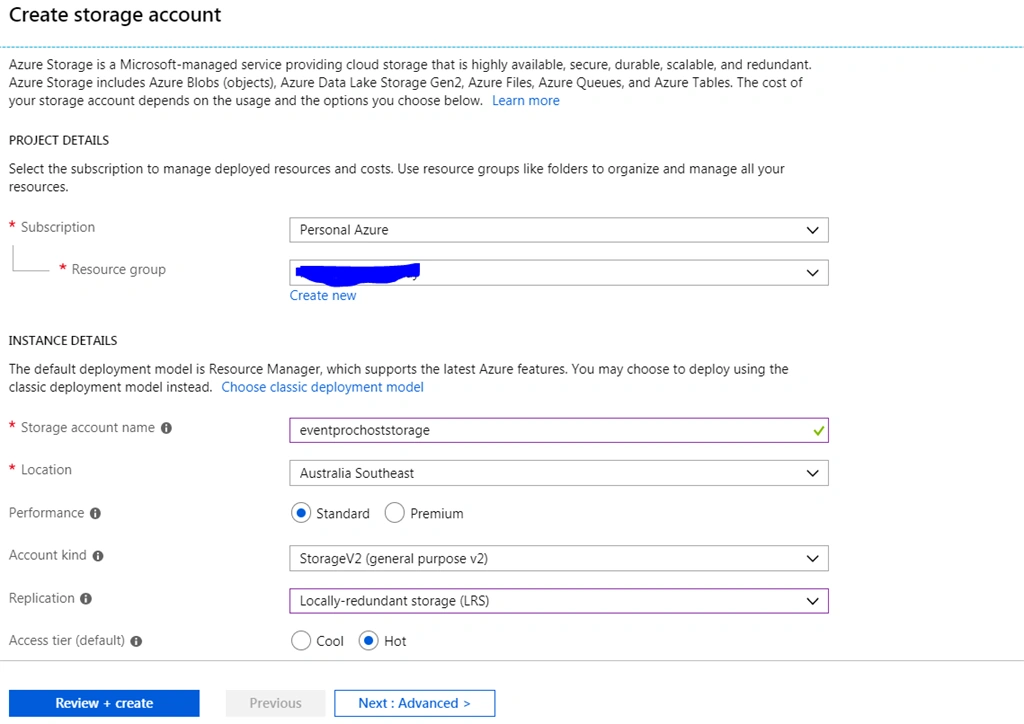
I will create a storage with the name “eventprochoststorage”. Note down the storage name.
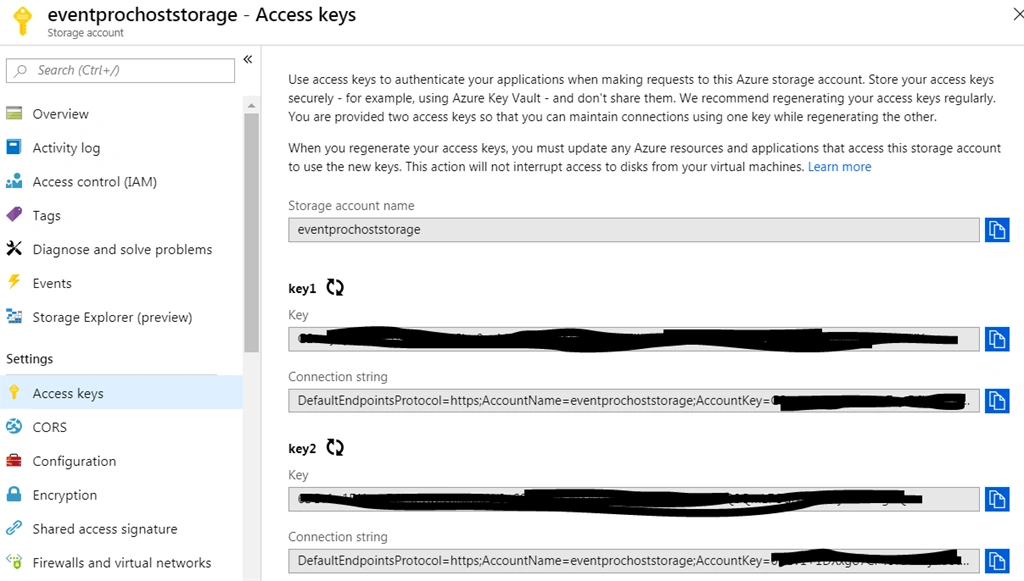
Once the storage gets created, copy the “Access Key”. In this case, I have copied “key 1”.
Next, go to Services in Storage and select “Blobs”. Create one container. In this case, I named “eventprochostcontainer”. Note down the container name as well.

Create and Assign access policy for the container.
Now let’s create a consumer application. I will go ahead and create another console application which will act like a consumer.
Add the reference to Microsoft.Azure.Eventhubs and Microsoft.Azure.Eventhubs.Processor.
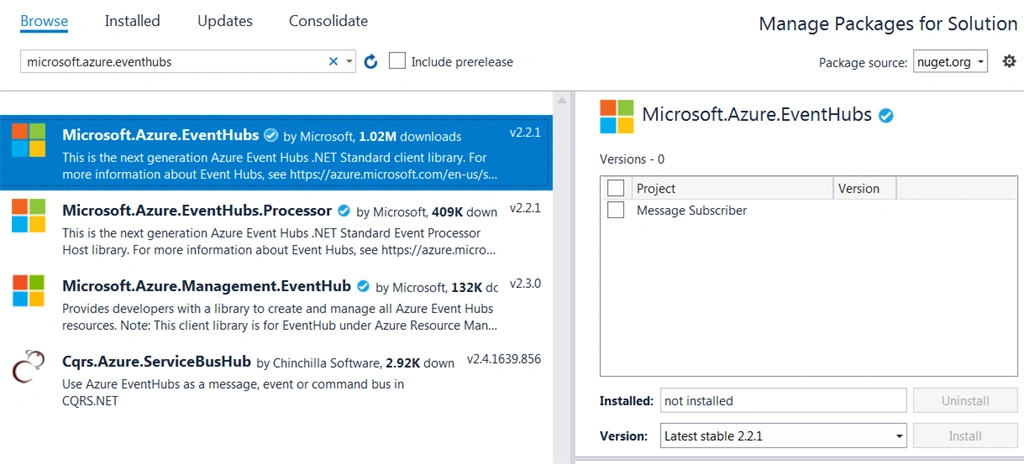
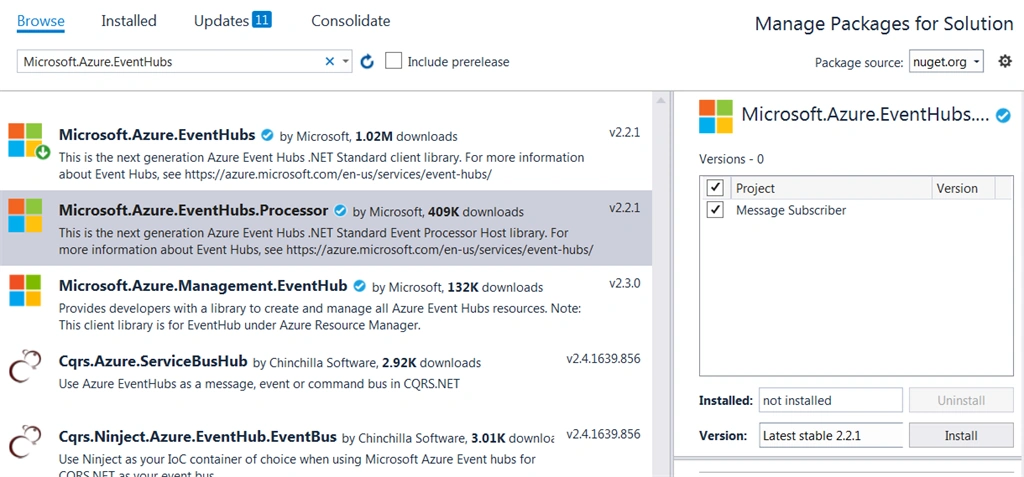
Once done, add a class “Processor” implementing “IEventProcessor”. Modify the class to be like the following.
- public class Processor : IEventProcessor
- {
- public Task CloseAsync(PartitionContext context, CloseReason reason)
- {
- Console.WriteLine($"Processor Shutting Down. Partition '{context.PartitionId}', Reason: '{reason}'.");
- return Task.CompletedTask;
- }
- public Task OpenAsync(PartitionContext context)
- {
- Console.WriteLine($"SimpleEventProcessor initialized. Partition: '{context.PartitionId}'");
- return Task.CompletedTask;
- }
- public Task ProcessErrorAsync(PartitionContext context, Exception error)
- {
- Console.WriteLine($"Error on Partition: {context.PartitionId}, Error: {error.Message}");
- return Task.CompletedTask;
- }
- public Task ProcessEventsAsync(PartitionContext context, IEnumerable<EventData> messages)
- {
- foreach (var eventData in messages)
- {
- var data = Encoding.UTF8.GetString(eventData.Body.Array, eventData.Body.Offset, eventData.Body.Count);
- Console.WriteLine($"Message received. Partition: '{context.PartitionId}', Data: '{data}'");
- }
- return context.CheckpointAsync();
- }
- }
This class provides a mechanism to read data from the partition. Now, let’s access the event data through “Processor” class by changing the “Program” class.
- class Program
- {
- private const string EventHubConnectionString = <connection string - primary key>;
- private const string EventHubName = "ordereventhub";
- private const string StorageContainerName = "eventprochostcontainer";
- private const string StorageAccountName = "eventprochoststorage";
- private const string StorageAccountKey = <key 1>;
- private static readonly string StorageConnectionString = string.Format("DefaultEndpointsProtocol=https;AccountName={0};AccountKey={1}", StorageAccountName, StorageAccountKey);
- private static async Task MainAsync(string[] args)
- {
- Console.WriteLine("Registering EventProcessor...");
- var eventProcessorHost = new EventProcessorHost(
- EventHubName,
- PartitionReceiver.DefaultConsumerGroupName,
- EventHubConnectionString,
- StorageConnectionString,
- StorageContainerName);
- // Registers the Event Processor Host and starts receiving messages
- await eventProcessorHost.RegisterEventProcessorAsync<Processor>();
- Console.WriteLine("Receiving. Press ENTER to stop worker.");
- Console.ReadLine();
- // Disposes of the Event Processor Host
- await eventProcessorHost.UnregisterEventProcessorAsync();
- }
- static void Main(string[] args)
- {
- MainAsync(args).GetAwaiter().GetResult();
- }
- }
Compile the program.
Once both producer and consumer are set up, run both the applications simultaneously.
Join the conversation! Your thoughts help the community grow.