

Introduction
Microsoft Entra External ID provides Page Layout configuration options that allow administrators to customize the appearance of authentication pages used in user flows. Through page layout settings, organizations can modify the label and the order of the user attributes in the form
Unlike Azure AD B2C, Microsoft Entra External ID does not fully support custom-hosted HTML pages for authentication screens. This approach ensures a secure, consistent, and simple authentication experience while still allowing organizations to maintain their preferred configuration.
In this article, we will walk through the step-by-step process of configuring the page layout for Microsoft Entra External ID user flows.
Prerequisites
Before configuring page layouts, ensure the following prerequisites are met:
A tenant configured with Microsoft Entra External ID
Administrator access to the Microsoft Entra admin center
At least one External ID User Flow is configured
Step-by-Step Implementation
Step 1: Sign in to the Microsoft Entra Admin Center
Open the Microsoft Entra admin center.
Sign in using an administrator account.
Navigate to: Identity → External Identities
This section contains all configuration settings related to External ID.
Step 2: Open User Flows
Under External Identities, select User flows.
You will see a Configured user flows such as:
Sign up and sign in
Select the user flow you want to customize.
Step 3: Navigate to Page Layout Settings
After opening the user flow:
In the left navigation pane, select Page layouts.
A list of available attribute collections will open
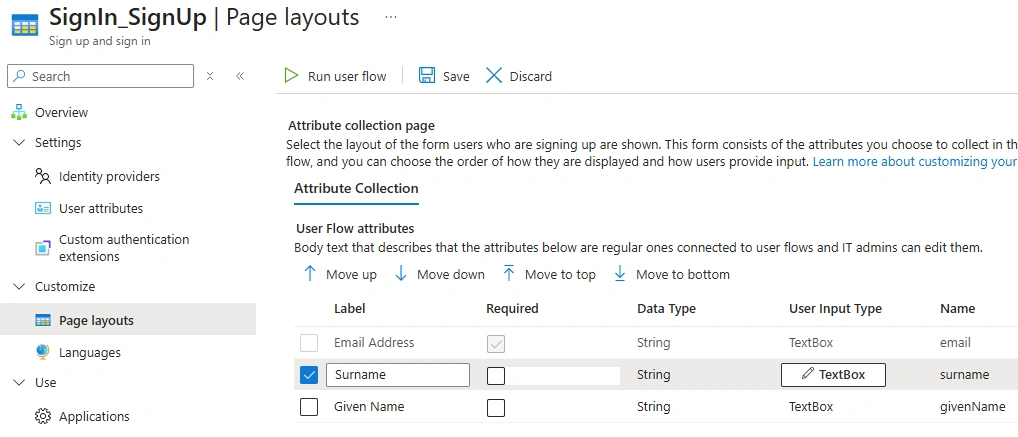
In this page, you can rename the attribute label and also you can change the order of the attribute
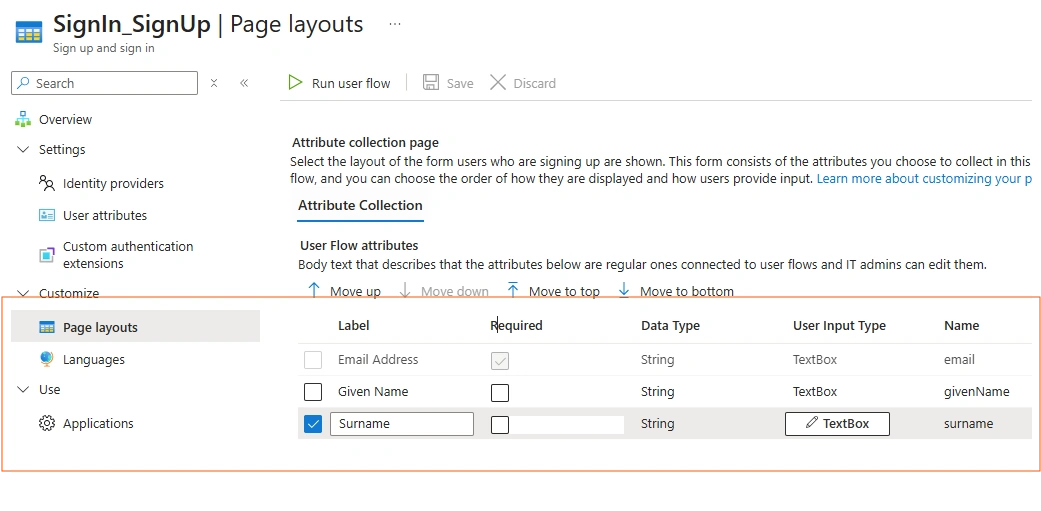
After the control order rearrangement, the surname is pushed next to the email address
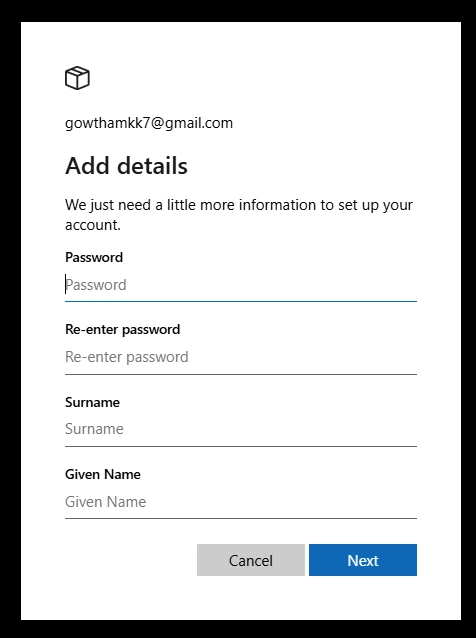
Step 4: Run the user flow
On sign up, you can see that the surname can give a name order change
Summary
Configuring Page Layout in Microsoft Entra External ID allows administrators to control how user attributes are displayed on authentication pages used in user flows. Through the page layout settings available in the Microsoft Entra admin center, you can modify the label names of user attributes and reorder the fields that appear on sign-up or profile pages. This capability helps organizations present user information in a clearer and more meaningful way that aligns with their business terminology. Unlike Azure AD B2C, page layout configuration in External ID is not used for branding or custom HTML customization; instead, it focuses on improving the structure, labeling, and ordering of user input fields within the authentication experience.
Join the conversation! Your thoughts help the community grow.