

Introduction
SharePoint Document Libraries are one of the most powerful features in SharePoint. They allow users to store, organize, share, and collaborate on documents efficiently. In this article, we will learn how to create a Document Library in SharePoint, step by step.
This guide is useful for beginners who are just starting with SharePoint as well as users who want a quick refresher.
What Is a Document Library in SharePoint?
A Document Library in SharePoint is a secure location where you can:
Upload and manage files (Word, Excel, PDF, etc.)
Track document versions
Share documents with team members
Apply permissions and metadata
Collaborate in real time
Prerequisites
Before creating a document library, make sure:
You have Edit or Owner permissions on the SharePoint site
You have access to a SharePoint Online site (Team Site or Communication Site)
Steps to Create a Document Library in SharePoint
Step 1: Open Your SharePoint Site
Sign in to Microsoft 365
Navigate to your SharePoint site where you want to create the library
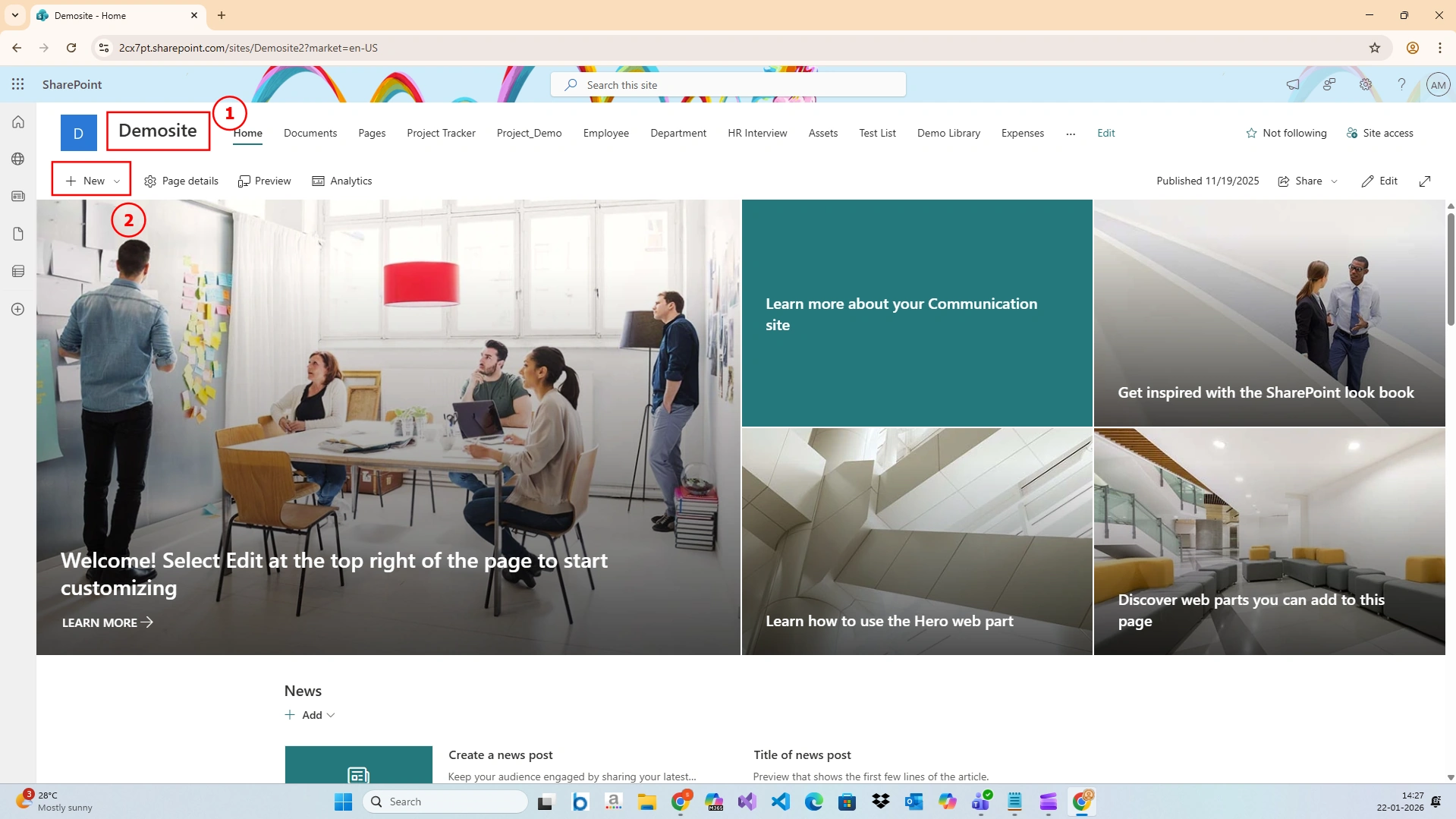
Step 3: Create a New Document Library
On the Site Contents page, click New
Select Document library
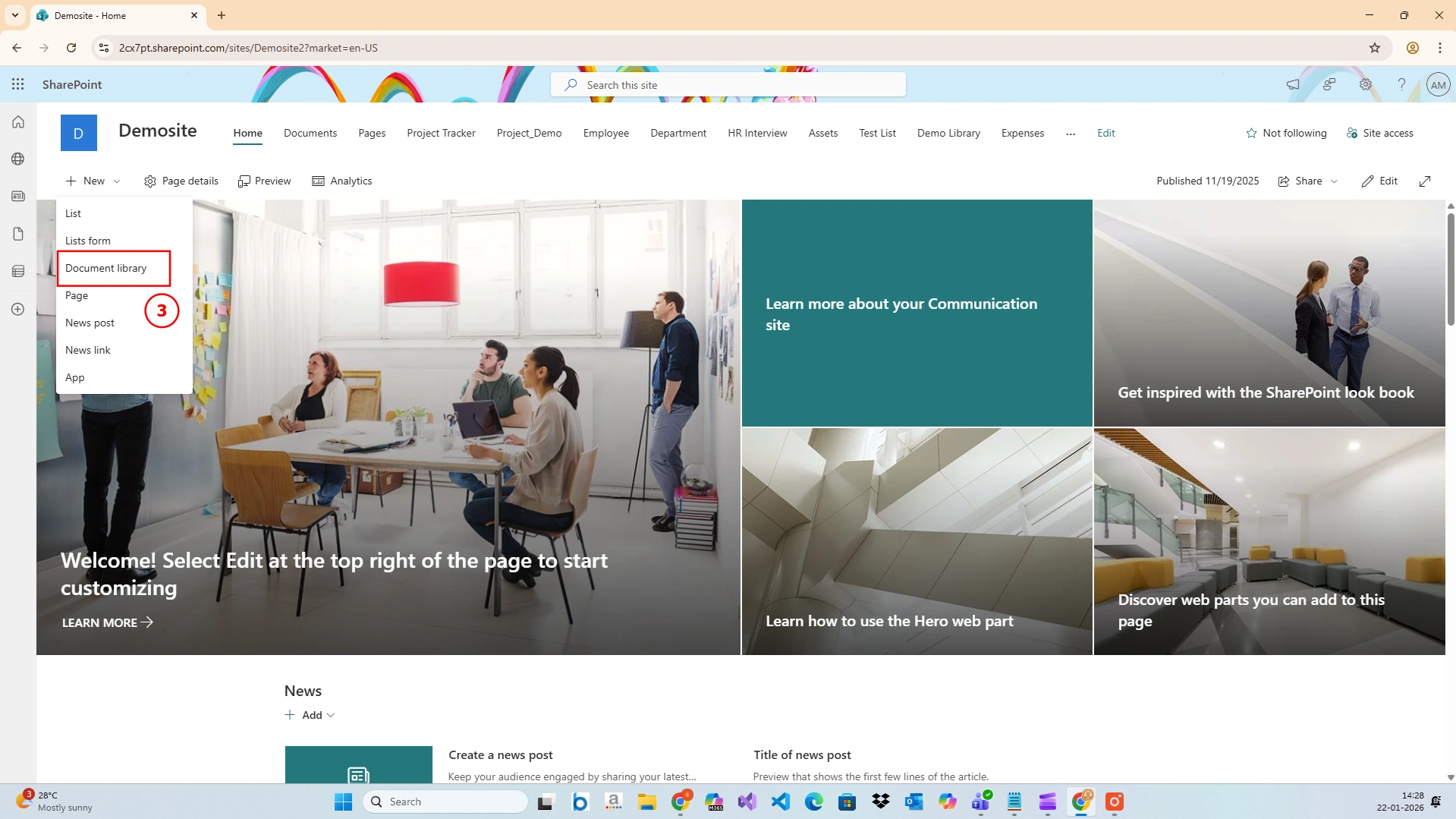
Step 4: Choose a Blank Document Library
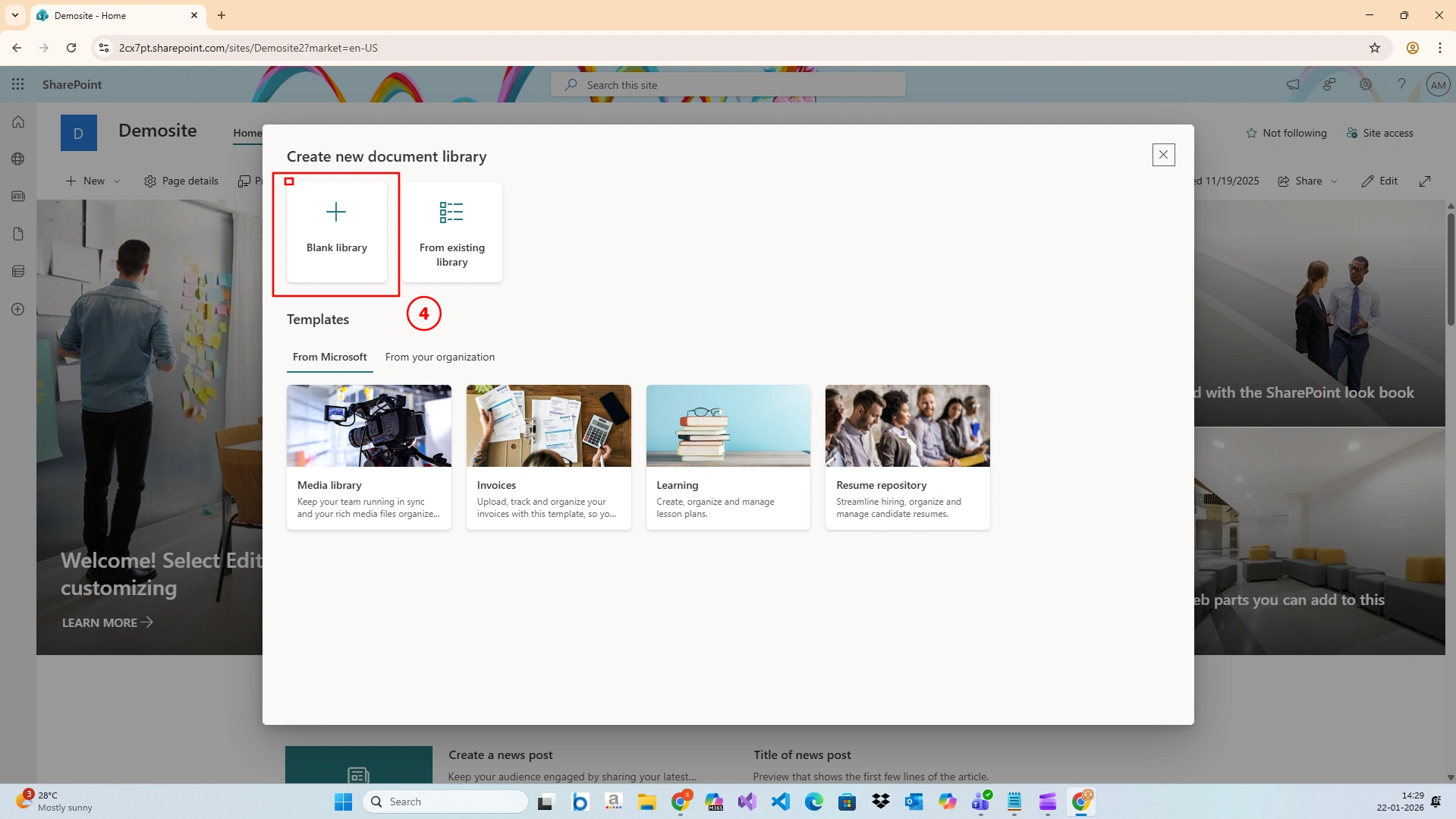
Step 5: Enter Library Details
This option allows you to customize the library based on your requirements without using any predefined templates.Step 4: Enter Library Details
Fill in the required information:
Name:
Test LibraryDescription:
This is a test document library created for C# Corner demonstration.Choose whether to show it in the site navigation (optional)
Click Create
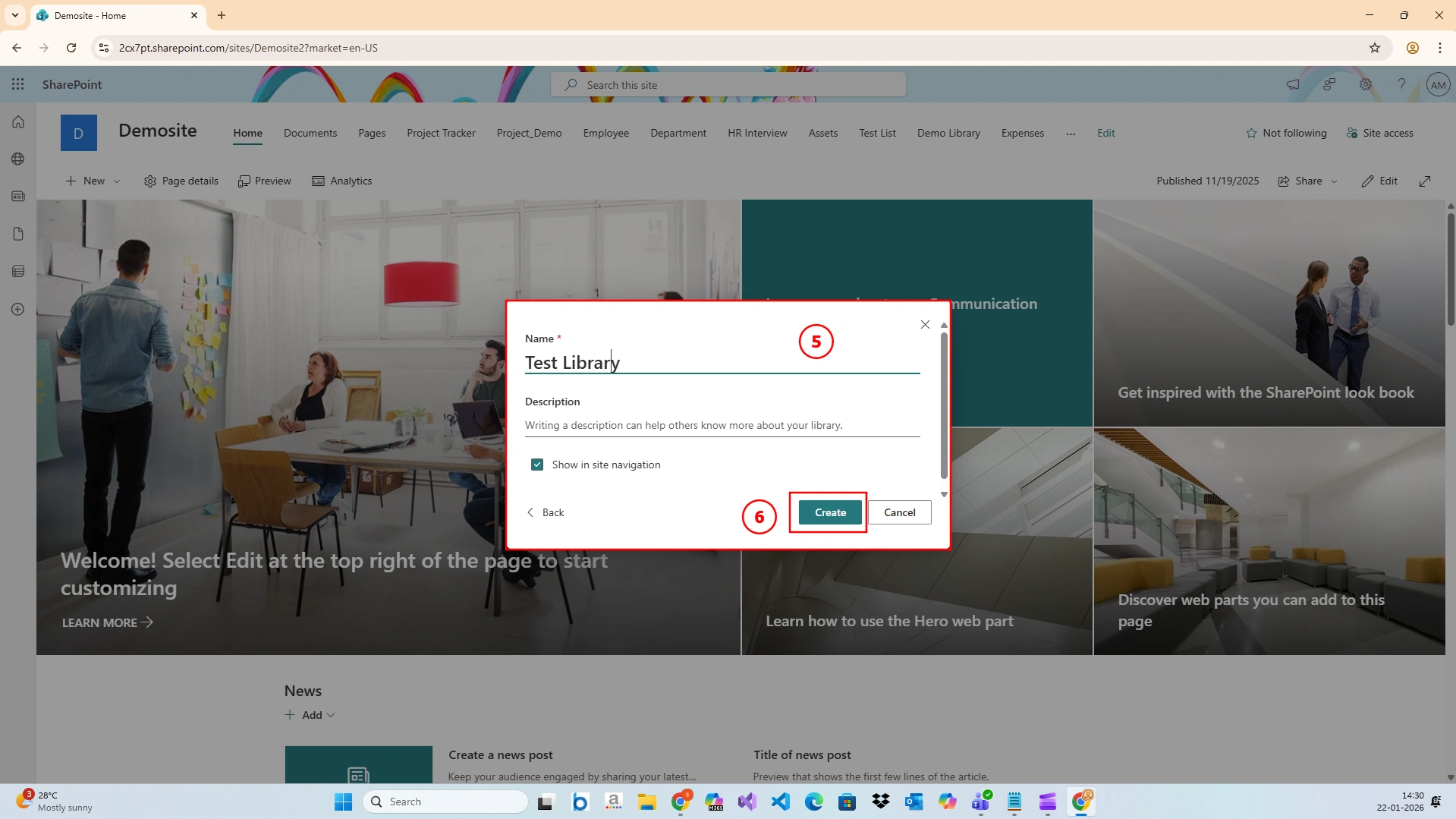
Step 6: Document Library Created Successfully
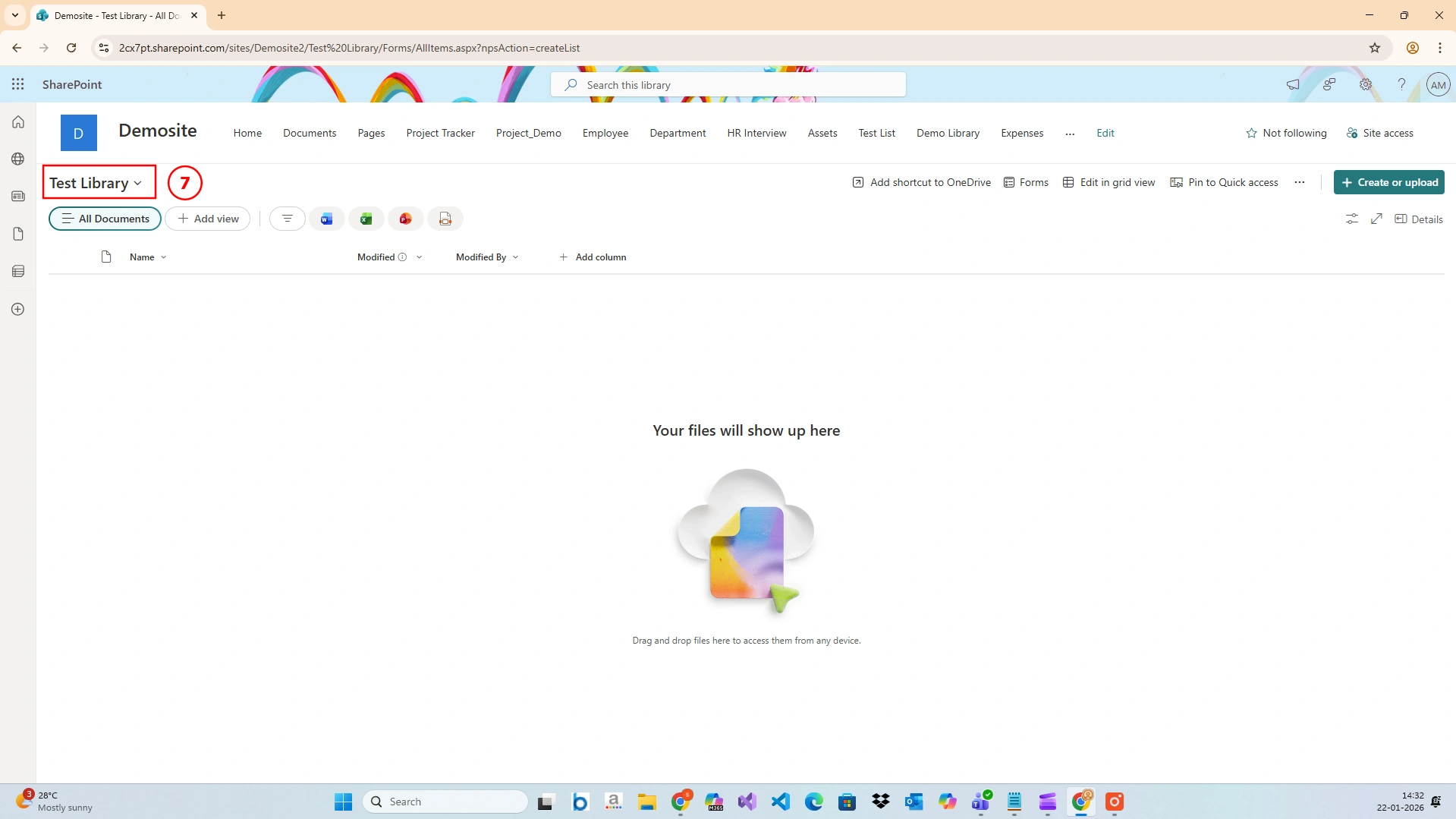
Step 7: Test the Document Library
Once created:
Open Test Library
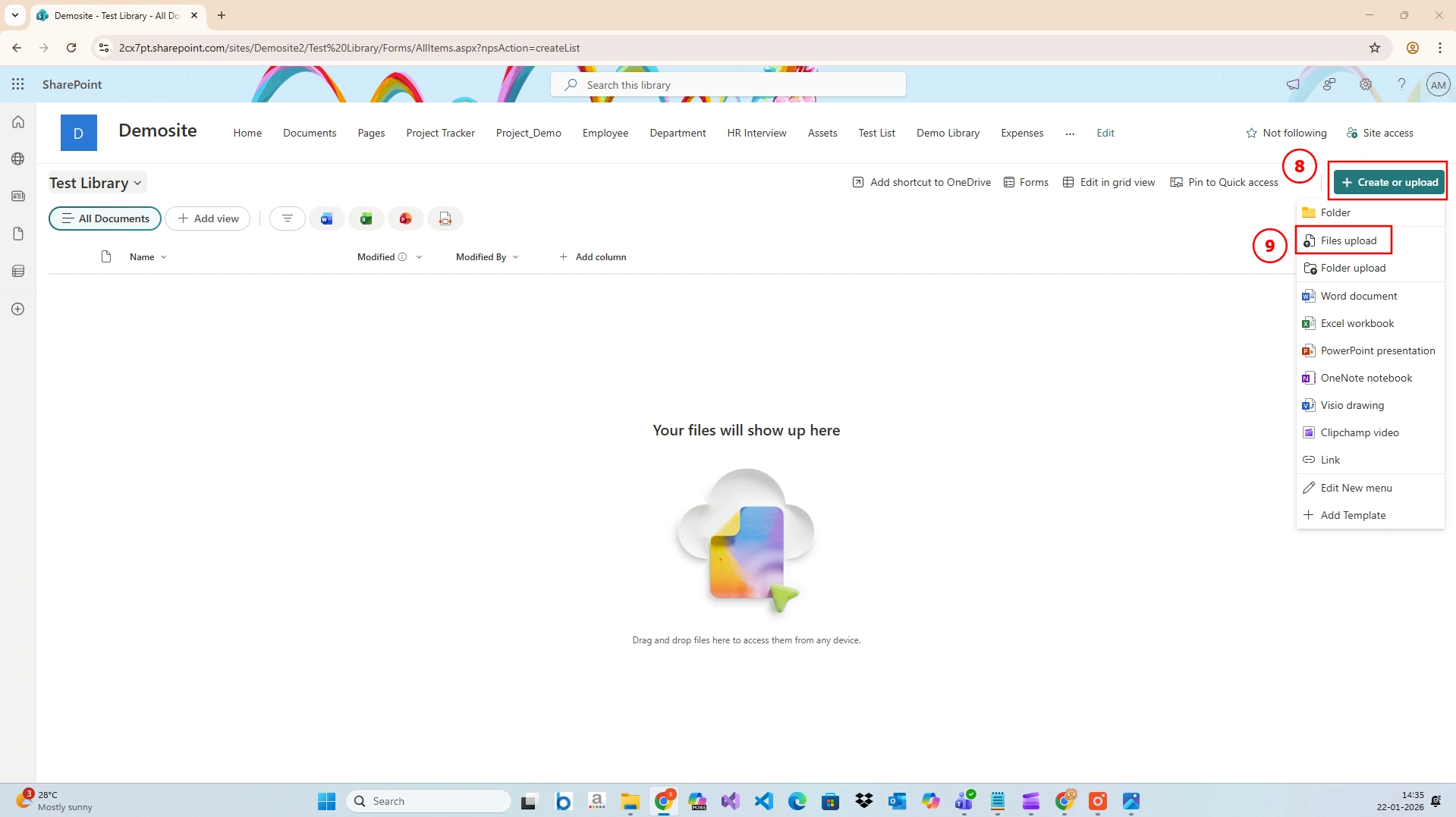
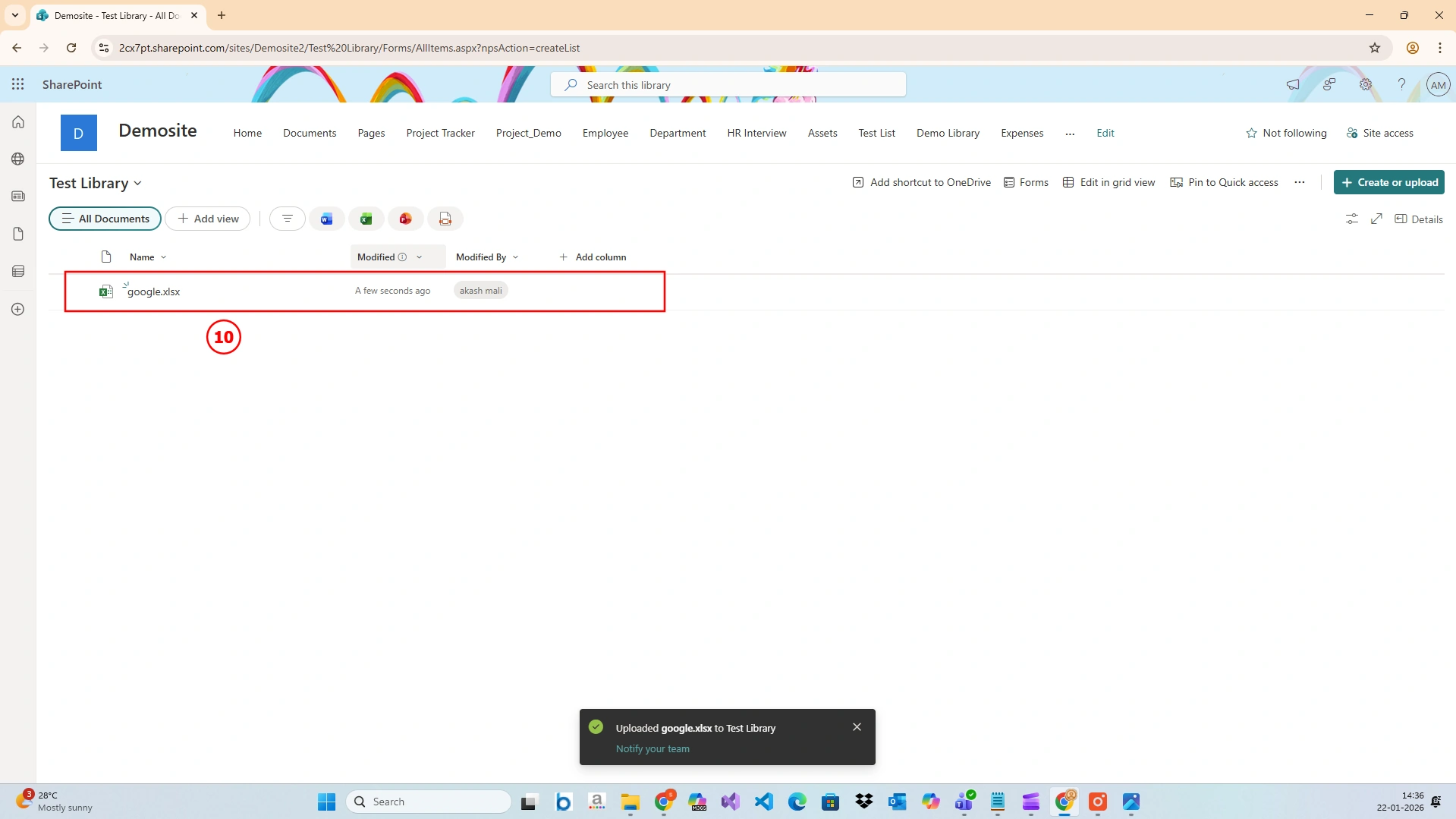
Click Upload to add documents
Your Test Library is now ready to use
Conclusion
Creating a Document Library in SharePoint is a simple yet powerful way to manage documents efficiently. In this article, we created a document library named “Test Library” step by step and explored how it can be used effectively.
Join the conversation! Your thoughts help the community grow.