

Introduction
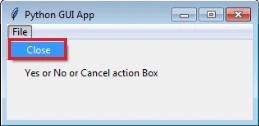
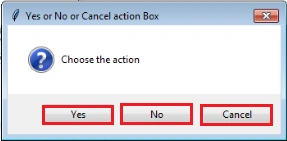
In this blog, I am going to create ask yes or no or cancel message box in Python GUI application, when a user clicks “Close” from the Action menu, it will ask for the user’s choice as -Yes or No or Cancel - in the application screen.
Software requirement
Python 3.5 and IDLE (Python 3.5)
Programming code
- #Create Yes or No or cancel Box in Python GUI Application
- import tkinter as tk
- from tkinter import ttk
- from tkinter import Menu
- from tkinter import messagebox as mbox
- app = tk.Tk()
- #Add a Title
- app.title("Python GUI App")
- #Label
- ttk.Label(app, text="Yes or No or Cancel action Box").grid(column=0,row=0,padx=20,pady=30)
- #Create a Menu Bar
- menuBar=Menu(app)
- app.config(menu=menuBar)
- #Display a Yes or No or Cancel Message Box
- def _msgBox():
- mbox.askyesnocancel ('Yes or No or Cancel action Box','Choose the action')
- #Create Message Menu
- msgMenu=Menu(menuBar, tearoff=0)
- msgMenu.add_command(label="Close", command=_msgBox)
- menuBar.add_cascade(label="File", menu=msgMenu)
- #Calling Main()
- app.mainloop()
About the code
First, I am importing the tkinter modules.
Next, assign a class and variables and give the application title.
Next, create a menu bar and add a menu item in the menu bar.
Next, create ask message function and add “Yes” or “No” or “Cancel” options in displaying file close menu.
Finally, I have started the windows event loop by calling the mainloop method then execute the code.
Then, let’s execute the code.
Output
Join the conversation! Your thoughts help the community grow.