

Today, I am writing about how to delegate permission for the users and groups in a project online step by step with screenshots.
We have an option in PWA (project online) to delegate and act on a user role's same account from any of the users.
Example
We have an admin account and we need to update some data or Timesheet for a user, but we don’t have his user Id and password but we can still use the particular user for updating timesheet in Project PWA. We are functioning the same for Project online. Also, we can use this for On Premises as well.
Follow the steps mentioned below to delegate the user permission, using admin account.
- Login to the PWA site with an authorized user account and password.
- Now, click Gear box from right side of the page called setting and select PWA setting.
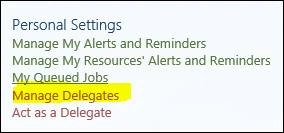
- Click Manage Delegates under Personal setting on the first option of PWA setting.
- On the Manage delegate’s page, we will be getting an option from Ribbon page called Delegations, select the same and click on new option to create new delegation.
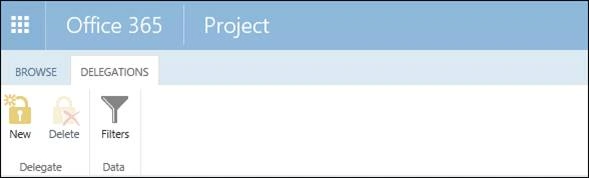
- Once clicked on new, it will take us to Add delegation page, where we need to set the options, mentioned below to configure properly.
Set Delegation Period*: Select the period during which the delegate will be able to manage work
from date to next date* and between these dates, the user can access the delegation.
Set Delegate *: The delegate that you want to manage work during the specified period
Working on Behalf Of*, where the person requires a substitute.
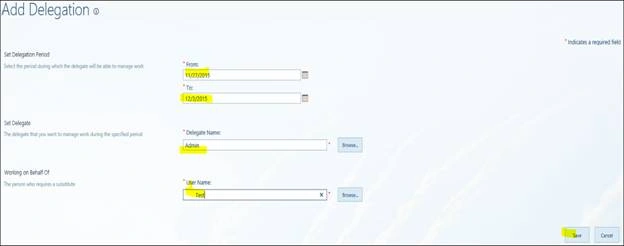
- After feeding all the required fields, click save to take effect.
- Once you will save this, you will be redirected to Delegation page, where you can see your account is added so as to delegate the users.
- Now, to start the delegation, click PWA setting from Gear box of the page and select Act as a Delegate.

- Now, on the Act as page, select created delegation user and click on Start Delegate session from Delegation Ribbon page.

- Once you start the session, you will get the delegation acting as information on the page
Note
We can stop the delegation by selecting same user under the Act as delegation from PWA setting and stop delegates from the screen, mentioned above.
Annick VerronneauPosted Oct 20, 2021, 5:02 PM
Good morning! I have read in the Microsoft literature that in order to be able to do a delegation in ProjectOnline (PWA), resources must have a license (Essential or P3 or P5) assigned to their profile.What are the 'prerequisites' for doing the delegations?In our project, we managed to do a delegation with a resource that does not have a license (apparently ...). So how can this be possible? Thank you!