

Step 1 - Create and open Azure portal, using Azure account.
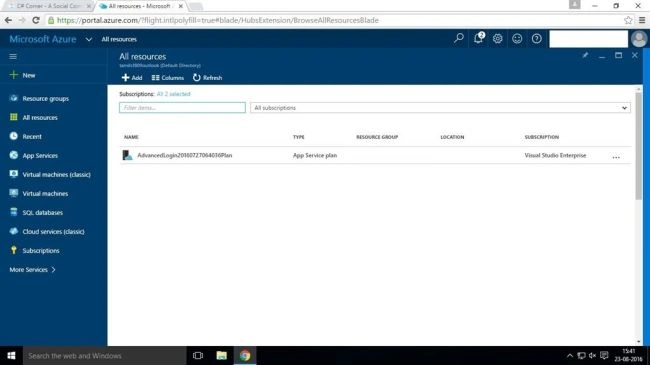
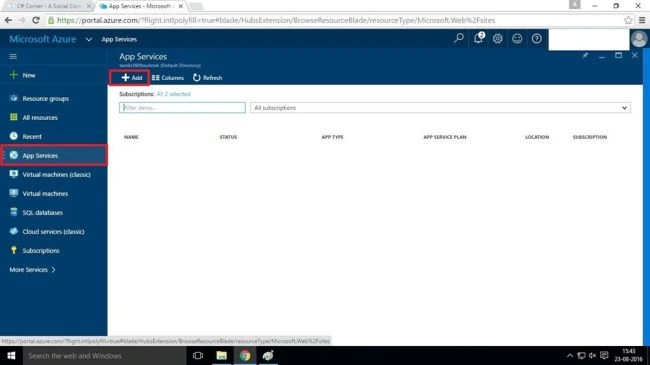
Step 2 - Click the app Service and add the Service.
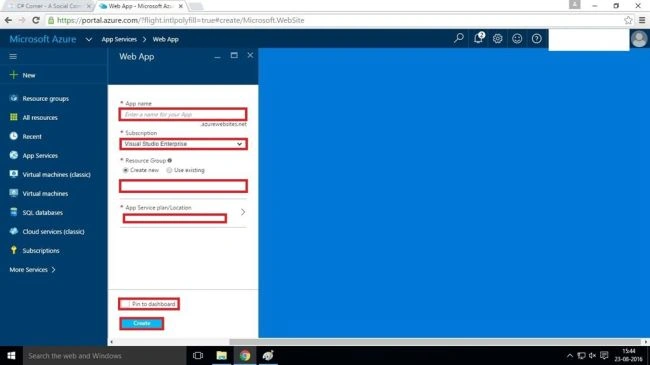
Step 3 - Create a Web app - enter app name - subscription - resource group - create.
Names are unique and verified, which is confirmed in green tick.
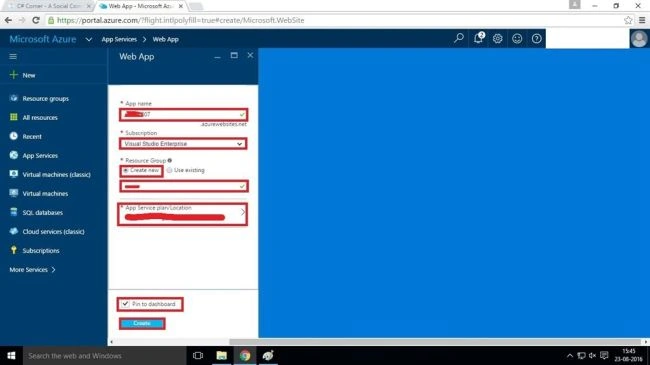
Step 4 - Deploy the app.
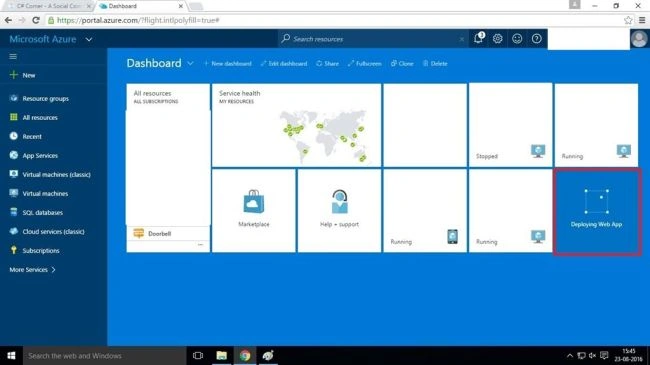
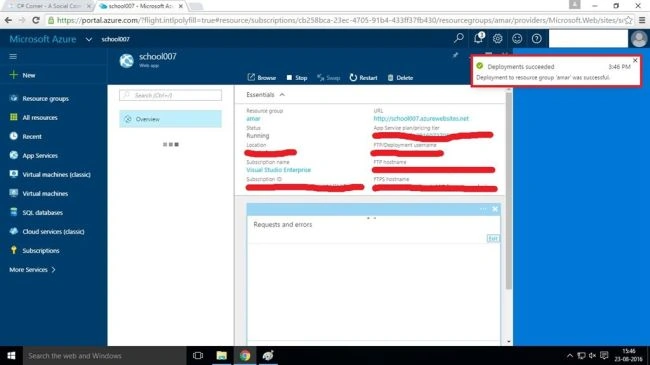
Deploying is succeeded.
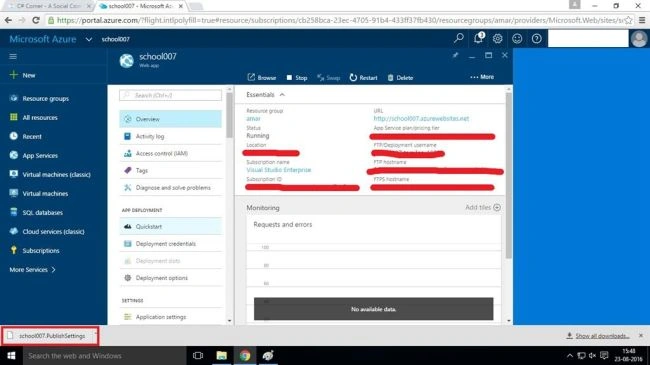
Step 5 - After deploying, click and more, followed by publishing the downloaded file.
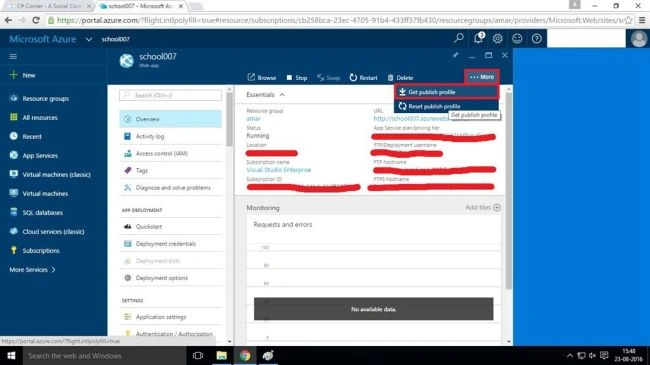
Download the file.
Step 6 - Open Visual Studio 2015 and file. Open the Website.
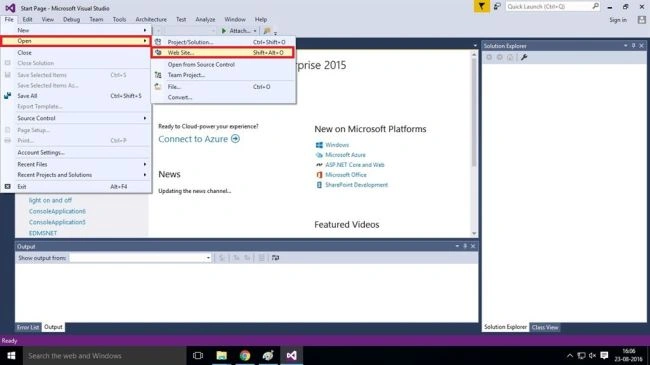
Step 7 - Choose the Website package (you already created the package) in the local system and open.
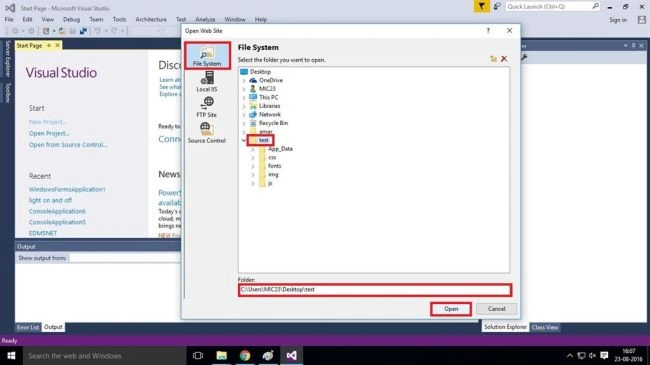
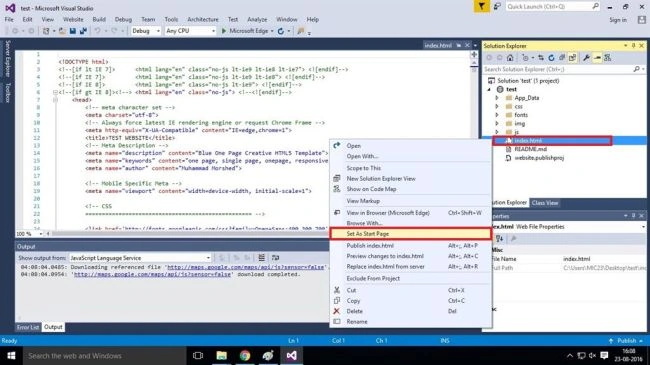
Step 8 - Set the index page by right clicking the index file and choose the set as start page.
Step 9 - Right click the project file and click the publish Web app.
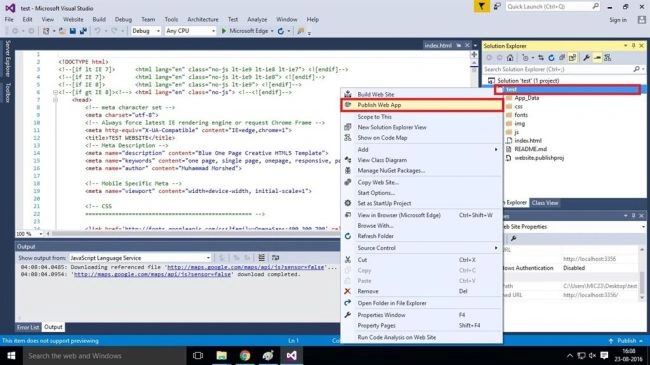
Step 10 - Click the profile and import.
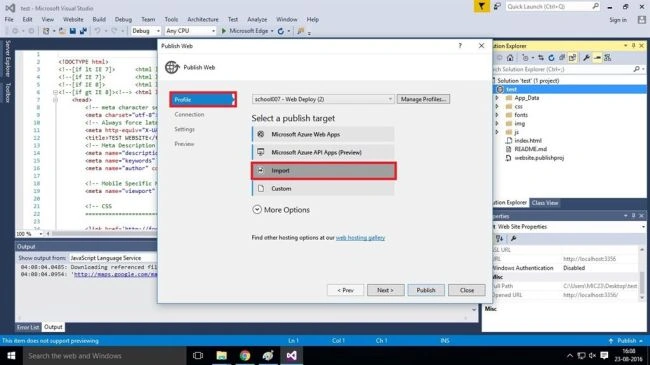
Browse the file in the local system.
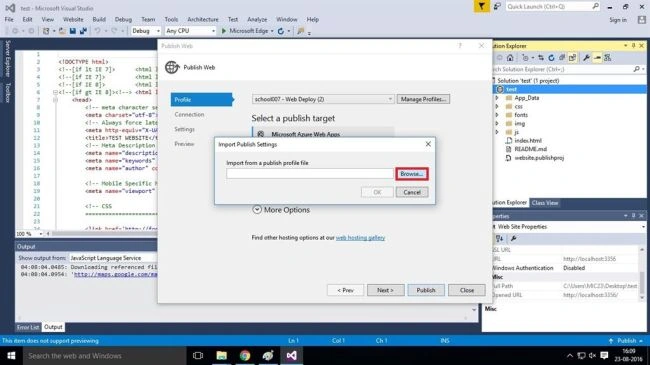
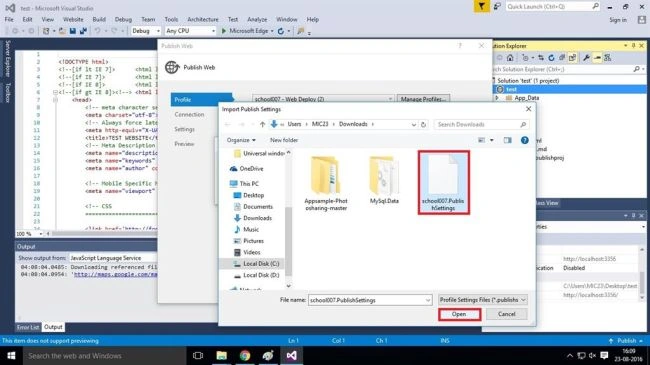
Choose the file and click OK.
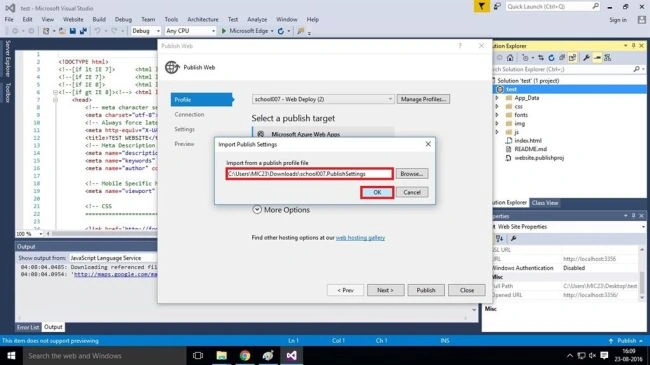
Step 11 - The connection details are automatically inserted, using the download file.
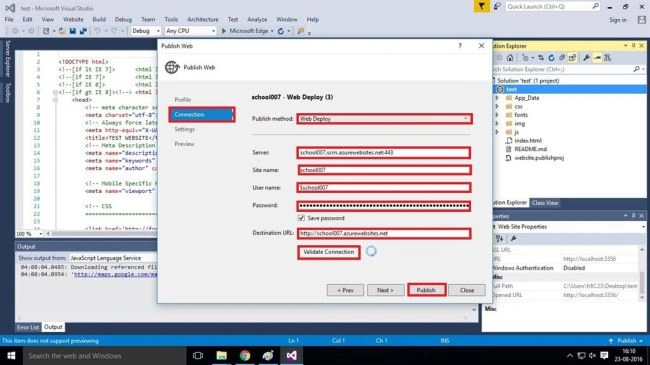
Afterwards, check validate connection.
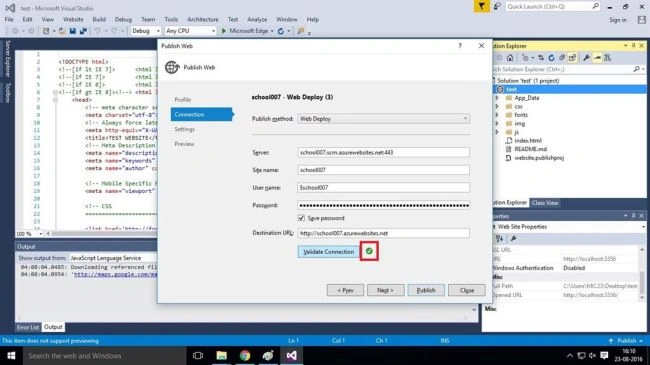
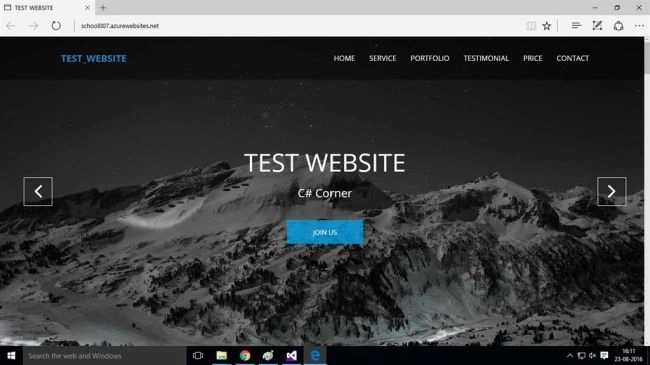
Step 12 - Afterwards, click publish to see the build package, given below-
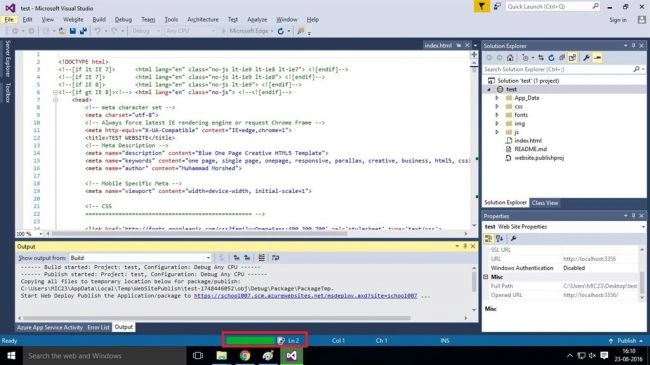
After building, complete package will be published.
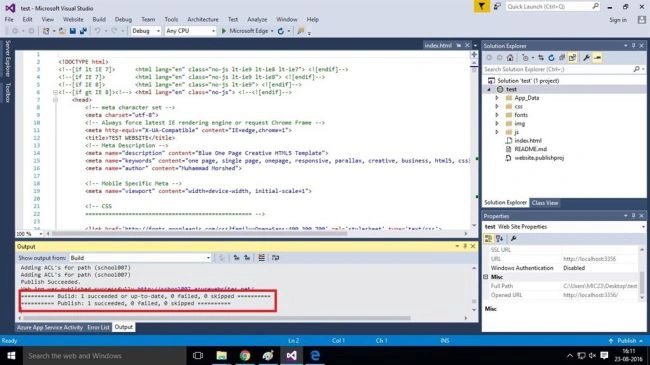
Output
Join the conversation! Your thoughts help the community grow.