
Introduction
There are lots of ways to access the SharePoint API to fetch or update its resources. In each of the ways, authentication plays an important role in in authorizing access to get the information. As a developer, you may have used the PostMan tool for accessing the REST APIs.
Postman Chrome Extension
This is a developer friendly tool for handling the REST APIs from any platform. By using this tool we’ll fetch or update any information from SharePoint using REST API endpoints.
Example
Let’s take a simple example like, getting the web title from the current site context. The syntax for retrieving the website’s title is
https://<SiteName>.sharepoint.com/_api/web?$select=Title
After entering the above URL in the text-box, we will get the Unauthorized exception on accessing the information. Because SharePoint Online is very secured and doesn’t allow anonymous users to access the information for their site. The below is the error message response, after sending the request.
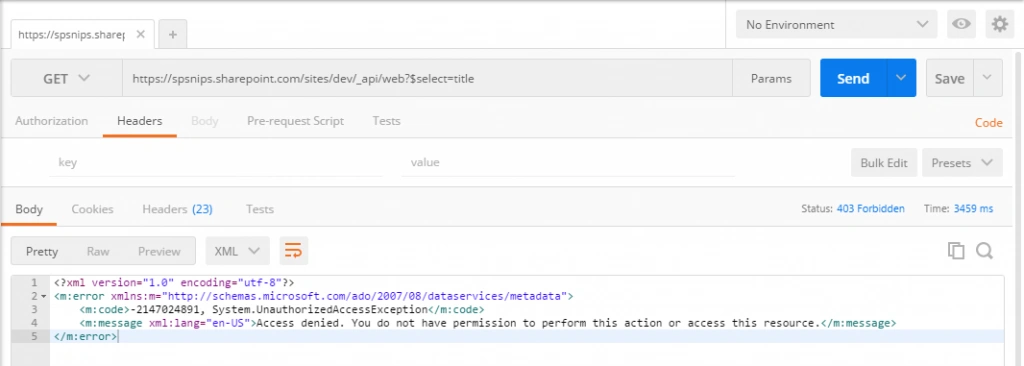
Fig 1: UnAuthorized from Postman
To avoid the Unauthorized exception, we have to add some request header values to the API request.
Authentication Policies
SharePoint online considers any one of the below three types of polices to authenticate the Add-In.
- User Policy
- Add-In Policy – We are using this policy to authenticate the external system to access SharePoint
- User +Add-In Policy
Request Headers
And, we require the following information in various requests to authenticate with SharePoint online site.
- Client Id
- Client Secret
- Realm (Tenant Id)
- Access Token
Authorize Postman to access SharePoint
To get authorized from external system, we should pass access-token value as a request header along with the REST API URL. Before that we have to get the access-token, for that we should generate Client Id and Secret information from the site by registering as an App Only Add-In in SharePoint site. This is same as like registering add-in for Provider Hosted Add-In.
I have provided the steps below to get the Tenant Id, Access Token and data from SharePoint using PostMan utility.
Register Add-In
On the initial stage, we must register the Add-In in SharePoint, where we want to access the information. Follow the steps below to register the Add-In in the SharePoint site.
- Navigate and login to SharePoint online site.
- Then navigate to the Register Add-In page by entering the url as
https://<sitename>.SharePoint.com/_layouts/15/appregnew.aspx
- On App Information section, click Generate button next to the Client Id and Client Secret textboxes to generate the respective values.
- Enter Add-In Title in Title textbox
- Enter AppDomain as a localhost
- Enter RedirectUri as a https://localhost
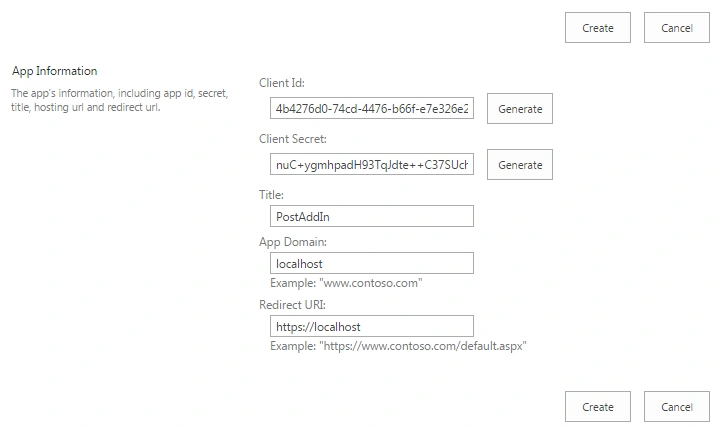
Fig 2: Register an Add-In - Click Create button, which registers the add-in and returns the success message with created information.
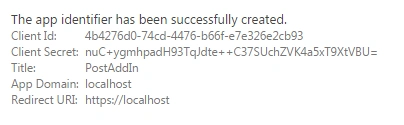
Fig 3: Add-In Registration Successful
Grant Permissions to Add-In
Once the Add-In is registered, we have to set the permissions for that add-in to access the SharePoint data. We will set the Read permission level to the web scope, so that we will be able to read the web information.
- Navigate to the SharePoint site
- Then enter the URL https://<sitename>.sharepoint.com/_layouts/15/appinv.aspx in the browser. This will redirect to Grant permission page.
- Enter the Client ID(which we have generated earlier), in AppId textbox and click Lookup button. That will populate the value to other textboxes in Title, App Domain and Redirect Url
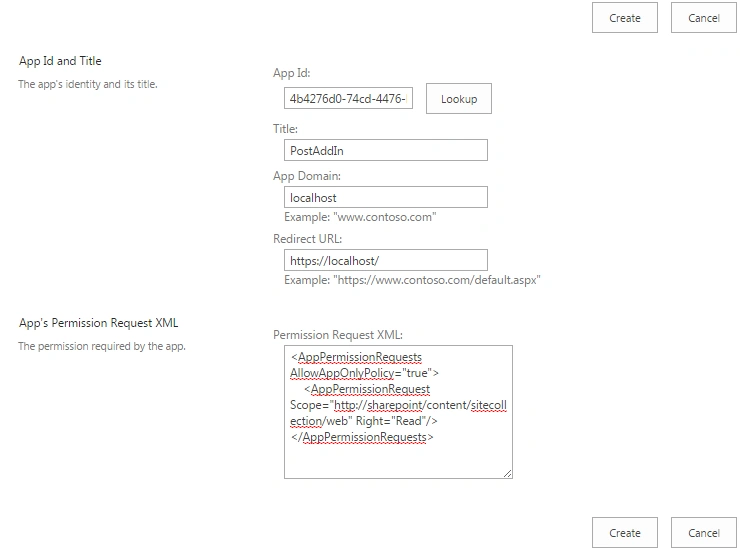
Fig 4: Set Permissions to Add-In<AppPermissionRequestsAllowAppOnlyPolicy="true"> <AppPermissionRequestScope="http://sharepoint/content/sitecollection/web"Right="Read"/> </AppPermissionRequests> - Now enter the below permission request in XML format.
- Then click Create button. This will redirect to your page, where we have to trust the add-in to read items from website.
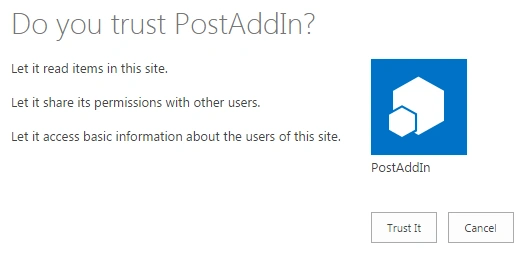
Fig 5: Trust Add-In
Note: If we want to access site collection or tenant level, we have added the xml accordingly
Retrieve the Tenant ID
Once we have registered the Client Id and Secret with the permissions, we are ready to access the SharePoint information from external system or tools.
At first, we have to know the Tenant ID. Follow the below steps to obtain that information from postman. Postman helps to get the tenant Id by requesting the below url with Authorization header.
- Launch Postman chrome extension.
- Select Get Method
- Enter the below URL in the “Request URL” textbox
https://<sitename>/sharepoint.com/_vti_bin/client.svc/ - Configure the below information in the header section to send along with the url requestMethod = Get
HeadersKeySyntaxValueAuthorizationBearerBearer - After applying the configuration, click Send button. The response returns lot of headers but ends with unauthorized access.

Fig 6: Get Tenant ID from SharePoint Online
Generate the Access Token
In response header, we will get WWW-Authenticate as one of the headers and that contains the necessary information required for the next step. The realm value contains the tenant id for the SharePoint Online site and clientid value contains the resource information (we’ll use it later).
- After getting the Tenant ID, we have to form a URL with the below format
https://accounts.accesscontrol.windows.net/<TenantID>/tokens/OAuth/2 for requesting the access token. - Apply the below configurations in header
Method = POST
Headers
Key - Content-Type
Syntax - application/x-www-form-urlencodedValue - application/x-www-form-urlencoded
Body
Key - grant_type, Syntax - client_credentials Value - client_credentials
Key -client_id, Syntax - ClientID@TenantID, Value - 4b4276d0-74cd-4476-b66f-e7e326e2cb93@10267809-adcb-42b6-b103-c7c8190b3fed
Key -client_secret, Syntax - ClientSecret, Value - nuC+ygmhpadH93TqJdte++C37SUchZVK4a5xT9XtVBU=
Key -Resource, Syntax - resource/SiteDomain@TenantID, Value - 00000003-0000-0ff1-ce00-000000000000/spsnips.sharepoint.com@10267809-adcb-42b6-b103-c7c8190b3fed - After applying the configuration, click Send button. That will return the response with the Access Token.
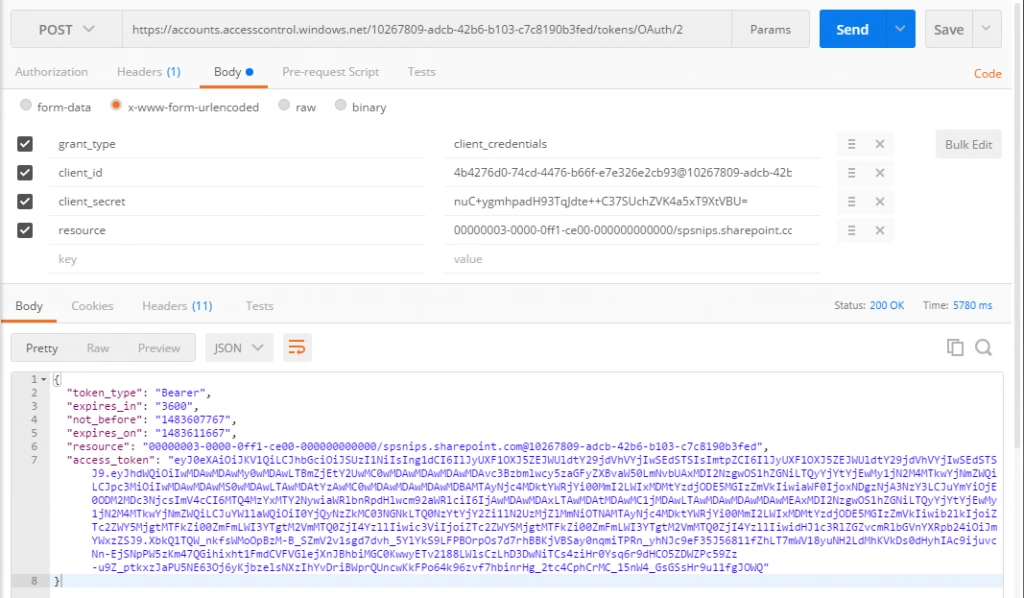
Fig 7: Postman response contains Access Token
Once we have received the access token, we get the authorization to access the SharePoint data based on the permission applied in Grant Permission as Add-In section.
We have to pass the access token as “token_type access_token”.
Access the SharePoint resource
Now we have the access token, so we can now pass this token in Authorization header with the SharePoint REST API to get the information.
- In Postman tool, add the below URL to retrieve the web title
https://<sitename>.sharepoint.com/_api/web?$select=Title
- Apply configurations in header
- Method = POST
Headers
Key Syntax Value
Accept application/json;odata=verbose application/json;odata=verbose
Authorization <token_type> <access_token> Bearer eyJ0eX….JQWQ - After applying the configuration, click Send button.
- We will get a successful response as below if the permission xml is applied correctly in the appinv page. Otherwise we will get the access denied error message.

Fig 8: Postman returns the web title in response
Conclusion
That concludes our exploration of how the Postman utility helps us to test the REST API endpoint before starting development. In the she same wa, we can retrieve or update any information from SharePoint supported by SharePoint REST API endpoints.
Akshat SaxenaPosted Feb 25, 2021, 11:33 AM
I am using a 3rd party tool to create a workflow. From there, I am trying to access SharePoint Online using 'Call a Web Service Action'. If I pass my access_token as a text in Request Header, will my REST API call work every time or would the access_token expire after some time?