

Introduction
In this blog, we will discuss how to create a button to show and hide passwords using jQuery in ASP.NET.
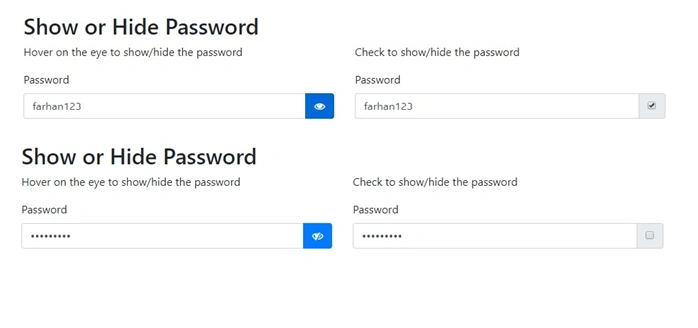
By clicking the checkbox or hovering the mouse on the icon, we can make the password visible.
Step 1
Create a new project in the Visual Studio version of your choice with an empty template. Give it a meaningful name.
Step 2
Add a web form to your project. Right-click and choose a new item, select web form, and give it a name.
Step 3
Add jQuery, bootstrap, and fa icon cdn links to the head section.
- <link rel="stylesheet" href="https://cdnjs.cloudflare.com/ajax/libs/font-awesome/4.7.0/css/font-awesome.min.css">
- <link rel="stylesheet" href="https://maxcdn.bootstrapcdn.com/bootstrap/4.0.0/css/bootstrap.min.css">
- <script src="https://ajax.googleapis.com/ajax/libs/jquery/3.3.1/jquery.min.js"></script>
Step 4
Write JavaScript and function to hide and show the password.
- <script type="text/javascript">
- $(document).ready(function () {
- $('#show_password').hover(function show() {
- //Change the attribute to text
- $('#txtPassword').attr('type', 'text');
- $('.icon').removeClass('fa fa-eye-slash').addClass('fa fa-eye');
- },
- function () {
- //Change the attribute back to password
- $('#txtPassword').attr('type', 'password');
- $('.icon').removeClass('fa fa-eye').addClass('fa fa-eye-slash');
- });
- //CheckBox Show Password
- $('#ShowPassword').click(function () {
- $('#Password').attr('type', $(this).is(':checked') ? 'text' : 'password');
- });
- });
- </script>
Step 5
Design HTML by dragging and dropping textbox control, checkbox control, and button control as given below.
- <body>
- <form id="form1" runat="server">
- <div class="container">
- <h2>Show or Hide Password</h2>
- <div class="row">
- <div class="col-md-6">
- <p>Hover on the eye to show/hide the password</p>
- <label>Password</label>
- <div class="input-group">
- <asp:TextBox ID="txtPassword" TextMode="Password" runat="server" CssClass="form-control"></asp:TextBox>
- <div class="input-group-append">
- <button id="show_password" class="btn btn-primary" type="button">
- <span class="fa fa-eye-slash icon"></span>
- </button>
- </div>
- </div>
- </div>
- <div class="col-md-6">
- <p>Check to show/hide the password</p>
- <label>Password</label>
- <div class="input-group">
- <asp:TextBox ID="Password" TextMode="Password" runat="server" CssClass="form-control"></asp:TextBox>
- <div class="input-group-append">
- <span class="input-group-text">
- <asp:CheckBox ID="ShowPassword" runat="server" CssClass="checkbox" />
- </span>
- </div>
- </div>
- </div>
- </div>
- </div>
- </form>
- </body>
SahilPosted Jan 25, 2023, 6:35 AM
Can we do this using C#?
Sagar Pandurang KapPosted Mar 16, 2018, 5:08 AM
Helpful.Thank you.......