
Restoring a database in Microsoft SQL Server is usually a straightforward process. However, in real-world environments, DBAs often encounter situations where the restore process gets stuck, hangs indefinitely, or progresses extremely slowly.
This issue can disrupt business operations, delay recovery objectives (RTO), and create uncertainty about database integrity. Understanding the underlying causes is essential for accurate diagnosis and faster resolution.
Common Symptoms of a Stuck SQL Server Restore
Before diving into causes, here are typical indicators:
Restore progress remains frozen at a specific percentage
No change in estimated completion time
High wait times (e.g., WAITTYPE like ASYNC_IO_COMPLETION)
Disk or CPU usage behaving abnormally (either too high or near zero)
Restore session remains active but unresponsive
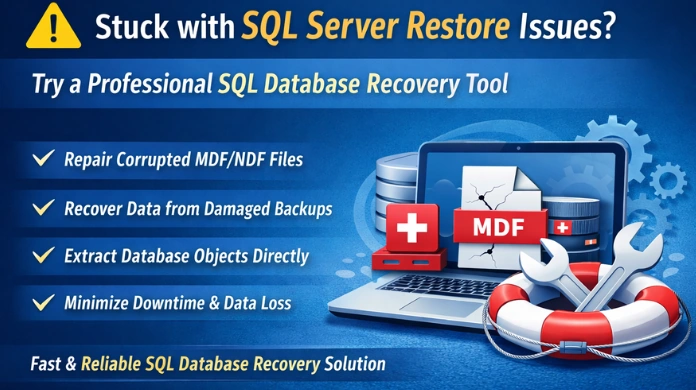
Quick Suggestion: Use a Professional SQL Recovery Tool for Faster Resolution
If your SQL Server restore process is stuck due to corruption, damaged backup files, or internal inconsistencies, manual troubleshooting may not always resolve the issue effectively. In such cases, using a reliable solution like SysTools SQL Database Recovery Tool can help restore accessibility without delays.
A professional solution like a SQL Database Recovery Tool can:
Repair corrupted MDF/NDF files
Recover data from inaccessible or damaged backups
Bypass restore failures and extract database objects directly
Support large databases without performance degradation
Minimize downtime during critical recovery scenarios
This approach is especially useful when native restore methods in Microsoft SQL Server fail or hang repeatedly.
Possible Underlying Causes
Storage & Disk Issues
Slow disk I/O throughput
High disk latency
Overloaded storage subsystem
Backup file on slow media (external drive / network share)
Insufficient disk space
Disk fragmentation
Backup File Issues
Corrupt or damaged backup file
Incomplete backup
Backup created with errors
Compressed/encrypted backup overhead
Backup stored on unstable storage
Transaction Log Related Causes
Large transaction log replay
Long-running transactions at backup time
Uncommitted transactions
Excessive Virtual Log Files (VLF fragmentation)
Heavy bulk operations before backup
File Growth & Configuration Issues
Frequent autogrowth events
Small initial database file size
Slow file initialization
Instant File Initialization disabled
Misconfigured file sizes
SQL Server Restore Stuck or Hanging – Troubleshooting Commands
1. Check Restore Progress
SELECT percent_complete, estimated_completion_time, status
FROM sys.dm_exec_requests
WHERE command LIKE 'RESTORE%';
2. Identify Wait Types
SELECT wait_type, wait_time, blocking_session_id
FROM sys.dm_exec_requests
WHERE command LIKE 'RESTORE%';
3. Monitor Disk Performance
Check disk latency and throughput
Move backup files to faster storage (SSD/local disk)
Ensure sufficient free disk space
4. Verify Backup Integrity
Run:
RESTORE VERIFYONLY FROM DISK = 'backup.bak';5. Optimize File Growth Settings
Pre-size MDF and LDF files before restore
Avoid frequent autogrowth
Enable Instant File Initialization (IFI)
6. Monitor System Resource Usage
Use Task Manager / Performance Monitor
Check CPU, RAM, and disk usage
Resolve bottlenecks accordingly
Best Practices to Prevent Restore Hanging
Store backups on high-speed storage (SSD preferred)
Pre-size database files to avoid autogrowth
Validate backups using RESTORE VERIFYONLY
Maintain healthy transaction logs
Isolate restore operations from heavy workloads
Disable antivirus scanning on database directories
Ensure proper backup chain management
Monitor disk and network performance proactively
Conclusion
A stuck restore in Microsoft SQL Server is rarely a random issue—it is typically the result of environmental constraints, resource bottlenecks, or backup-related inconsistencies.
By understanding these underlying causes and applying proactive best practices, database administrators can significantly reduce restore time, avoid unexpected delays, and ensure reliable disaster recovery operations.
Join the conversation! Your thoughts help the community grow.