

Step 1: Create new windows application.
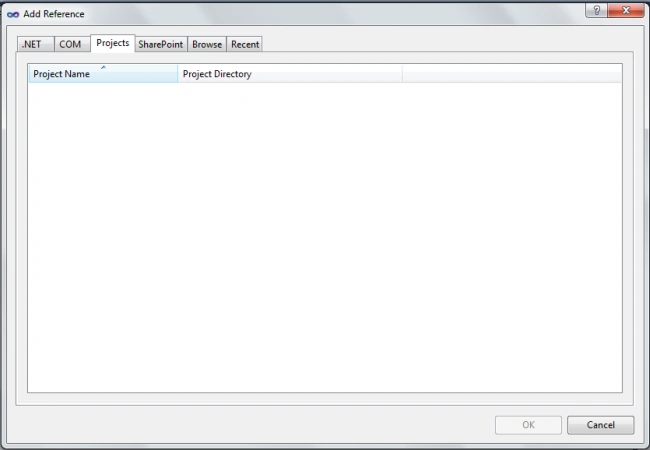
Step 2: In Solution Explorer right click on References and select Add References. Then Add Reference form will open as below.
Step 3: Then select Browse tab and locate folder "C:\Program Files\Microsoft SQL Server\100\SDK\Assemblies” as follows.
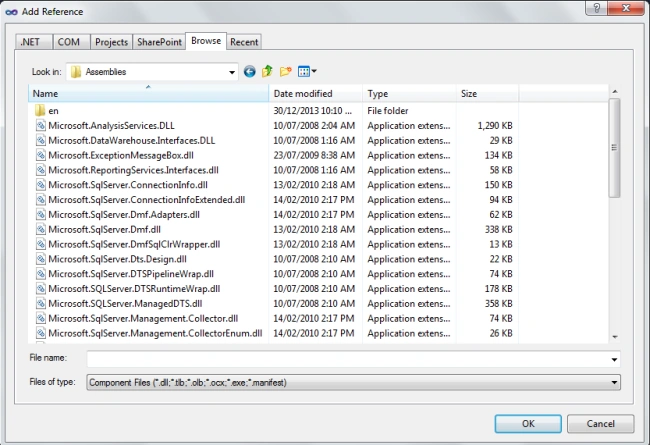
Step 4: Then select following references and add it to project. 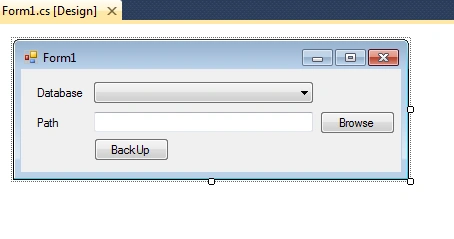
Step 6: Drag drop folderBrowserDialog on form. 
Microsoft.SqlServer.ConnectionInfo
Microsoft.SqlServer.Management.Sdk.Sfc
Microsoft.SqlServer.Smo
Microsoft.SqlServer.SmoExtended
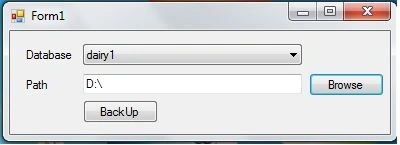
Step 5: Design windows form as follows.
Step 6: Drag drop folderBrowserDialog on form.
Step 7: Write following code.
using System.ComponentModel;
using System.Data;
using System.Drawing;
using System.Linq;
using System.Text;
using System.Windows.Forms;
using Microsoft.SqlServer.Management.Smo;
using Microsoft.SqlServer.Management.Common;
public partial class Form1 : Form
{
ServerConnection conn;
public Form1()
{
InitializeComponent();
}
ServerConnection srvConn = new ServerConnection("localhost");
srvConn.LoginSecure = true;
srvr = new Server(srvConn);
foreach (Database dbServer in srvr.Databases)
{
cmbDataBase.Items.Add(dbServer.Name);
}
}
FolderBrowserDialog folderBrowserDlg = new FolderBrowserDialog();
folderBrowserDlg.ShowNewFolderButton = false;
DialogResult dlgResult = folderBrowserDlg.ShowDialog();
if (dlgResult.Equals(DialogResult.OK))
{
txtPath.Text = folderBrowserDlg.SelectedPath;
Environment.SpecialFolder rootFolder = folderBrowserDlg.RootFolder;
}
}
Backup bkp = new Backup();
conn = new ServerConnection();
srvr = new Server(conn);
try
{
string databaseName = cmbDataBase.Text;
bkp.Action = BackupActionType.Database;
bkp.Database = databaseName;
string path;
if (!(txtPath.Text.EndsWith("\\")))
{
path = txtPath.Text + "\\";
}
else
{
path = txtPath.Text;
}
bkp.Incremental = false;
bkp.SqlBackup(srvr);
MessageBox.Show("Database Backup created successfully");
}
catch (Exception ex)
{
MessageBox.Show(ex.ToString());
}
}
}
}
using System;
using System.Collections.Generic;using System.ComponentModel;
using System.Data;
using System.Drawing;
using System.Linq;
using System.Text;
using System.Windows.Forms;
using Microsoft.SqlServer.Management.Smo;
using Microsoft.SqlServer.Management.Common;
namespace DBBackup
{public partial class Form1 : Form
{
DataTable dtServers = SmoApplication.EnumAvailableSqlServers(true);
private static Server srvr;ServerConnection conn;
public Form1()
{
InitializeComponent();
}
private void Form1_Load(object sender, EventArgs e)
{ServerConnection srvConn = new ServerConnection("localhost");
srvConn.LoginSecure = true;
srvr = new Server(srvConn);
foreach (Database dbServer in srvr.Databases)
{
cmbDataBase.Items.Add(dbServer.Name);
}
}
private void btnBrowse_Click(object sender, EventArgs e)
{FolderBrowserDialog folderBrowserDlg = new FolderBrowserDialog();
folderBrowserDlg.ShowNewFolderButton = false;
DialogResult dlgResult = folderBrowserDlg.ShowDialog();
if (dlgResult.Equals(DialogResult.OK))
{
txtPath.Text = folderBrowserDlg.SelectedPath;
Environment.SpecialFolder rootFolder = folderBrowserDlg.RootFolder;
}
}
private void txtBackup_Click(object sender, EventArgs e)
{Backup bkp = new Backup();
conn = new ServerConnection();
srvr = new Server(conn);
try
{
string databaseName = cmbDataBase.Text;
bkp.Action = BackupActionType.Database;
bkp.Database = databaseName;
string path;
if (!(txtPath.Text.EndsWith("\\")))
{
path = txtPath.Text + "\\";
}
else
{
path = txtPath.Text;
}
BackupDeviceItem bkpDevice = new BackupDeviceItem(path + databaseName + ".bak", DeviceType.File);
bkp.Devices.Add(bkpDevice);bkp.Incremental = false;
bkp.SqlBackup(srvr);
MessageBox.Show("Database Backup created successfully");
}
catch (Exception ex)
{
MessageBox.Show(ex.ToString());
}
}
}
}
Step 8: Run application.
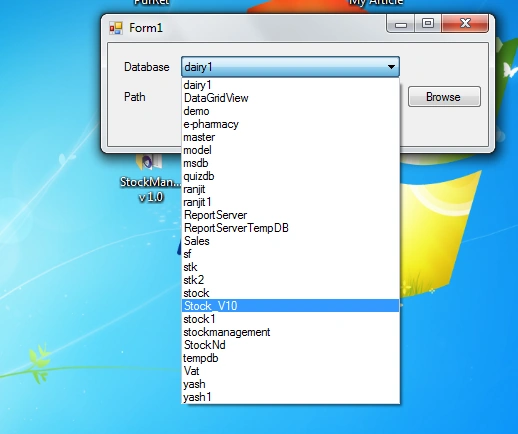
Step 9: Select Database to backup.
Step 10: Select location to store backup file through browse option.
Step 11: Click on Backup.
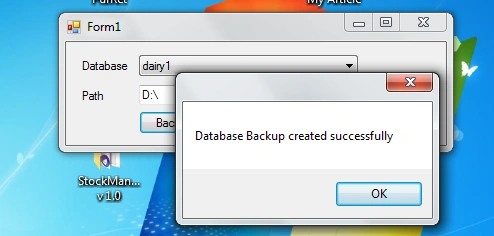
Step 12: Backup file will be stored in specified path.
Join the conversation! Your thoughts help the community grow.