

In this blog, I am going to share all properties of checkbox and radio button. We will change the attribute of both controls using jQuery.
Step 1
Create one web application.
Step 2
Add one web page to write the code.
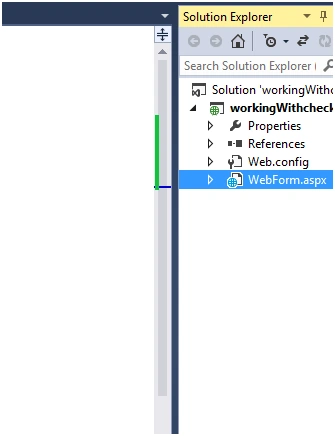
Figure:1 (Added web page)
Step 3
Write the below code to create checkbox, radio button, and a button control.
- <label id="firstCheckbox"> <input type="checkbox" id="chkIsPassed" />Books</label>
- <label id="firstRadioButton"><input type="radio" name="gender" id="rdoMale" />Male </label>
- <label id="secondRadioButton"><input type="radio" name="gender" id="rdoFemale" />Female </label>
- <input type="button" id="btnClick" value="Click Me" />
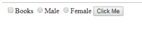
Figure:2 (Layout of webpage)
Step 4
By default, all radion and checkbox are unchecked. To make them checked, set the property checked to "checked".
- <label id="firstCheckbox"> <input type="checkbox" checked="checked" id="chkIsPassed" />Books</label>
Step 5
Add the following jQuery script inside the head section.
- <script src="https://ajax.aspnetcdn.com/ajax/jQuery/jquery-3.2.1.min.js"></script>
Now, it is time to write the jQuery code to check and set the properties of controls. I am writing all jQuery code on the button click event.
How to check if a checkbox is checked or not on button click event -
- <script type="text/javascript">
- $(document).ready(function() {
- $("#btnClick").click(function() {
- var isChecked = $("#chkIsPassed").prop("checked") //returns bool value ,true if checkbox is checked otherwise false
- alert(isChecked);
- });
- });
- </script>
How to check if the radion button is checked or not -
Join the conversation! Your thoughts help the community grow.