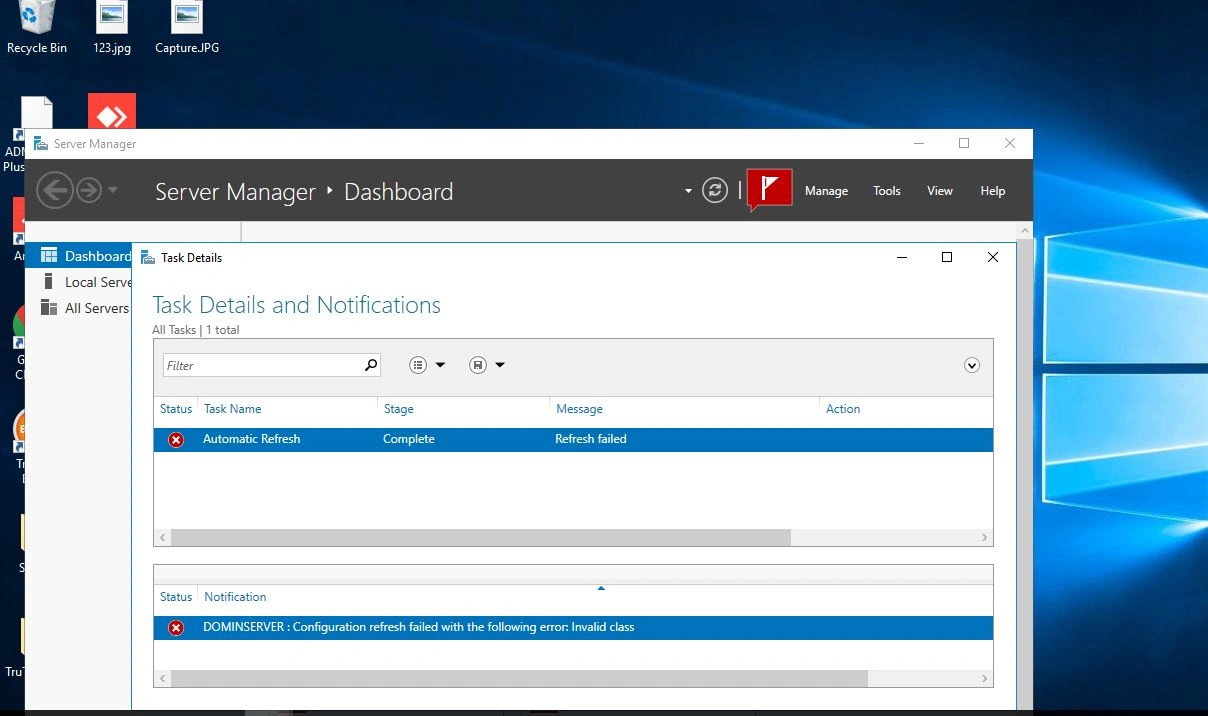
Automatic Refresh Failed issue in Server Manager in Win Server 2012 r2
Know the answer? Post it — somebody with the same question will find it here.
Sign in to answer this question
It is the same account you read, post and publish with — and you will come straight back to this page.
Tuhin PaulPosted Mar 11, 2024, 10:49 AM
You can also
Corrupted WMI files can cause refresh issues. Here's how to repair them:
cd C:\Windows\System32.for /f %s in ('dir /b *.mof *.mfl') do mofcomp %sand press Enter. This command attempts to repair corrupt .mof and .mfl files.Tuhin PaulPosted Mar 11, 2024, 10:48 AM
The Microsoft Management Console (MMC) cache can sometimes become corrupted. Clearing it might resolve the issue.
%appdata%\Microsoft\MMCand press Enter.jignesh patelPosted Oct 30, 2023, 5:42 AM
sorry but this answer is not sufficient
Tahir AnsariPosted Oct 27, 2023, 1:22 PM
Check Network Connectivity: Ensure that the server has a stable network connection. The "Automatic Refresh Failed" error can occur if Server Manager is unable to connect to the necessary resources or remote servers.
Restart Server Manager: Try restarting the Server Manager application. Sometimes, simply closing and reopening Server Manager can resolve the issue.
Check Windows Update Service: Make sure that the Windows Update service is running. Server Manager often relies on this service for updates and management tasks. You can check the service's status in the "Services" application.
Check for Windows Updates: Ensure that your server is up to date with the latest Windows updates. Installing pending updates may resolve issues with Server Manager. Use the "Windows Update" feature to check for and install updates.
Check Event Viewer: Look for error messages or warnings related to Server Manager in the Windows Event Viewer. These messages might provide additional information about the cause of the problem.
Check Firewall Settings: Ensure that the Windows Firewall or any third-party firewall software is not blocking Server Manager's access to the internet or other servers. You may need to configure firewall rules accordingly.
Check Proxy Settings: If your server is behind a proxy server, ensure that the proxy settings are correctly configured in Windows.
Review Network Configuration: Double-check the server's network configuration, including DNS settings, to make sure it can resolve names and connect to remote resources.
Check for Pending Tasks: Review any pending tasks or configuration changes in Server Manager. Sometimes, a task might be stuck or incomplete, causing issues with the automatic refresh.
Reboot the Server: If all else fails, consider rebooting the server. This can resolve various issues, including those related to Server Manager.
Test on a Different User Account: Try using a different user account to see if the issue is specific to your user profile. This can help determine if the problem is related to the user's settings.
Check for Third-Party Software Conflicts: Some third-party software or security applications can interfere with Server Manager. Temporarily disable or uninstall any such applications to check if they are causing the issue.